

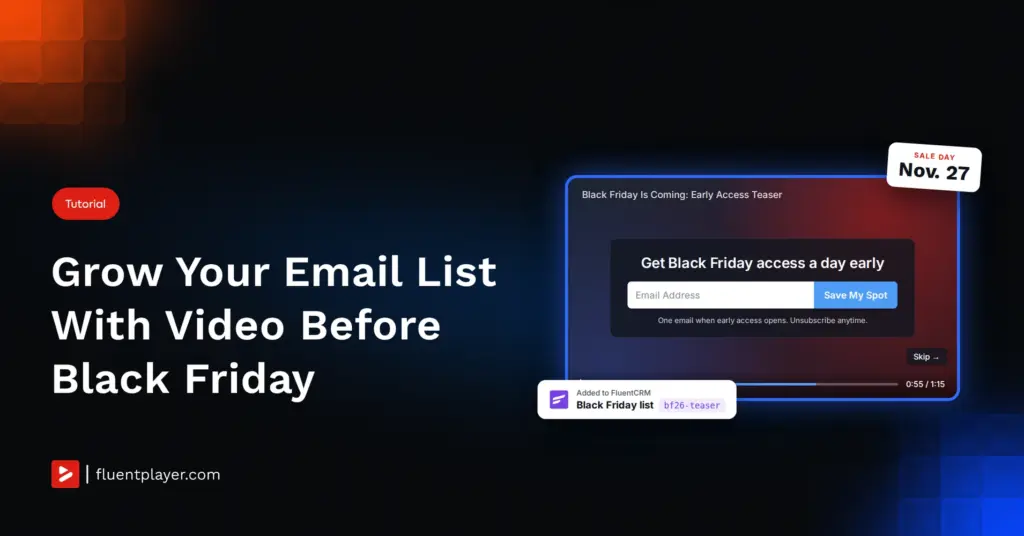
It’s November 20. The Black Friday email is written, the discount code works, and the send is scheduled. Then you open FluentCRM and check the list. It’s the same size it was in September.
The standard advice to grow your email list is a popup. Attentive reports that 72% of shoppers say popups appear before they’re ready to subscribe. The ask arrives before the reason does.
A popup interrupts a visitor who hasn’t decided to care yet. A viewer who pressed play on your product demo already has. An email capture layer inside the video asks after that choice, not before it.
On November 27, your sale email reaches the people on your list by then. Nobody else. Every viewer who watched in October and left without subscribing is someone you can’t email.
So the work starts now, seven weeks out. First, why in-video signups work before Black Friday. Then six placements you can build this week.
TL;DR
- Six video placements that grow your email list before Black Friday, starting with a teaser that offers early access
- The email capture layer and the Fluent Forms layer are both free and send contacts to FluentCRM with a list and tag
- A double opt-in toggle on each layer decides whether signups land as Subscribed or Pending
- One tag scheme and one welcome automation turn every signup into a Black Friday segment
- FluentPlayer Pro adds a CTA layer that sends viewers to the deal once the sale opens
Why In-Video Signups Work Before Black Friday
An in-video signup asks for an email after someone chooses to watch, not before they’ve decided your page deserves their time.
Wistia’s 2026 State of Video Report found about one in five viewers fill out a form when it appears inside a video. Placement moves that number most. Ask too early and the response can fall to 5%. Wistia’s own summary: “Usually, the best spot is the end of the video.”
The video type sets a ceiling too. Wistia puts original series at 30%, on-demand webinars at 25%, and sales videos at 20%. Testimonials and product explainers land at 17%. A Black Friday teaser behaves most like a sales video, so plan around that range.
These are averages across Wistia’s own customers, not a forecast for your store. Treat them as direction, and trust the number your own teaser produces in its first two weeks. The page around the video matters too, as covered in how to build a video experience that converts on WordPress.
Timing matters as much as placement. Attentive’s 2026 shopper research says 46% of shoppers start holiday shopping before November. Omnisend advises growing your list through October and teasing offers about a week before the sale. Seven weeks is the entire window, not an early start.
1. Put an Early-Access Signup Inside a Black Friday Teaser
A 60-to-90-second teaser that promises early access to your Black Friday deal gives viewers a reason to subscribe today instead of waiting for the sale.
The teaser names what’s coming, when, and what early access gets the viewer. That could be a day’s head start, first pick of limited stock, or a bonus with the order. Keep the discount itself for the sale. For length, see when short-form video does the job.
The script needs one clear promise and an ending worth reaching, since the form appears near the end. For hooks and pacing, see making a teaser people finish. Whatever the form’s small print promises, your later emails have to deliver.
Set up the capture layer
Install FluentPlayer free from WordPress.org if it isn’t installed yet. The email capture layer and the FluentCRM connection both work on the free plan. Once it’s active, go to FluentPlayer → Media and open your teaser. In the Interactive Layers panel, click + Add Layer and choose Email Capture.
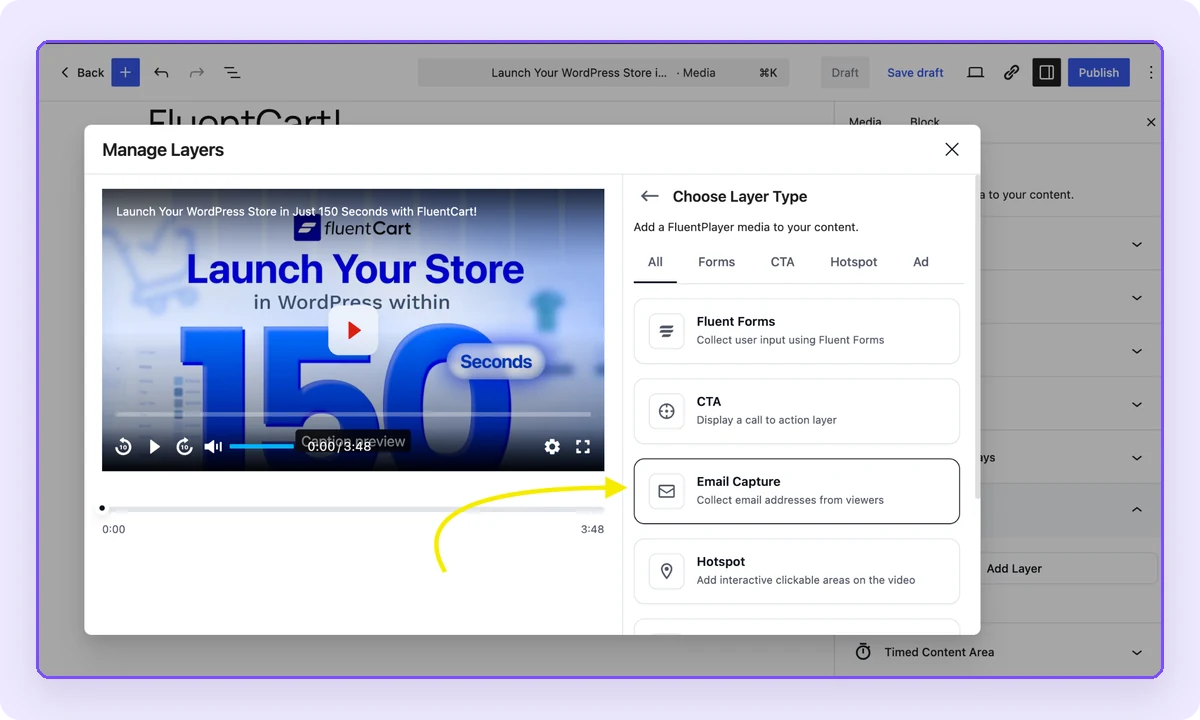
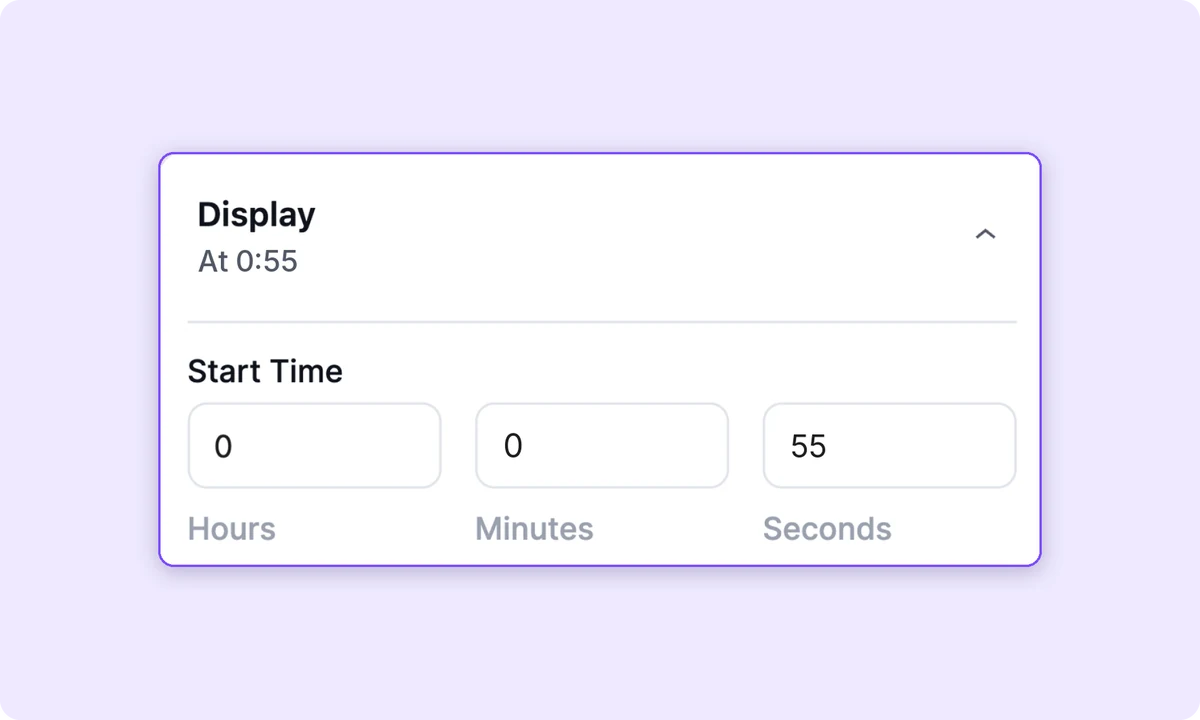
The Manage Layers window opens with a live preview on the left and settings on the right. Start with Display. Set the Start Time near the end of the teaser, then scrub the preview to confirm the form appears where you expect it.
Next, open Email Providers, click + Add Provider, and select FluentCRM. Pick the Black Friday 2026 Early Access list and add the bf26-teaser tag. The same panel holds the Enable double opt-in toggle, covered in the FluentCRM section below. Click Add to attach the provider.
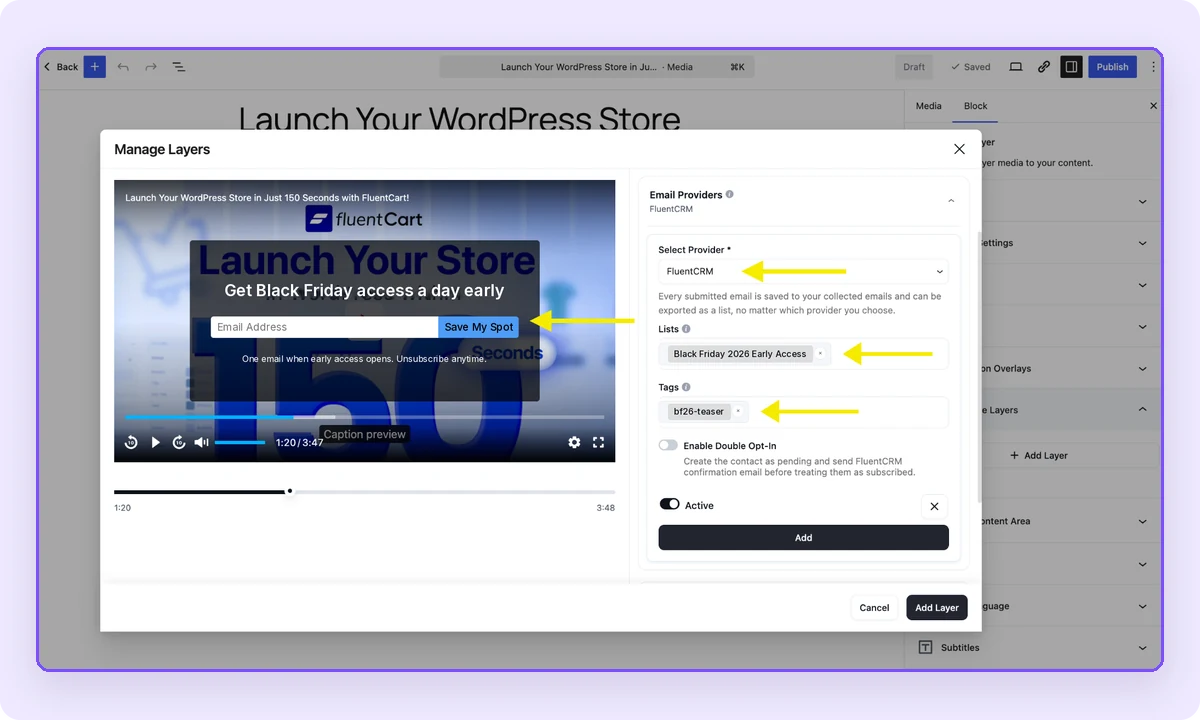
Under Content, write the Headline, Button Text, and Bottom Text viewers will see. Under Controls, leave Allow Skipping on. Click Add Layer, then Save the media item. Open the page with the teaser and play it through once to confirm the form appears.
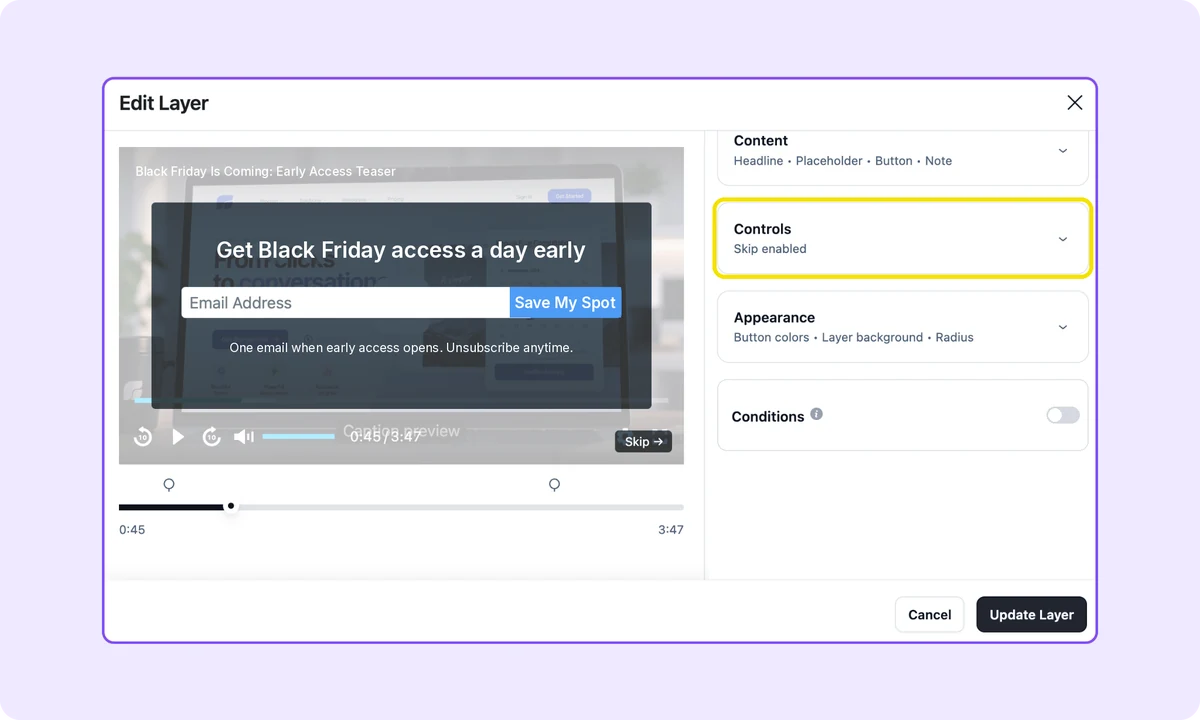
Here’s the setup for a 75-second teaser:
- Start Time: 0h 0m 55s
- Allow Skipping: On
- Headline: Get Black Friday access a day early
- Button Text: Save My Spot
- Bottom Text: One email when early access opens. Unsubscribe anytime.
- FluentCRM list: Black Friday 2026 Early Access
- Tag: bf26-teaser
Skipping stays on because a teaser reaches first-time visitors. Wistia’s advice fits here. “If you want to capture only the most engaged viewers, let them skip.” A soft ask collects fewer emails, and each one came by choice. The full settings are in the email capture overlay docs.
2. Gate the Second Half of Your Best Preview
A hard gate on your strongest preview trades the second half of the video for an email, and nobody sees the rest without one.
Pick a video already doing work: a free lesson preview, a full product walkthrough, a tutorial people bookmark. Place the email capture layer at the halfway point and turn Allow Skipping off. The first half proves the value. The second half is the reason to subscribe.
Wistia states the other side plainly. “If you want to collect as many email addresses as possible, make ’em fill it out before they can watch the rest.” A hard gate raises volume. It also admits viewers who wanted the ending more than your emails, so expect more unsubscribes after the sale.
Course sellers already run a version of this. Turning a free lesson into an enrollment funnel covers the lesson side. Here, the gate feeds your Black Friday list instead of a course enrollment, and the preview keeps collecting emails after November.
Don’t gate the video on your product or sales page. A shopper who came to see the product working would have to hand over an email first. Some will leave instead. Gate a preview or a tutorial, never the video that closes the sale.
Here’s the setup for an 8-minute lesson preview:
- Start Time: 0h 4m 0s
- Allow Skipping: Off
- Headline: Enter your email to watch the rest
- Button Text: Keep Watching
- Bottom Text: You’ll also get early access to our Black Friday sale.
- FluentCRM list: Black Friday 2026 Early Access
- Tag: bf26-gated
3. Ask What Viewers Want on Sale With a Fluent Forms Layer
A Fluent Forms layer collects an email plus one answer, so your Black Friday email can lead with the product each subscriber said they want.
Build the form in Fluent Forms first: an email field and one dropdown asking “What are you waiting for on Black Friday?” Give it three to five options from your catalog. Then click + Add Layer → Fluent Forms, set a Start Time, and pick the form under Select Form.
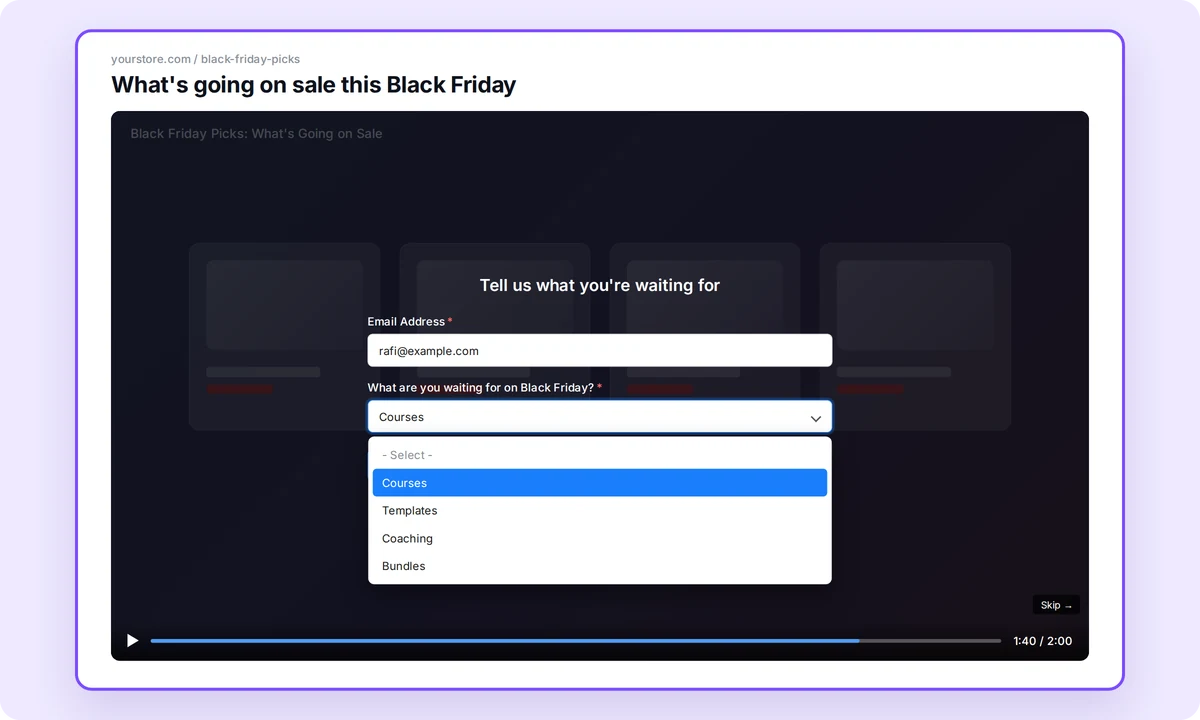
The layer fills 90% of the player by default, which fits desktop and mobile. Keep the Skip button enabled, since two fields ask more than one. Submissions land in Fluent Forms → Entries like any other form. The Fluent Forms layer docs cover layout and skip settings.
Routing to FluentCRM happens in the form’s own FluentCRM integration feed. Pick the Black Friday 2026 Early Access list and turn on Enable Dynamic Tag Selection. Add one condition per answer, so “Courses” adds bf26-wants-courses. Match the feed’s Enable Double Opt-In for New Contact setting to your capture layers.
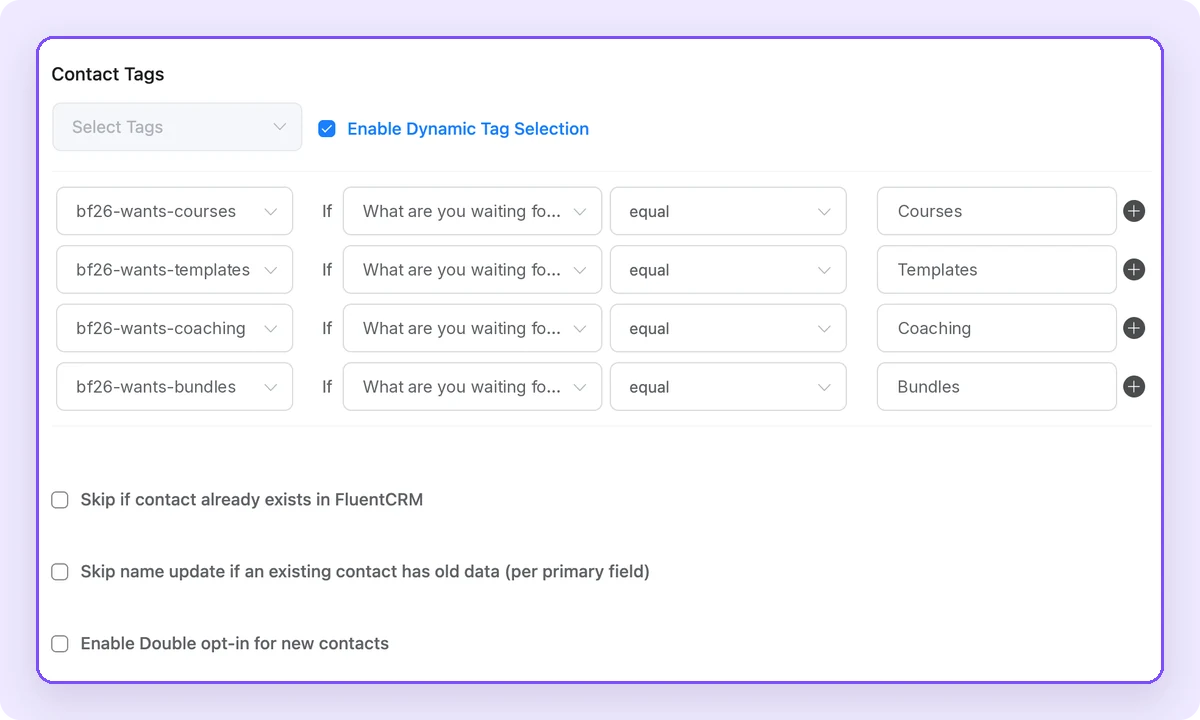
Treat the answer as a stated interest and use it to pick which product leads each subscriber’s email. Someone who picks Courses may still wait for a better price or skip the sale entirely, so keep revenue forecasts tied to your sales data.
For more formats, see the other lead capture methods inside a video.
Here’s the setup for a 2-minute product roundup:
- Start Time: 0h 1m 40s
- Skip button: Enabled
- Form: email plus “What are you waiting for on Black Friday?” dropdown
- FluentCRM feed list: Black Friday 2026 Early Access
- Tags: bf26-wants-{category}, set with Enable Dynamic Tag Selection
4. Add a Signup to the Videos That Already Get Traffic
Videos that already get traffic need no promotion, so a capture layer on them starts collecting emails the day you add it.
Find them in GA4 under Reports → Engagement → Pages and screens, sorted by views. Keep the pages with a video and take the top three to five. Search Console’s Pages report works too. These pages have visitors now, and they keep getting them through November.
Many of those videos are plain YouTube embeds. Paste the same YouTube URL into FluentPlayer, a free source, and the layers work on top of it. Moving existing YouTube embeds into one player covers the swap. If speed worries you, read keeping high-traffic pages fast with video.
The ask on these pages differs from the teaser. The viewer came for the tutorial, not a sale, so connect the two in the headline. Place the layer near the end, after the video has delivered what the viewer came for. The early-access offer then reads as a next step.
Here’s the setup for an existing tutorial:
- Start Time: about 30 seconds before the end
- Allow Skipping: On
- Headline: Liked this? Get Black Friday early access.
- Button Text: Count Me In
- FluentCRM list: Black Friday 2026 Early Access
- Tag: bf26-retrofit
5. Offer a Bonus to Viewers Who Finish
A capture layer in a video’s final seconds reaches only the viewers who watched to the end, and a bonus tied to that video gives them a reason to subscribe.
Wistia’s placement data backs the end of long content. On videos over an hour, forms in the fourth quarter converted 75% of viewers. On 5-to-30-minute videos, forms in the first, second, and fourth quarters reached 54%. A final-seconds question fits webinars, workshops, and long tutorials best.
Watching to the end shows attention, and the bf26-finisher tag records where that viewer signed up. Buying intent comes later, if at all, so their first email should deliver the bonus they asked for before any sale message reaches them.
Finishing a video tells you someone watched to the end. It does not tell you they’re ready to buy. The bf26-finisher tag records where they signed up, not buyer readiness, so their first email should deliver the bonus before any sale message.
Here’s the setup for a 40-minute workshop replay:
- Start Time: 0h 39m 50s
- Allow Skipping: On
- Headline: Want the checklist from this workshop?
- Button Text: Send It to Me
- FluentCRM list: Black Friday 2026 Early Access
- Tag: bf26-finisher
6. Give the Teaser Its Own Shareable Page
Every FluentPlayer video has a free standalone page, so you can share one link that opens straight to the teaser and its signup.
The page lives at an address like yoursite.com/fluent-player-media/black-friday-teaser/ and shows the player under a small header. The capture layer runs there the same as in a post. The dedicated player URL docs show where to find it. Share it in your bio, posts, email signature, and community groups.
One catch: layers belong to the media item, not the page. The teaser’s layer fires with the same tag wherever it appears. To count social signups separately, duplicate the teaser as a second media item, change its tag to bf26-social, and share that copy’s page instead.
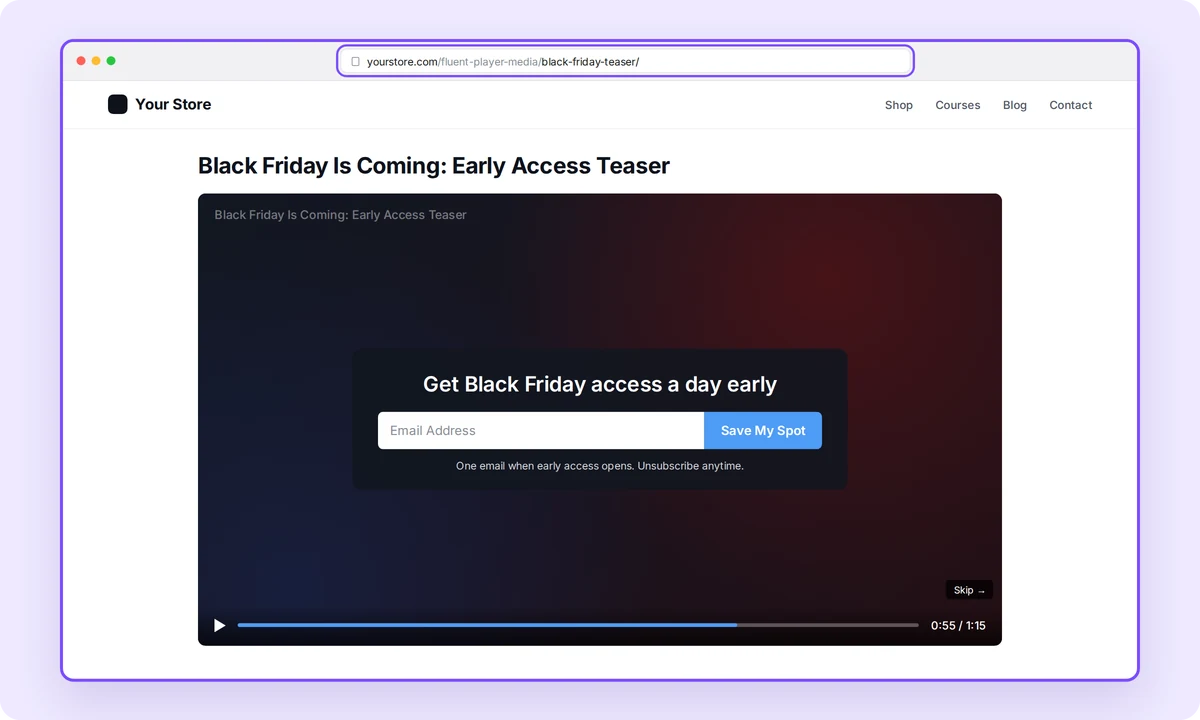
Here’s the setup for the shareable copy:
- Media item: duplicate of the Way 1 teaser
- Layer settings: identical to Way 1
- FluentCRM list: Black Friday 2026 Early Access
- Tag: bf26-social
Route Every Signup Into One Black Friday Segment in FluentCRM
Every signup belongs on one Black Friday list, with a tag recording where it came from, so one email reaches everyone and you still see which placement worked.
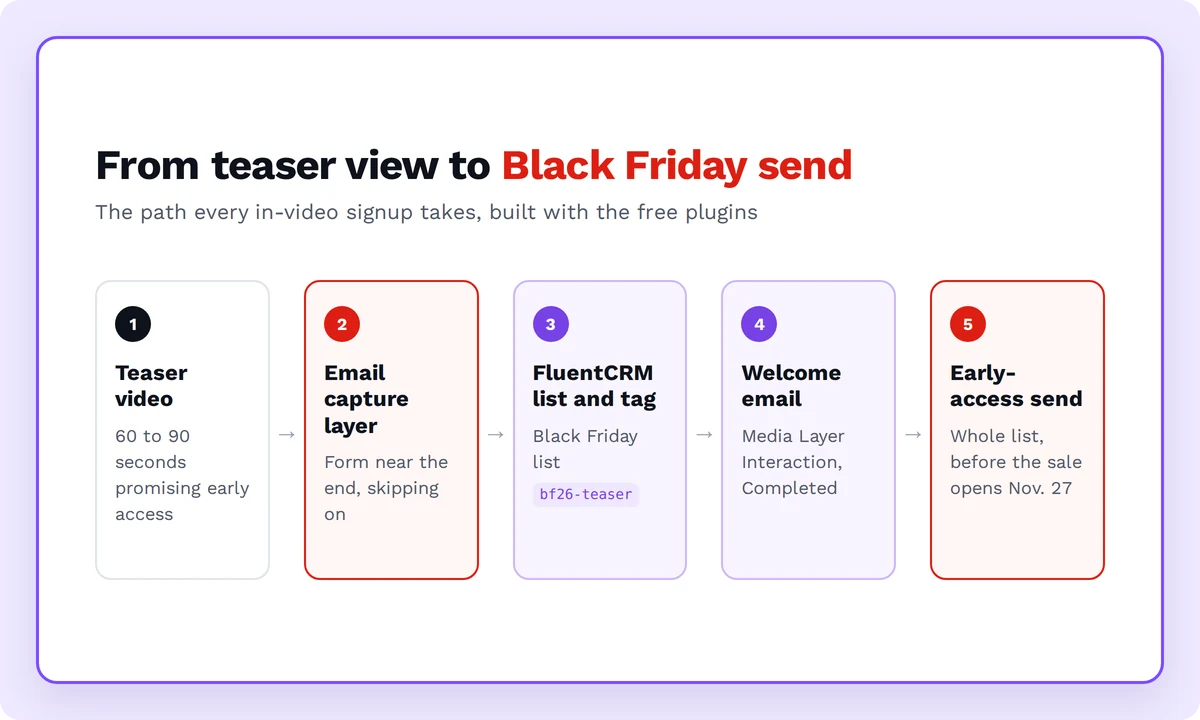
This is where email list building turns into a segment you can send to. All six placements feed one list, Black Friday 2026 Early Access, and each adds its own source tag:
| Tag | Placement | What it records |
| bf26-teaser | Way 1 | Signed up for early access from the teaser |
| bf26-gated | Way 2 | Traded an email to keep watching a preview |
| bf26-wants-{category} | Way 3 | Named the product they’re waiting for |
| bf26-retrofit | Way 4 | Signed up from an existing video |
| bf26-finisher | Way 5 | Watched to the end and took the bonus |
| bf26-social | Way 6 | Arrived from the shared teaser page |
A tag tells you where someone signed up. It does not tell you how likely they are to buy, how much they’ll spend, or whether they’ll open the email. Use tags to decide what each group hears first. Judge what worked from your sales data after November 27.
The bf26 prefix keeps this year’s signups apart from next year’s. Start 2027 with bf27, and old activity never leaks into the new list. The list name follows the same rule, so each season’s results stay readable on their own.
Decide on double opt-in before you publish
The FluentCRM provider on each capture layer has an Enable double opt-in toggle. Off, new contacts land as Subscribed right away. On, they stay Pending until they click FluentCRM’s confirmation email. Turn it on where you need explicit consent, such as for subscribers in the EU.
That choice decides how many October signups hear from you on November 27, because Pending contacts get nothing until they confirm. With the toggle off, a contact who unsubscribed earlier and submits again returns to Subscribed. The new submission is a fresh opt-in, so this is expected behavior.
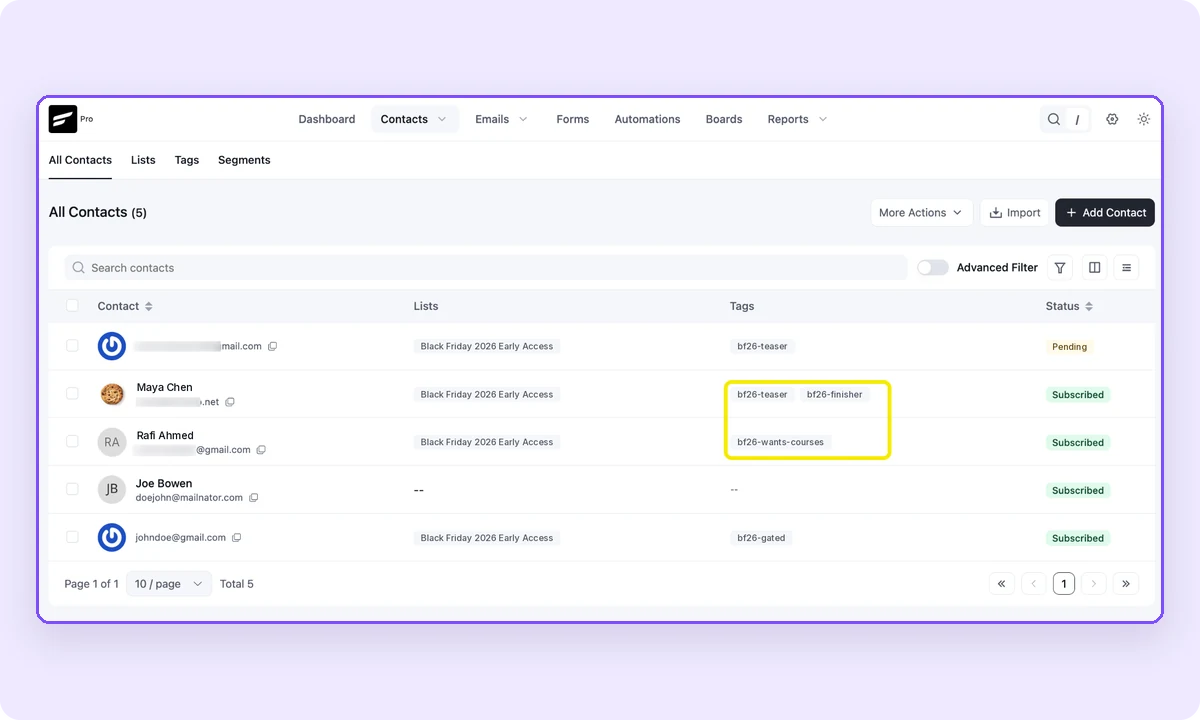
Send a welcome email when someone signs up
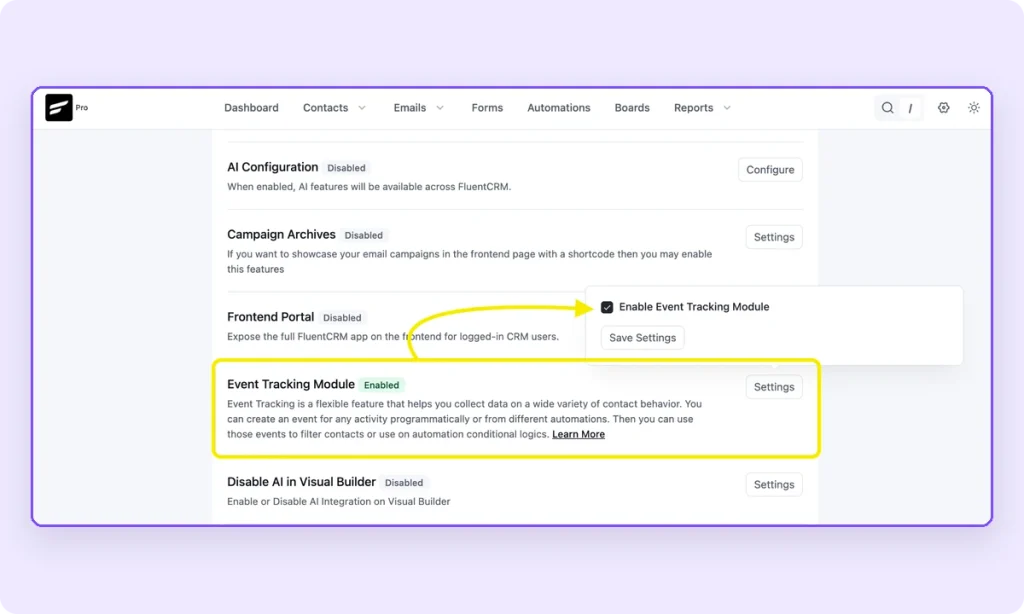
Start in FluentCRM → Addons → Event Tracking Module → Settings and enable the module. FluentPlayer’s FluentCRM docs call this the step people miss. Without it, the trigger below never sees a signup. The integration itself is free and connects automatically once both plugins are active.
Then go to FluentCRM → Automations → + New Automation, choose Fluent Player, and pick Media Layer Interaction. Set Target Layers to your capture layers and Layer Event to Completed. For an email capture or Fluent Forms layer, Completed means the form was submitted.
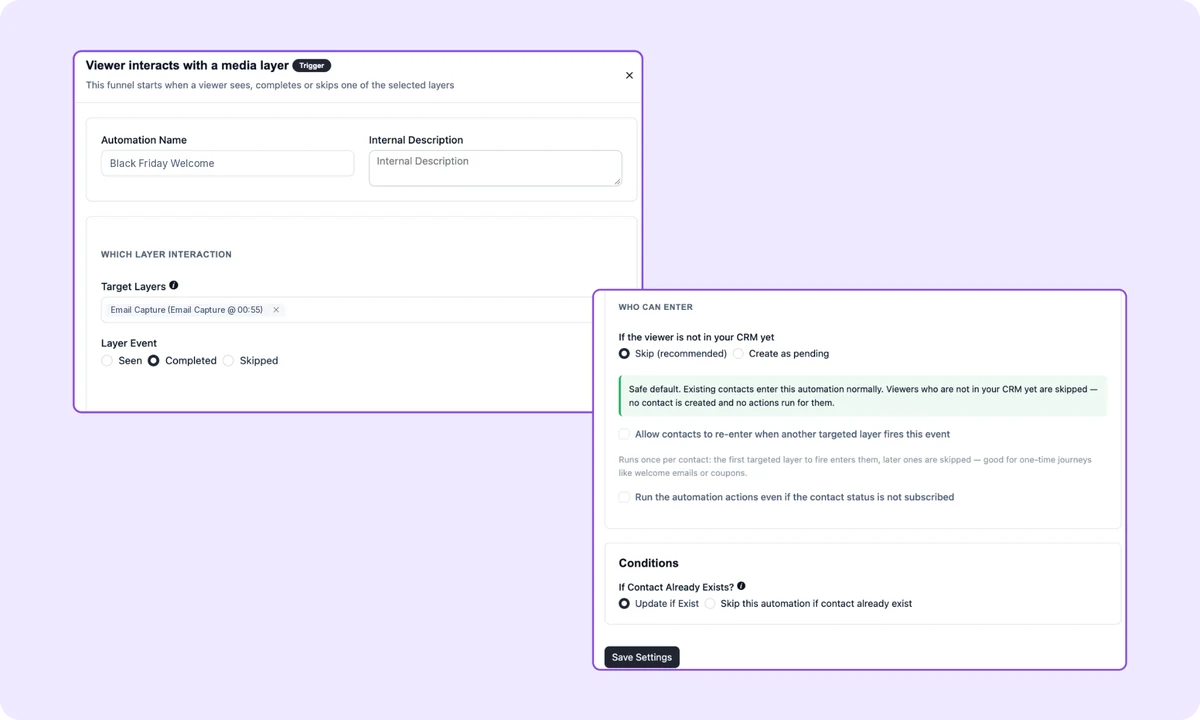
Leave two checkboxes off:
- Allow contacts to re-enter: off means someone who signs up twice gets one welcome email
- Run the automation actions even if the contact status is not subscribed: off means Pending contacts get the welcome after they confirm
The welcome email confirms what they signed up for and when early access opens. Keep it short and make no sale pitch yet. Leave the finisher layer out of this automation. Give it its own automation, so the bonus arrives in that first email.
A course works the opposite way. When re-entry should be on instead covers lessons, where each video needs its own tag. To split contacts by how much of the teaser they watched, see scoring a waitlist by watch depth.
Here’s what the full setup looks like:
- Six placements feeding one list, Black Friday 2026 Early Access
- One source tag per placement, all with the bf26 prefix
- One double opt-in rule across every layer and form feed
- Event Tracking Module enabled in FluentCRM
- One welcome automation on Media Layer Interaction, Completed, re-entry off
- One bonus automation for the finisher layer
Turn the Teaser Into a Deal Link When the Sale Opens
On November 27, your teaser should send viewers to the deal, and that takes the CTA layer in FluentPlayer Pro.
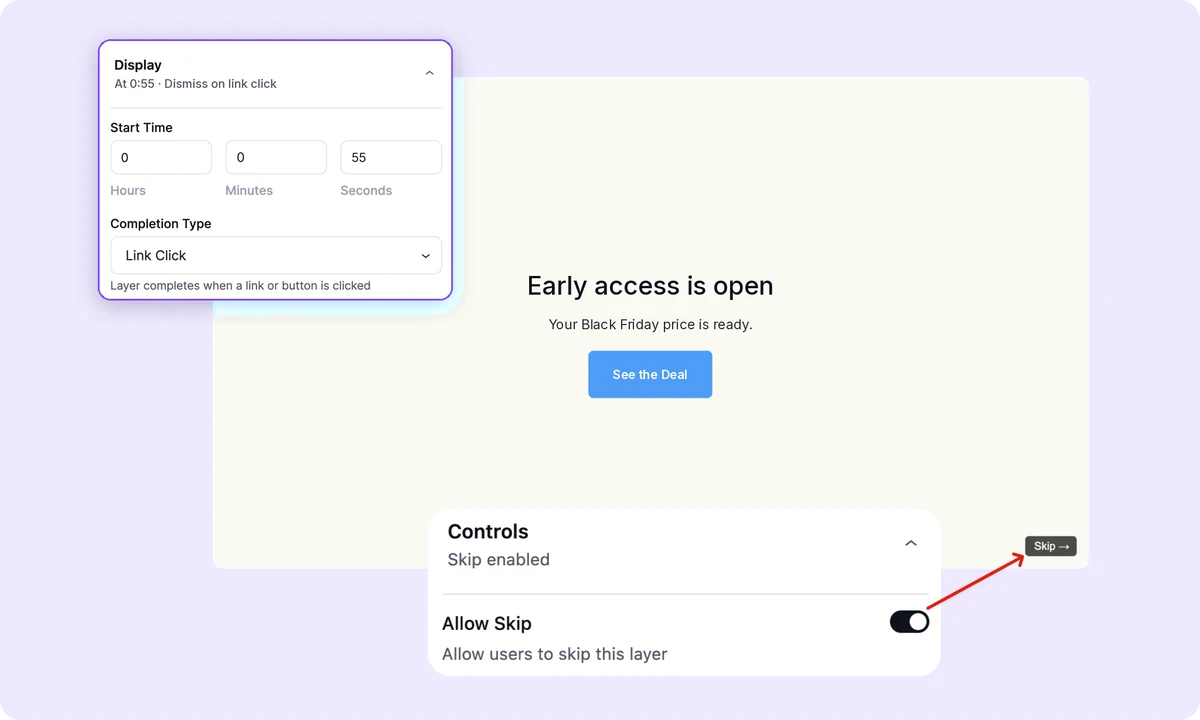
The free layers collect an email and stop there, with no button to your offer. The CTA layer pauses the video over content you design, including a button to any URL. With Completion Type set to Link Click, it stays until the viewer clicks or skips. The CTA layer docs list every option.
Pro also adds Conditions. Show the CTA to viewers with a bf26 tag and keep the capture layer for everyone else. That is the conditional conversion gap in practice. Conditions recognize viewers who are logged in or already identified by FluentCRM, so anonymous visitors see the default layer.
Here’s the sale-day setup on the teaser:
- Start Time: 0h 0m 55s
- Completion Type: Link Click
- Allow Skip: On
- Content: heading “Early access is open,” button “See the Deal” linked to your sale page
- Conditions: Any, Viewer has CRM tag, your bf26 tags
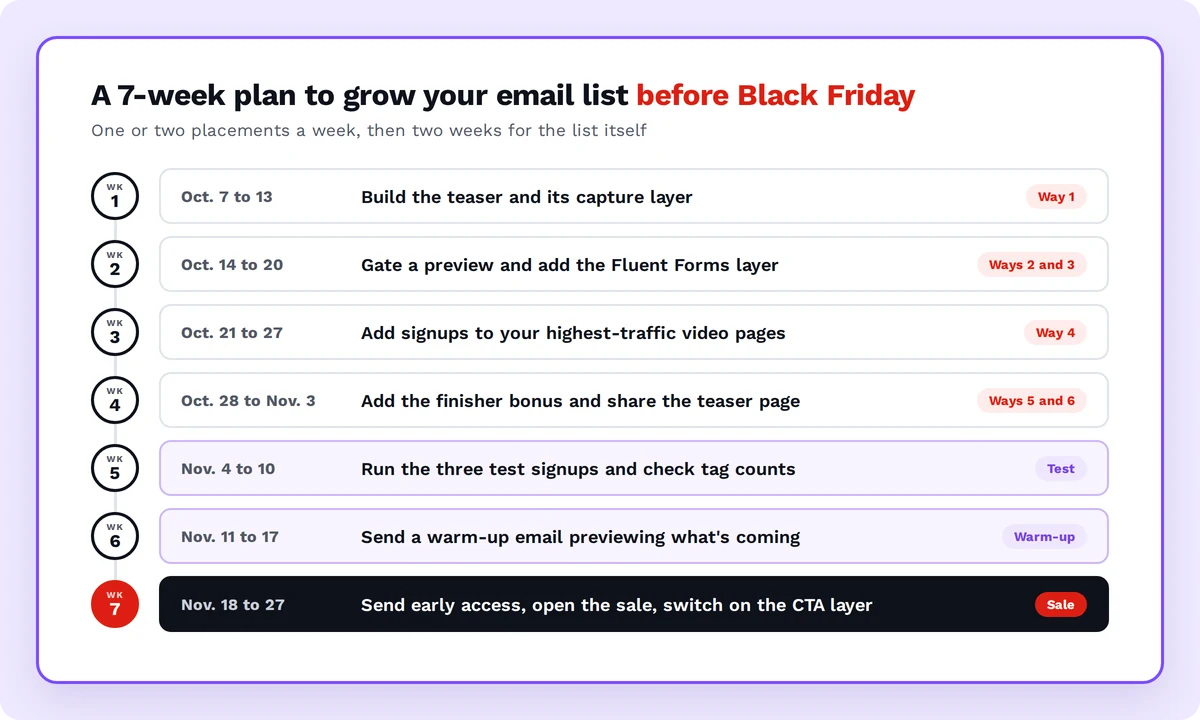
Seven weeks covers all six placements if you add one or two a week and save the last two weeks for the list itself.
| Week | Dates | Task |
| 1 | Oct. 7 to 13 | Build the teaser and its capture layer (Way 1) |
| 2 | Oct. 14 to 20 | Gate a preview and add the Fluent Forms layer (Ways 2 and 3) |
| 3 | Oct. 21 to 27 | Add signups to your highest-traffic video pages (Way 4) |
| 4 | Oct. 28 to Nov. 3 | Add the finisher bonus and share the teaser page (Ways 5 and 6) |
| 5 | Nov. 4 to 10 | Run the three test signups and check tag counts |
| 6 | Nov. 11 to 17 | Send a warm-up email previewing what’s coming |
| 7 | Nov. 18 to 27 | Send early access, open the sale, switch on the CTA layer |
Week 6 does quiet work. A contact who signed up in October and hears nothing until sale day may not remember you. One short preview email in mid-November reminds them why they subscribed, so the early-access email lands with someone expecting it.
Start With the Teaser This Week
Your Black Friday result depends on who is on the list by November 27, and that list gets built in October or not at all. Every week without a signup layer is a week of viewers you can’t email later. Install FluentPlayer free, add one early-access layer to a teaser, and watch for the first bf26 tag. Black Friday starts in October.
Frequently Asked Questions
How early should I start growing my email list before Black Friday?
Start in early October. Omnisend advises growing your list through October and teasing offers about a week before the sale. That leaves about seven weeks to build signups, test the setup, and reintroduce yourself before November 27.
How do I grow an email list with video for free?
Add FluentPlayer’s email capture layer or Fluent Forms layer to a video you already publish. Both are on the free plan and send contacts to FluentCRM with a list and tag. See what the free plan covers for the full split.
Should a Black Friday signup video be skippable?
Keep it skippable on teasers and existing content, where viewers are still deciding. Use a hard gate only on a preview whose second half is worth an email. Wistia’s data says hard gates collect more addresses, while skippable forms filter for intent.
Where in the video should the signup form appear?
Near the end, in most cases. Wistia found early asks can drop response to 5%, and calls the end of the video the usual best spot. For long videos, the fourth quarter converted best in Wistia’s data.
Do video signups need double opt-in?
It depends on where your subscribers are and what consent rules apply. With double opt-in on, contacts stay Pending until they confirm and receive nothing else. With it off, they’re Subscribed on submission. Pick one rule and apply it to every layer.
How do I email only the people who signed up from video?
Send to the Black Friday 2026 Early Access list in FluentCRM. To reach one placement, filter by its tag, such as bf26-teaser. To lead with a product, filter by the bf26-wants tag for that category.
Does this work with YouTube videos?
Yes. Paste the YouTube URL into FluentPlayer, which supports YouTube on the free plan, and add the capture layer on top. The layer, the FluentCRM routing, and the tags work the same as on a self-hosted video.