

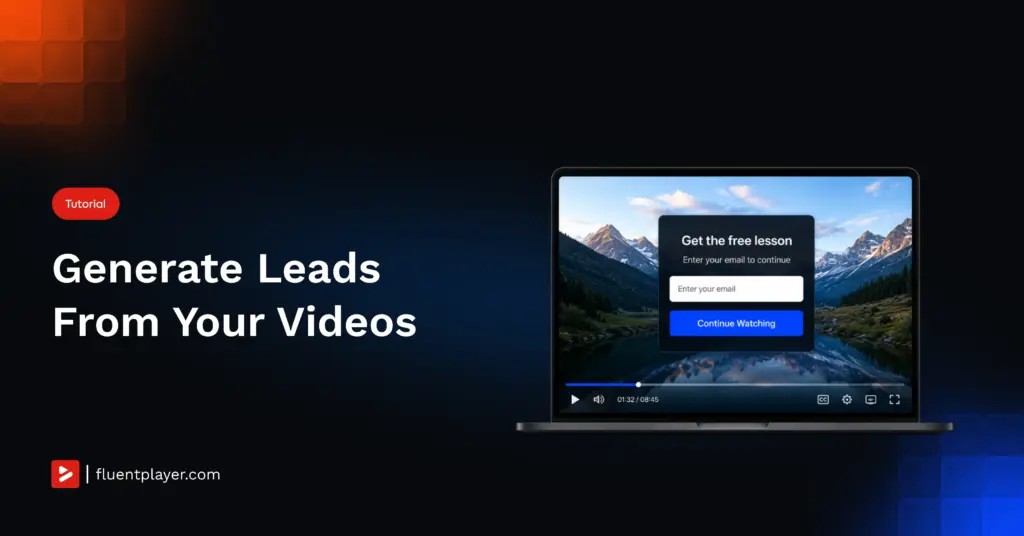
You upload the product demo. It plays fast, looks sharp, and a few hundred people watch it this week. Then you open your contact list. Nothing moved.
The video did its job on screen and added not one name to your CRM. Call it the quiet cost of a passive player: attention in, nothing out.
Email capture inside the video closes that gap. A form shows up when interest peaks, the viewer submits without leaving the page, and the contact lands in FluentCRM tagged and ready.
If you publish video and you are trying to grow a list, this is the setup you are missing. Here is how to build it.
TL;DR
- FluentPlayer adds an email capture layer and a Fluent Forms layer inside your video, both on the free plan
- Captured contacts flow straight into FluentCRM with tags applied, no third-party connector
- Wistia’s data puts in-video forms at about one in five viewers converting, and up to 75 percent in the right video
- Placement matters, since a form 10 to 20 percent into the video tends to convert best
- Conditional rules, Timed Content, Mailchimp, and webhooks sit on the Pro plan
- Install FluentPlayer free from the WordPress.org plugin repository and set up your first capture in minutes
The Two Ways to Capture Email Inside a WordPress Video
FluentPlayer gives you two free ways to capture an email inside a video: a plain email capture layer and a full Fluent Forms layer. Both appear over the video at a timestamp you set. The difference is how much you ask for.
The email capture layer
The email capture layer is a single field over the video. A viewer types an email, submits, and keeps watching. Use it when one email address is all you need, like gating a lesson or growing a newsletter list.
I reach for this one first. Fewer fields means more submissions, and Wistia’s own advice agrees: ask only for what you need, since an email is usually enough.
The Fluent Forms layer
The Fluent Forms layer drops a real Fluent Forms form into the video. Any field you can build in Fluent Forms works here: name, phone, dropdowns, even payment fields. A viewer can pay for a webinar seat without leaving the player.
Use this when the capture is also a registration or a sale. The tradeoff is friction. Every extra field costs you submissions, so add them only when the data earns its place. See the fields Fluent Forms supports if you are planning a longer form.
When to Show the Form
Timing decides whether the form converts. Show it too early and the viewer has no reason to trust you. Show it too late and most have clicked away.
Wistia’s 2026 State of Video Report puts the average in-video form at about one in five viewers converting. In the right video at the right spot, that climbs to as high as 75 percent.
Placement is the lever. Wistia found a form 10 to 20 percent into the video tends to convert best, once the viewer has enough context to care but before attention drops off.
The video type sets the ceiling. By Wistia’s data, original series convert about 30 percent of viewers to leads, on-demand webinars 25 percent, sales videos 20 percent, and testimonials and explainers 17 percent.
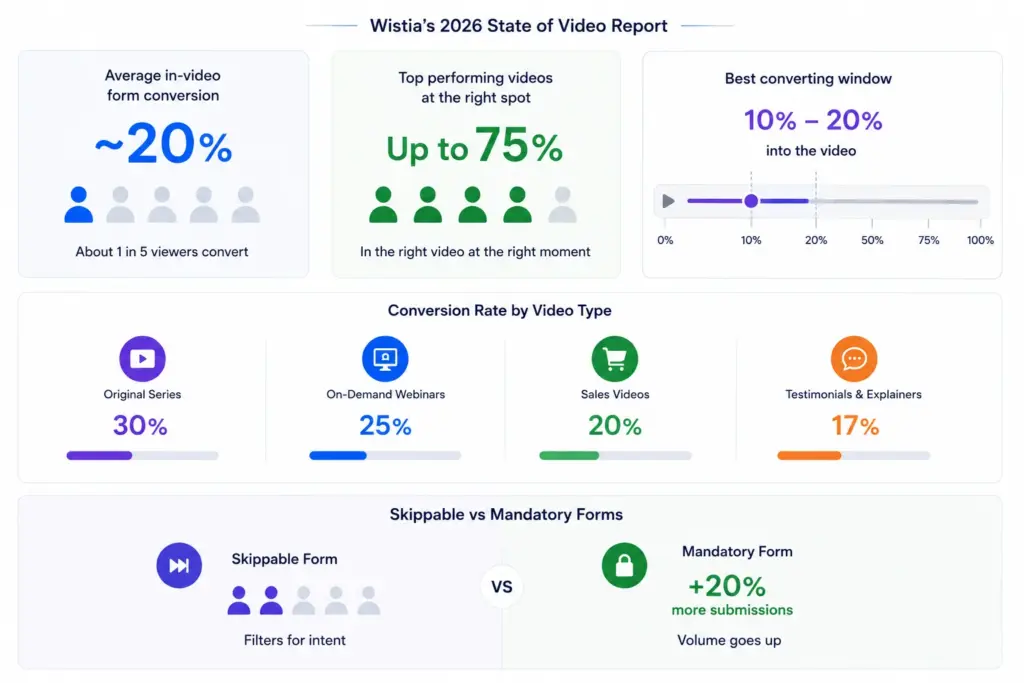
You also decide whether the form can be skipped. Wistia found mandatory forms pull about 20 percent more submissions than skippable ones. Volume goes up, and so does the share of low-intent emails.
Skippable forms filter for intent. Fewer people submit, and the ones who do want what comes next. Pick volume or quality based on what a lead is worth to you.
Set Up In-Video Email Capture Step by Step
Here is the setup, from a blank video to a tagged contact in FluentCRM. Each step has a screenshot in the draft folder.
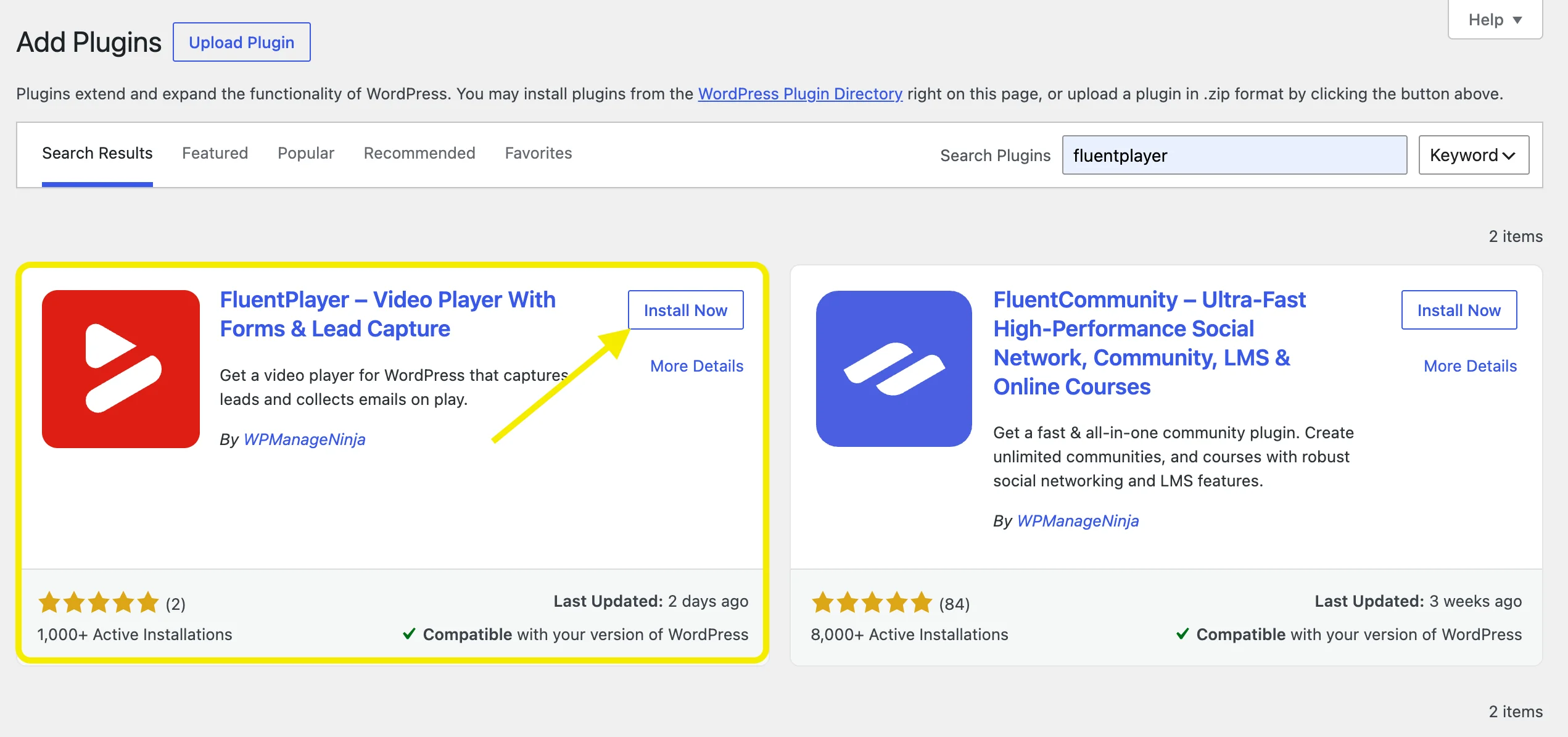
1. Install FluentPlayer from the WordPress.org repository and activate it.
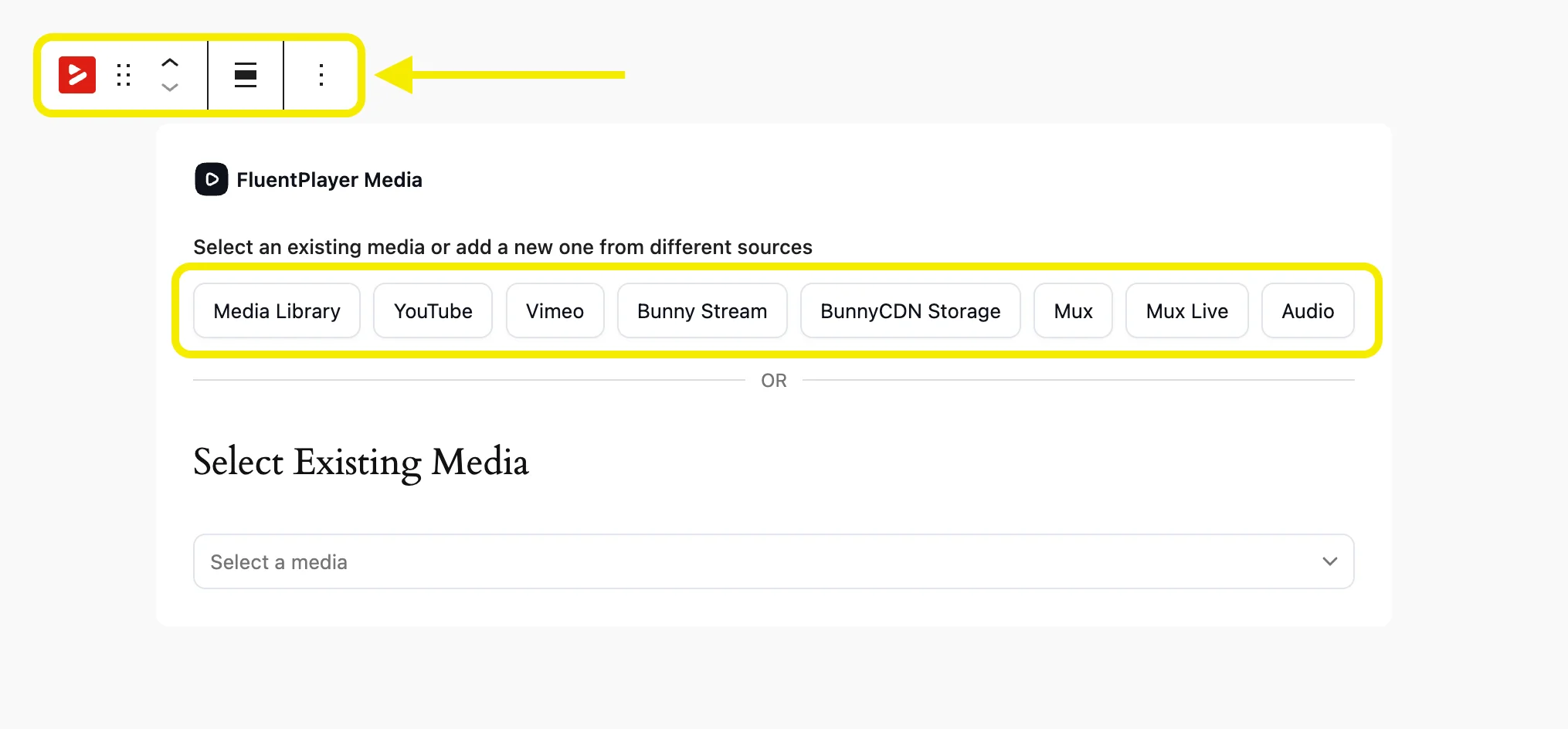
2. Add the FluentPlayer block to a post or page, then pick your video source: self-hosted, YouTube, Vimeo, or audio.
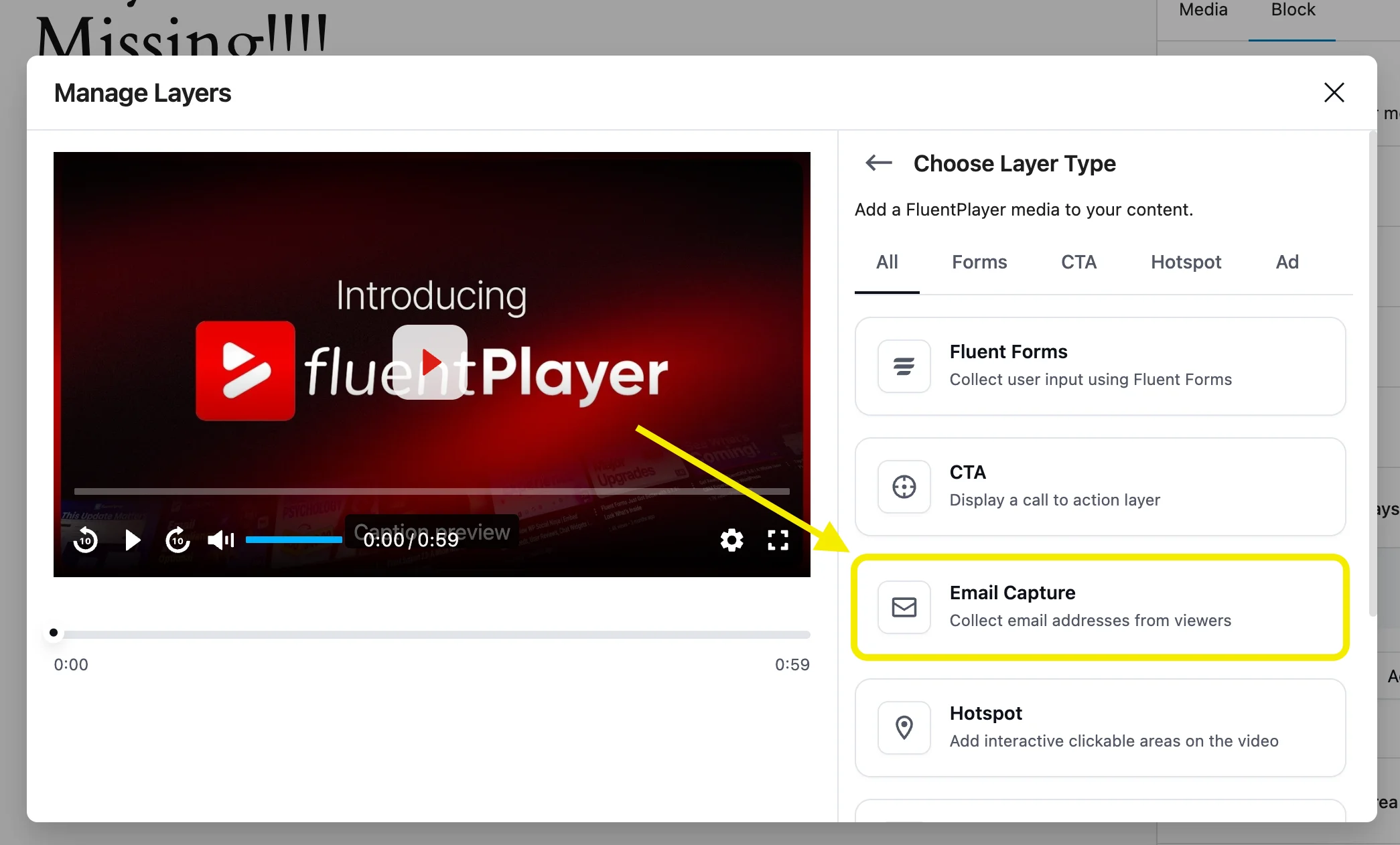
3. Open the interactive layers panel and add an Email Capture layer.
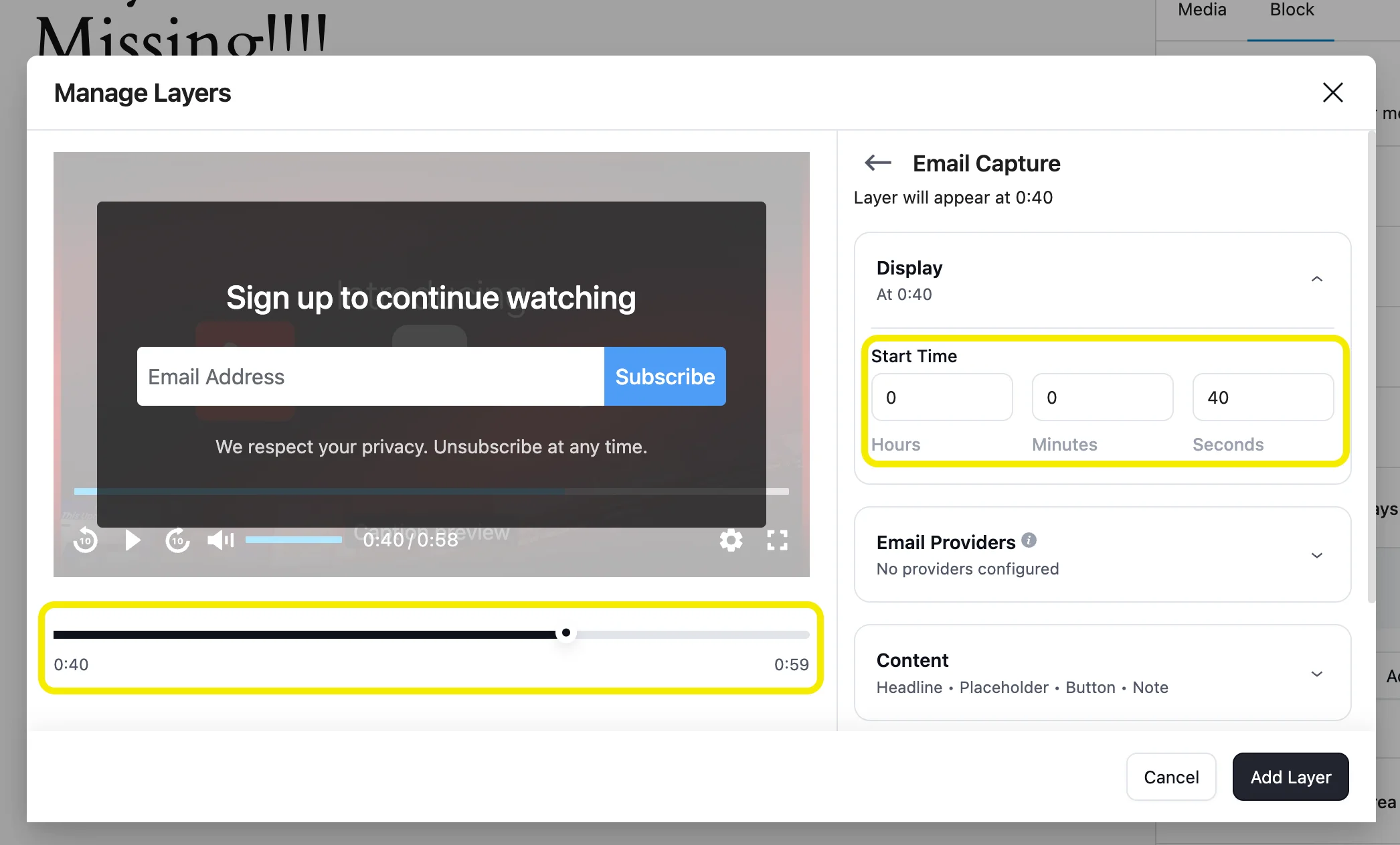
4. Set the timestamp. Enter a start time into the video, or drag the layer marker on the timeline.
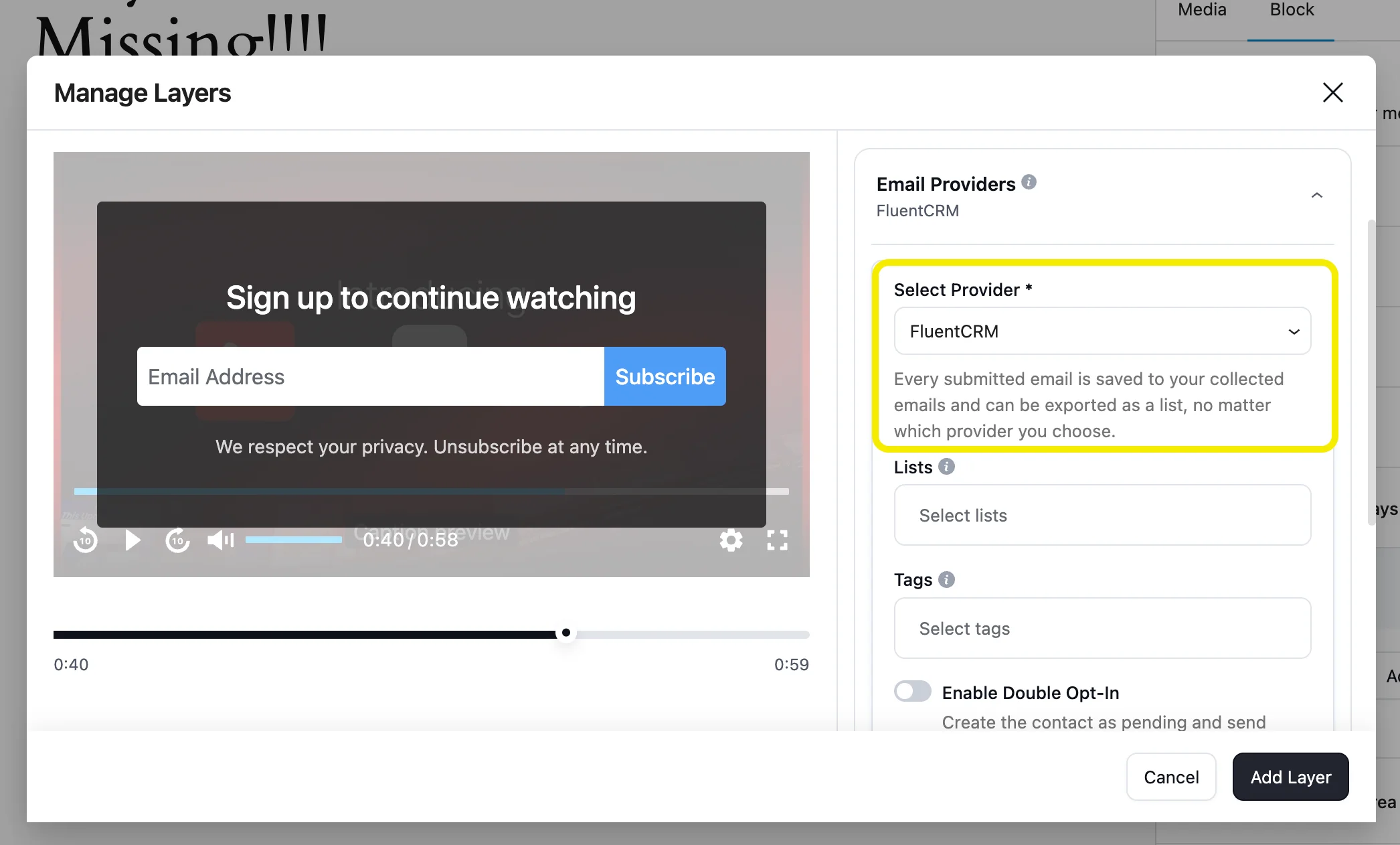
5. In the layer’s Email Provider settings, select FluentCRM as the destination.
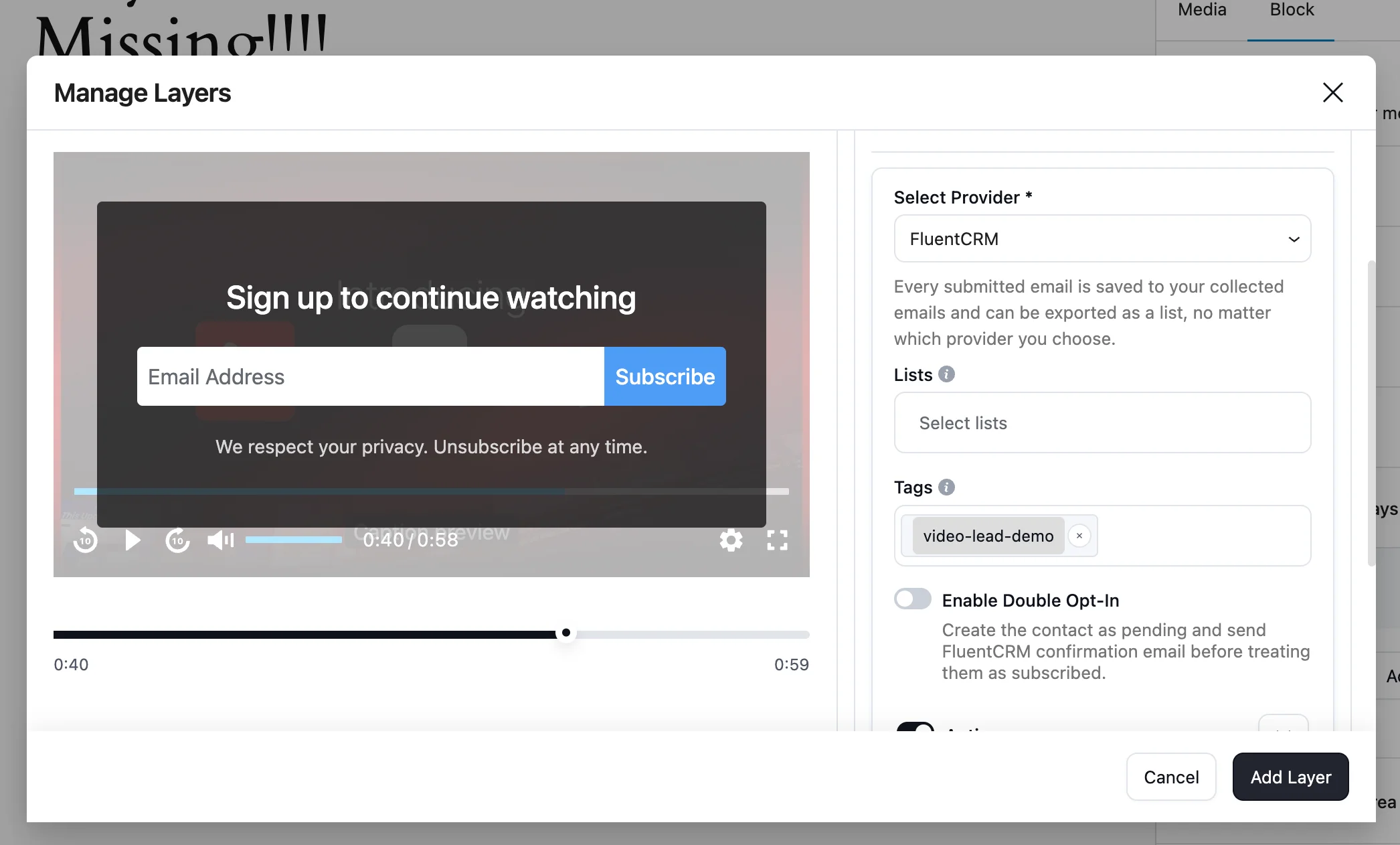
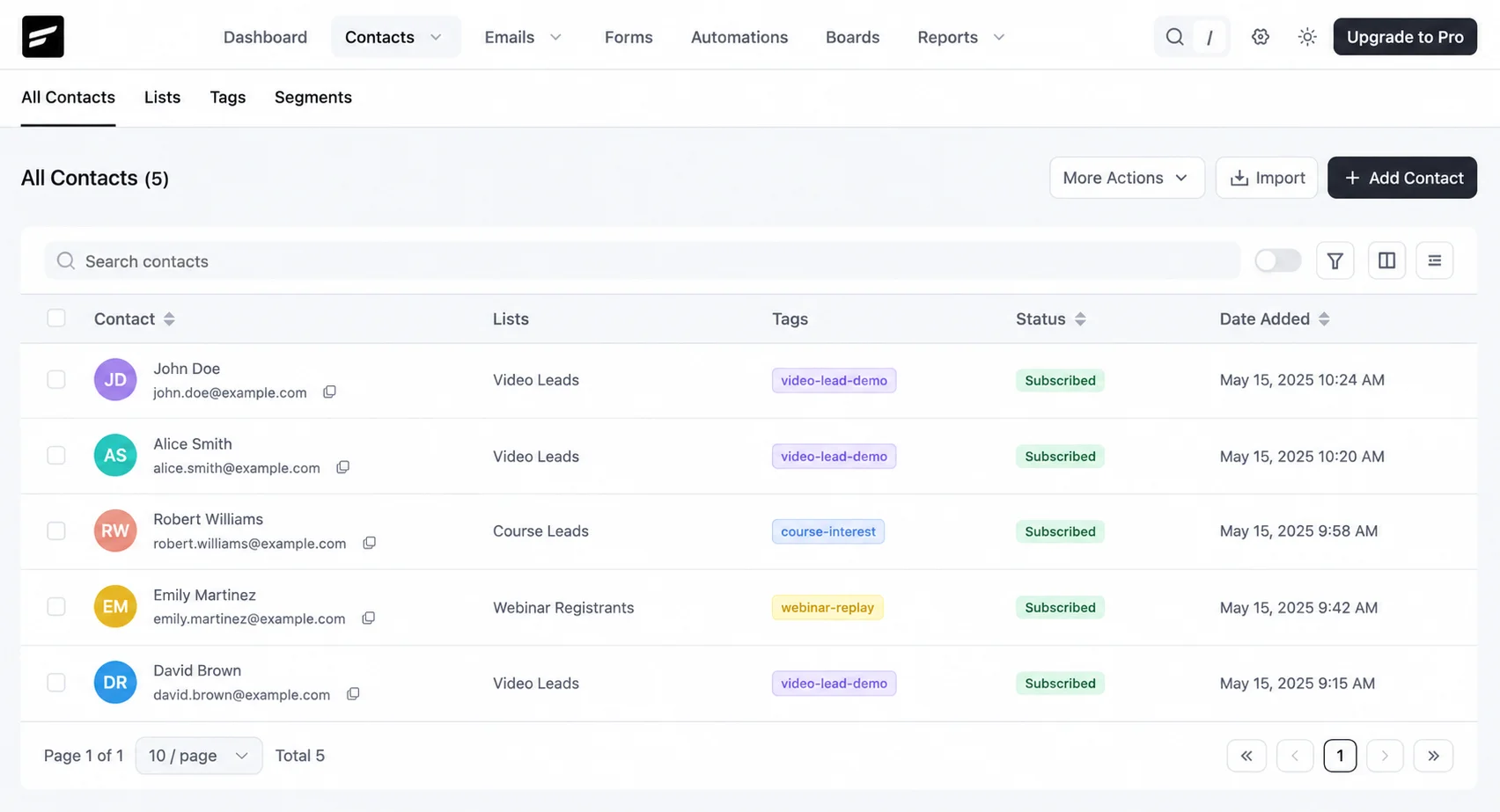
6. Choose the list and add a tag, for example video-lead-demo, so you can find these contacts later.
7. Save the video and preview it. Confirm the form appears at your timestamp and a test submission lands in FluentCRM.
Send the Lead to FluentCRM and Tag It
This is where an in-video form beats a popup. The contact does not sit in a plugin’s own table waiting for an export. It moves straight into FluentCRM.
FluentPlayer and FluentCRM come from the same team at WPManageNinja, so the handoff needs no Zapier step and no connector. A submission creates or updates the contact in real time, applies your tag, and can start an automation.
Picture the path as one line: watch, capture, tag, automate. A viewer drops an email at the 90-second mark of your intro lesson, gets tagged course-interested, and enters a three-email nurture sequence before they close the tab.
That tag is the point. It tells you where the lead came from and what they watched, which is more than a bare email address off a sidebar form. See how FluentCRM tags contacts to plan your naming before you start.
Match the Form to the Video
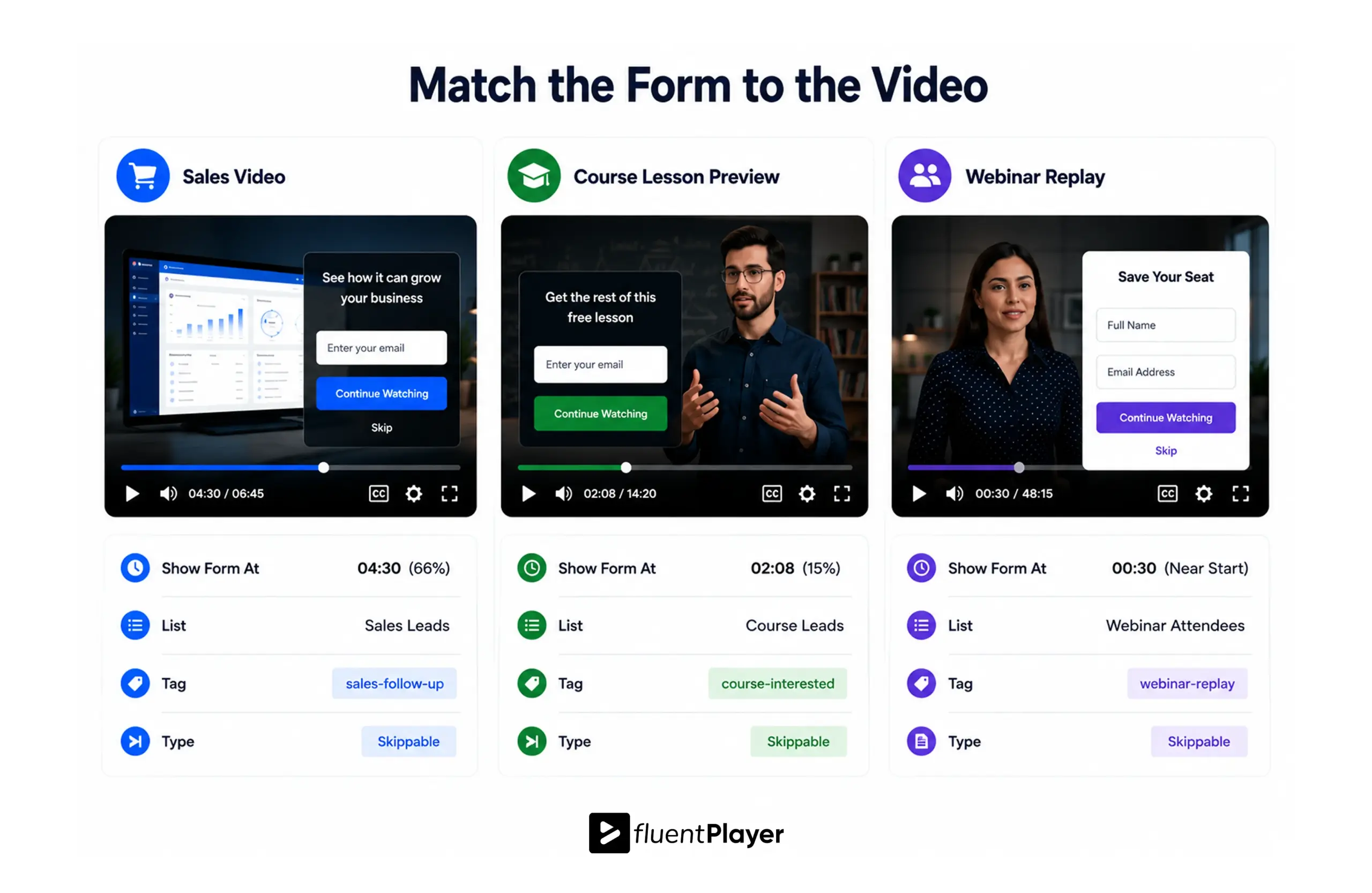
Different videos call for different captures. Match the question to the reason the viewer pressed play.
Sales video. The viewer is weighing a purchase. Use one email capture layer at the two-thirds mark, right after your strongest benefit, and tag the lead for a sales follow-up. Keep it skippable, so you collect intent instead of noise.
Course lesson preview. The viewer wants to learn. Gate the back half of a free lesson behind an email capture layer 15 percent in, tag them course-interested, and start a nurture sequence in FluentCRM.
Webinar replay. The viewer missed the live event. Use a Fluent Forms layer with name and email near the start, since replay watchers already expect a signup, and route them into a follow-up list.
Free vs Pro for In-Video Capture
Here is what each plan gives you for in-video capture, so you know where the line sits:
| Capability | Free | Pro |
| Email capture layer | Yes | Yes |
| Fluent Forms layer, including payment fields | Yes | Yes |
| Send to FluentCRM with tags | Yes | Yes |
| Set the layer’s timestamp | Yes | Yes |
| Conditional logic by visitor, tag, or campaign | No | Yes |
| Timed Content, a block region below the video | No | Yes |
| Mailchimp as a destination | No | Yes |
| Webhook to any tool | No | Yes |
| Video analytics, retention and conversion | No | Yes |
The free plan covers the whole path from capture to CRM. You upgrade for control and measurement: showing a returning contact a different offer, sending to Mailchimp instead, or seeing which videos convert. If you only need to collect and tag emails, the free plan does that in full.
Test Your Setup Before You Publish
Run your plan through the check below before you hit publish. It scores your video type, your timing, and your ask against what Wistia’s data rewards, then tells you where you are leaving leads on the table.
FluentPlayer
Would your form convert?
Answer three questions. The meter maps to Wistia’s real in-video conversion data and shows your biggest lever.
1. What kind of video is it?
2. When does the form appear?
3. How much do you ask for?
Directional estimate anchored on Wistia’s 2026 State of Video Report. Your real numbers depend on your audience and offer.
The real question is not whether your video gets views. It is whether a single one becomes a contact you can reach again. A passive player answers no. An in-video capture answers yes, and wires the lead into FluentCRM the moment it lands.
Install FluentPlayer from the WordPress.org repository, add one email capture layer to your best video, and watch the first tagged lead arrive.
Frequently Asked Questions
Can I capture email inside a video for free?
Yes. FluentPlayer’s email capture layer and Fluent Forms layer are both on the free plan, and both send contacts to FluentCRM with tags. You upgrade only for conditional logic, analytics, and extra destinations like Mailchimp.
Where should the email capture form appear in the video?
Aim for 10 to 20 percent into the video. Wistia’s data shows that spot tends to convert best, since the viewer has enough context to care but has not dropped off yet.
Does the viewer leave the page to submit?
No. The form appears over the video, the viewer submits in place, and playback continues. That is the point of in-video capture: no popup, no separate landing page, no lost attention.
Do I need Zapier to send leads to my CRM?
No. FluentPlayer connects to FluentCRM natively, since both are built by WPManageNinja. Submissions create or update the contact and apply tags in real time, with no connector in between.
Should I let viewers skip the form?
It depends on the goal. Mandatory forms collect about 20 percent more submissions, per Wistia, while skippable forms filter for intent. Choose volume or quality based on what each lead is worth.
Can the in-video form take a payment?
Yes, through the Fluent Forms layer. Because Fluent Forms supports payment fields, a viewer can buy a course or a webinar seat inside the player, and the sale flows into FluentCRM.