

Pasting a link is the fastest way to add video by URL in WordPress. It is also where the trouble starts. Paste a YouTube link into the editor, and the page loads YouTube’s full player before anyone presses play.
The link is rarely the problem. Many video plugins ask you to pick a source type first, then paste into the matching field. Pick the wrong type and the embed fails without telling you why.
FluentPlayer reads the link for you. Paste a URL and it detects YouTube, Vimeo, direct video, audio, or HLS without a source picker. If page weight is your worry, start with how to embed videos in WordPress without slowing the page. This post covers the paste itself.
TL;DR
- One paste field detects YouTube, Vimeo, direct video, audio, and HLS links
- Free covers every detected source except the Pro sources
- Bunny Stream, Mux, and other Pro sources need FluentPlayer Pro
- Dropbox, Google Drive, and YouTube playlist links are not supported
How URL Detection Works in FluentPlayer
FluentPlayer’s media editor has one Paste a Media URL field that reads your link and assigns the source for you. You don’t choose YouTube or Vimeo first. The field looks at the URL you paste, identifies where the video lives, and fetches its details before you add it to a page.
The field sits below a row of source buttons. On free version, Media Library, YouTube, Vimeo, and Audio are open. Bunny Stream and Mux show a lock, with a “More sources in Pro” link beneath them. An “OR” divider separates the buttons from the paste field.
Detection confirms FluentPlayer recognized the link format and read its details. It does not confirm every viewer has permission to watch. Privacy and domain settings live on the host, so a private or restricted video stays restricted after you paste it.
Which URLs Work on Free and Which Need Pro
Every source the paste field detects works on free FluentPlayer, except the Pro sources such as Bunny Stream and Mux. There is no hidden limit on YouTube, Vimeo, direct files, audio, or HLS. Pro gates the Pro sources and nothing else.
| Source | Example link | Plan |
| YouTube | youtube.com/watch?v=VIDEO_ID | Free |
| Vimeo | vimeo.com/VIDEO_ID | Free |
| Direct video file | example.com/video.mp4 | Free |
| Audio file | example.com/episode.mp3 | Free |
| HLS stream | example.com/stream/playlist.m3u8 | Free |
| Bunny Stream, Mux, and other Pro sources | Connected through the source button | Pro |
Media Library uploads are free too, but they go through the Media Library button rather than the paste field.
Read more: FluentPlayer Free vs. Pro: Full Feature Breakdown
How to Add a Video by Pasting a URL in 4 Steps
Adding a video by URL takes four steps: open the media editor, paste the link, check the detected source, and place the player. Follow them in order. Each step has a screenshot of the matching screen.
1. Open the FluentPlayer media editor
Go to the FluentPlayer media editor and start a new media item. You’ll see the source buttons at the top and the Paste a Media URL field below the “OR” divider.
2. Copy the video’s link
Copy the URL from your browser’s address bar or the host’s share menu. YouTube’s Share button gives a youtu.be short link, and FluentPlayer detects it the same way as the full URL. Timestamped links work too.
3. Paste the link into the URL field
Paste the link into the Paste a Media URL field. FluentPlayer reads it and assigns the source automatically. If you see “Could not fetch metadata for this URL,” the link type isn’t supported. The error section below covers the fix.
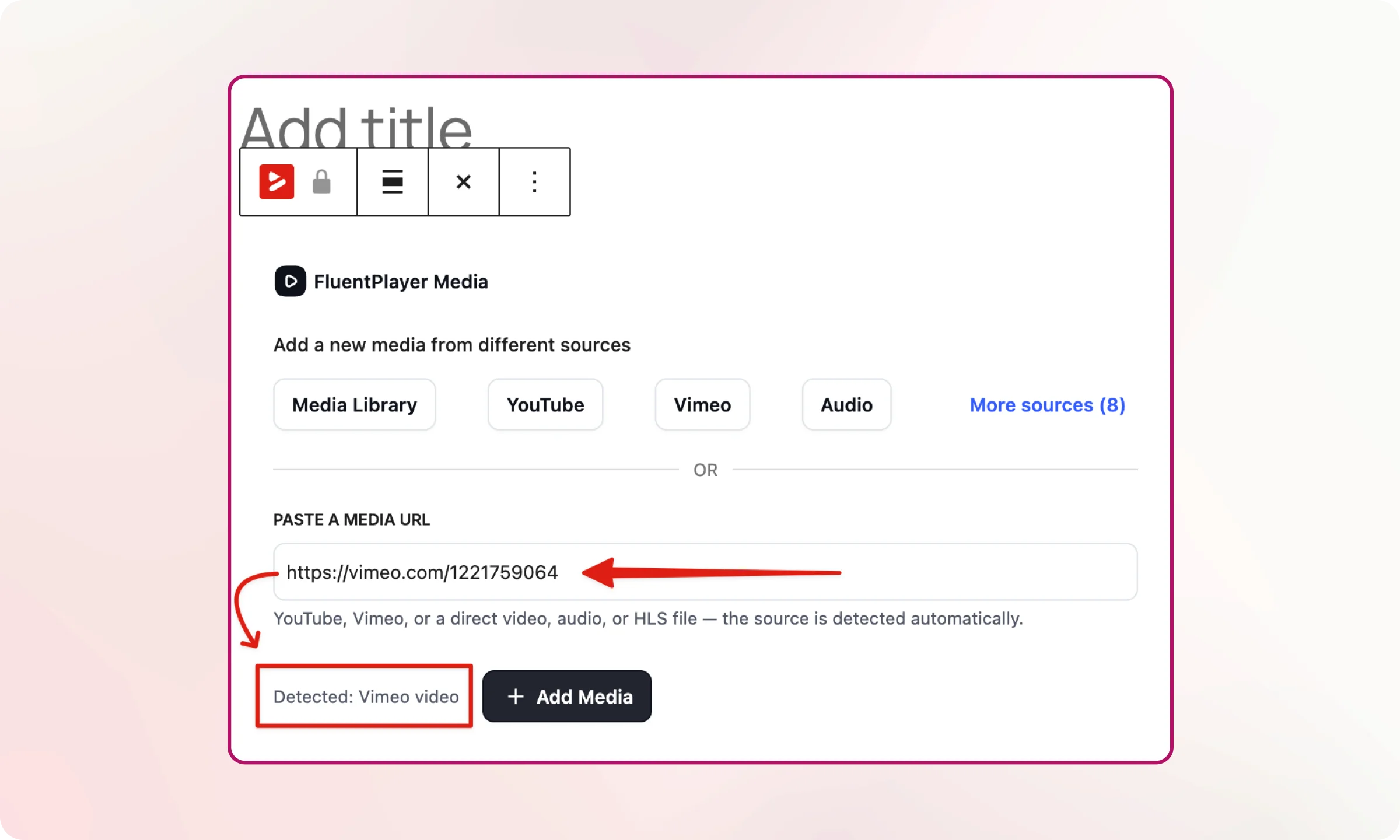
4. Check the source and place the player
Confirm FluentPlayer shows the right source, then save the media. Add it to a page with the FluentPlayer block or its shortcode.
The player now carries your preset and branding settings.
Try it free: FluentPlayer detects YouTube, Vimeo, direct video, audio, and HLS links on the free plan. Install FluentPlayer free from WordPress.org and paste your first link.
Read more: How to Add a Video CTA in WordPress With FluentPlayer
5 URL Formats FluentPlayer Detects
Each supported source accepts its standard public link format, and FluentPlayer labels the source automatically. The blocks below show what to paste, what FluentPlayer detects, and which plan you need. Replace the placeholder IDs and domains with your own.
1. YouTube
Paste: https://www.youtube.com/watch?v=VIDEO_ID
Also works: https://youtu.be/VIDEO_ID, and timestamped links such as https://www.youtube.com/watch?v=BOGRWeghyNI&list=PLSrsnN1BlMH8&index=5&t=137s
Detected as: YouTube
Plan: Free
2. Vimeo
Paste: https://vimeo.com/VIDEO_ID
Detected as: Vimeo
Plan: Free
If your videos sit in Vimeo On Demand, pasting keeps them playing on your site for now. Plan the hosting move before the service shuts down, so it doesn’t happen under a deadline.
Read more: How to Move Off Vimeo Before the On Demand Shutdown
3. Direct video file
Paste: https://example.com/video.mp4
Detected as: Direct video
Plan: Free
4. HLS stream
Paste: https://example.com/stream/playlist.m3u8
Detected as: HLS
Plan: Free
5. Audio file
Paste: https://example.com/episode.mp3
Detected as: Audio
Plan: Free
When to Use the Source Buttons Instead
Paste when the video already has a public link. Use the source buttons when it doesn’t.
A file on your computer has no URL yet, so it goes through the Media Library button. Upload it to WordPress, and FluentPlayer plays it from your own server.
Pro sources work differently. Bunny Stream and Mux have their own buttons, which connect FluentPlayer to your account on that service. A CDN encodes video into several quality levels and serves the nearest copy, which is why it pays off for heavy libraries. See the section on video CDN for faster delivery.
Recommended for pasting: videos already on YouTube, Vimeo, or a public file URL. Recommended for source buttons: new uploads, and libraries you stream through Bunny Stream or Mux.
Read more if you build courses: Is FluentPlayer Worth It for Course Creators?
URLs That Won’t Work and What the Error Means
When FluentPlayer can’t read a link, it shows one error: “Could not fetch metadata for this URL.”
Any unsupported link returns this message. You don’t need to diagnose each case. If the error appears, the link type isn’t supported, and the fix is to change the source.
These are the unsupported links you are most likely to try:
- Dropbox links
- Google Drive links
- YouTube playlist URLs
Don’t use a Dropbox or Drive link as a shortcut for video hosting. FluentPlayer doesn’t support either source. Download the file and upload it through the Media Library instead. For a YouTube playlist, paste each video’s own URL one at a time.
Read more if you use videos for marketing: Is FluentPlayer Worth It for Marketing Teams?
Start With the Link You Already Have
Most of your video already has a URL. The paste field turns that link into a branded player without re-uploading anything. The real decision comes later, when page weight or library size pushes you toward a CDN. If that’s where you are, check the signs you’ve outgrown free FluentPlayer first.
Stream from Bunny Stream or Mux: Pro adds the Pro sources, so your CDN library plays in the same branded player. Compare FluentPlayer Pro plans
Frequently Asked Questions
Can I paste a Google Drive or Dropbox video link?
No. FluentPlayer doesn’t support Google Drive or Dropbox links, and pasting one returns the “Could not fetch metadata for this URL” error. Download the video and upload it through the Media Library button.
Do YouTube Shorts and youtu.be links work?
Yes. FluentPlayer detects youtu.be short links, YouTube Shorts URLs, and timestamped YouTube links as YouTube sources. All of them work on the free plan.
Can I paste a YouTube playlist?
No. Playlist URLs are not supported. Paste each video’s individual URL instead.
Do I need Pro to paste an HLS link?
No. Generic HLS streams work for free. Pro is only needed for Pro sources such as Bunny Stream and Mux.
Which sources need FluentPlayer Pro?
Bunny Stream, Mux, and the other sources listed under “More sources in Pro” in the media editor. YouTube, Vimeo, Media Library, audio, direct video files, and HLS are free.