
Embed Videos in WordPress: 7 Proven Ways to Keep Your Site Fast (2026)
Most WordPress sites embed videos in WordPress the wrong way. You paste a YouTube URL, and the editor loads the entire YouTube player infrastructure on page load. Tracking scripts, ad code, font files, and player CSS. All before anyone presses play.
Here are 7 methods to fix that, with data on what each one costs.
TL;DR
- A single YouTube embed loads 1.3 to 2.6 MB of JavaScript, CSS, and tracking scripts before anyone clicks play
- Median video bytes per page grew 28% in one year, from 246 KB to 315 KB (HTTP Archive 2025 Web Almanac)
- Lazy loading cuts initial page weight but does not fix player bloat
- The facade pattern (thumbnail first, player on click) is the single highest-impact fix for most sites
- Self-hosting video on your WordPress server is almost always the wrong call
- A purpose-built player like FluentPlayer handles load strategy, branding, and speed at the player level
What Loads When You Embed a Video
You expect a video box, you get a performance hit
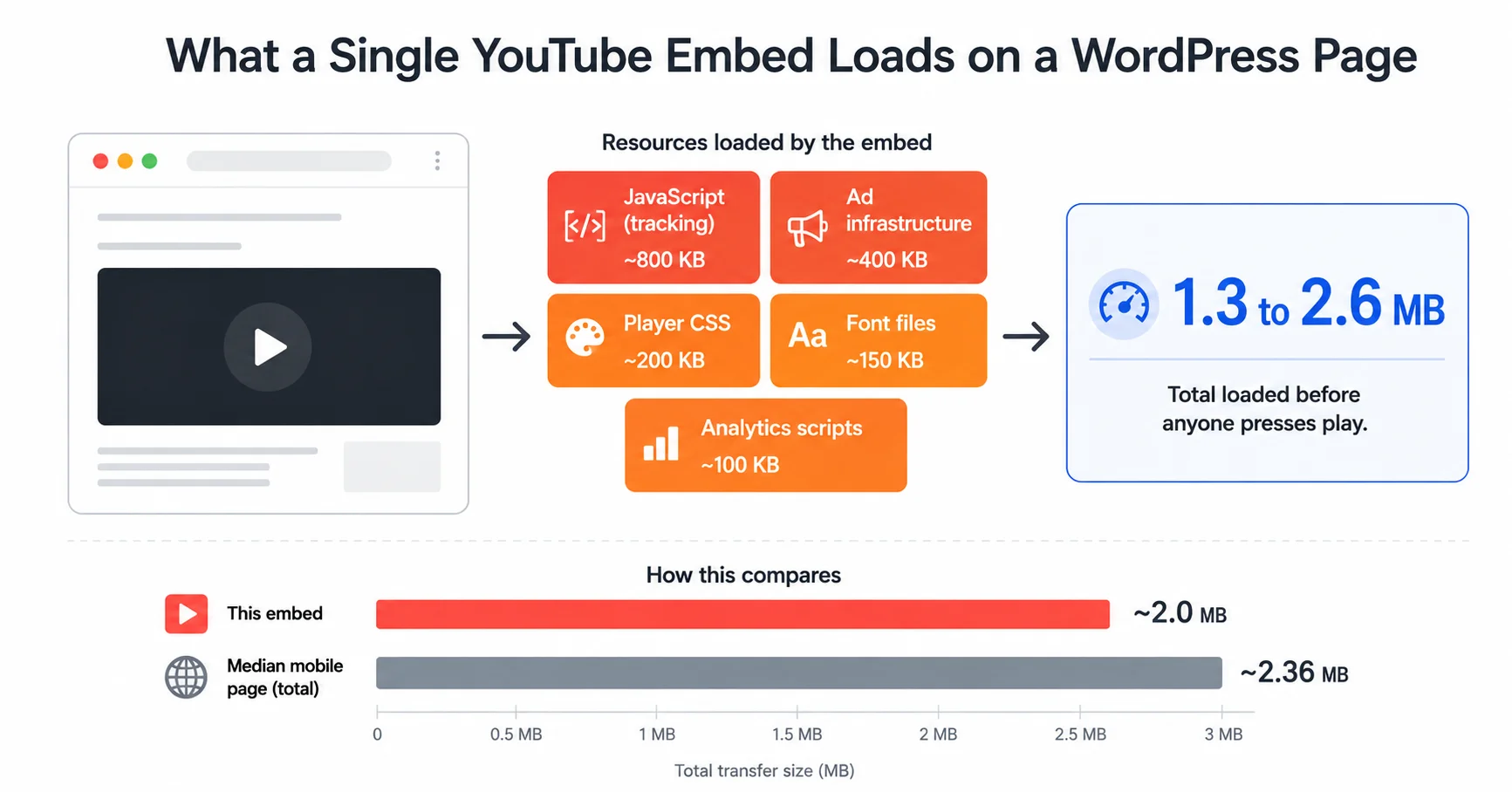
Paste a YouTube URL into the WordPress block editor. The editor auto-converts it to an iframe using oEmbed. That iframe loads YouTube’s full player stack: JavaScript for tracking, advertising infrastructure, font files, and player CSS.
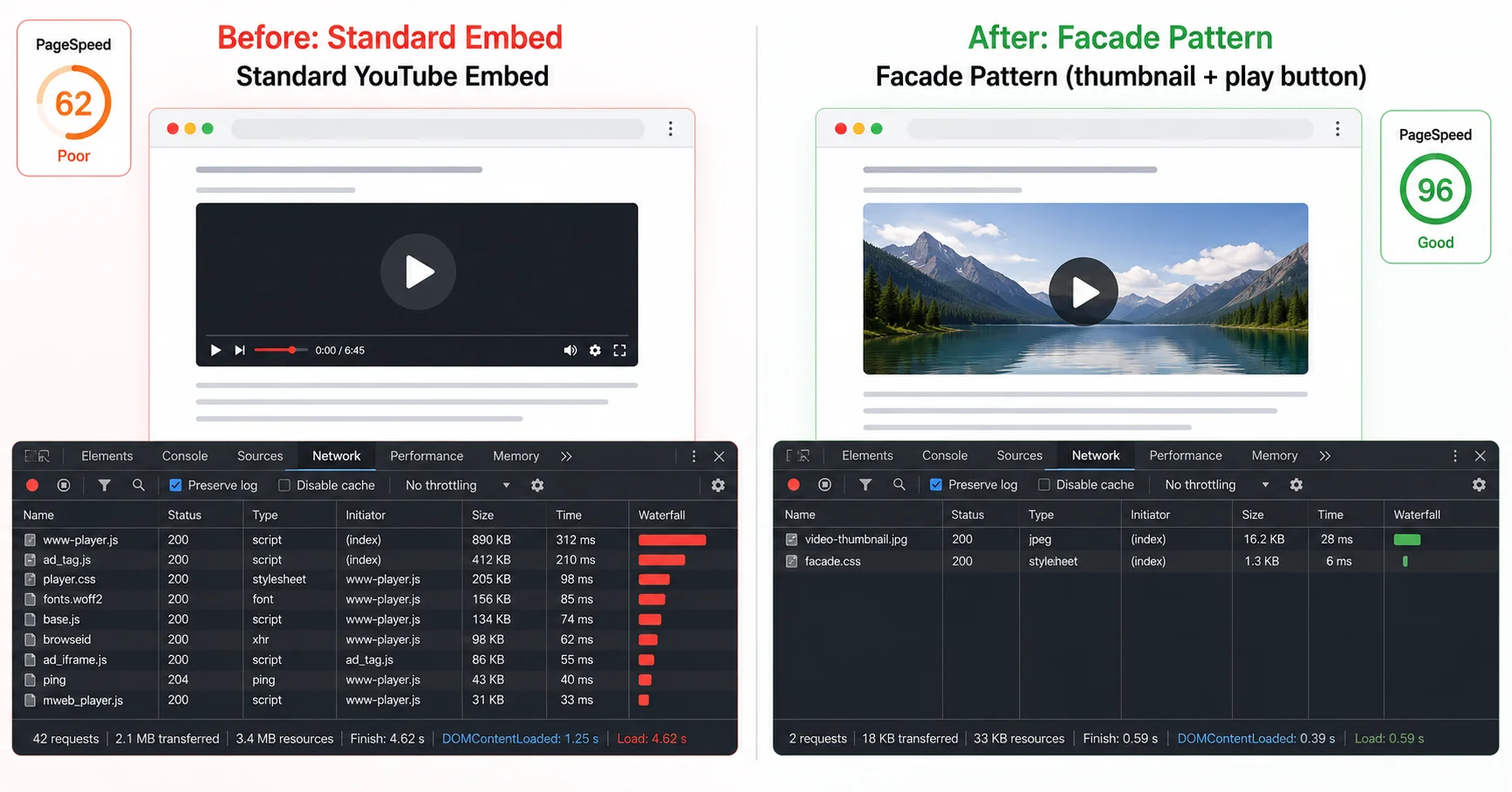
A standard YouTube embed loads between 1.3 and 2.6 MB of resources. The median mobile home page in 2025 weighs 2.36 MB total. One video embed nearly doubles your page weight.The result shows up in PageSpeed Insights. A single YouTube embed drops scores by 30 or more points. That is the difference between a green score and an orange one.
Vimeo is lighter, but still heavy
Vimeo is lighter than YouTube, but still adds significant weight. The Vimeo player brings its own JavaScript, analytics tracking, and player framework. Better than YouTube on raw payload. Still a noticeable hit on mobile PageSpeed scores.
The HTTP Archive 2025 Web Almanac measured median video bytes per page at 315 KB. That is up 28% from 246 KB the year before.
Video weight on the web is growing, not shrinking. Your embed strategy needs to account for that trend.
Vimeo video player vs WordPress video player: Detailed comparison
Why Your Page Speed Drops and Core Web Vitals Suffer
The LCP problem with above-the-fold video
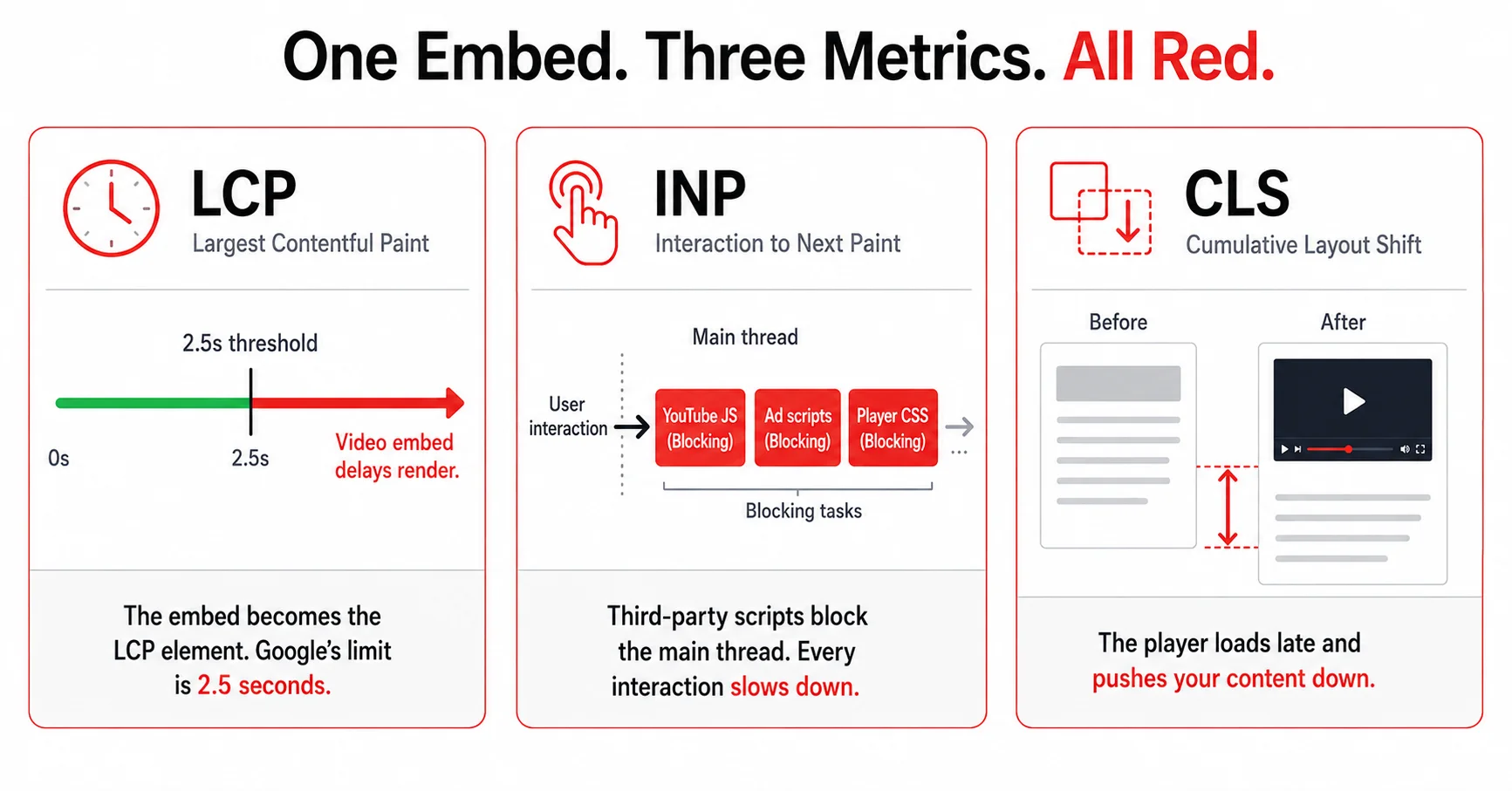
Videos placed in hero sections become the Largest Contentful Paint element. Google’s threshold for LCP is 2.5 seconds. An unoptimized YouTube embed on mobile makes that target nearly impossible to hit.
The browser has to download the iframe, then download YouTube’s scripts inside that iframe, then render the player. Each step adds latency. Your LCP clock keeps ticking through all of it.
The hidden cost of third-party scripts
YouTube and Vimeo embeds bring their own JavaScript execution. Your browser has to parse, compile, and run those scripts before the page becomes fully interactive. This directly affects Total Blocking Time.
Google replaced First Input Delay with Interaction to Next Paint (INP) as a Core Web Vital in March 2024. INP measures responsiveness across all interactions. Every third-party script that blocks the main thread makes every button click and scroll event slower.
Then there is the layout shift. The player container loads at one size, then resizes once the full player renders. Google measures that as Cumulative Layout Shift. Three Core Web Vitals metrics. All damaged by a single embed.
7 Ways to Embed Videos in WordPress Without the Speed Penalty
Use the facade pattern (thumbnail loads first, player loads on click)
This is the single highest-impact fix. Replace the iframe embed with a static thumbnail image and a play button. The actual player loads only when someone clicks.
Do this with the srcdoc attribute on the iframe. Set srcdoc to a small HTML snippet containing a thumbnail and a CSS-styled play button. When the visitor clicks, the browser replaces the snippet with the real player. The page loads a few KB instead of 2 MB.
For a plugin-based approach, look at lite-youtube-embed or WP YouTube Lyte. Both replace standard embeds with lightweight placeholders. WP Rocket’s lazy loading for iframes works on a similar principle but triggers on scroll rather than click.
Set preload to “none” or “metadata” on self-hosted video
If you host video files yourself, the WordPress Video block defaults to preloading the video. That means the browser starts downloading the file as soon as the page loads.
Change the Preload setting to “None” or “Metadata.” “None” tells the browser to wait until the visitor presses play. “Metadata” downloads only basic information like duration and dimensions. One toggle. Measurable speed difference on mobile.
Move videos below the fold
A video above the fold competes with your primary content for LCP. Move it below the first visible screen. The browser prioritizes rendering what the visitor sees first.
Combine this with native lazy loading. Since WordPress 5.5, iframes get the loading=”lazy” attribute automatically. The video does not load until the visitor scrolls to it. Placement alone is a free speed win.
Use a lightweight player instead of the platform default
The platform player loads everything the platform needs. YouTube’s player loads YouTube’s ad infrastructure. Vimeo’s player loads Vimeo’s analytics scripts. You pay for their entire UI framework on every page load, whether your visitors press play or not.
FluentPlayer has a Load Strategy feature in its free tier. It controls when and how the player initializes. The player does not load its full infrastructure on page render. It waits. This is the facade pattern built into the player itself, not bolted on through a separate plugin.
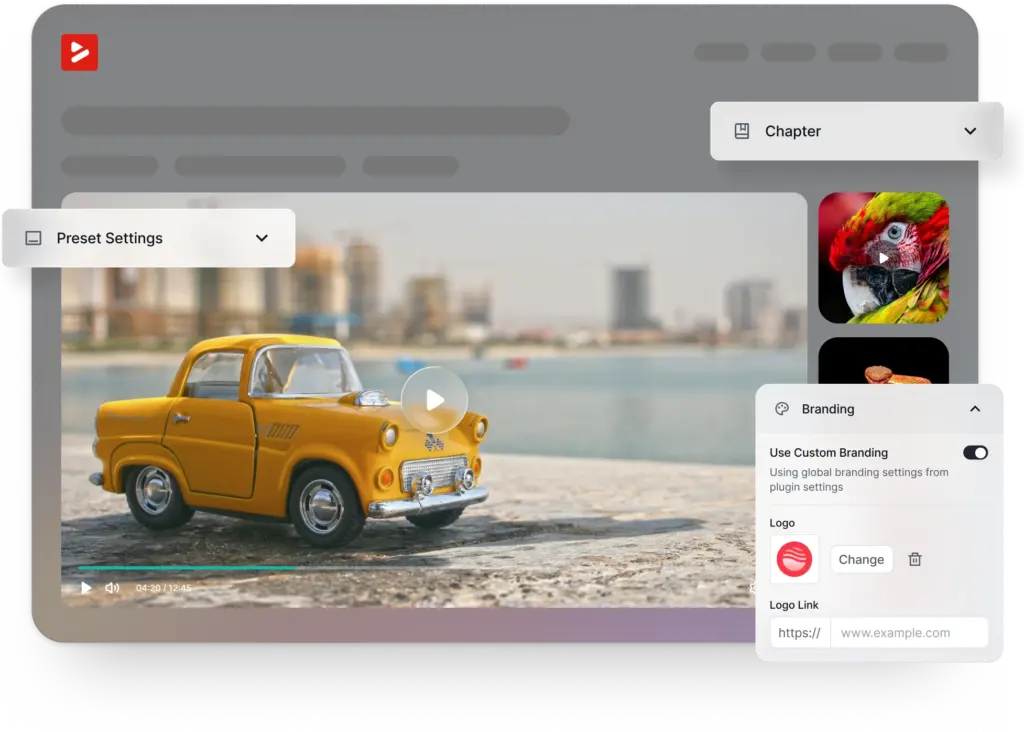
FluentPlayer ships with 5 player presets: Default, Modern, Simple, Minimal, and Ambient. These load without external CSS dependencies. The player supports YouTube, Vimeo, and self-hosted sources in the free tier. You pick the source. The player handles load strategy regardless of where the video lives.
Compress video before uploading (if self-hosting)
If you host video on your own server or a CDN, compress before uploading. MP4 with H.264 encoding is the safest format. It works across all browsers and devices.
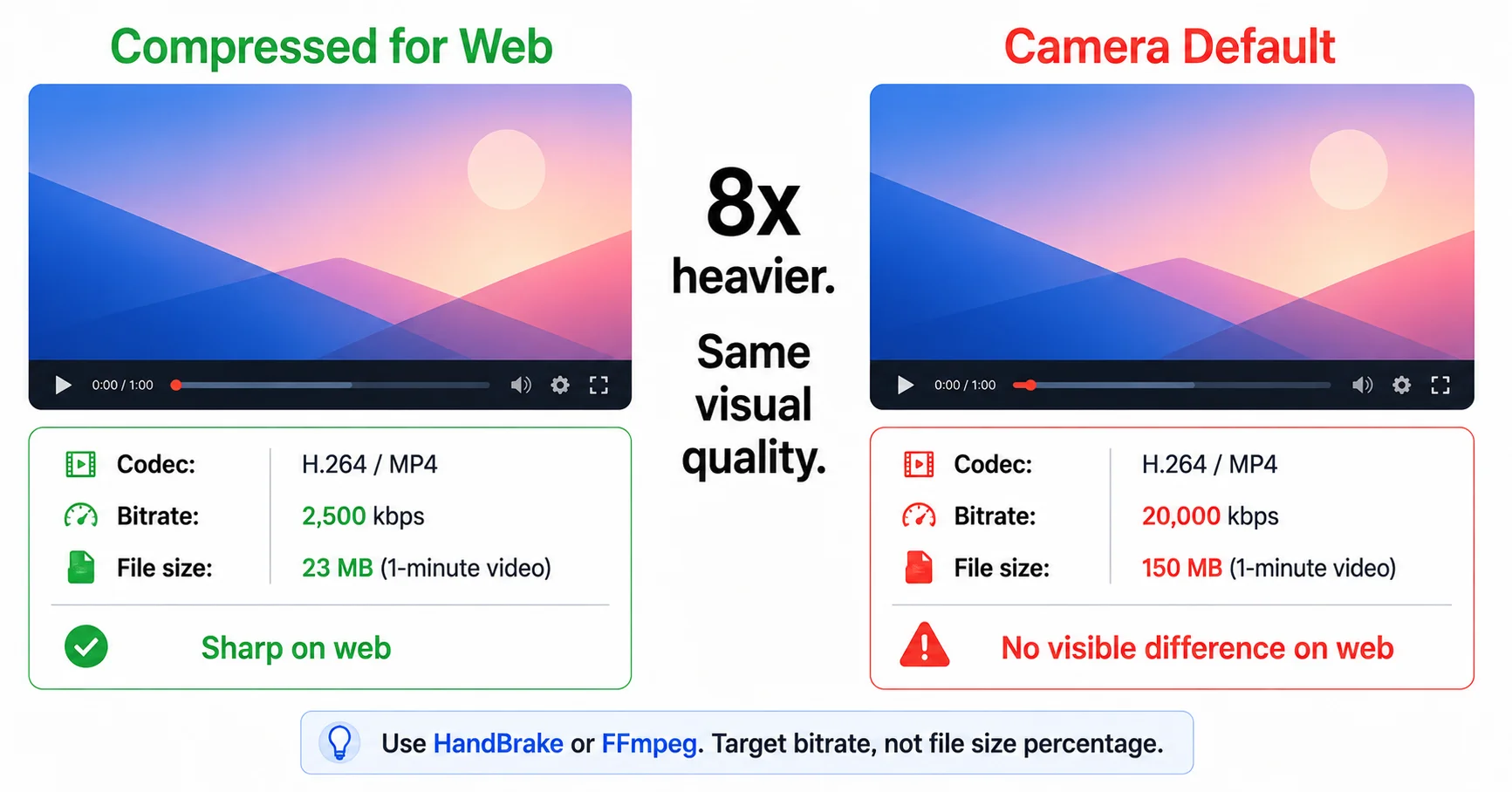
Use HandBrake (desktop, free) or FFmpeg (command line) for compression. Target a specific bitrate. A 1080p video at 2,500 kbps looks sharp and loads fast. The same video at the camera’s default 20,000 kbps is 8 times heavier with no visible quality gain on a web page.
Strip the audio track from background videos. A video with audio is typically 30 to 40% larger than the same video without it. If no one hears the sound, remove it.
Use a video CDN for delivery
A video CDN stores copies of your video on servers across different regions. When someone presses play, the CDN serves the file from the nearest server. Less distance means less latency and less buffering.
The bigger advantage is adaptive bitrate streaming. The CDN encodes your video into multiple quality tiers and switches between them based on the viewer’s connection speed. A visitor on fiber gets full resolution. A visitor on a slow mobile connection gets a lighter file that plays without buffering.
BunnyCDN Stream and Mux are two strong options for WordPress sites. FluentPlayer integrates with both natively in its Pro tier. You connect the CDN, add the video, and FluentPlayer handles delivery optimization. No extra plugins. No custom embed code.
Never upload raw video to your WordPress media library
WordPress is a content management system. It is not a streaming server. Uploading video to the Media Library consumes hosting bandwidth, inflates your backups, and gives you no adaptive bitrate streaming.
Most shared hosting plans cap uploads between 32 MB and 128 MB. A 3-minute video at decent quality exceeds 100 MB. Even if your host allows the upload, your server delivers one fixed-quality file to every visitor.
This rule applies to every WordPress site, regardless of hosting plan or traffic volume. Host video elsewhere. Embed it on your page.
When to Self-Host vs. Embed vs. Use a Dedicated Player
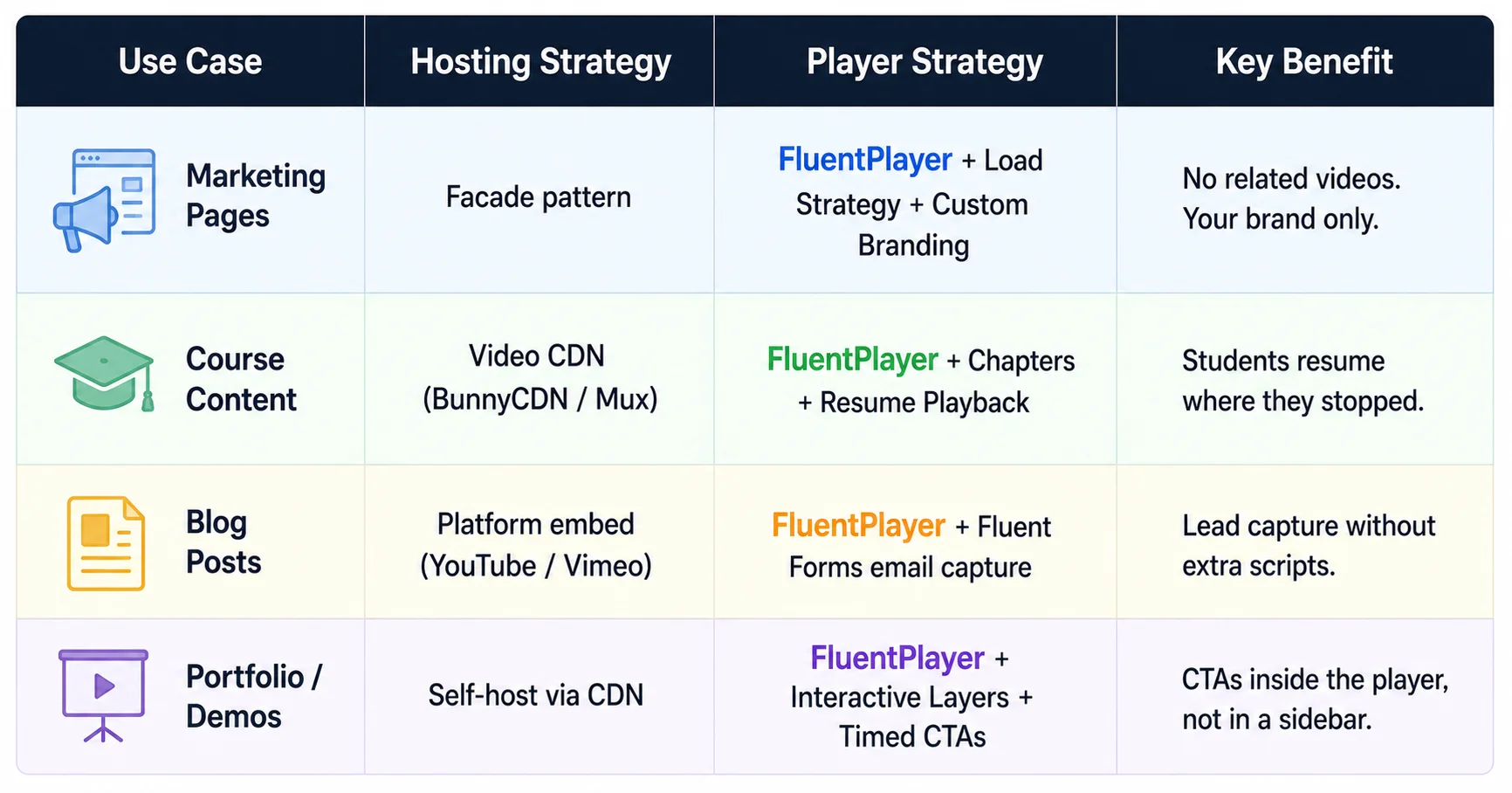
The right approach depends on the use case. Here is how I break it down.
Marketing and landing pages
Use the facade pattern and FluentPlayer with Load Strategy. The player defers initialization until click. Custom branding replaces YouTube’s chrome with your colors and logo. No “related videos” pulling visitors to someone else’s content at the end of playback.
Course and membership content
Use a video CDN (BunnyCDN or Mux) and FluentPlayer with chapters, speed control, and remember-playback-position. Students pick up where they left off. The player does not reload its full infrastructure for every lesson. This matters when a single page has 10 or more videos.
Blog posts with supporting video
Use a platform embed (YouTube or Vimeo) with FluentPlayer as the embed wrapper. Even with YouTube as the source, FluentPlayer controls load behavior, removes third-party branding, and lets you add an email capture layer through Fluent Forms integration in the free tier.
Portfolio and product demos
Self-host via CDN and use FluentPlayer with interactive layers. CTA banners, hotspots, and timed content (Pro) turn a passive demo into a conversion tool. The visitor watches the demo and sees your CTA inside the player, not in a sidebar they are ignoring.
The pattern across all four: FluentPlayer is not a hosting replacement. It is the player layer between your video source and your visitors. The hosting decision is separate from the player decision.
Learn to create video experience that converts your users
What a Purpose-Built Video Player Does Differently
The 7 methods above work on their own. Apply them with any player or no player at all. But a player designed around page speed handles these decisions at a deeper level.
Load strategy and player initialization
FluentPlayer’s Load Strategy feature controls when the player loads. Not through a third-party lazy loading plugin. Not through a separate facade script. The load decision lives inside the player.
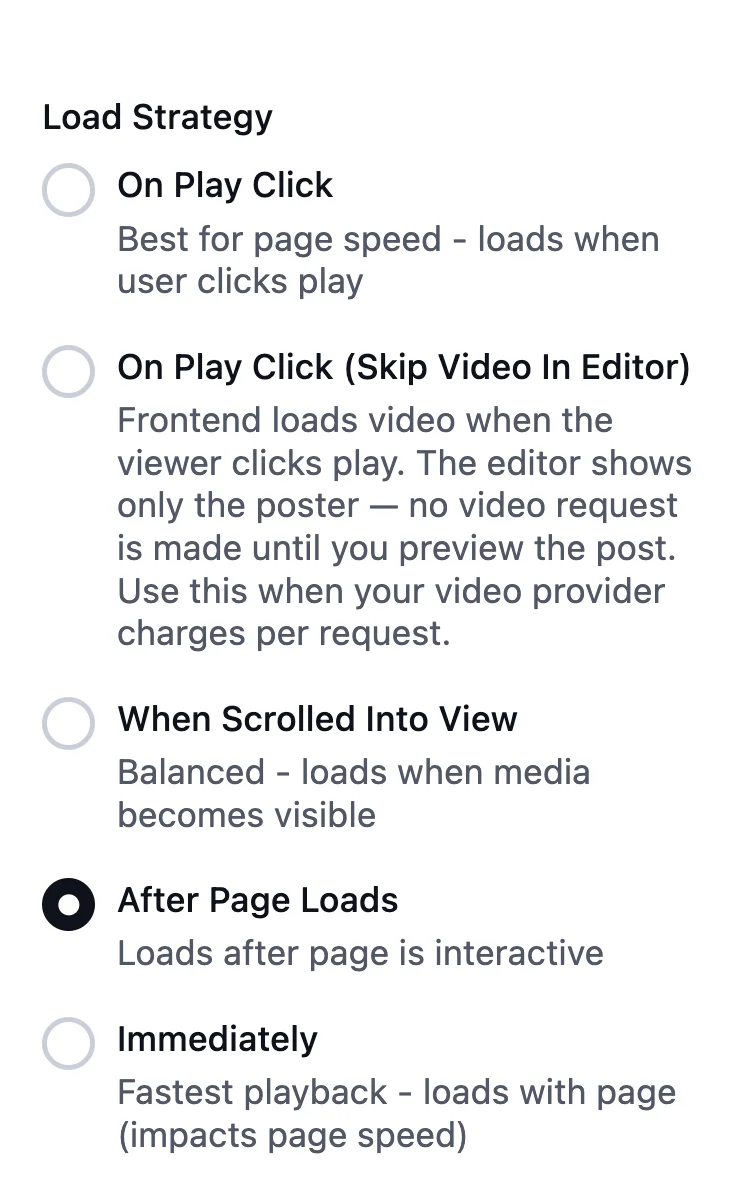
I covered the facade pattern earlier. FluentPlayer implements it natively. That is one fewer plugin on your site and one fewer point of failure in your page load sequence.
Branding without the bloat
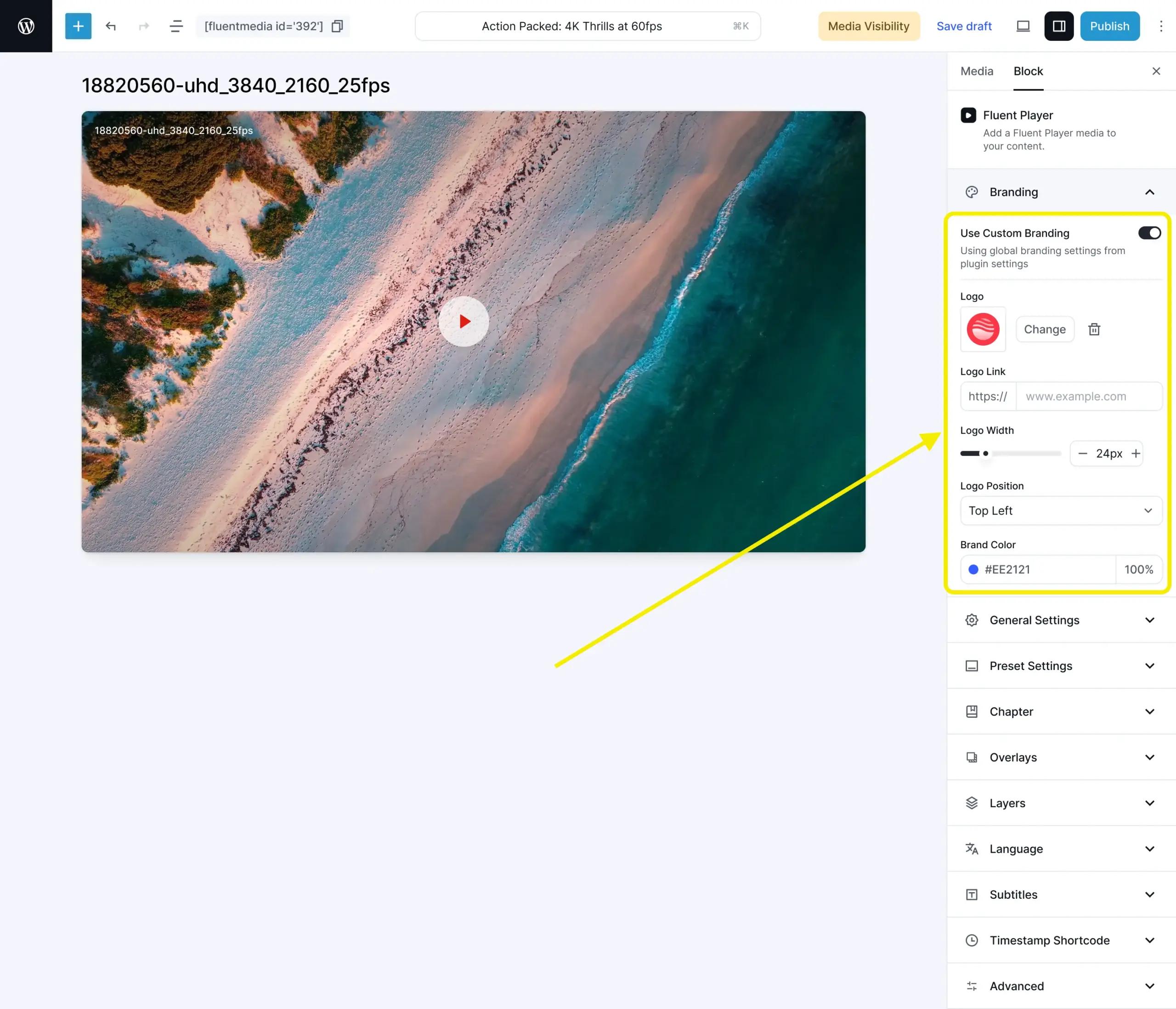
YouTube’s embed brings YouTube’s brand. Their colors, their logo, and their suggested videos at the end. Vimeo’s embed brings Vimeo’s branding. Both add visual noise that is not yours.
FluentPlayer’s Custom Branding (free tier) replaces all of it. Your logo, your brand color, your control bar color. The player ships with 5 presets (Default, Modern, Simple, Minimal, Ambient) that load without external CSS frameworks.
Turn passive video into active conversion
This is where FluentPlayer goes beyond speed. Interactive Layers in the free tier let you embed a Fluent Forms email capture form directly inside the video player. No popup plugin. No external script. The form appears at a timed moment during playback.
In the Pro tier, Interactive Layers expand to CTA banners, hotspots, ad placements, and shortcode overlays. Timed Content (Pro) controls what appears at specific timestamps.
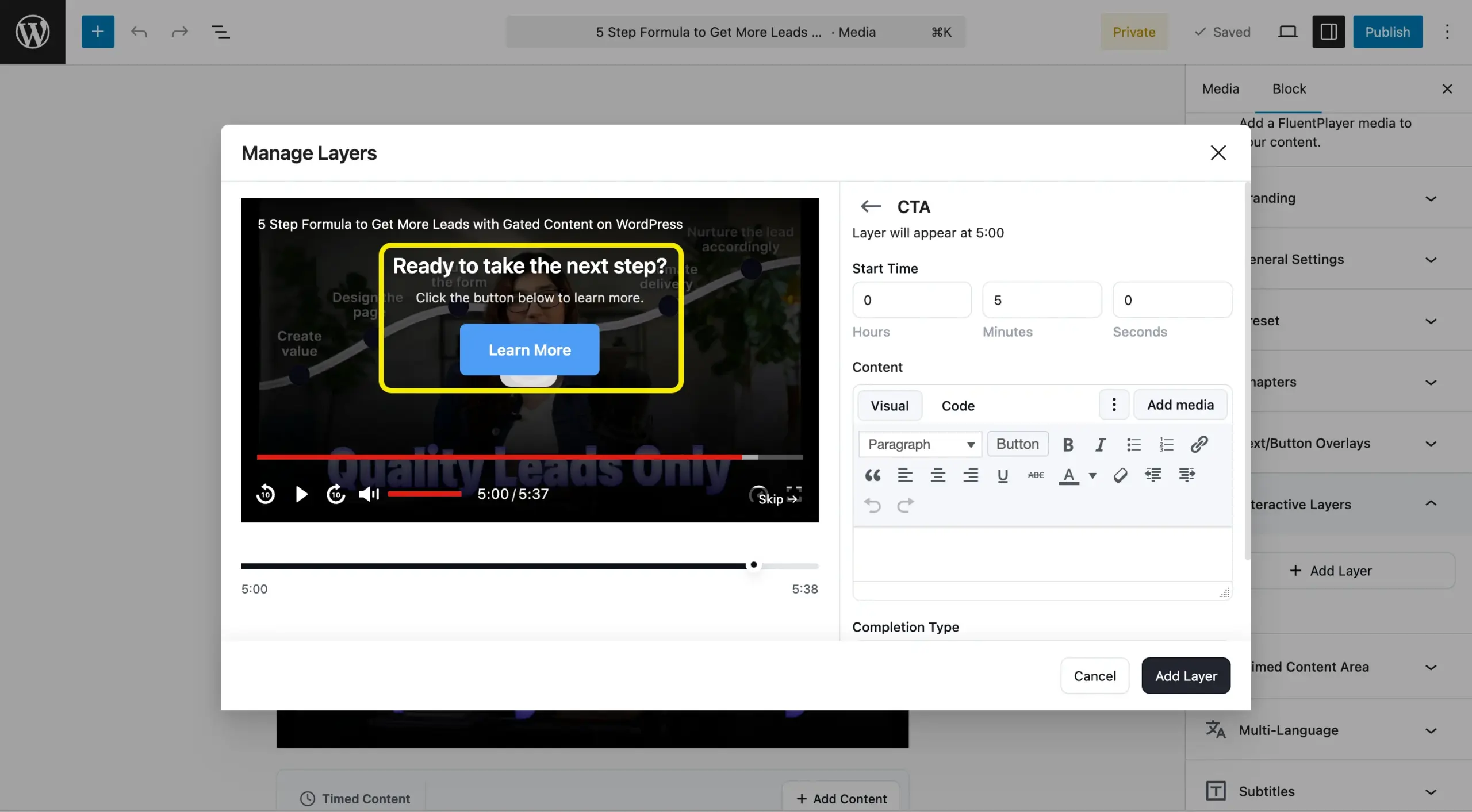
A product demo surfaces a “Start free trial” CTA at the exact moment the feature is shown. Not after the video ends. Not in a sidebar. Inside the player, while the visitor is watching.
Analytics without third-party tracking scripts
YouTube gives you analytics through YouTube. Vimeo gives you analytics through Vimeo. Both require loading their tracking infrastructure on every page view, regardless of whether anyone watches the video.
FluentPlayer Video Analytics (Pro) tracks views, average watch time, unique viewers, completion rate, audience retention, device distribution, location breakdown, and performance over time. All inside your WordPress dashboard.
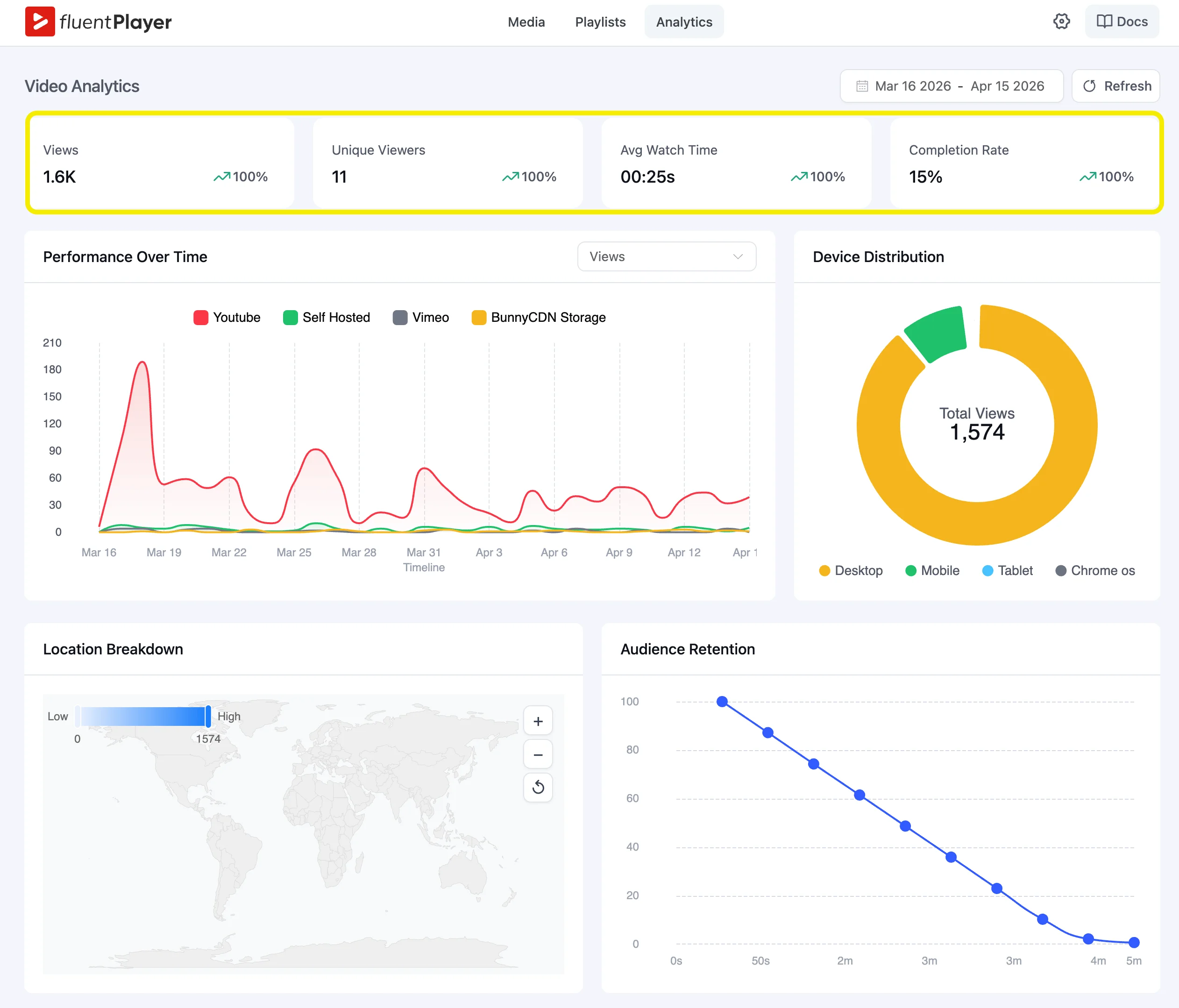
No external scripts on the frontend. Every tracking script you remove from the page is a Total Blocking Time improvement.
One player, multiple sources
FluentPlayer supports YouTube, Vimeo, self-hosted video, and audio in the free tier. BunnyCDN Stream, BunnyCDN Storage, and Mux are available in Pro.
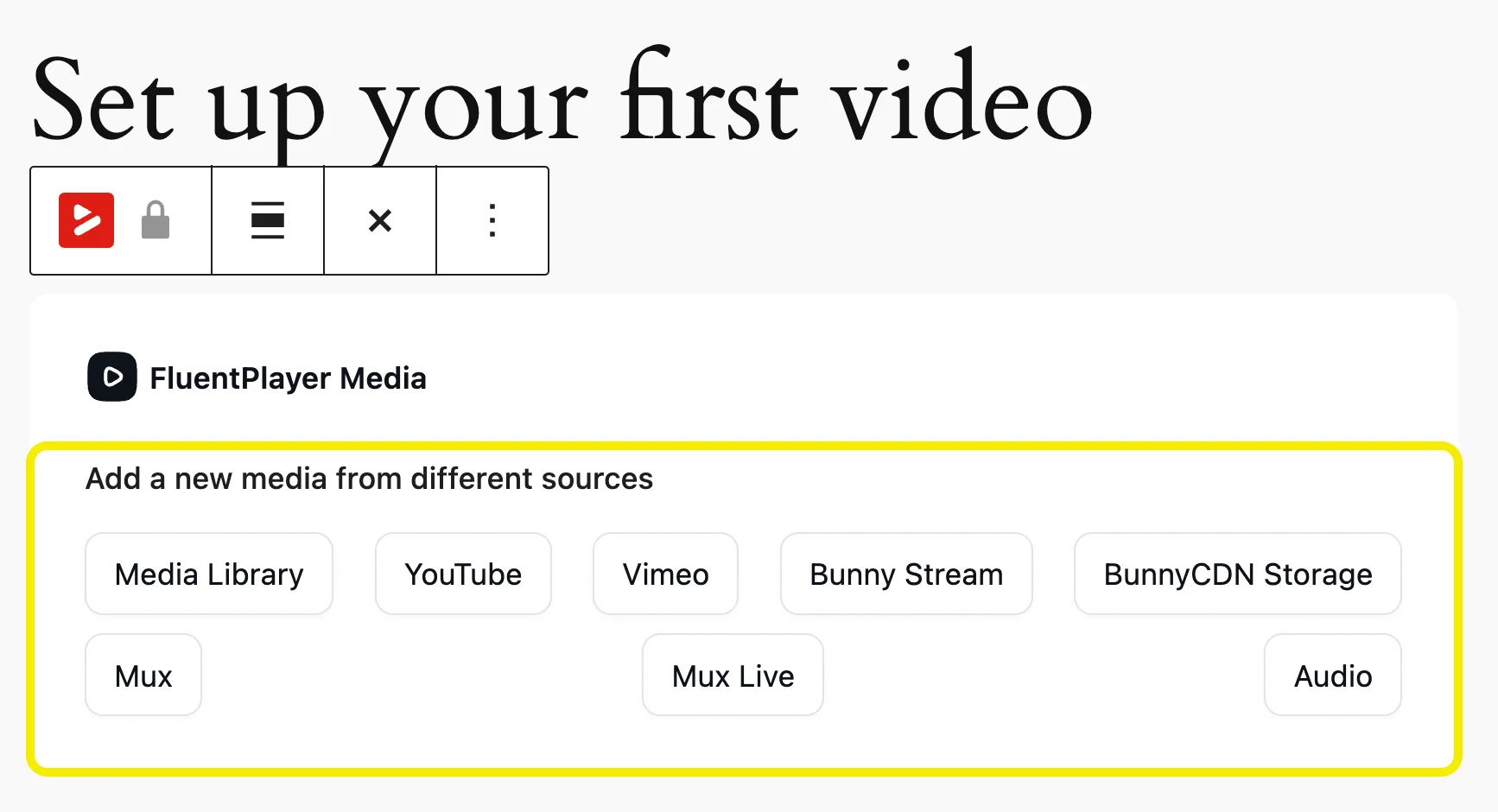
The hosting decision and the player decision are decoupled. You switch from YouTube to BunnyCDN without changing the player on your page. The visitor experience stays the same.
Video chapters (free), speed control (free), picture-in-picture (free), subtitles (Pro), and language switching (free) work regardless of source.
Migration from Presto Player
If you currently use Presto Player, FluentPlayer includes a migration tool in the free tier. You switch without rebuilding your video setup from scratch.
Integrations that extend the player
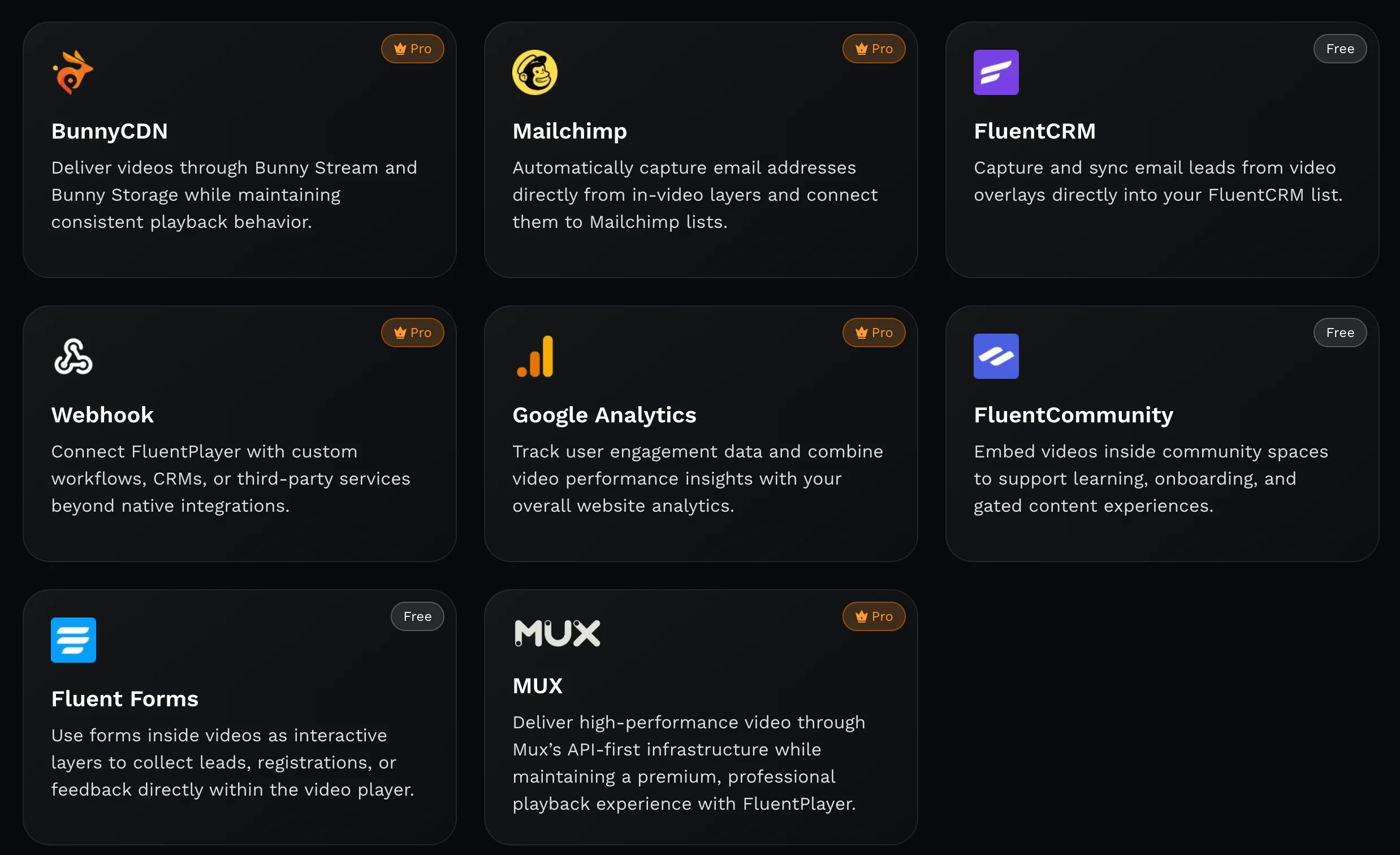
FluentPlayer connects to FluentCRM (free) for tagging viewers based on watch behavior. Mailchimp integration (Pro) syncs email captures from in-player forms to your list. Google Analytics integration (Pro) sends video events to your GA4 property.
FluentCommunity integration (Pro) ties video content to community access. Webhook support (Pro) pushes video events to external tools. Each integration adds functionality without adding frontend scripts to your page.
Your Video Should Load as Fast as Your Decision to Use One
Open PageSpeed Insights right now. Run your highest-traffic page that has a video embed. Check the LCP score. If it is above 2.5 seconds on mobile, the video is likely the cause. Start with the facade pattern. It is the fastest fix with the highest impact.
If you want a player that handles load strategy, branding, Fluent Forms email capture, video analytics, and CDN delivery in one WordPress plugin, FluentPlayer is built for this problem.
No third-party scripts on your frontend. No YouTube chrome on your pages.
Stay updated on free vs. pro, pricing & beta.

This is Sumit. He’s a physics major who’s trying to understand both the physical as well as the WordPress worlds. Whenever he’s not busy, plays fifa or spends time with his family.
Leave a Reply