

A paid course leaks the same way every time. Not a hack, just an ordinary forward, a login handed to a friend, a link in a group chat. If you sell video lessons on WordPress, you’ve pictured this already.
Most advice stops at disabling right-click or adding a watermark. A screen recording defeats both in five seconds. What that advice skips is the system that actually keeps it protected.
Someone reselling their login and someone actually stealing the video file aren’t the same threat. One needs the course gated so it can’t be found for free. The other needs the stream itself to be hard to lift.
A refund request is usually the first sign either one happened, not the leak itself. By then the access has already been used, or the file already copied.
This post walks through the four ways to close it, all ready to set up before your course goes live.
TL;DR
- No plugin can fully block screen recording, even with real DRM.
- Four independent access gates make casual sharing impractical instead.
- FluentCommunity’s Course Privacy, Private or Secret, runs on the free plan.
- FluentCart’s native paywall also runs free, with no LMS plugin required.
- FluentCart can auto-remove course access on refund or subscription expiration.
- FluentPlayer Pro’s Conditional Layer Rules gate bonus content by FluentCRM tag.
- Lesson video streams while lesson worksheets download, a deliberate split.
Why “Can’t Be Shared” Is Four Gates, Not One
Every plugin that promises to stop video theft runs into the same wall eventually. Real DRM can genuinely block someone from grabbing the video file itself. Almost nothing can stop a screen recording, because that requires hardware-level protection most devices and browsers don’t support, and even then, pointing a second camera at the screen still works.
What actually works is different. Instead of one lock, build four: who can find the course, who can pay for it, whether their access stays active, and how hard the video itself is to lift. Each gate does one job. None of them alone is enough.
For a $297, six-lesson course, that stack looks like this: FluentCommunity structures and gates the course, FluentCart handles the sale, FluentPlayer delivers the video and controls what different viewers see, and FluentCRM automates what happens after someone stops paying.
Build the Course in FluentCommunity
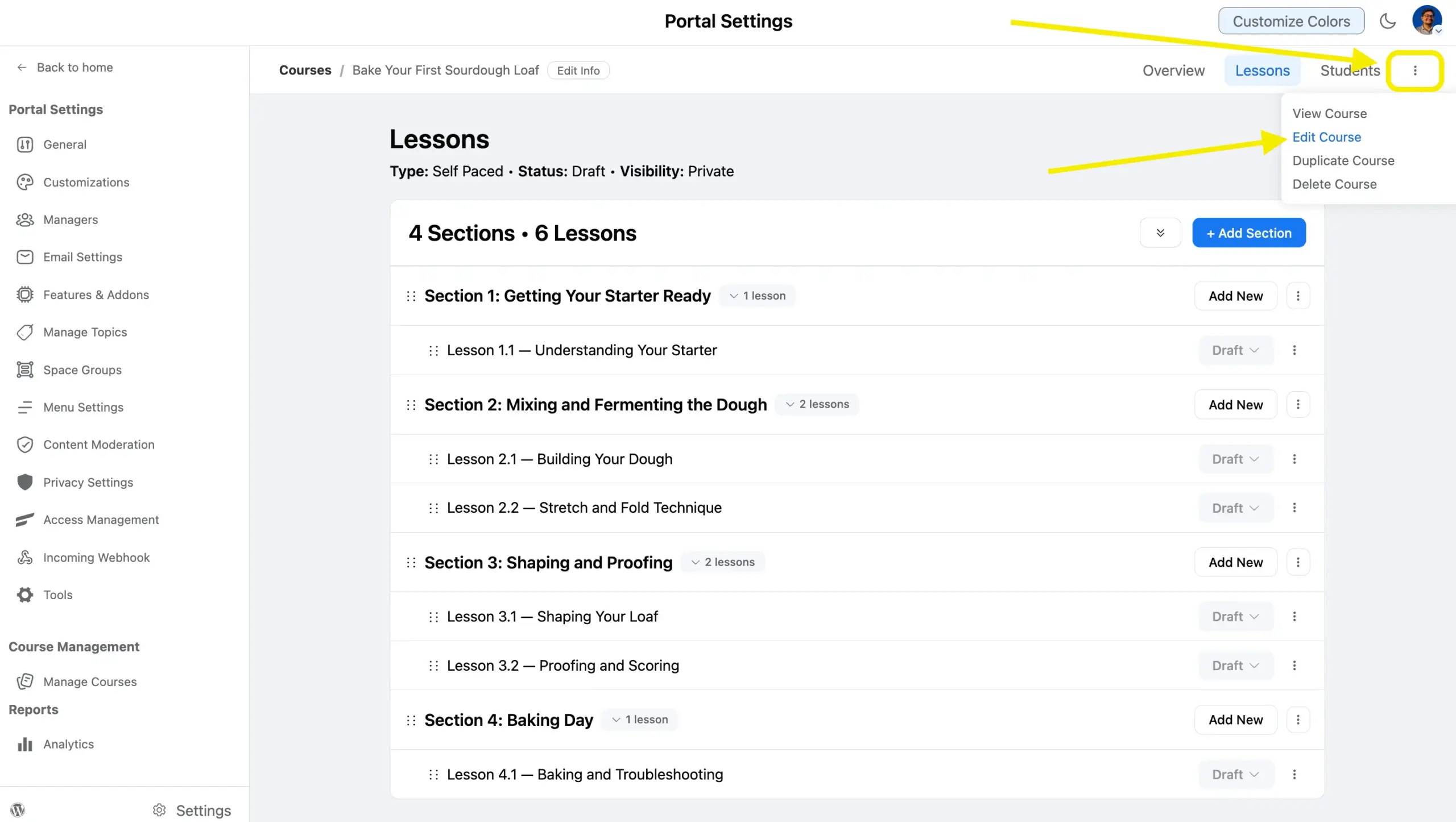
Start in FluentCommunity’s Course Editor, built on the Gutenberg block editor you already know from WordPress. Add your six lessons as separate blocks inside the course structure, in the order you want students to move through them.
Drip Content lets you release lessons on a schedule instead of all at once, useful if you want a cohort to move together instead of binge-finishing lesson one and vanishing.
This part of FluentCommunity is free. No Pro plugin needed to build the course itself.
Lock It: Private vs. Secret
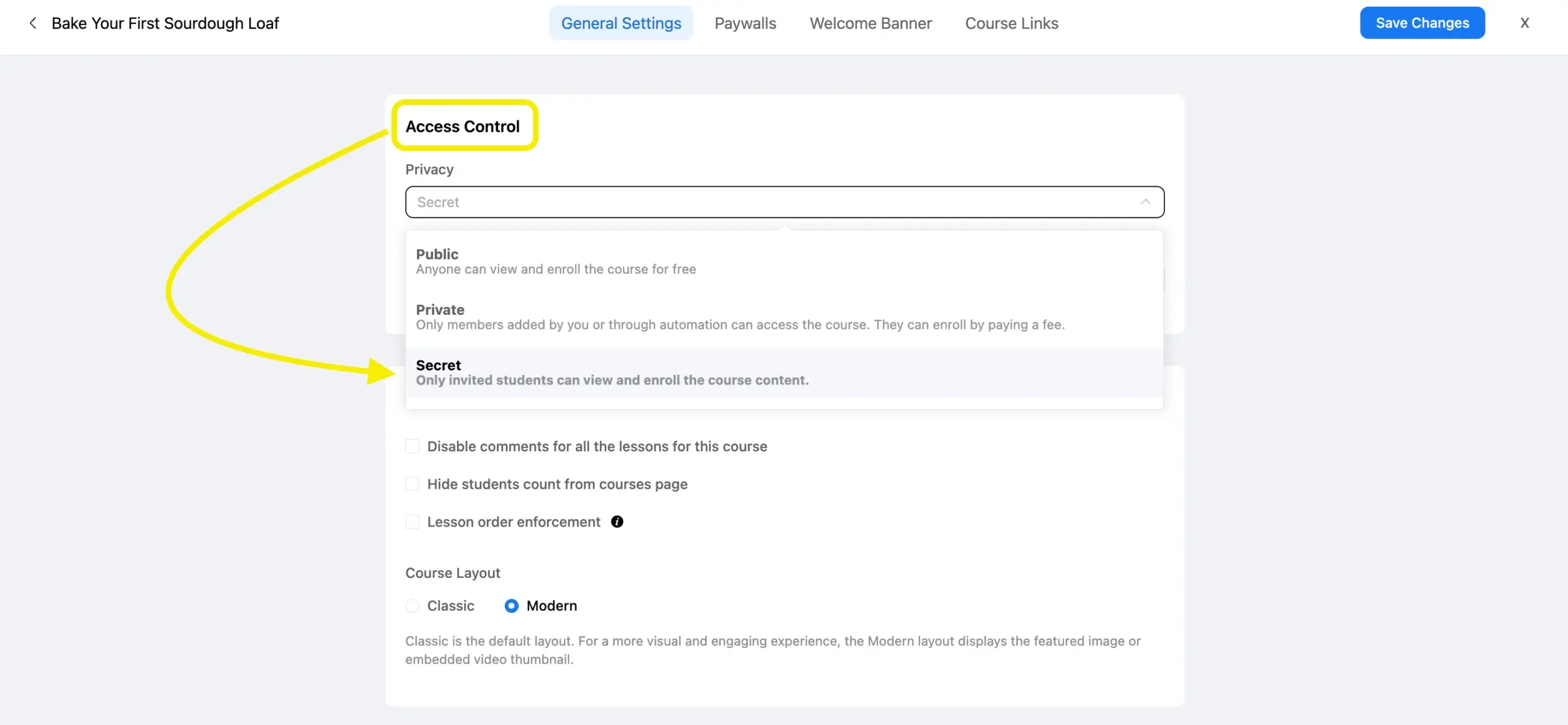
FluentCommunity gives a course three privacy states. Public means anyone finds it and joins free, which is not what you want for a paid course.
Private is the standard paid-course setting. The course shows up, non-members see a Lock Screen instead of the content, and people can enroll by paying.
Secret goes further. The course does not appear in any public listing at all. Enrollment happens only when you or an automation adds someone directly, so there is no self-serve path, paid or otherwise.
Use Private if you want the course to sell itself. Use Secret for a cohort you are hand-selecting, like a small group coaching round.
Add the Paywall With FluentCart
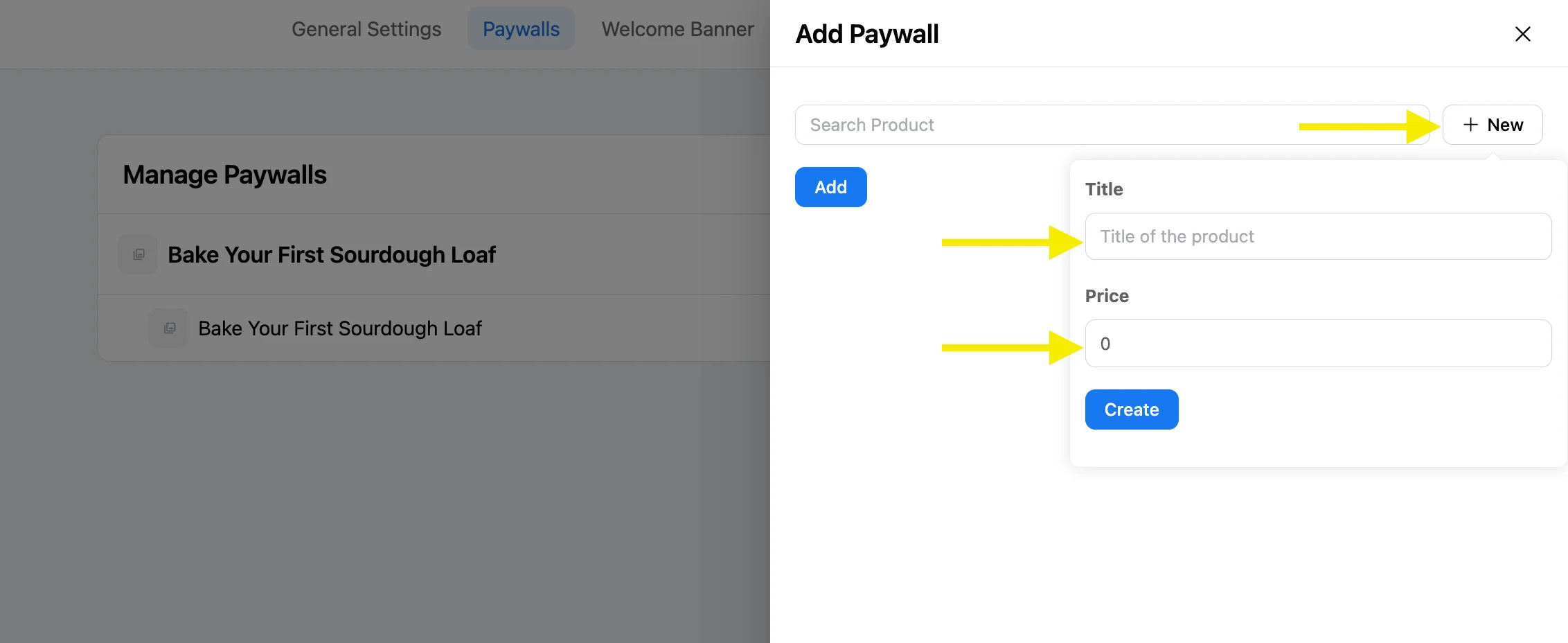
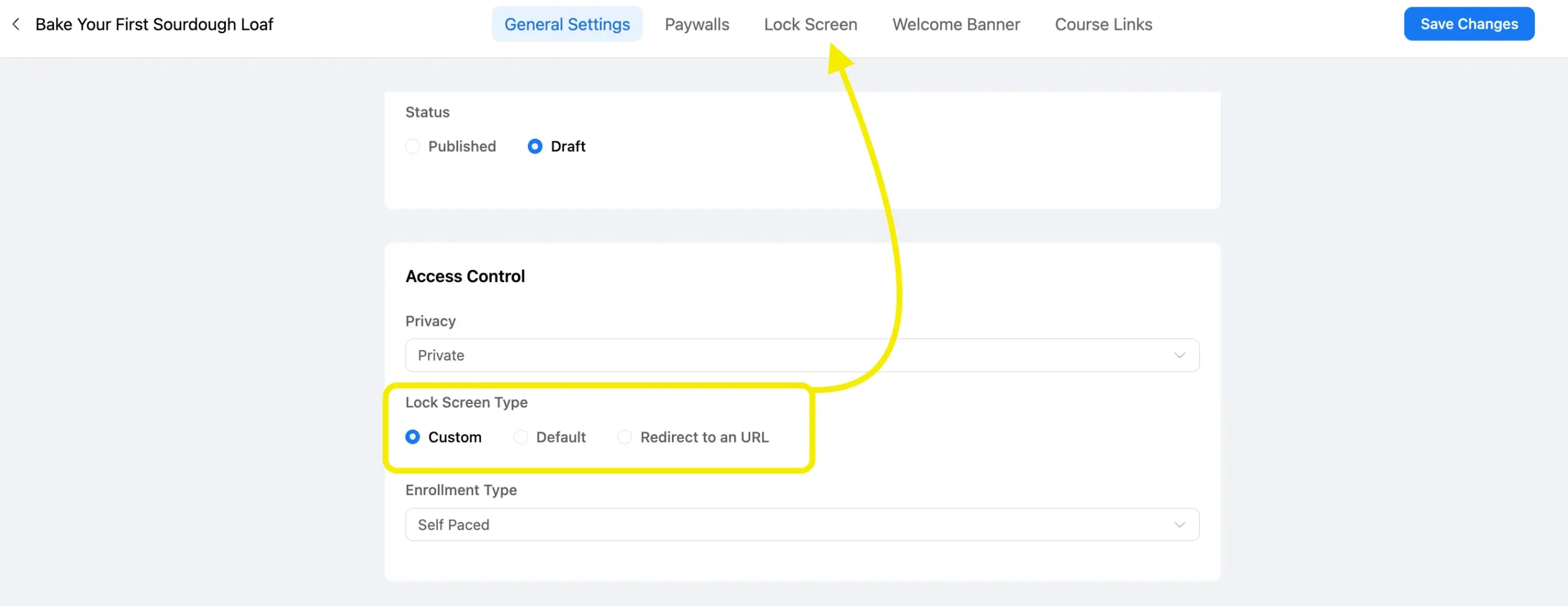
Set the course to Private or Secret first. That unlocks the Paywall and Lock Screen tabs inside the course settings.
From there, link an existing FluentCart product to the course, or create one without leaving FluentCommunity. Either way, you are pricing the six-lesson course as a single FluentCart product.
FluentCart itself is a full self-hosted store, not a single-purpose paywall tool. Here it is doing one job: gating one product. The same store can run your entire catalog if you sell more than one course later.
This flow needs runs on the free FluentCart and FluentCommunity plugins.
Design the Lock Screen
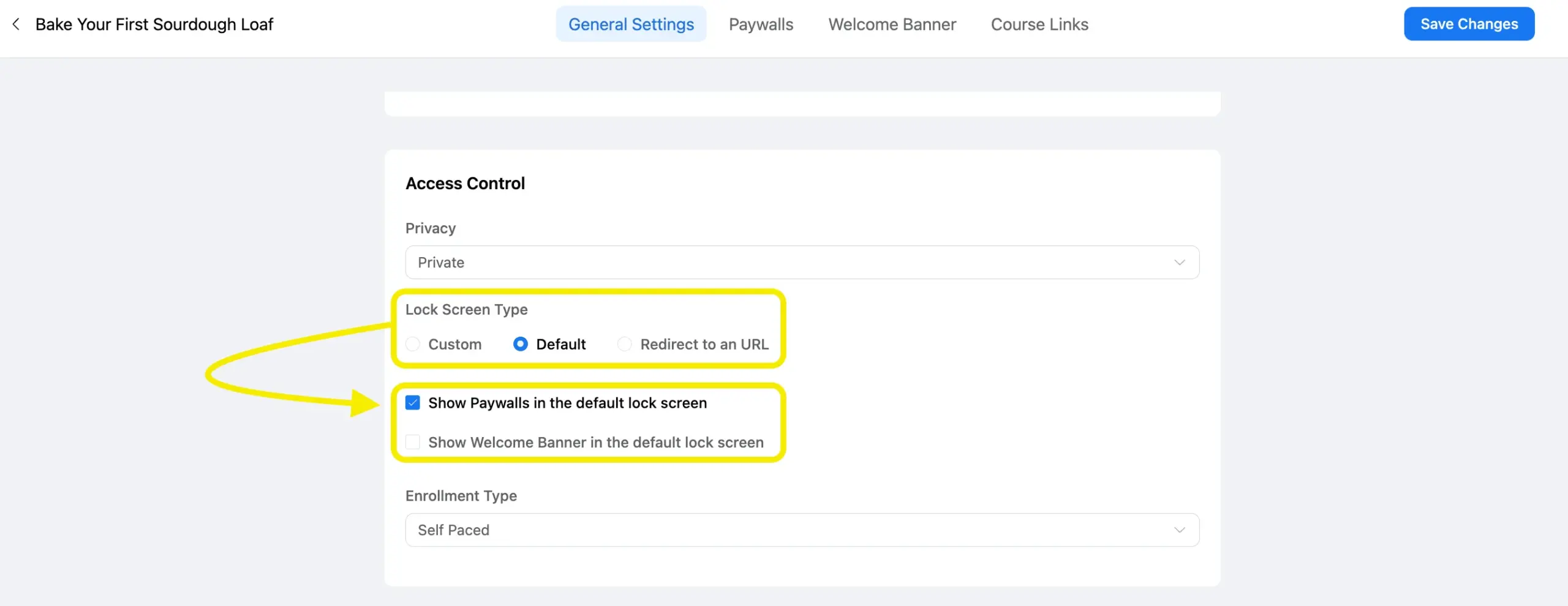
If the privacy of your course is set to Private, then the non-paying visitors see a Lock Screen instead of your six lessons. FluentCommunity gives two options here.
Default adds a Buy Now block automatically, pulling price and product name from the FluentCart product you linked. Fastest setup, no design work.
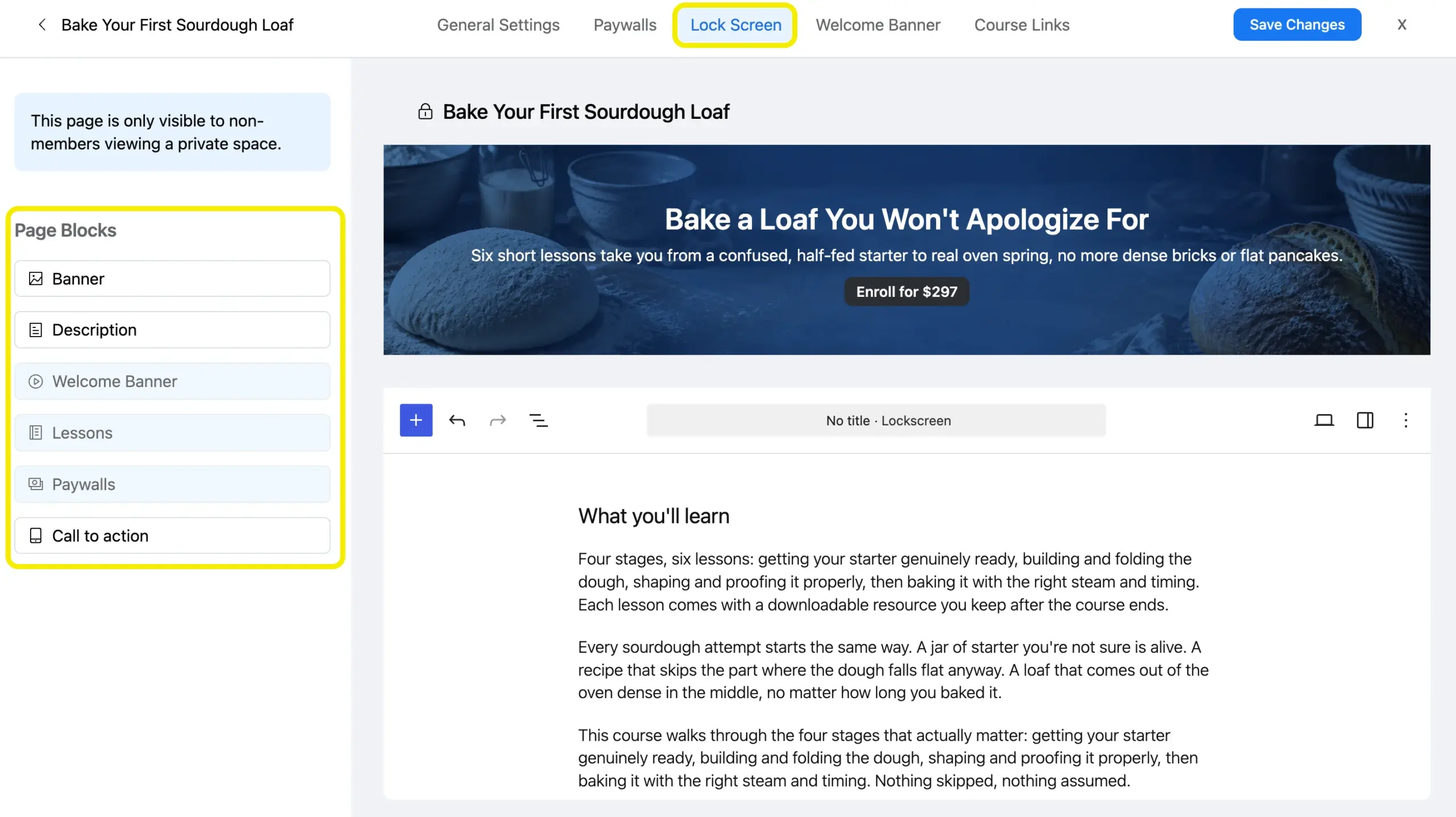
Custom opens a full builder: banner image, description text, a CTA button, background and brand colors. Better if the course sale depends on the pitch, not just the price.
Either way, this is a free-tier feature. No upgrade required to sell the course.
Turn On the Branded Player
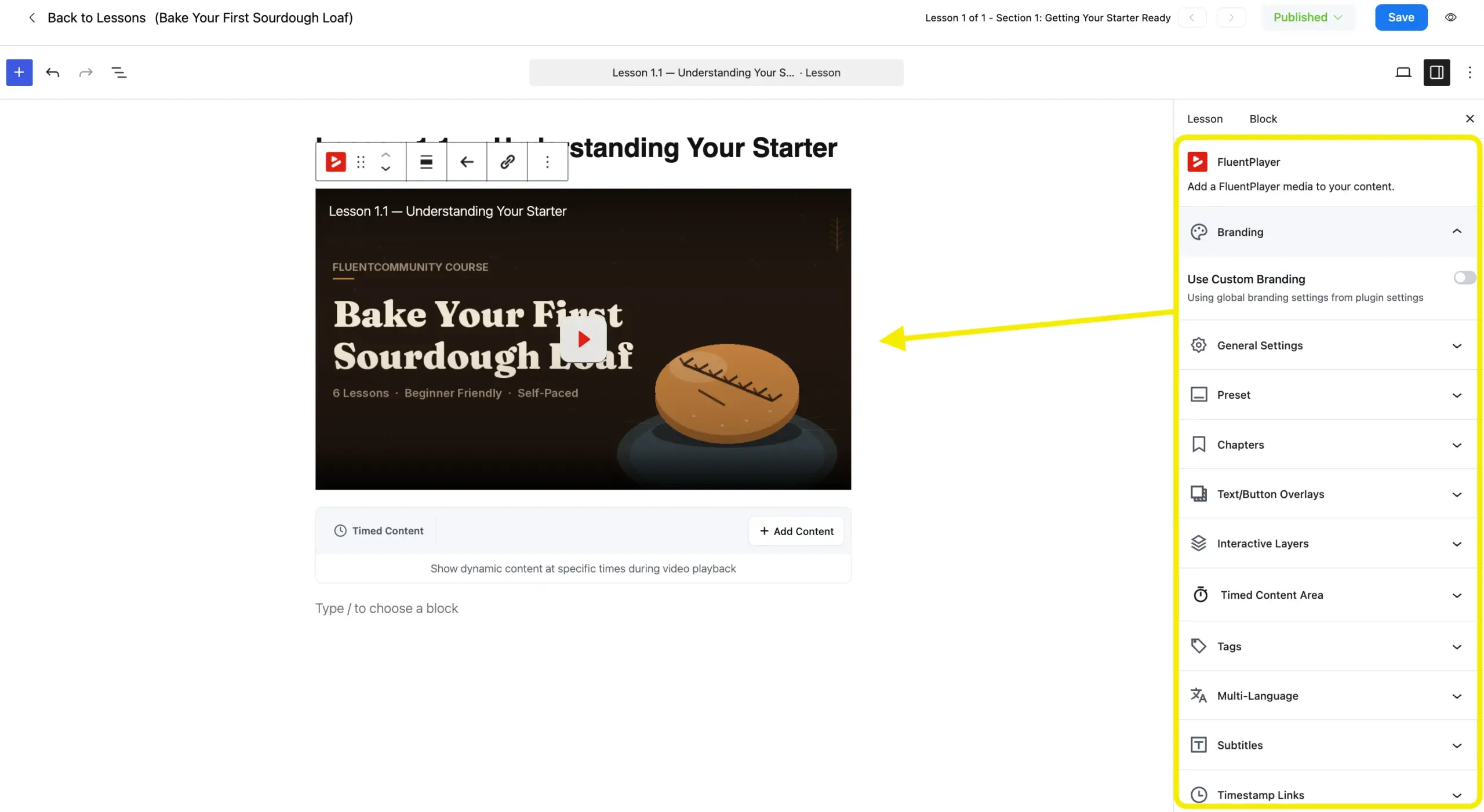
FluentCommunity plays lesson video through FluentPlayer, configured in its own settings panel: Features and Addons, then the FluentPlayer module. If FluentPlayer is not active yet, this panel installs it in one click.
From there, pick a skin (Modern, Classic, Simple, Floating, Minimal), set your brand color, and choose which controls show. Hiding the bottom controls removes the seek bar entirely, which FluentCommunity documents as useful for restrictive course environments where lesson order matters.
FluentPlayer plays the video. It does not host or store it. That job belongs to wherever your video files actually live, whether that is FluentCommunity’s own media storage or a separate provider.
Install FluentPlayer free from WordPress.org to get the branded player running on your course today.
Protect the Stream Itself
Everything above gates access to the course. None of it identifies who is actually watching once someone is legitimately inside. That is where FluentPlayer Pro’s Conditional Rules and Analytics come in.
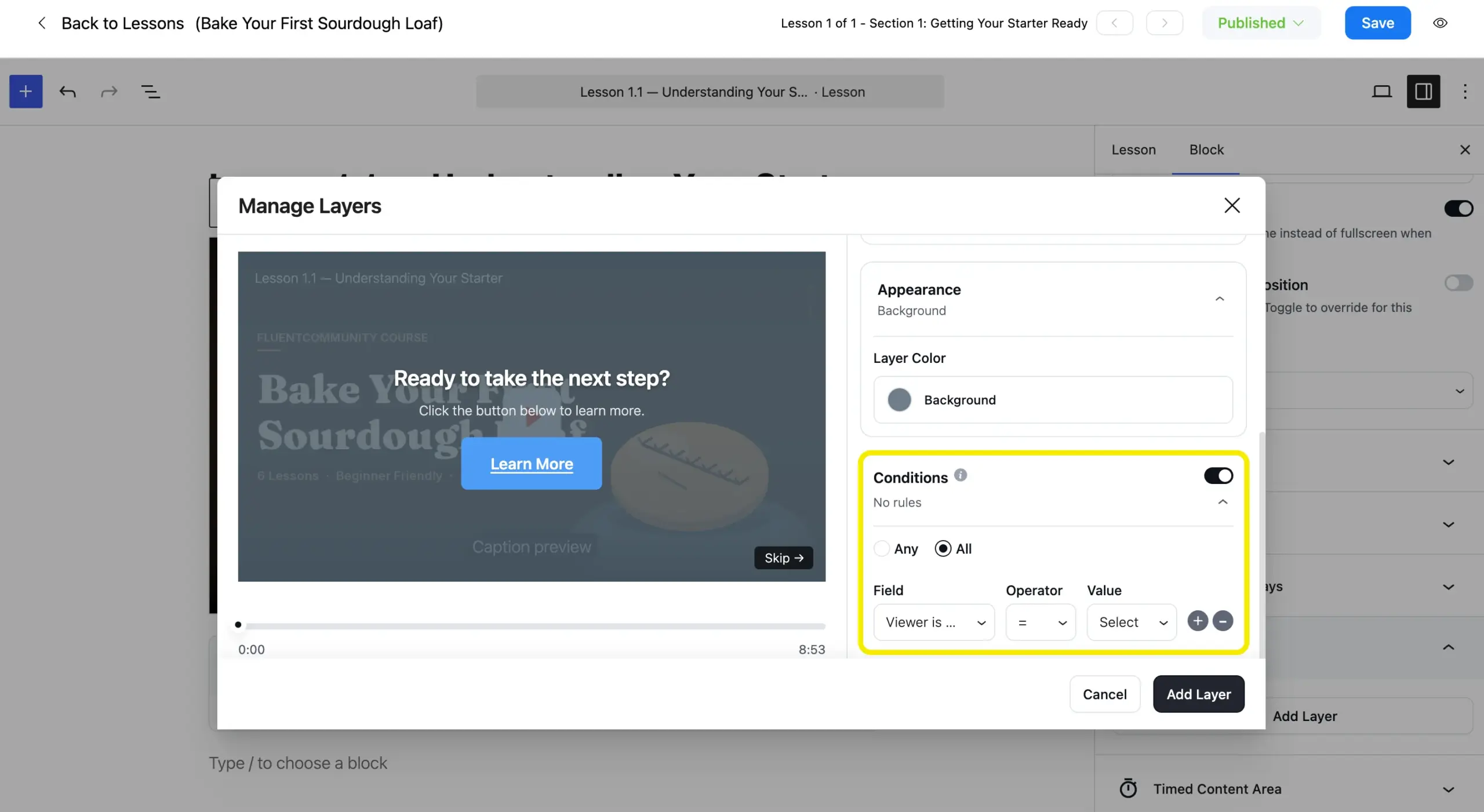
Conditional Rules for Layers let a layer, a bonus resource, an upsell, an extra lesson prompt, show only to viewers who match a rule you set: a specific FluentCRM tag, list membership, login status, or whether they already submitted a form. A generic viewer and a paying student in your top tier see different things inside the same video.
Video Analytics adds visibility instead of prevention. Device distribution and location breakdown show patterns a plain view count never would. One account streaming from six different cities in a week is worth a manual look, even though the dashboard will not flag it automatically.
Track engagement and audience retention with Advanced Analytics in FluentPlayer.
Automate Access Removal
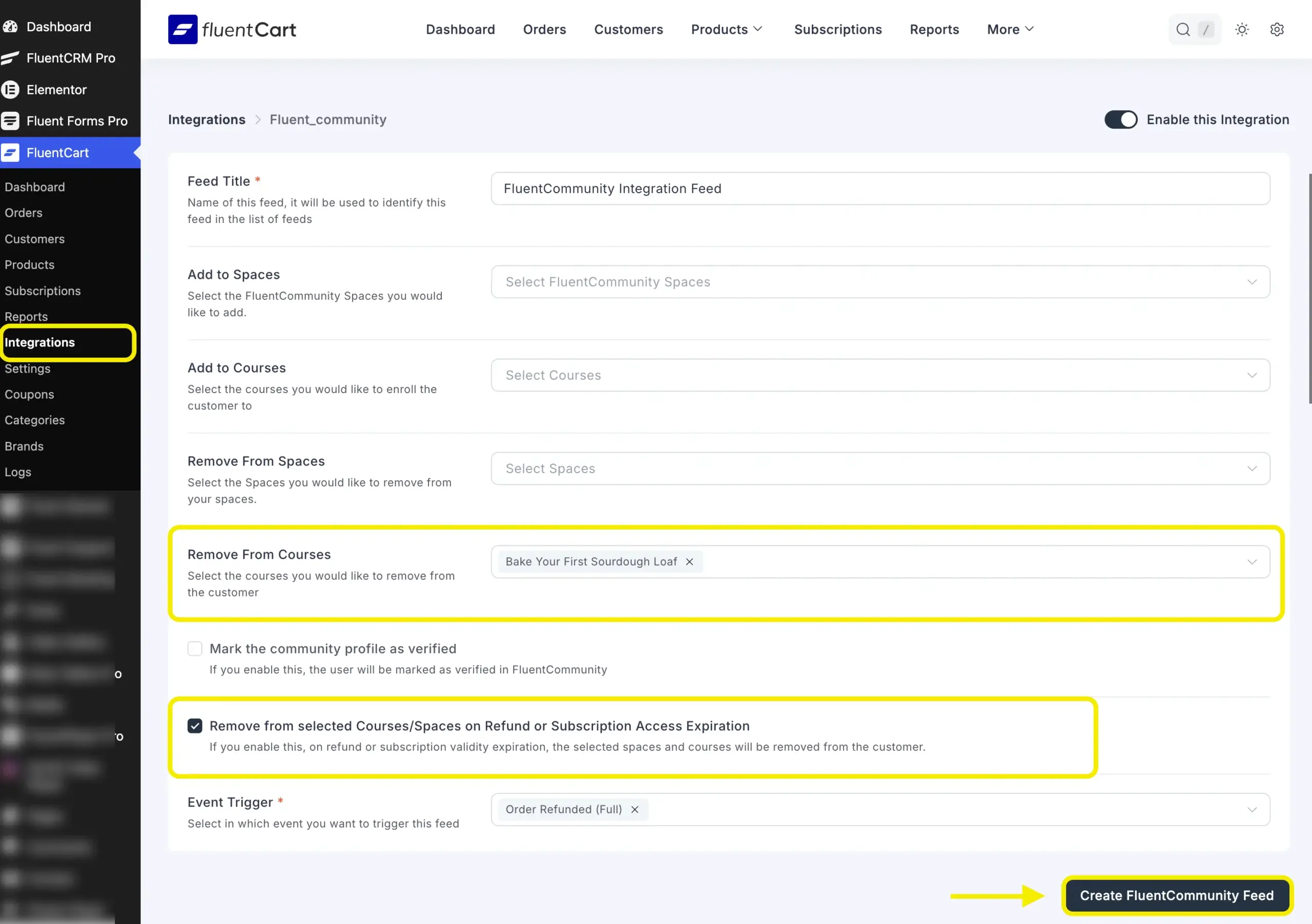
Access control does not end at the sale. A student who gets a refund, or whose subscription lapses, should lose the course automatically instead of keeping it by default.
FluentCart’s product Integrations panel has a setting for exactly this: remove the student from the linked Space or Course the moment a refund processes or a subscription expires.
FluentCommunity Pro adds a second, independent path through Automation Actions. Map a FluentCRM tag to the course, and adding or removing that tag adds or removes the student’s access. FluentCRM is not sending the emails here. It is the tagging and automation layer driving enrollment status.
Either path works alone. Running both gives you a fallback if one automation misfires.
Keep the Extras Downloadable, on Purpose
Lesson video streams through FluentPlayer and stays gated behind everything above. Lesson worksheets, checklists, and slide decks are a different story.
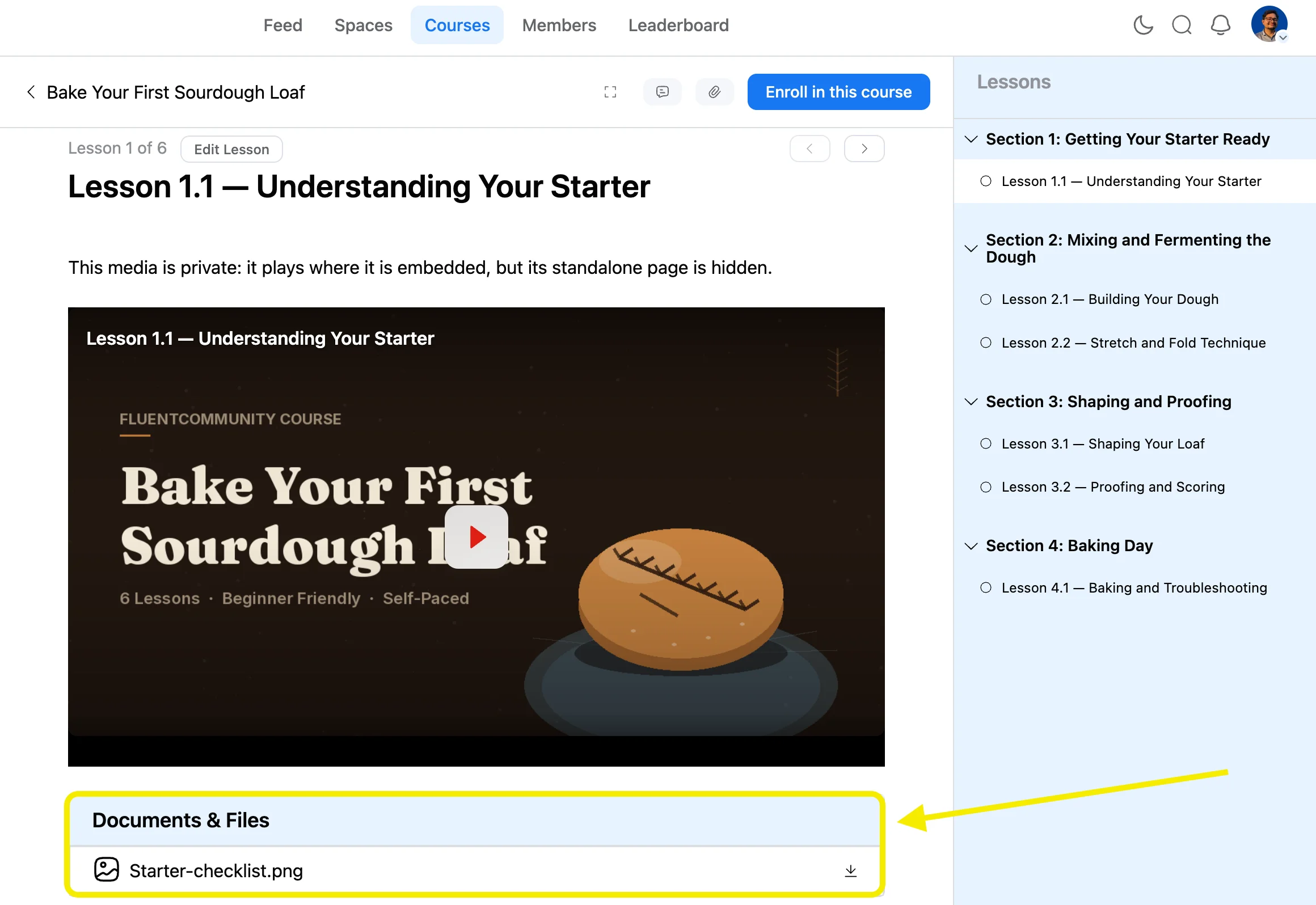
FluentCommunity’s course lesson documents are gated to enrolled students only, but fully downloadable once they are in. Students save the PDF, print the checklist, keep the notes after the course ends.
This is not an inconsistency. Resources are meant to leave the platform with the student. The video, the part someone could resell access to, is not.
What to Check After Launch
FluentCommunity’s own Report and Analytics panel shows course progress and lesson completion at a glance, useful for spotting where students drop off.
FluentCRM shows tag activity on each contact’s profile, so you can see exactly when someone was added to or removed from the course and by which automation.
If FluentPlayer Pro is active, its watch-time and completion data adds a third layer, showing whether people are actually finishing lessons or stalling early.
None of these tools flag sharing directly. What they show is engagement, and a pattern that looks off, like one account with unusually high watch time across many sessions, is worth a manual look.
Bring the Whole Stack Together
A paid course does not need one perfect lock. It needs four gates that each hold their own ground: who finds it, who pays for it, whether access stays earned, and how hard the video is to lift. Set up the free tier first, then decide where FluentPlayer Pro’s gating and analytics earn their place.
Frequently Asked Questions
Can you completely stop a course video from being downloaded?
No. Every method, including DRM on other platforms, can be defeated by a screen recording on a determined user’s device. Layered gates aim to make sharing not worth the effort, not to make it impossible.
Does FluentPlayer support DRM or signed URLs?
Not as a documented feature today. FluentPlayer Pro connects Mux and BunnyCDN as video sources for delivery. The protection in this workflow comes from access gating and conditional content rules, not stream-level encryption.
What’s the difference between Private and Secret courses in FluentCommunity?
Private courses appear publicly and can be purchased through the paywall. Secret courses are invisible to discovery, with enrollment handled only by an admin or an automation.
Can I sell a paid course in WordPress without an LMS plugin like LearnDash?
Yes. FluentCommunity’s Course Editor and FluentCart’s paywall handle course structure and payment without any LMS plugin installed.
What happens if a student shares their login or forwards the course link?
Nothing stops it the instant it happens. FluentCart’s refund and expiration removal, or FluentCommunity Pro’s tag-based automation, can revoke access once you catch it or once payment lapses.
Does hiding the download button actually stop piracy?
No. Right-click disabling and hidden buttons are bypassed easily through browser developer tools. They deter only the most casual, non-technical visitor.