

If you are using video to generate leads on WordPress, the CTA below the player is not your problem. You are asking people to act after their attention has already moved on.
The fix is putting the next step inside the frame. Wyzowl’s 2024 research shows that interactive video has a 10x higher click-through rate than passive video. This post covers the four elements and how to set them up in FluentPlayer.
TL;DR
- Interactive video gets a 10x higher click-through rate than passive video, per Wyzowl’s 2024 data
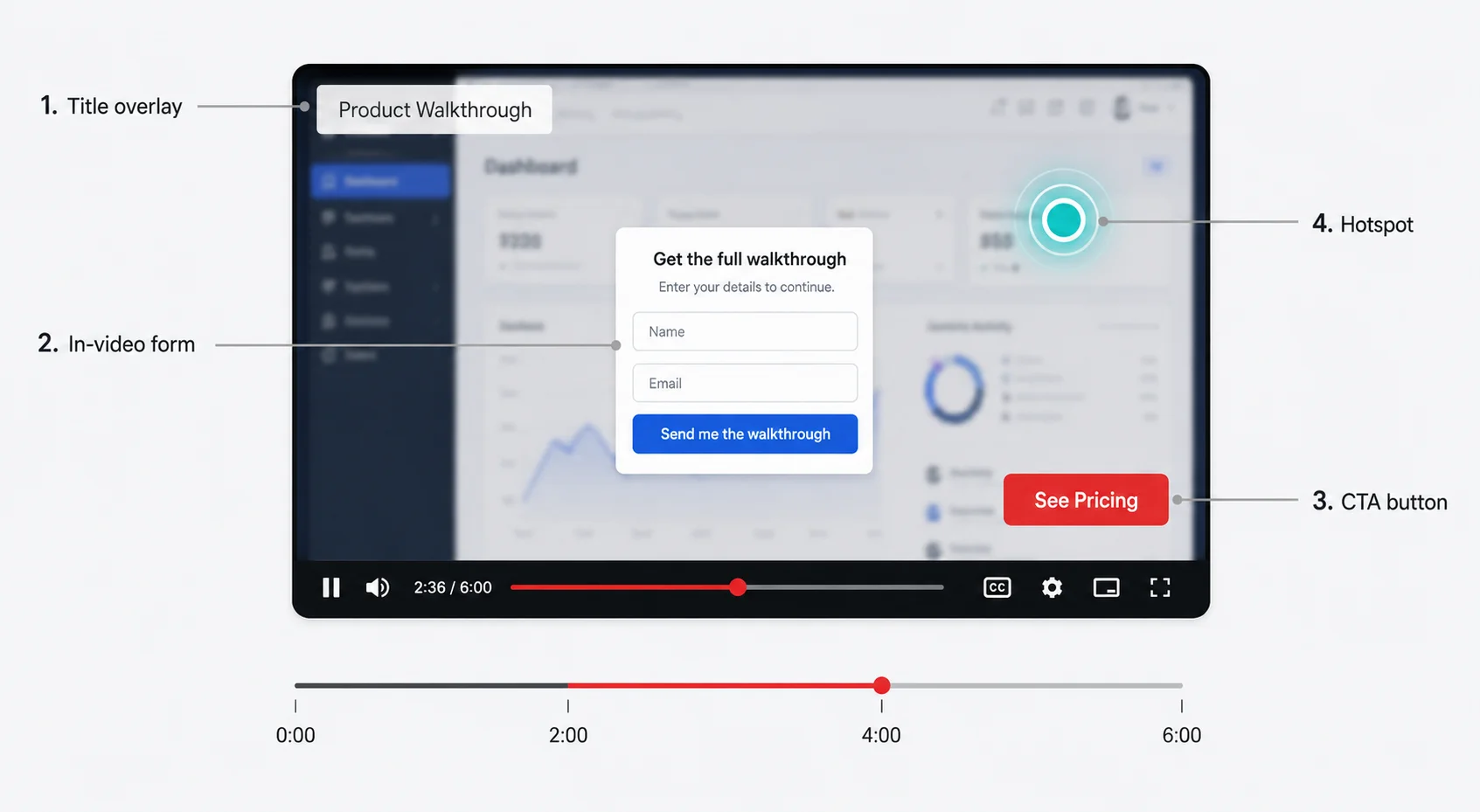
- The four interactive elements are CTA buttons, in-video forms, overlays, and hotspots. Each belongs to a different moment in the video.
- Placing a CTA in the first 25% of a video converts at 12.7%; placing it at the end drops to 6.8%
- FluentPlayer supports all four elements. Forms and email capture are free; CTA banners and hotspots require Pro.
- Leads captured inside FluentPlayer flow directly into FluentCRM with no Zapier, no CSV, no extra tool
Why the Below-the-Player CTA Keeps Failing
A CTA below the player asks the viewer to act after the video ends, when their attention has already started drifting. The moment someone is ready to take the next step is during the video, not after it.
By the time they scroll down and see the form, they are scanning the page, not committing to anything. Every extra click from that point is another reason to leave.
Interactive video fixes this in three specific ways:
Active participation
Passive video asks nothing of the viewer. Interactive formats like shoppable links, quizzes, and clickable CTAs require a response, and that keeps attention from drifting.
Personalized journeys
When viewers can click to choose the content or product they actually care about, the CTA becomes relevant to them specifically. That relevance is what moves click-through rate.
Fewer steps to conversion
Instead of sending the viewer to find a link in the description and navigate to a separate page, interactive video lets them act inside the player. Fewer steps between interest and action mean fewer drop-offs.
The 4 Interactive Elements and What Each One Does
CTA buttons at a timestamp
A CTA button appears inside the player at a timestamp you choose. You set the button text, the destination URL, and whether the video pauses when it appears. The viewer acts without leaving the frame.
Timing matters more than the button itself. A 2024 analysis by Tavus found that interactive elements in the first 25% of a video convert at 12.7%, while the same elements at the end drop to 6.8%.
In-video forms and email capture
A form layer drops a field directly into the player. The viewer submits without opening a new tab or navigating away. That single reduction in steps is what moves the completion rate.
Keep it to name and email for most lead capture scenarios. Adding a phone field typically cuts completions in half on B2B sites.
Overlays: title, text, branding, and ads
Overlays are the easiest element to overuse. Stacking a logo, a title, and an ad banner in the same frame competes directly with the content the viewer is trying to watch.
Use one overlay per moment, and only when it adds information the video itself does not give. A title overlay makes sense if the video is embedded without a visible heading on the page.
An ad overlay at the 70% mark works when the offer is directly relevant to what just played. Stacking overlays turns the player into a billboard.
Hotspots and clickable regions
A hotspot is a clickable region mapped to a specific area of the frame. Click a product on screen and you go to the product page. Click a data point and the case study opens.
These work best for product demos and course walkthroughs, where the frame itself contains something worth clicking. They do not make sense for talking-head content where there is nothing specific to point at.
When to Use Each Element in a Video
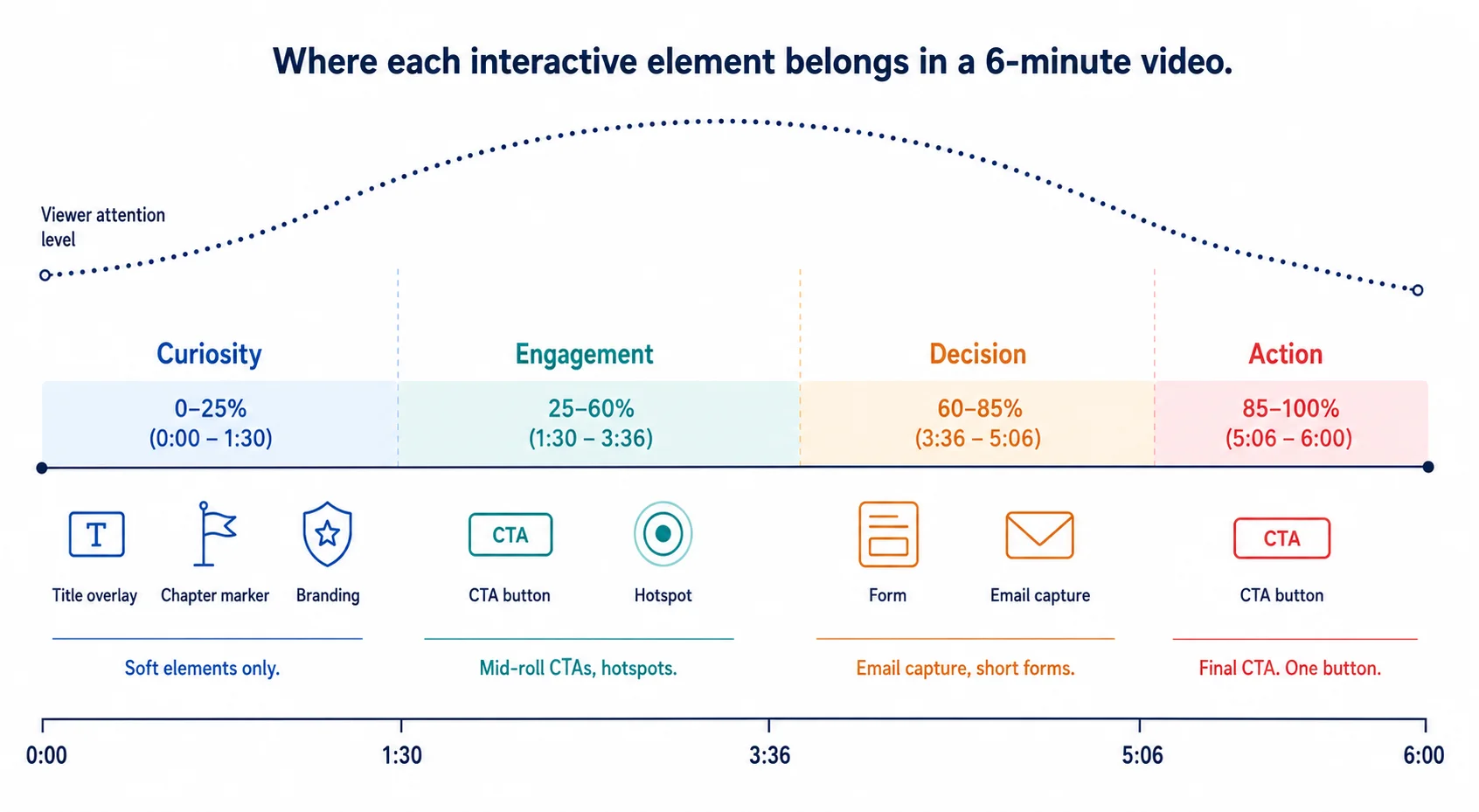
Viewer attention runs in four phases. Putting the wrong element in the wrong phase makes interactive video feel like an interruption instead of a next step.
0 to 25% (deciding whether to stay)
Keep this window clean: title overlay, chapter markers, branding only. A CTA this early feels like a pitch before you have said anything worth hearing.
25 to 60% (engaged, not yet deciding)
Mid-roll CTAs work here. So do hotspots. The viewer is paying attention and open to a small next step, like a related resource or a product detail.
60 to 85% (ready to act)
This is the right window for email capture and short forms. The viewer has seen enough to be interested and is more willing to trade their contact for what comes next.
85 to 100% (finishing)
Final CTA. One button, one destination. Pricing page, demo signup, free trial. Do not add a second option here.
When Interactive Video Is Worth the Setup
Not every video needs interactive layers. Putting a CTA button on a brand video with no funnel attached wastes setup time and makes the experience worse for the viewer.
If you are selling a course and the preview video ends with a “check out the full course” link below the fold, you are losing signups. Put the enrollment CTA inside the video at the 70% mark, when the viewer has seen enough to want the rest.
Same thing if you are running product demos. The viewer watches your walkthrough, gets interested, and then has to go find your pricing page. An in-video CTA at the right moment removes the search entirely.
If you are unable to write the button text in five words, the video is not ready for an interactive layer.
How to Add Interactive Layers in FluentPlayer
FluentPlayer handles all four elements inside your WordPress admin. No external dashboard, no third-party script required.
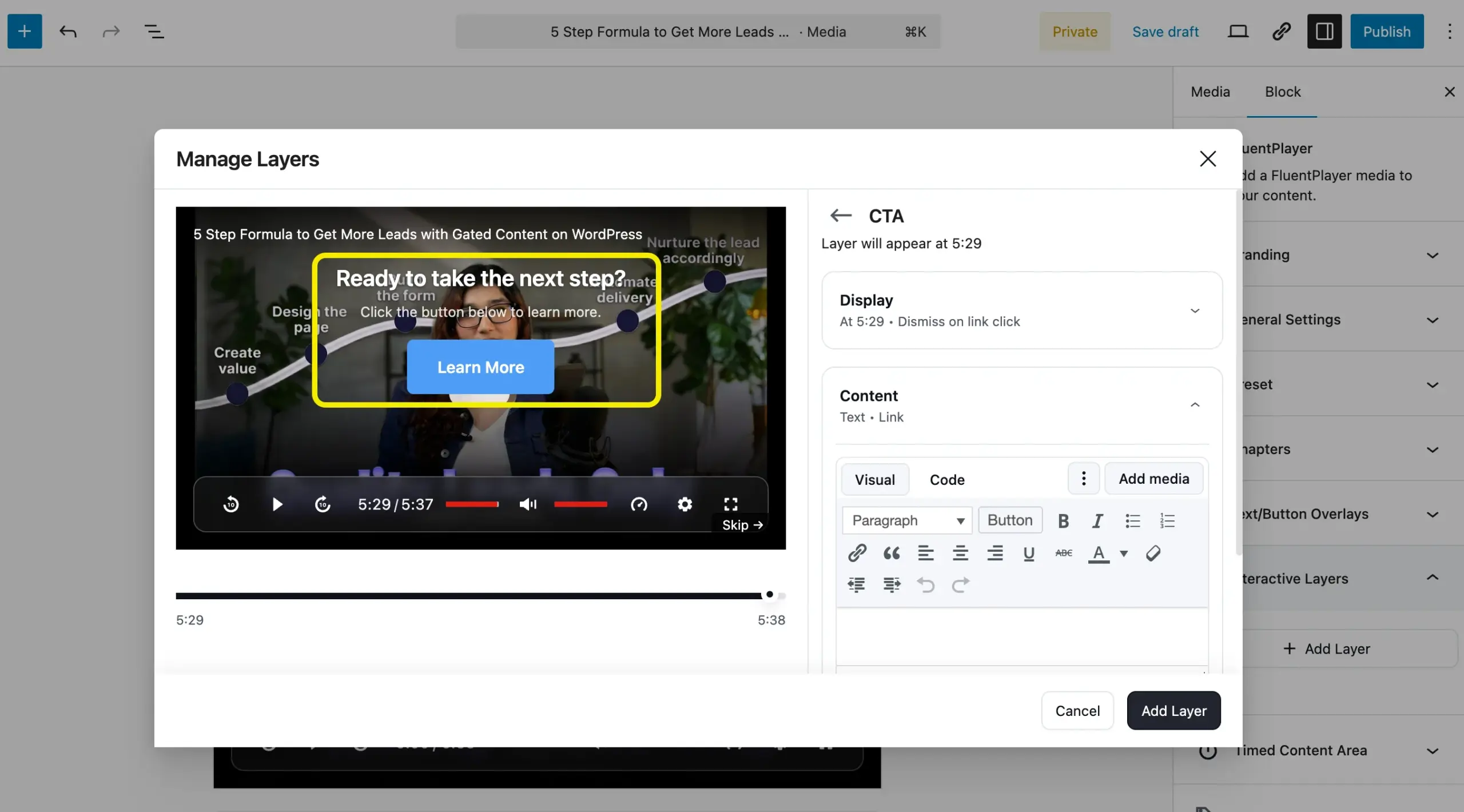
Step 1. Open the video in FluentPlayer from your WordPress dashboard.
Step 2. Go to the Interactive Layers tab. All four element types live here: CTA, form, hotspot, overlay, ad.
Step 3. For a CTA: set the button text, destination URL, appearance timestamp, and whether the video pauses when the button shows. For a form: select an existing Fluent Forms form from the dropdown and set the timestamp. The form renders inside the player.
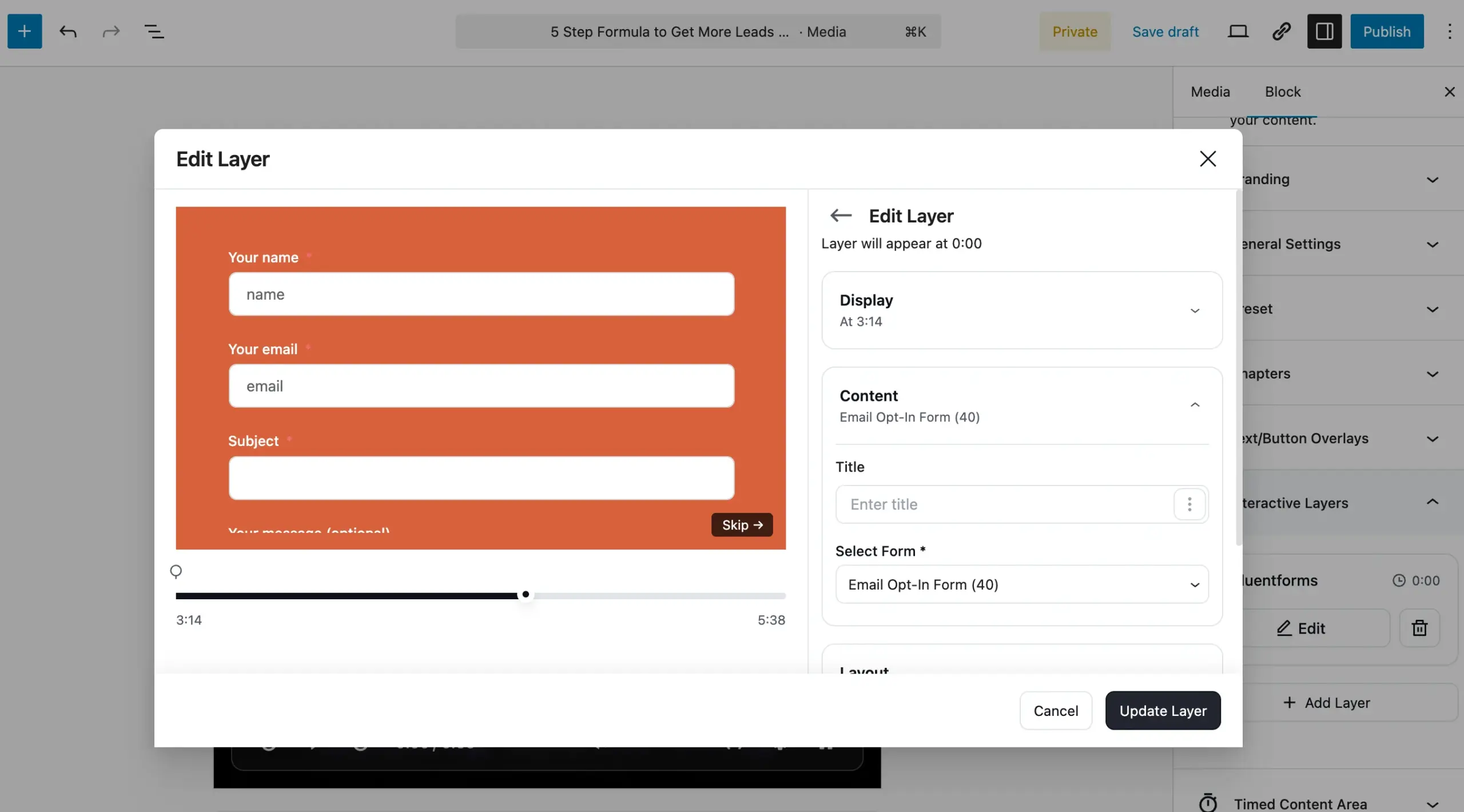
Step 4. Publish and test it on mobile. Autoplay behavior differs between desktop and iOS, so confirm the interactive layer fires correctly before sending traffic to it.
Forms, email capture, title overlays, branding, and FluentCRM integration are free. CTA banners, hotspots, ad layers, text and button overlays, and timed content are Pro. Free is enough to validate whether interactive video converts for your audience.
What Happens After the Form Submits
Most interactive video tools stop at the capture. You get the lead, then export a CSV, import it into your CRM, and wire up the automation separately.
By the time that workflow is running, you have four logins and a process that breaks when any one of them changes.
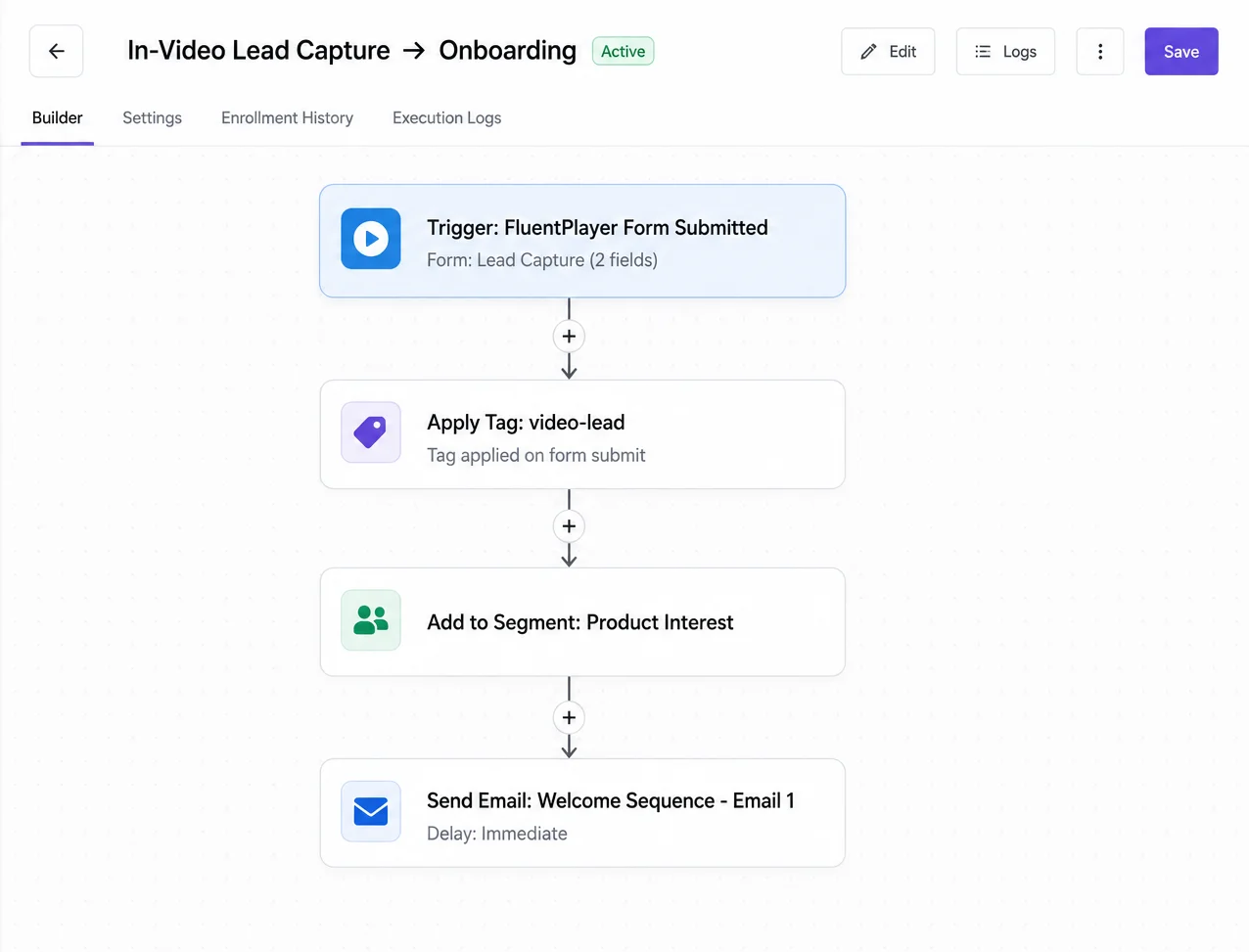
FluentPlayer connects directly to FluentCRM. When someone submits a form inside the video, the contact lands in FluentCRM immediately, tags apply, and whatever automation you have built fires without any manual steps.
For agencies, a client demo video feeds directly into an onboarding sequence the moment someone submits. For course creators, a lesson preview triggers a nurture flow as soon as someone shows interest. Both run inside WordPress.
5 Mistakes That Kill Interactive Video Conversions
These five mistakes are the most common reasons interactive video underperforms, avoid them before you hit publish:
- Placing a CTA before the video has delivered any value
- Asking for more than name and email in an in-video form
- Overlays blocking the content the viewer is trying to see
- Not testing interactive layers on a real mobile device before publishing
- Not running the full submission flow from form to follow-up email before launch
You Already Paid for That Attention, Capture It
Every view your video gets costs you something: ad spend, SEO effort, or production time. If the video plays and no one takes the next step, the cost has no return.
You now know which elements to use, where to place them, and how the capture-to-automation chain works inside WordPress. To put this into practice, download FluentPlayer for free.