


Video is a big part of what I work with at WPManageNinja, so page performance questions come up constantly. Most site owners don’t notice the problem until a speed test flags it.
The problem isn’t that WordPress can’t lazy load video. It can. The problem is that “lazy loading” means something different depending on how you embed your video, and the wrong method leaves real page weight on the table.
This guide covers 3 methods to lazy load videos in WordPress, what each one actually does, and which one fits your setup.
TL;DR
- Native WordPress lazy loading (since 5.5) defers the iframe, but the full YouTube or Vimeo player still loads once the iframe renders.
- LazyLoad by WP Rocket is free and prevents the video player from loading at all until a visitor clicks play.
- FluentPlayer‘s built-in Load Strategy gives you 5 options per video, controlled from the block editor with no separate plugin needed.
- For most sites with embedded YouTube or Vimeo videos, Method 2 gives the biggest immediate page speed gain.
- If you use FluentPlayer, Method 3 handles lazy loading natively.
Why Videos Slow Down WordPress Pages
WordPress images load as plain <img> tags. The browser downloads the file and displays it. Lazy loading an image means the browser skips that download until the image is near the viewport.
Video embeds work differently. A YouTube or Vimeo embed is an <iframe> – and that iframe loads an entire external player, its JavaScript, its tracking scripts, and its network requests, all before a single visitor presses play.
A page with 3 embedded YouTube videos loads external assets from Google’s servers on every page visit, regardless of whether anyone watches them.
What “loading” actually means for embedded video
Applying loading=”lazy” to an iframe delays when the iframe element renders. It does not stop the external player scripts from loading once the iframe does render.
That distinction matters when you are trying to improve your Core Web Vitals score. Deferring the iframe by 200ms is a small win. Preventing the external scripts from loading at all- until a visitor clicks play- is the real gain.
Method 1: Native WordPress Lazy Loading
Since WordPress 5.5, native lazy loading is on by default. WordPress automatically adds loading=”lazy” to <img> and <iframe> elements in your content. You don’t need to do anything.
Check your WordPress version in your dashboard under Dashboard > Updates. If you’re running 5.5 or later, native lazy loading is already active.
What it covers:
- Images in post content, featured images, and widgets
- Iframe elements, including YouTube and Vimeo embeds
What it misses:
- External player scripts still load when the iframe renders. For YouTube embeds, that means Google’s player JavaScript, analytics, and ad-related requests fire as soon as the iframe scrolls into view.
- Background images defined in CSS are not covered.
- Fine-grained control (no way to exclude specific iframes or set a scroll threshold) requires a plugin.
Native lazy loading is the right starting point. For video-heavy pages, it is not the complete answer. If your pages have embedded YouTube or Vimeo videos, install LazyLoad by WP Rocket and follow Method 2. It takes under 5 minutes.
How to verify it is working
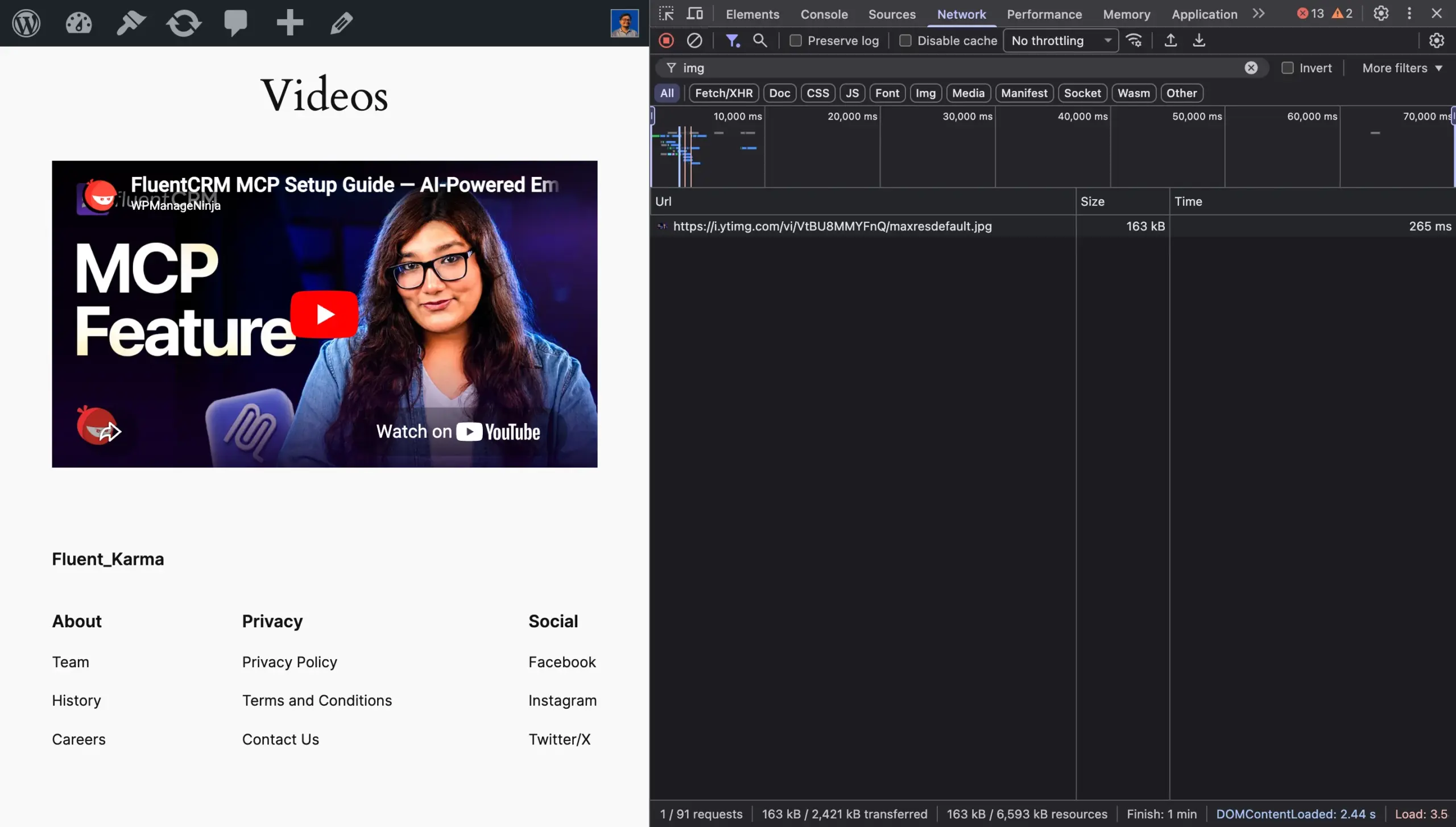
Open any page on your site in Chrome. Right-click and choose Inspect, then click the Network tab. Reload the page and filter by Img. Above-the-fold images load on page load. Images below the fold should not appear in the list until you scroll toward them.
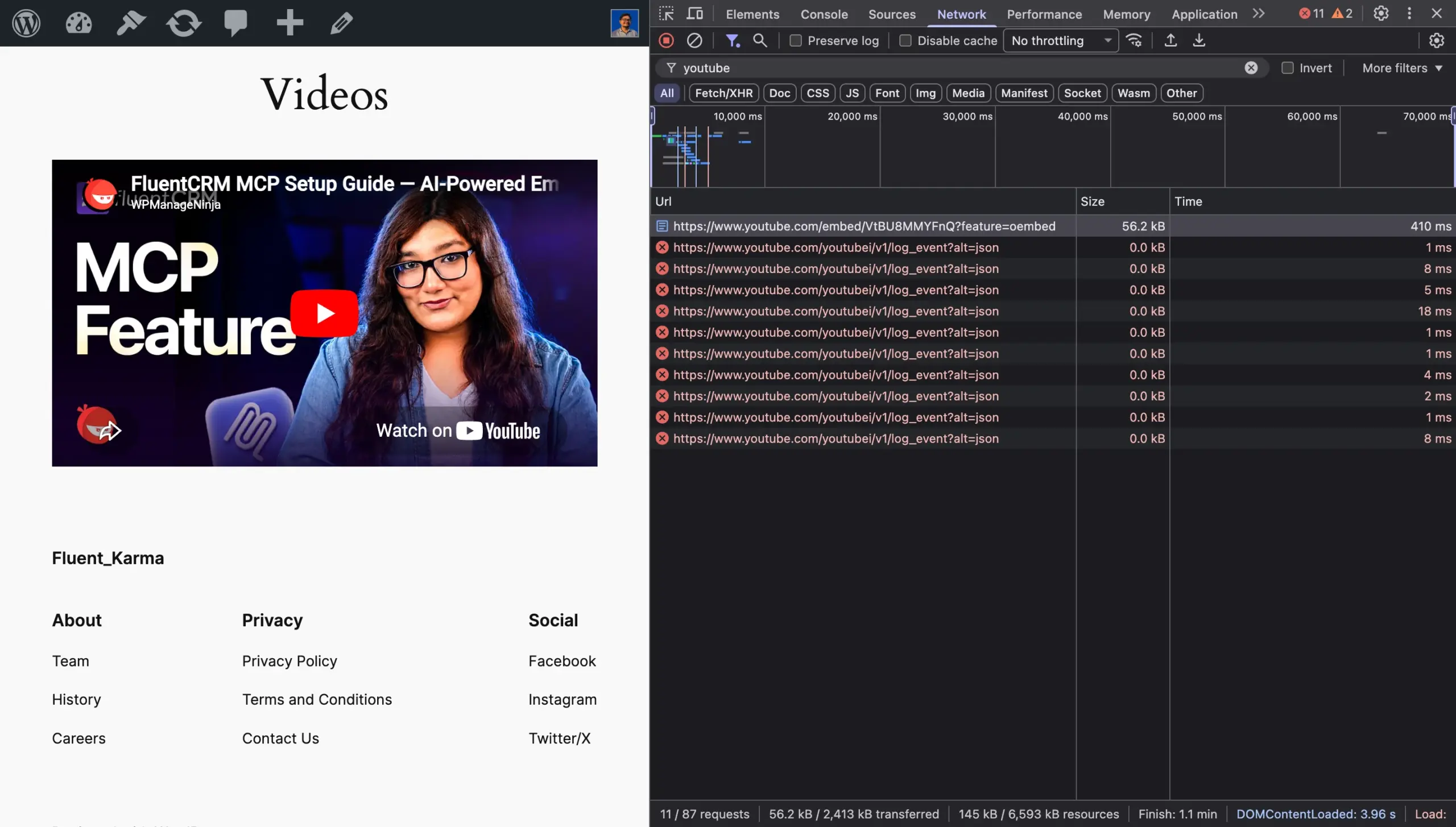
For iframes, filter by Doc or search for youtube or vimeo. A properly lazy-loaded iframe won’t appear in the network tab until the viewport reaches it.
Method 2: Lazy Load Videos with a Free Plugin
How thumbnail replacement works
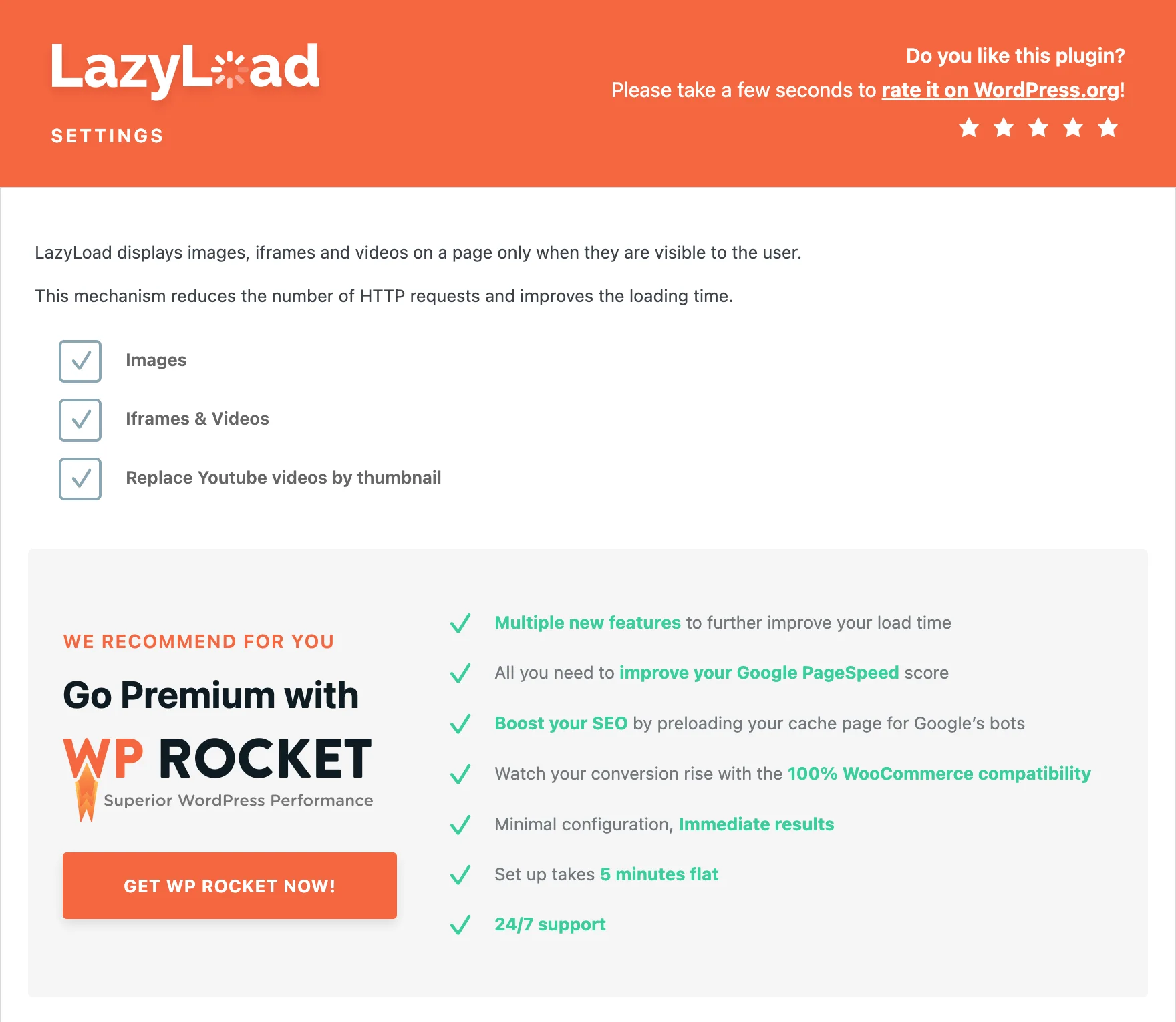
LazyLoad by WP Rocket is a free plugin on WordPress.org. It handles lazy loading for images, iframes, and videos with no configuration required beyond checking a few boxes.
The key feature for video is thumbnail replacement. Instead of rendering the YouTube or Vimeo iframe on page load, the plugin loads a static preview image of the video. The actual player loads only when a visitor clicks play.
This is meaningfully different from what Method 1 does. Method 1 defers when the iframe renders. Method 2 prevents the iframe from loading at all until someone clicks. For a page with multiple embeds, that difference shows up directly in your PageSpeed Insights score.
Setting it up
Install LazyLoad by WP Rocket from WordPress.org:
- Go to Plugins > Add New, or open the plugin page directly.
- Search for LazyLoad by WP Rocket.
- Click Install Now, then Activate.
- Go to Settings > LazyLoad.
- Check Images, Iframes & Videos, and Replace YouTube iframe with preview image.
- Save changes.
That’s the full setup. No additional configuration is needed for basic YouTube and Vimeo embeds.
One thing to watch: Above-the-fold videos should not be lazy loaded. If your hero section has an auto-playing background video or a video that plays immediately on page load, lazy loading this, will cause a visible delay. The plugin handles this for images automatically; for iframes, you may need to exclude specific blocks using the plugin’s exclusion list.
Method 3: Use a Video Player with a Built-in Load Strategy
How FluentPlayer handles load strategy
If you use FluentPlayer to embed videos on your site, lazy loading is built into the player itself. There is no separate plugin to install.
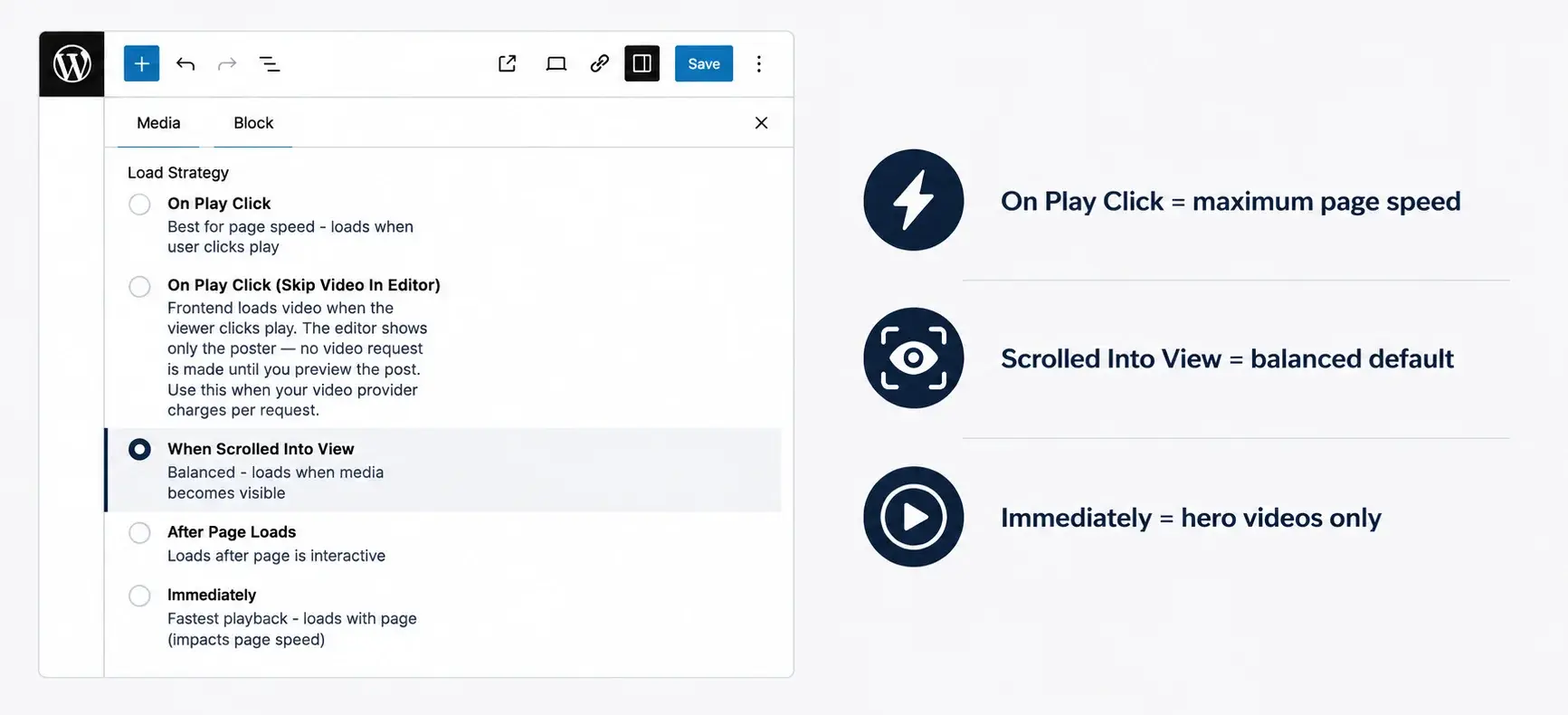
FluentPlayer’s Load Strategy setting appears in the block editor sidebar when you add a FluentPlayer block. It has 5 options:
| Option | What it does | Best for |
|---|---|---|
| On Play Click | Loads the player only when the visitor clicks play | Maximum page speed |
| On Play Click (Skip Video In Editor) | Same as above. Also suppresses video requests in the block editor, not just the frontend | Sites using Mux or BunnyCDN, where video providers charge per request |
| When Scrolled Into View | Loads the player as it enters the viewport | Balanced performance; the default |
| After Page Loads | Loads after the page becomes interactive | Videos lower on the page where slight delay is acceptable |
| Immediately | Loads with the page | Above-the-fold hero videos or auto-playing content where instant playback matters more than page speed |
Open any FluentPlayer block in your editor and find Load Strategy in the right sidebar. Pick the option that matches your page.
The default is When Scrolled Into View. For most course pages, blog posts, and sales pages, this is the right setting, the player is ready by the time a visitor reaches it.
If your goal is the smallest possible page weight, switch to On Play Click. The player doesn’t load at all until someone clicks. For pages with multiple videos, this produces the same kind of gain as Method 2’s thumbnail replacement, with the difference that it’s controlled per-video from within the editor rather than applied site-wide.
Why this is different from a caching plugin fix
A caching plugin like LazyLoad by WP Rocket applies lazy loading at the site level. It intercepts every iframe on every page and replaces it with a thumbnail. That’s the right approach for YouTube and Vimeo embeds placed directly in WordPress.
FluentPlayer’s Load Strategy works at the player level. The behavior is set per-video in the editor, which means you control it precisely. A video at the top of a sales page stays on Immediately. A video three scrolls down switches to On Play Click. The caching plugin can’t make that distinction automatically.
FluentPlayer also handles Core Web Vitals implications at the architecture level: an inline aspect-ratio CSS container prevents layout shift (CLS), and the poster image loads eagerly so the viewer sees something immediately while the player waits. You get page speed and a clean visual experience without a tradeoff.
Which Method Should You Use
| Your situation | Best method | Do this now |
|---|---|---|
| You use default WordPress embeds (YouTube, Vimeo pasted into the editor) and want a quick fix | Method 2 – LazyLoad by WP Rocket (free) | Install the plugin |
| You want to verify lazy loading is running without installing anything | Method 1 – check native WordPress loading in DevTools | Open Chrome > DevTools > Network |
| You use FluentPlayer for your videos | Method 3 – set Load Strategy to “On Play Click” or “When Scrolled Into View” | Open the FluentPlayer block > sidebar > Load Strategy |
| You use Mux or BunnyCDN and pay per video request | Method 3 – “On Play Click (Skip Video In Editor)” | Open the FluentPlayer block > sidebar > Load Strategy |
| You have a hero video that must play immediately | Method 3 “Immediately” or exclude that embed from Method 2 | Set that specific block to “Immediately” |
| You want per-video control without touching a caching plugin | Method 3 | Download and try |
Stop Guessing Why Your Page Is Slow
Most WordPress video pages have at least one of these three issues: no lazy loading at all, lazy loading that only defers the iframe instead of preventing the player from loading, or a blanket site-wide setting that treats every video the same.
Method 2 solves the first two for YouTube and Vimeo embeds in under 5 minutes. Method 3 solves all three if you’re building with FluentPlayer, with per-video control from the block editor.
If FluentPlayer fits how you work with video on WordPress, download now and explore it yourself.