

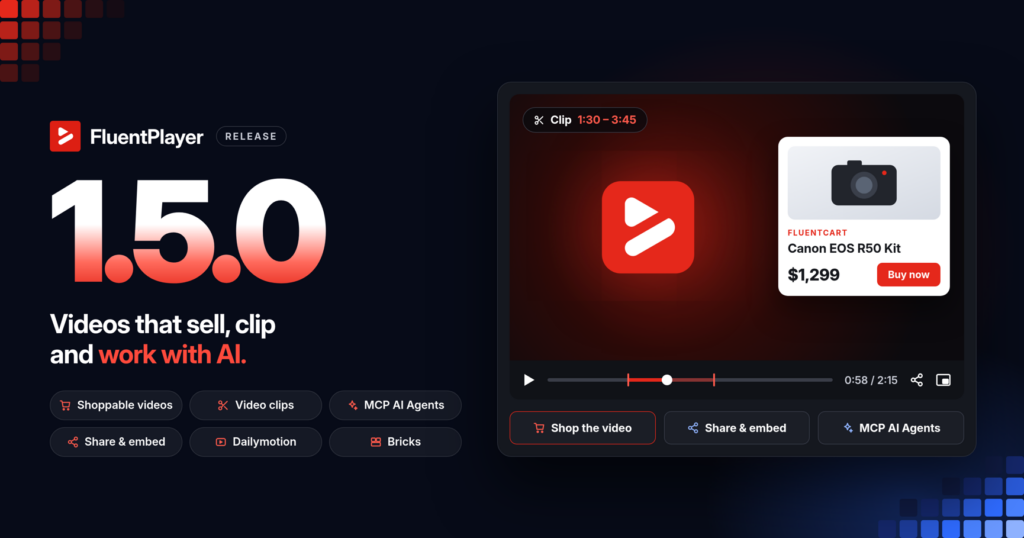
FluentPlayer 1.5.0 is a big release. Your videos can now sell products, play only the part that matters, and keep playing in a corner while your visitors read on. You can share and embed any player, let an AI assistant manage your media, and add Dailymotion videos and Bricks pages to the mix.
What is new at a glance?
- FluentCart in your videos: show a product or subscription card right inside the player.
- Video clips (Pro): play one part of a video and share a link to just that part.
- Floating mini-player: YouTube and Vimeo videos can float in a corner and keep playing while the visitor scrolls.
- Share and embed (free): turn on sharing for any video or audio item to give its player a Share menu and embed code.
- AI agent support: manage your FluentPlayer media from an AI assistant through MCP.
- Dailymotion: a new free video provider.
- Bricks: a FluentPlayer element for the Bricks page builder.
- More: audio miniplayer, default volume, Lightbox block, All-in-One Video Gallery import, one-click duplicate, and many fixes.
Sell products right inside your videos
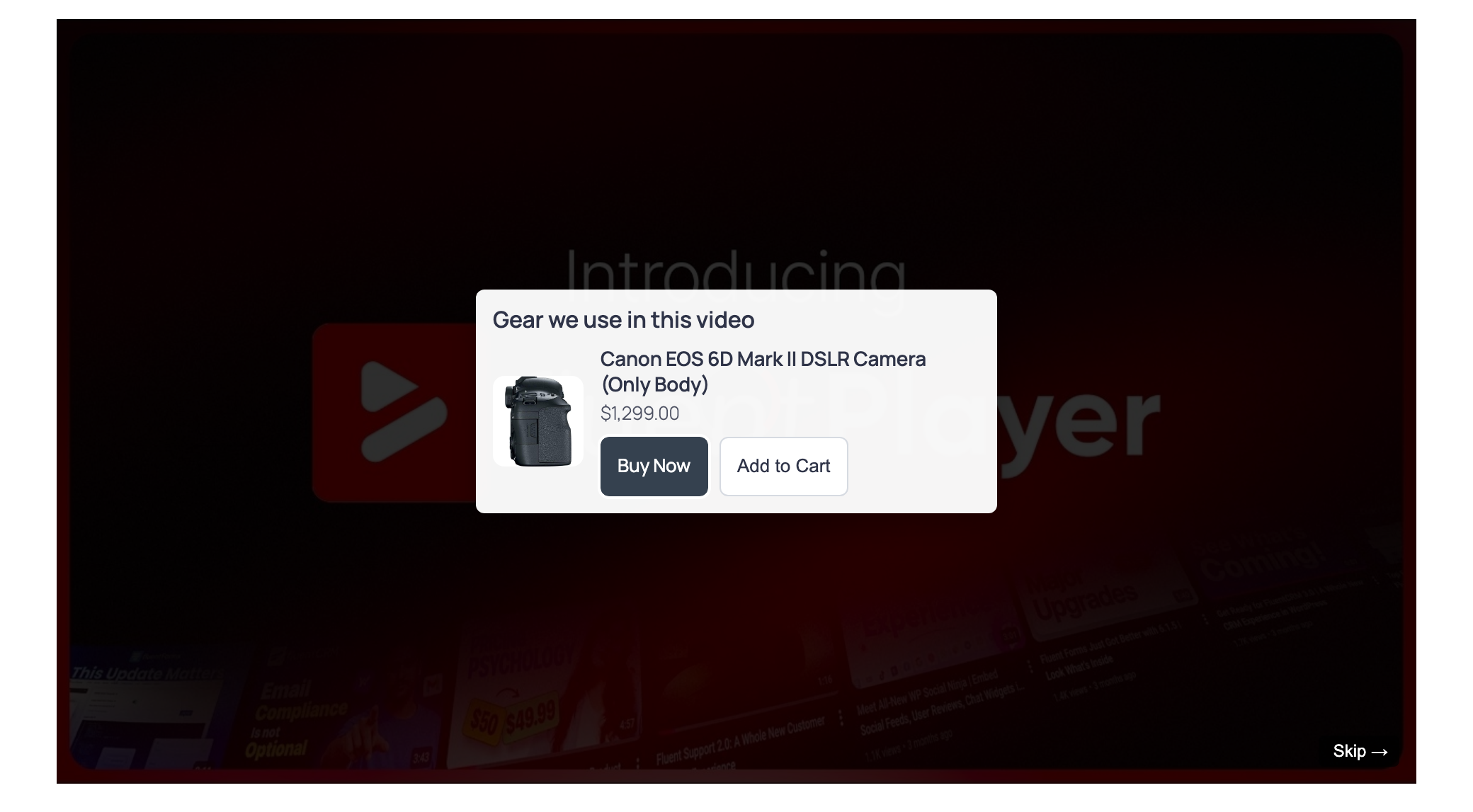
A product demo works best when the buy button is right there. With 1.5.0, you can add a FluentCart layer to any video. Pick a product, choose when it shows up, and your viewer can add it to the cart without leaving the video.
Think of a camera review where the camera card shows up while you talk about it. Or a recipe video that offers the knife set at the moment you use it. The product is in front of the viewer when they care most, not three scrolls down the page.
You set this up in the same layer editor you already use for calls to action and email forms. Choose the product, set the time it appears, and save. The card uses your FluentCart price and checkout, so you never copy prices by hand.
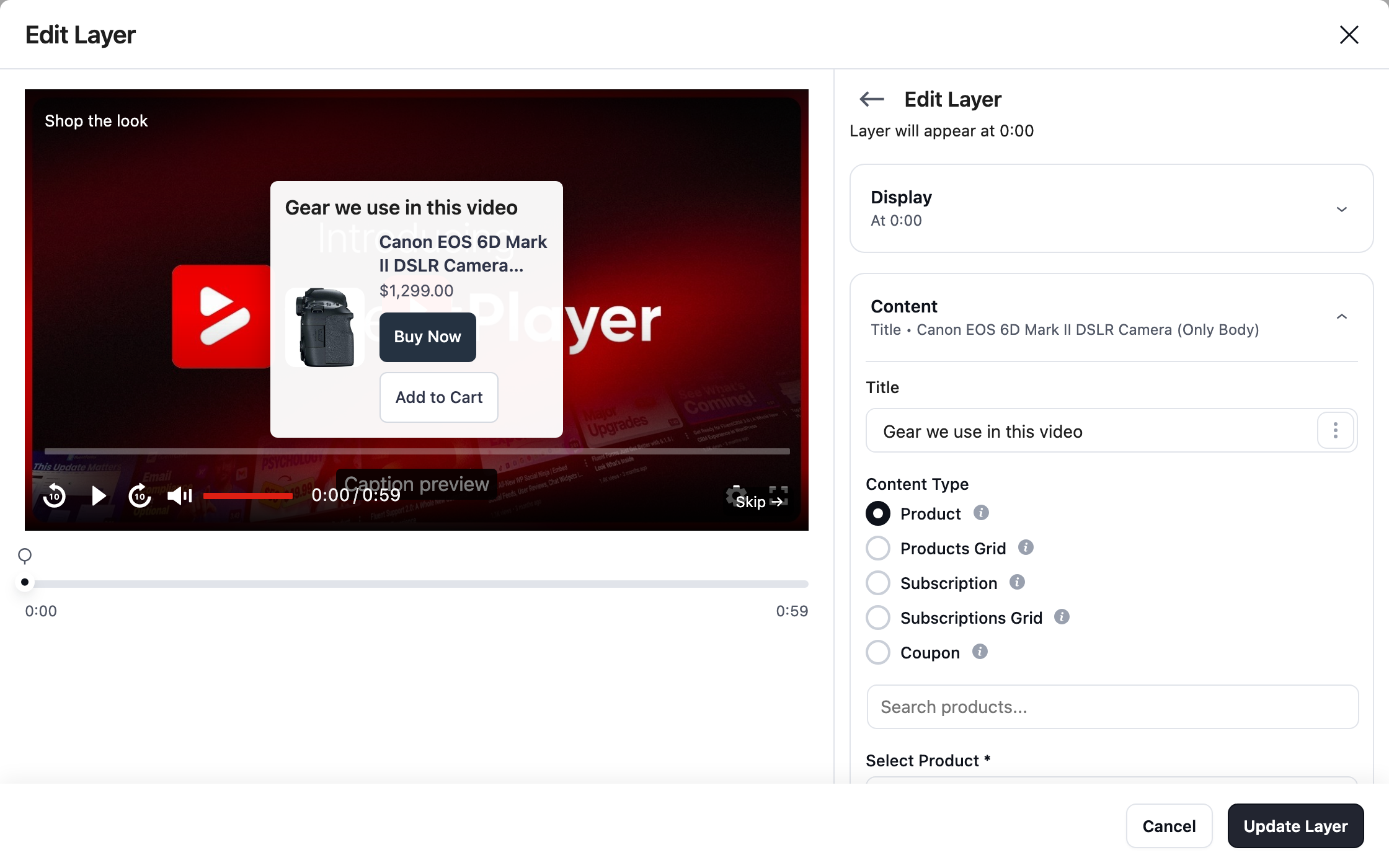
With Pro, you also get product grids, subscription grids and coupons inside the video. A course preview can end with a grid of plans, or a launch video can show a discount code at the right moment.
Free: the FluentCart layer with a single product card or a single subscription card. Pro: product grid, subscription grid and coupon layers. You need FluentCart installed for this feature.
Play just the part that matters with video clips
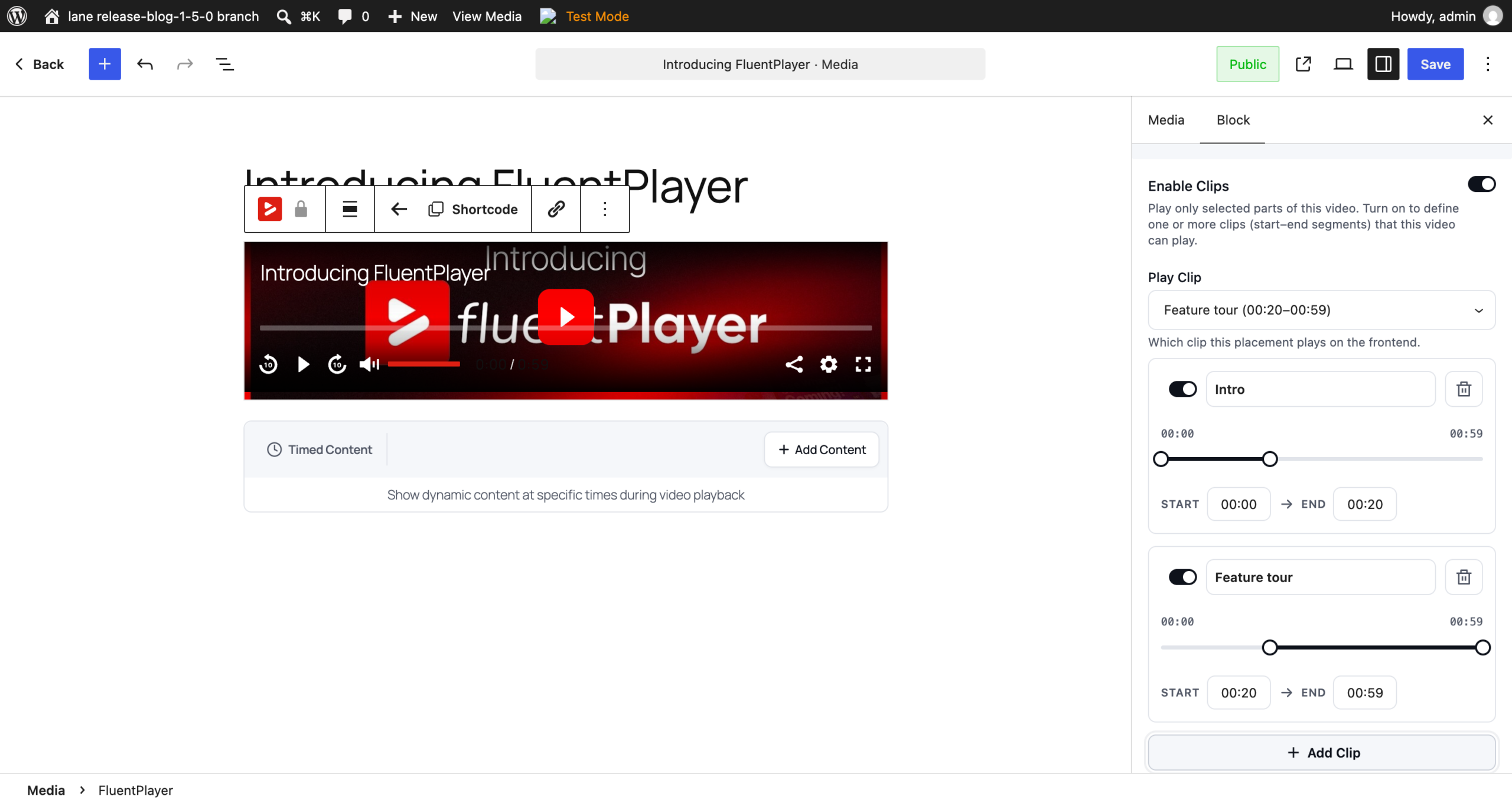
Long videos often have one part people really need. Now you can set a start and an end time, and the player plays only that clip. The time bar shows only the clip length, so a 2-minute clip inside a 40-minute webinar looks like a 2-minute video. We tested clips with MP4, YouTube and Vimeo videos.
You can share a link to a clip. Right-click the player and choose “Copy Link to This Clip”, and the viewer lands on the exact part you mean. Clips also work inside playlists, so you can build a “best of” playlist from parts of longer recordings without cutting a single file.
Your original video doesn’t change. A clip is a setting, not a new upload, so you can make many clips from one video and change them later. Layers, chapters and watch stats still use the real video time, so nothing you set up before breaks.
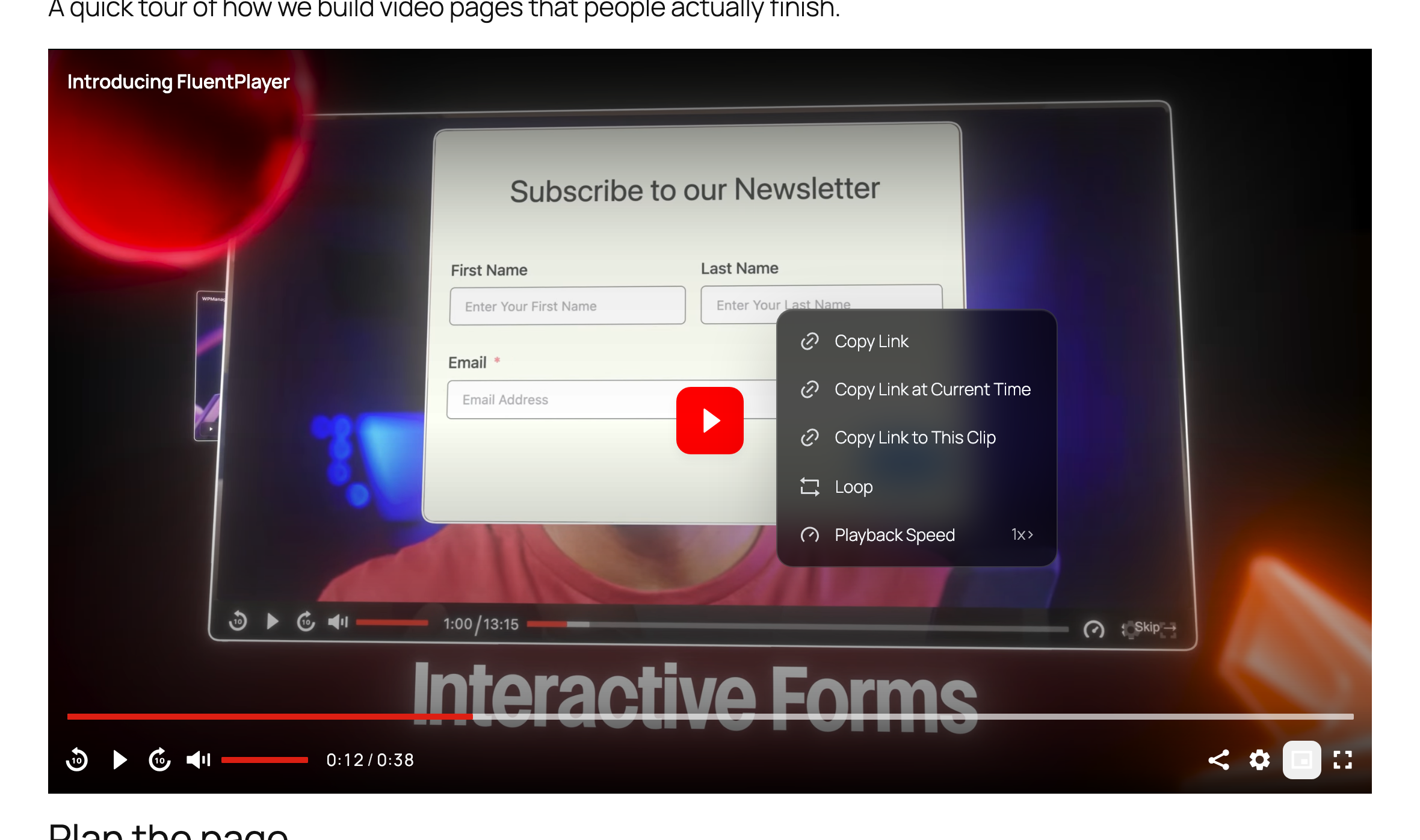
You can also pick a clip right in the shortcode with start_clip and end_clip. Show a different part of the same video on different pages, with no new media item.
Pro: video clips are a Pro feature. That covers the clip editor, clip links, clips in playlists and the start_clip / end_clip shortcode options. In the free plugin, the Clip panel shows an upgrade note.
A floating mini-player for YouTube and Vimeo
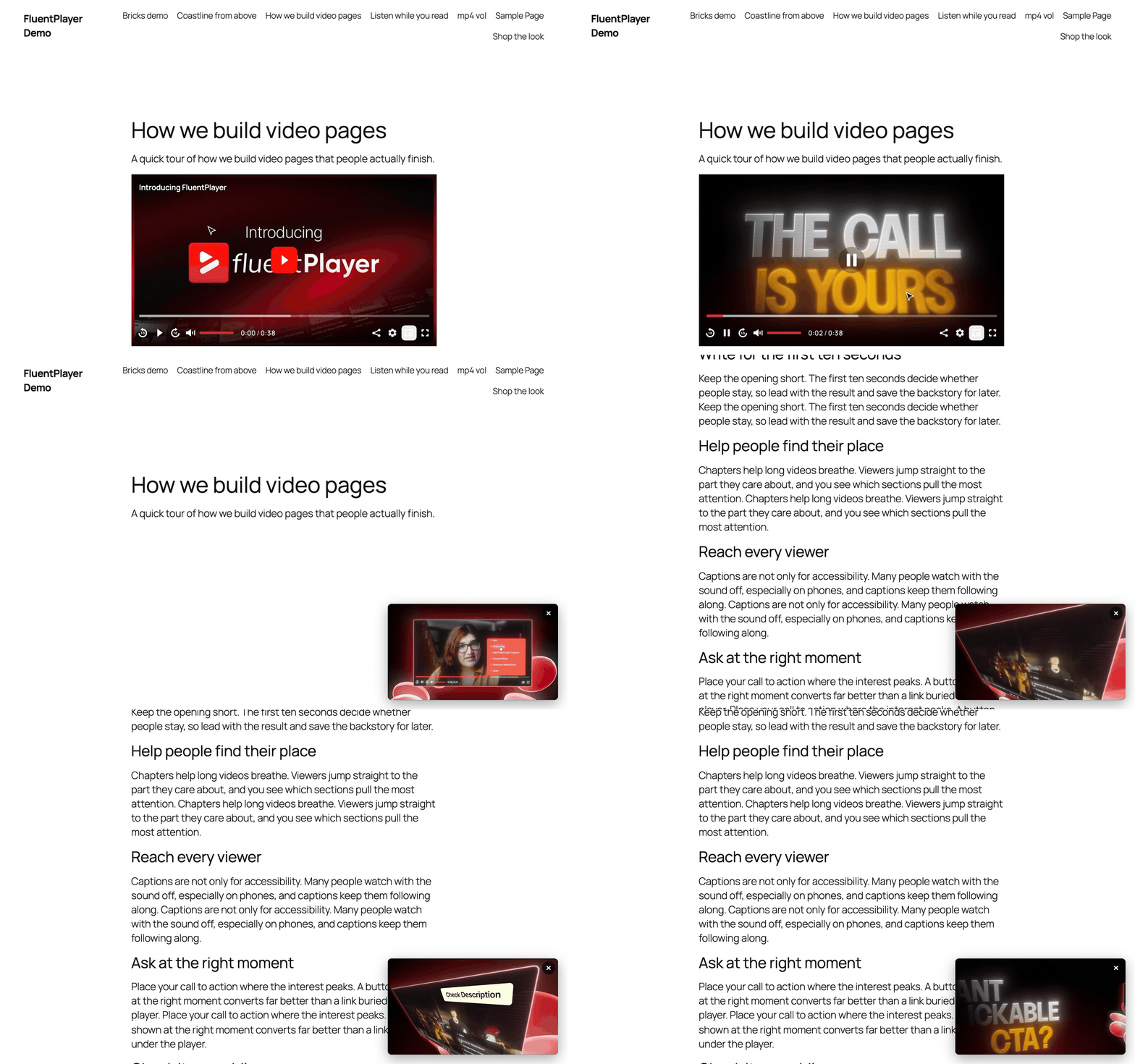
Browsers can’t pop YouTube and Vimeo embeds out into their own Picture in Picture window, so the Picture in Picture button used to skip them. Now it works for them too. Click the button and the video floats into a small box in the corner of the page and keeps playing, with no reload and no restart.
The visitor can scroll down and read your article while the video keeps playing. When they are done, one click on the close button puts the video back in its place. It is a good fit for long tutorials and interviews that sit at the top of an article.
The button is the same Picture in Picture control you already know, so you turn it on or off in your player preset. MP4 and other native videos keep using the browser’s real Picture in Picture window.
Free: the floating mini-player for single YouTube and Vimeo players, from the Picture in Picture button. It doesn’t need Pro. It doesn’t work inside playlists or for Dailymotion yet.
Share and embed your players
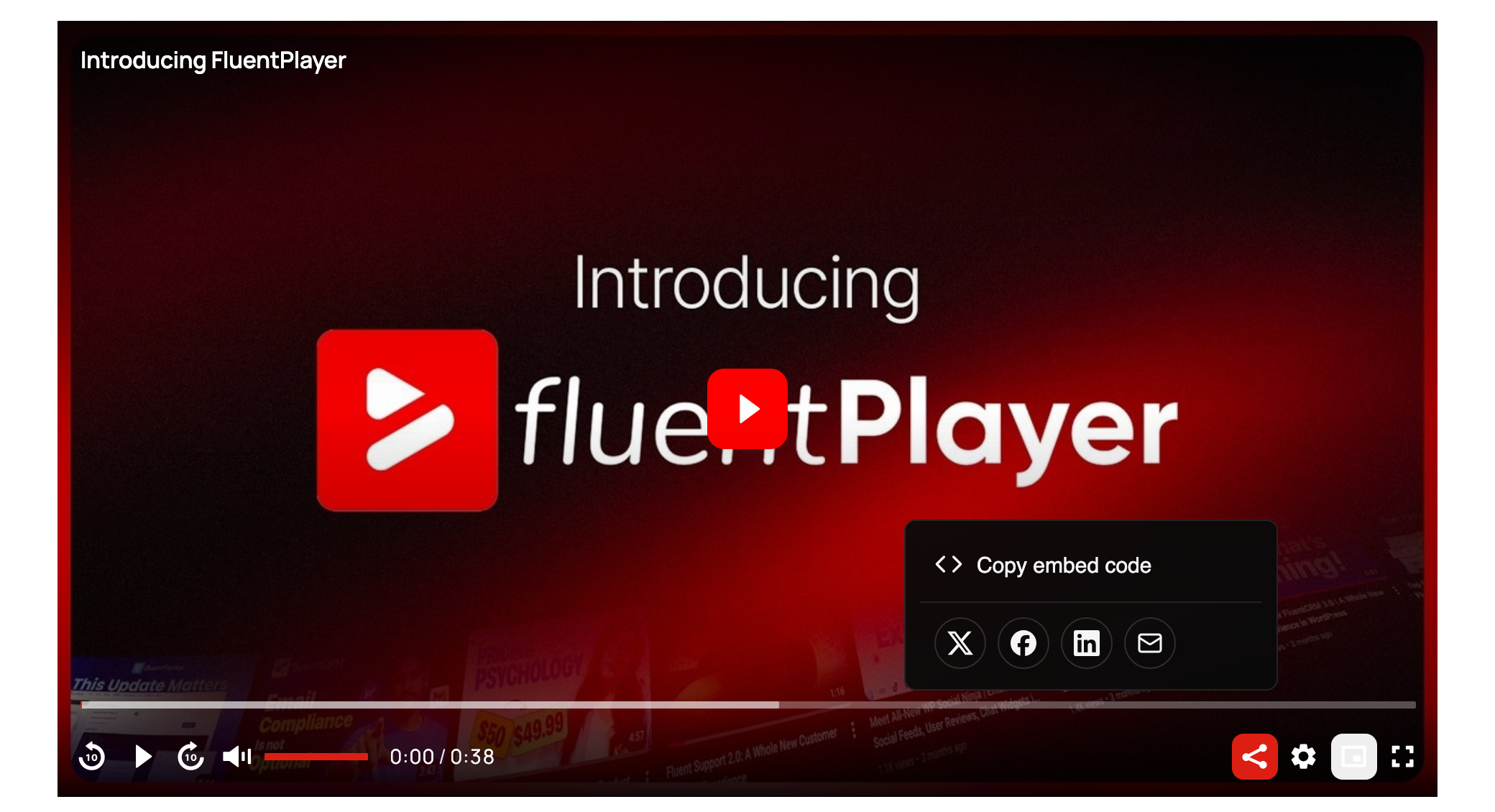
Turn on “Allow sharing & embedding” in a video or audio item’s General settings, and its player gets a Share menu. Viewers can share it on X, Facebook, LinkedIn or by email, or copy an embed code to put your player on their own site.
Share and embed are new in 1.5.0, and both are free. FluentPlayer also adds player card tags to shared videos, so X can show your player right in the post. If Yoast, Rank Math or All in One SEO is active, that plugin handles these tags instead.
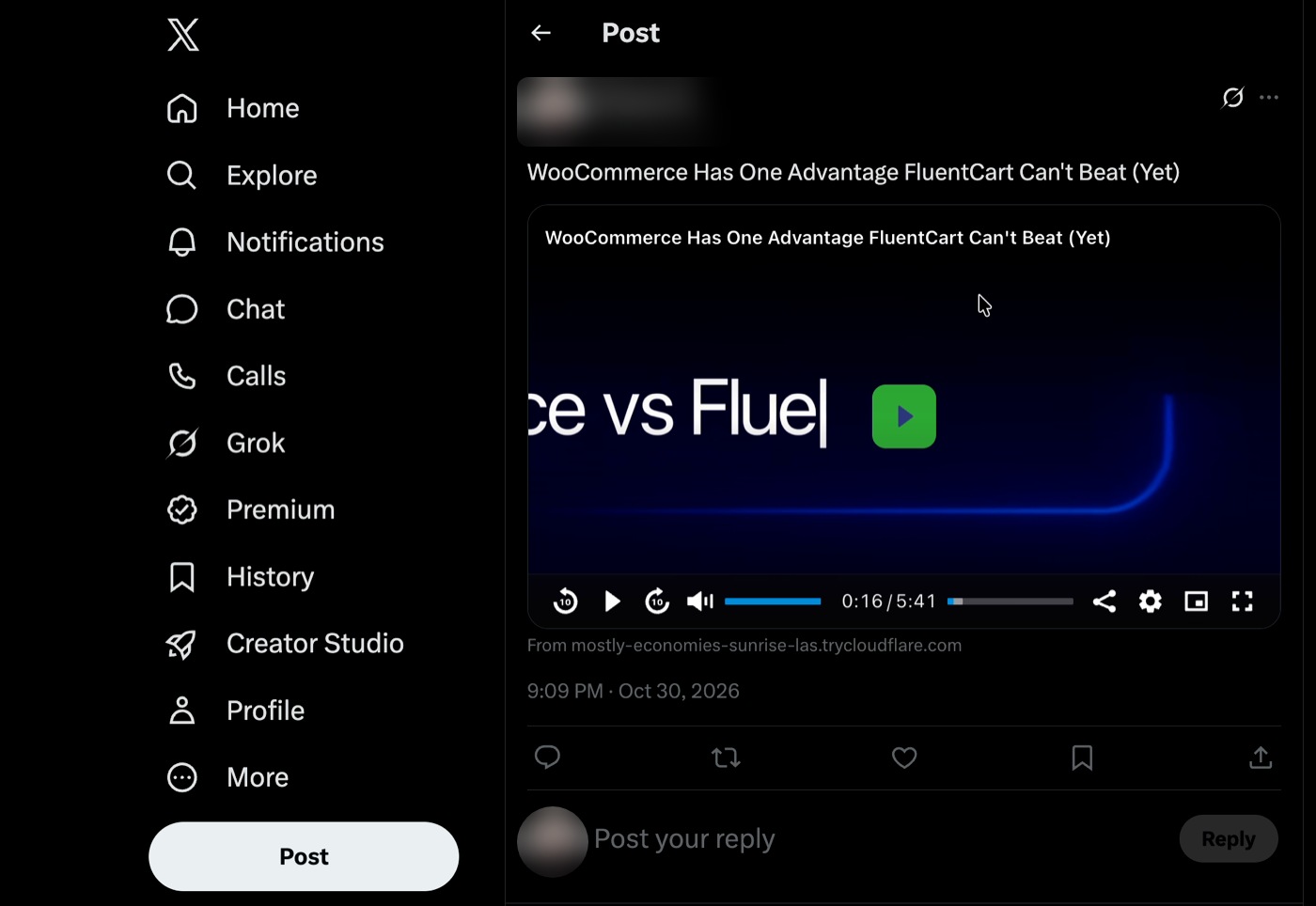
The Share button is also on the audio Standard and Simple skins. On narrow players it moves into the settings menu, so the control bar stays clean on phones. A global setting lets you show or hide the social links.
Free: the Share menu and embed code for any video or audio item you allow. Pro: a list of websites allowed to embed your players, so you decide where your videos can appear, plus share and embed for saved playlists.
Let AI assistants manage FluentPlayer
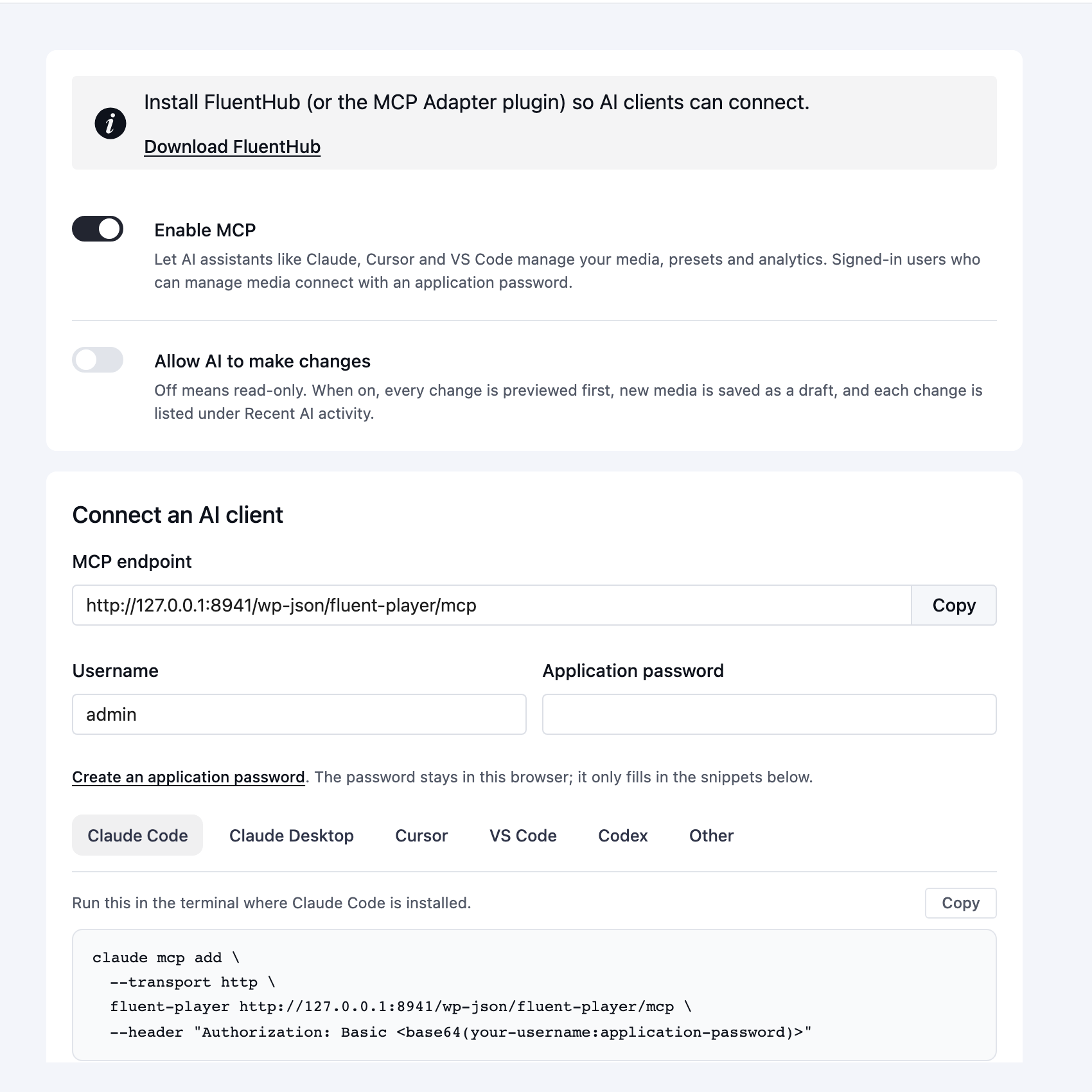
You can now connect an AI assistant, like Claude or a code editor with MCP support, to FluentPlayer. Ask it to add a video, change a player’s settings, or find a media item, and it does the work through FluentPlayer’s own tools.
You can say things like “add this YouTube link as a new video” or “check my videos for accessibility problems”. New media are saved as drafts, so you review them before they go live, and the settings screen shows a log of recent AI changes. The assistant uses the same rules and permissions as the admin screens, so it can’t do more than your user account can.
The settings screen shows the endpoint and ready configs for Claude Desktop, Claude Code, Cursor, VS Code and other MCP clients. One tool reads your site’s colours, and a “match site colours” prompt suggests player colours that fit your theme and, once you approve, saves them.
It is off by default. You turn it on in settings, and changes need a second switch, so an assistant can only read until you allow writes.
WebMCP is a separate option for your visitors. Turn on “Allow AI agents” for a video, and a visitor’s AI browser can play it, seek to a point, or fill in its email form.
Free: MCP and WebMCP, with tools to add and edit media, layers, overlays, chapters and global settings, apply presets, read email leads, run an accessibility check, and read your site colours. Pro: extra tools for analytics, playlists, captions, timed content and tags, and saving or deleting presets.
Dailymotion is now a free video provider
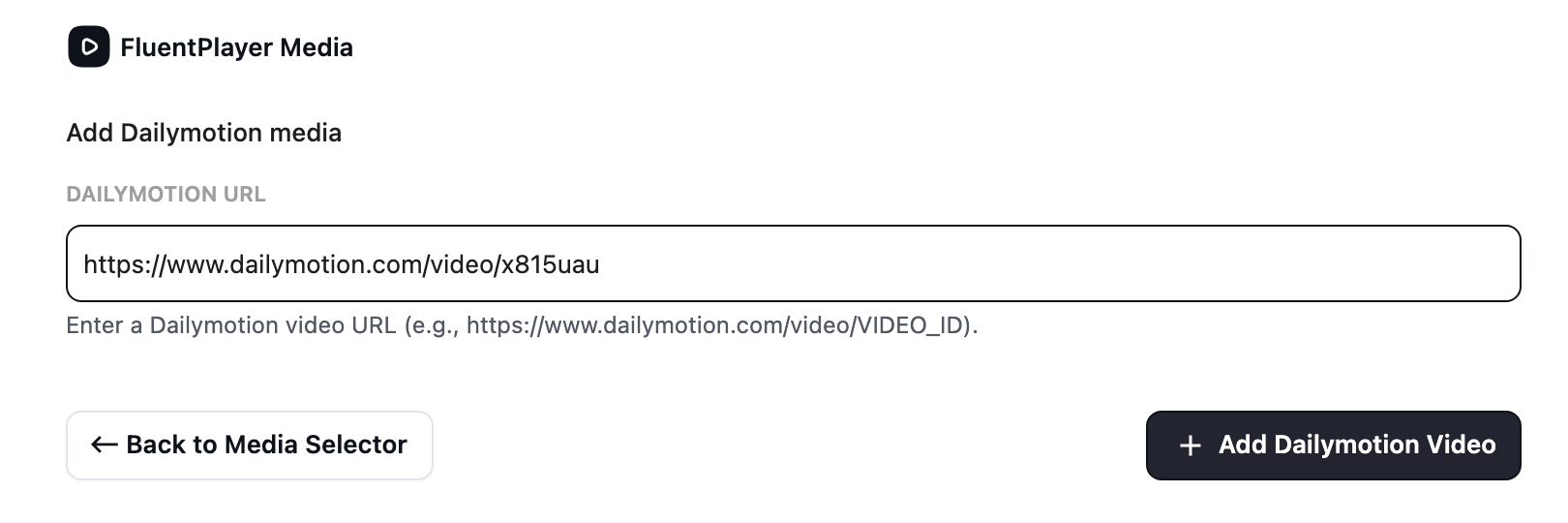
Paste a Dailymotion link and it plays in a FluentPlayer player, with your skin, your colours and your layers. It works on your site and in the block editor.
You don’t need a Dailymotion API key. Add the link the same way you add a YouTube or Vimeo link, and pick Dailymotion as the source if you want to be exact.
Free: Dailymotion as a video source for single players, on your site and in the block editor. Pro: Dailymotion videos inside playlists.
Build with Bricks
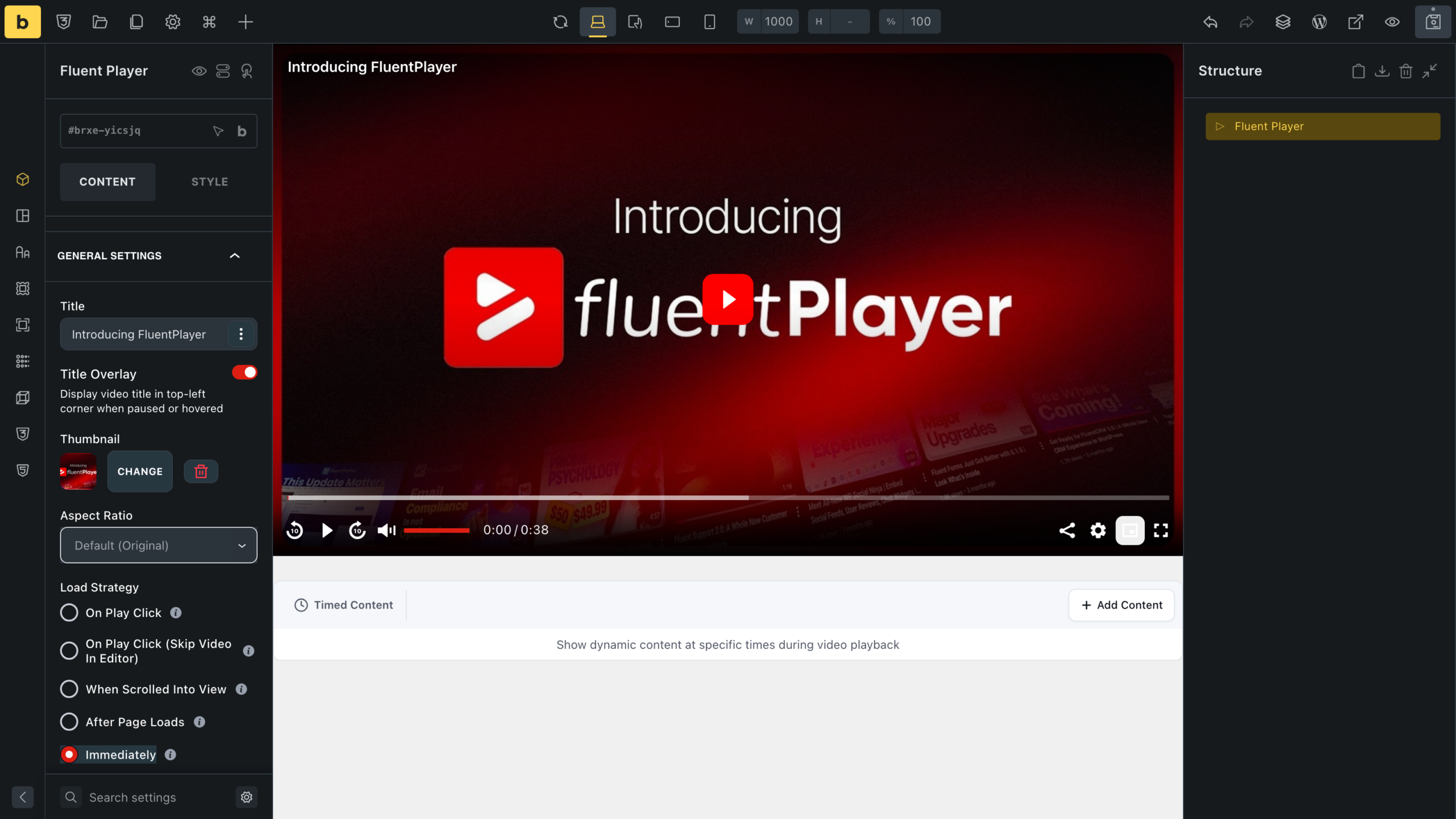
If you build your site with Bricks, FluentPlayer now has its own element. Drag it onto the page, pick a media item, and the player shows right in the builder.
The element uses the same media library as the block editor and shortcodes. You don’t need to copy shortcodes into a code block anymore. You pick the media in the Bricks canvas, and the player settings stay with the media item, so the player looks the same in Bricks, blocks and shortcodes.
Free: the FluentPlayer media element for Bricks. Pro: a FluentPlayer playlist element for Bricks.
More new features
Floating audio miniplayer (Free)
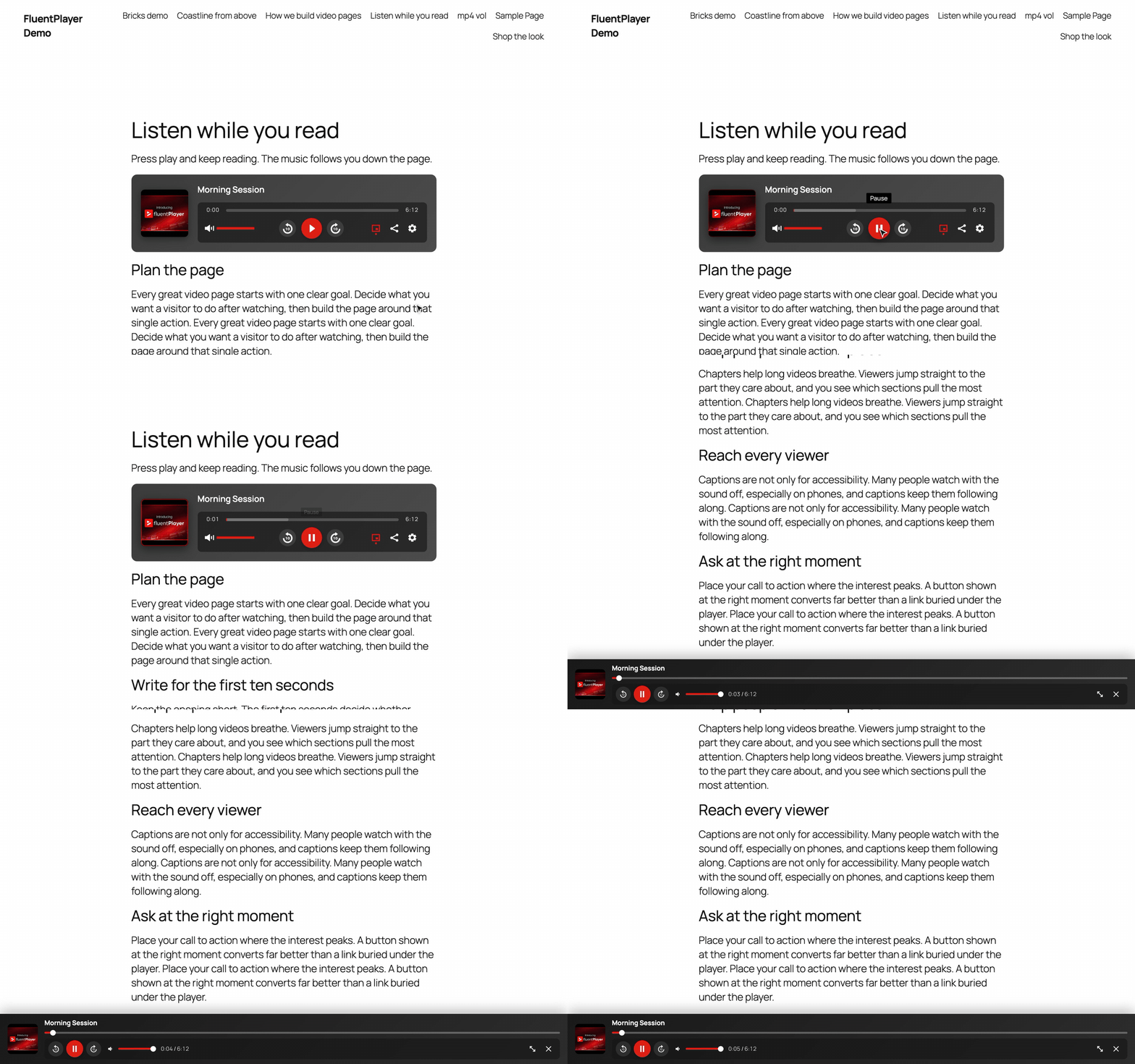
Audio players now get their own floating miniplayer. When a playing audio player scrolls off the screen, a small player stays in view with play, pause and progress, so the listener never loses the controls. Pick the new Bottom bar style for a full-width bar at the bottom of the page. The miniplayer shows only while the main player is off-screen and hides again when you scroll back. A podcast episode keeps playing while the listener reads the show notes. It is free for single audio players. With Pro, playlists get the same miniplayer and Bottom bar options.
Default volume (Free)
You can now choose how loud your players start. Set a default volume from 0 to 100 in General Settings, and your players start at that level instead of full volume. This is handy when a page has background music or several players, and a quiet start feels nicer for your visitors. The setting is free. If you use Pro, your playlists start at the same default volume too.
Lightbox block (Pro)
The new Lightbox block opens a video in a popup from a button, a text link, a thumbnail, or any blocks you put inside it. It is a good fit for a hero section where a full player would take too much space. Pro also adds more lightbox shortcode options and shows lightbox opens in your analytics. The block appears in the free plugin, but it needs Pro to open the player. See the lightbox documentation.
Import from All-in-One Video Gallery (Free)
Moving from All-in-One Video Gallery? You can now bring your videos and audio into FluentPlayer in one step from the Migration settings. Your media keeps its title, poster and post password, so you don’t rebuild your library by hand. The import is free. With Pro, the import also brings over your video tags.
Duplicate in one click (Pro)
Need a media item or playlist that is almost the same as one you already have? Open the actions menu in the list and choose Duplicate. The copy gets its own captions and hover preview, so changing the copy never changes the original. Duplicate is a Pro feature for both media and playlists.
Muted Preview in playlists (Pro)
Muted Preview arrived in 1.4.0 and lets a video play silently until the visitor clicks for sound. In 1.4.0 it worked only on single players. Now it works inside Pro playlists too, so a playlist can catch the eye on page load without surprising anyone with sound.
Language switcher per playlist item (Pro)
The language switcher lets viewers pick the audio or video language they want. Before, it worked on single players only. Now each item in a Pro playlist can have its own language versions, so a course playlist can offer every lesson in more than one language.
Copy the shortcode from the editor (Free)
The media editor toolbar now has a Copy shortcode button. Click it and the shortcode for that media item is on your clipboard, ready to paste into a classic editor, a page builder or a widget. You no longer need to go back to the media list to find it.
Branding logo on audio players (Free)
If you set a branding logo, it now shows on audio players too, not only on videos. Your podcast or music player carries the same brand mark as the rest of your media. The branding logo is free. Removing the FluentPlayer branding is still a Pro option.
FluentCRM media tag targeting (Pro)
FluentCRM automations that react to video watching can now pick videos by their FluentPlayer media tags. Choose one or more tags, and only videos with any of them, or all of them, start the automation. For example, run a follow-up only for your course videos and leave your blog videos out. This needs FluentPlayer Pro, for media tags, and FluentCRM.
Bunny and Cloudflare R2 updates (Pro)
Bunny now supports separate credentials for each library and more than one Storage zone, and when you have more than one zone, the Storage picker lets you choose which one to browse. If you keep client work or different projects in different Bunny accounts, they can all live in one site now. Cloudflare R2 gets a Bucket Jurisdiction setting for EU and FedRAMP buckets. Both are Pro integrations.
Domain-restricted Vimeo videos (Free)
Many Vimeo videos only play on the domains you allow. Now the editor fills in their title and poster and shows a note that the video plays on your published page, and the video embeds even when your server can’t reach Vimeo. This works in the free plugin.
New playlist shortcode options (Pro)
The Pro playlist shortcode can now pick items by ID, so you can build a playlist right in the shortcode without saving one first. You can also override the playlist look with shortcode attributes, so the same playlist can look different on two pages. For example, shows those three items in that order. Both options need FluentPlayer Pro.
Reliability, performance, and protection
A lot of 1.5.0 is work you won’t see, but you will feel it. All of these are in the free plugin unless marked Pro:
- Protected videos on cached pages refresh their links instead of failing (Pro).
- Players clean up and save watch stats when your site switches pages without a reload. Mux Data stops cleanly when a player is removed (Pro).
- Players keep working when a cookie consent plugin blocks scripts.
- Players set to “Original” size now match the video’s shape.
- Unlisted Vimeo links play, and Vimeo captions no longer show twice.
- Your Additional CSS can now change player colours, and playlists use your Preset Source colours, in the editor preview too (Pro).
- Media added by URL keep their title, source and thumbnail.
- Visitors who unsubscribed get a new confirmation email when they sign up again.
- Forms on a fullscreen video stay usable when the phone keyboard is open, and hidden layers no longer block the controls.
- Several copies of the same playlist on one page all work (Pro).
- FluentCommunity lesson videos resume where the student stopped.
- Better screen reader support in the admin and the block editor, and the wider editor sidebar now applies only to FluentPlayer blocks.
- Security: the logo link opens safely in a new tab, and the YouTube bridge page only accepts YouTube addresses.
Technical details
- FluentPlayer now requires WordPress 6.5 or newer. PHP 7.4 or newer is still enough.
- MCP needs WordPress 6.9 or newer, for the Abilities API, and an MCP adapter (FluentHub or the MCP Adapter plugin). The settings screen tells you what is missing.
- Developers can change the MCP tool list with the
fluent_player/mcp_tool_definitionsfilter. - Clip times accept seconds (
80),m:ssorh:mm:ss, and each video can have up to 50 clips (Pro). - Pro playlist shortcode attributes:
ids,tags,limit,orderby,order,layout,columns,autoplay,continuous_play,loop,searchandfilters.
[fluentplayer id="12" start_clip="1:30" end_clip="3:45"]
[fluentplaylist ids="21,34,40"]
Free or Pro?
Here is every new feature in one place, so you know what you get before you update.
| Feature | Free | Pro adds |
|---|---|---|
| FluentCart layer | Product card and subscription card | Product grid, subscription grid, coupon |
| Video clips | Pro only | Clip editor, clip links, clips in playlists, start_clip / end_clip |
| Floating mini-player (YouTube, Vimeo) | Yes, for single players | Nothing extra |
| Share menu and embed code | Yes, for any video or audio item you allow | Allowed websites list, share and embed playlists |
| AI agents (MCP, WebMCP) | Media, layers, chapters, settings, apply presets, site colours | Analytics, playlists, captions, timed content, tags, save presets |
| Dailymotion | Yes, on your site and in the block editor | Dailymotion in playlists |
| Bricks | FluentPlayer media element | Playlist element |
| Audio miniplayer and Bottom bar | Yes, for single audio players | The same in playlists |
| Default volume | Yes | Also used by playlists |
| Lightbox block | Pro only | Lightbox block, more options, lightbox analytics |
| All-in-One Video Gallery import | Videos and audio | Video tags |
| Duplicate media and playlists | Pro only | Included |
| Copy shortcode, branding logo on audio, domain-restricted Vimeo | Yes | Nothing extra |
| Muted Preview in playlists, language switcher per playlist item, FluentCRM media tag targeting, Bunny and R2 updates, playlist shortcode options | Pro only | Included |
Changelog
FREE
- Feature: Sell FluentCart products and subscriptions inside your videos
- Feature: Share button and embed code for your videos and audio
- Feature: Floating mini-player for YouTube and Vimeo, from the Picture in Picture button
- Feature: Let AI assistants manage Fluent Player through MCP, with a site colour reader and a match-site-colours prompt
- Feature: WebMCP lets visitors’ AI browsers play, seek and fill in the email form on videos you allow
- Feature: Play Dailymotion videos in your players and the block editor
- Feature: Fluent Player element for the Bricks page builder
- Feature: Floating audio miniplayer, with a new Bottom bar style
- Feature: Set a default volume for your players
- Feature: Import videos and audio from All-in-One Video Gallery
- Feature: Copy a media item’s shortcode from the editor toolbar
- Improvement: Domain-restricted Vimeo videos show their title and poster in the editor
- Improvement: Players clean up properly on sites that switch pages without reloading
- Improvement: Better screen reader support for admin dropdowns and time fields
- Improvement: Your branding logo now shows on audio players too
- Improvement: The Share button is on the audio Standard and Simple skins, and moves into the settings menu on narrow players
- Security: The player logo link now opens safely in a new tab
- Security: The YouTube bridge page only accepts YouTube addresses
- Fix: Players keep working when a cookie consent plugin blocks scripts
- Fix: Players set to “Original” size now match the video’s shape
- Fix: Unlisted Vimeo links from Vimeo’s Share button now play
- Fix: Vimeo videos no longer show each caption twice
- Fix: Your Additional CSS can now change the player colours
- Fix: Media added by URL keep their title, source and thumbnail
- Fix: Visitors who unsubscribed get a new confirmation email when they sign up again
- Fix: Forms on a fullscreen video stay usable when the phone keyboard is open
- Fix: Hidden layers no longer block the player controls
- Fix: A logo without a link no longer jumps the page to the top
- Fix: FluentCommunity lesson videos resume where the student stopped
- Fix: The playlist position picker shows correctly in the editor
- Fix: The wider block editor sidebar now applies only to Fluent Player blocks
FluentPlayer Pro
- Feature: Video clips: play part of a video, share a clip link, use clips in playlists
- Feature: Lightbox block: open a video in a popup from a button, link, thumbnail or any blocks
- Feature: Duplicate media and playlists in one click
- Feature: More AI assistant tools for analytics, playlists, captions, timed content and tags, plus saving and deleting presets
- Feature: FluentCart product grids, subscription grids and coupons in your videos
- Feature: Share and embed your playlists
- Feature: Choose the websites allowed to embed your players
- Feature: Fluent Player playlist element for Bricks
- Feature: Pick which videos start FluentCRM automations by their media tags
- Feature: New playlist shortcode options to pick items by ID and change the look
- Improvement: Muted Preview now works in playlists
- Improvement: The language switcher works for each playlist item
- Improvement: Dailymotion videos play in playlists
- Improvement: Playlists get the audio miniplayer and Bottom bar
- Improvement: More lightbox options, and lightbox opens show in analytics
- Improvement: Bunny supports separate credentials per library and several Storage zones
- Improvement: Cloudflare R2 supports EU and FedRAMP buckets
- Improvement: Protected videos on cached pages refresh their links instead of failing
- Improvement: Viewing stats are saved when visitors switch pages without reloading
- Improvement: All-in-One Video Gallery import also brings over video tags
- Fix: Several copies of the same playlist on one page all work
- Fix: Playlists use your Preset Source colours for the play button and control bar
- Fix: The playlist email form stays above the phone keyboard in fullscreen
- Fix: Mux Data stops when a player is removed, and stats restart cleanly on a source change
Videos that do more
With 1.5.0, a video can do more than play. It can sell a product, point to the one minute that matters, float in a corner while your reader scrolls, and travel to other sites with an embed code. And when you’d rather not click through settings, an AI assistant can do it for you.
Most of this is in the free plugin. Pro builds on it with product grids and coupons, video clips, more for playlists, and more AI tools. None of it needs new files or a new video host. The features work with the videos already in your library, and you turn each one on when it fits your site.
Update FluentPlayer and FluentPlayer Pro together to get everything in this release.
If you haven’t tried Pro yet, get FluentPlayer Pro. New to FluentPlayer? Download the free version from here.
If FluentPlayer helps you, please leave a review on WordPress.org. It helps more people find us. You can also join our official community to share ideas and ask questions.
Need help? Read the Documentation or contact our Support Team.