


Most WordPress users treat video embedding as a solved problem. Paste a URL, hit publish, move on. That assumption is costing them more than they realize.
Vimeo is a genuinely solid hosting platform. Clean delivery, reliable infrastructure, no ads pulling viewers away. But the moment you embed a Vimeo video on a WordPress page using the default method, you hand control of the viewing experience to someone else.
This guide covers three methods for embedding Vimeo videos in WordPress, what each one gives you, and what you are working with once the video is live on your page.
TL;DR
- Three methods to embed Vimeo in WordPress: URL paste, iFrame code, video player plugin. Each gives you a different level of control
- The default Vimeo embed is clean. It is also passive. No analytics inside WordPress, no interactive layers, no control over what the viewer does next
- FluentPlayer wraps your existing Vimeo videos with a better player. Your videos stay on Vimeo. Your on-site experience becomes yours
Three Ways to Embed a Vimeo Video in WordPress
Vimeo works well with WordPress out of the box. Depending on how much control you need over the embed, there are three ways to get it done.
Method 1: Paste the URL into the block editor
This is the fastest method and works for most situations.
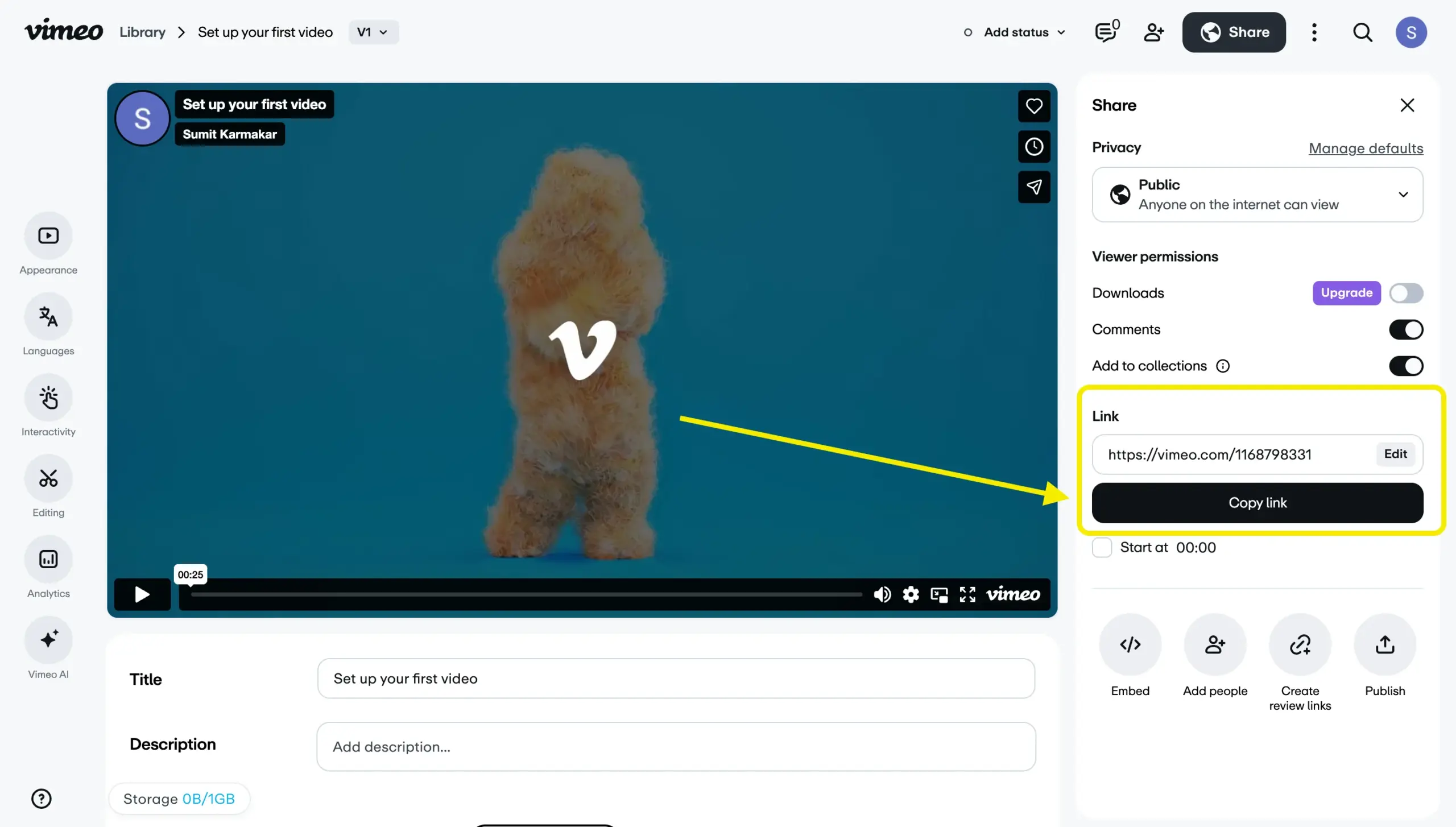
Go to your video on Vimeo and copy the URL.
Open the WordPress post or page where you want the video. Click the plus icon to add a new block. Search for “Vimeo” and select the Vimeo block. Or you can directly paste the URL and click Embed.
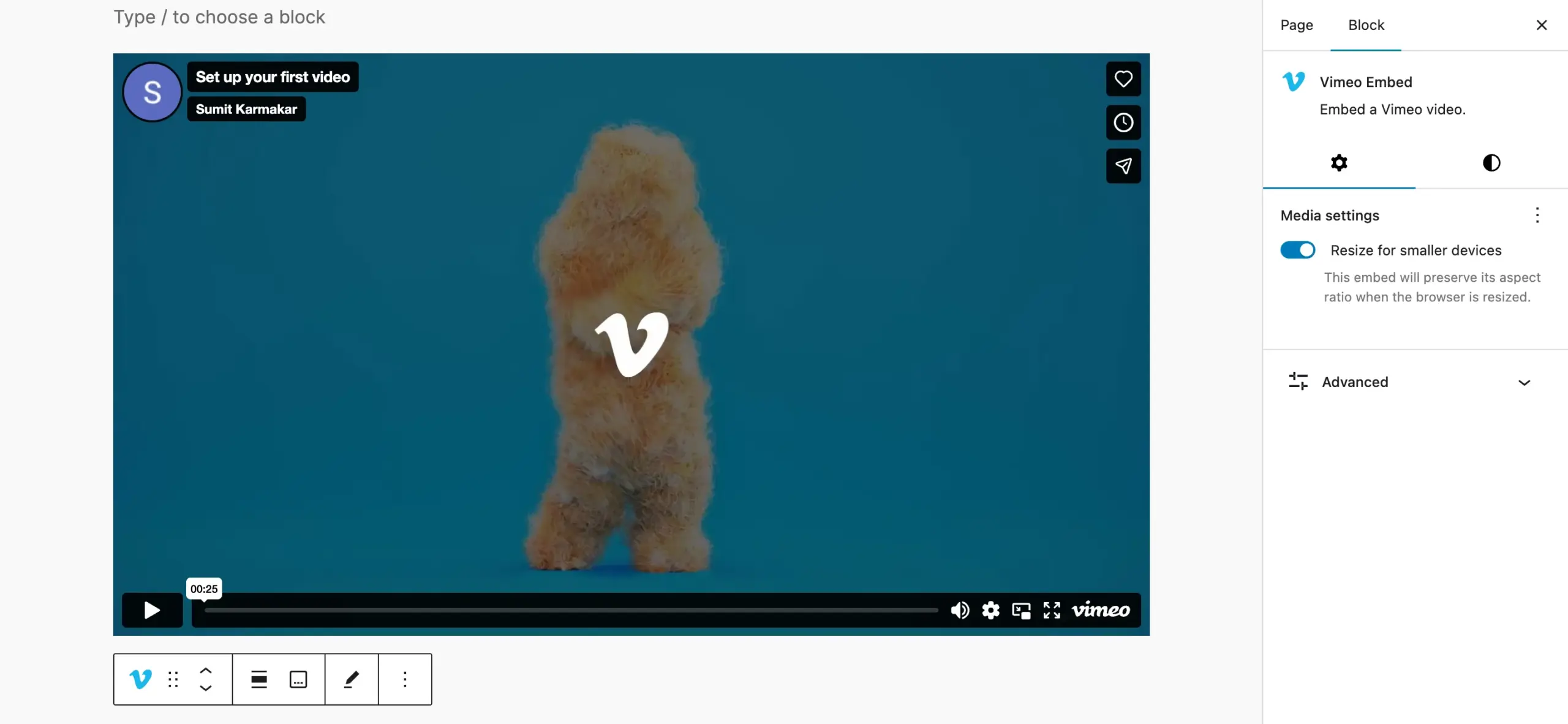
Publish or update the page.
WordPress handles the rest automatically. The video appears responsive by default and adjusts to the width of your content area. No embed code needed.
Method 2: Use the iFrame embed code
Use this method when you need more control. Vimeo’s embed code lets you set specific parameters like autoplay, loop, mute, and whether the title and author name are visible.
Go to your video on Vimeo. Click the Share button below the video.
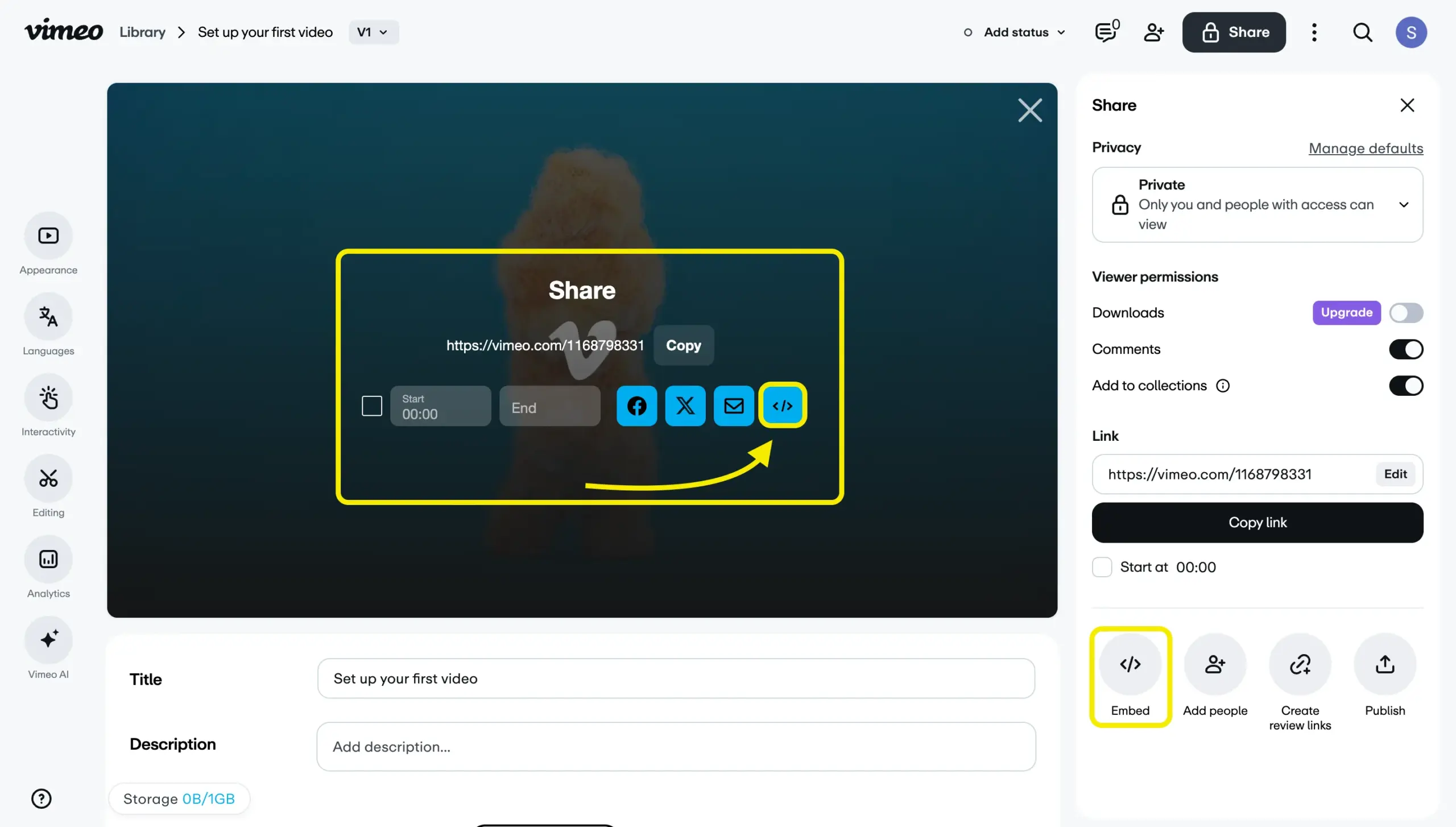
Click Embed to expand the embed code section.
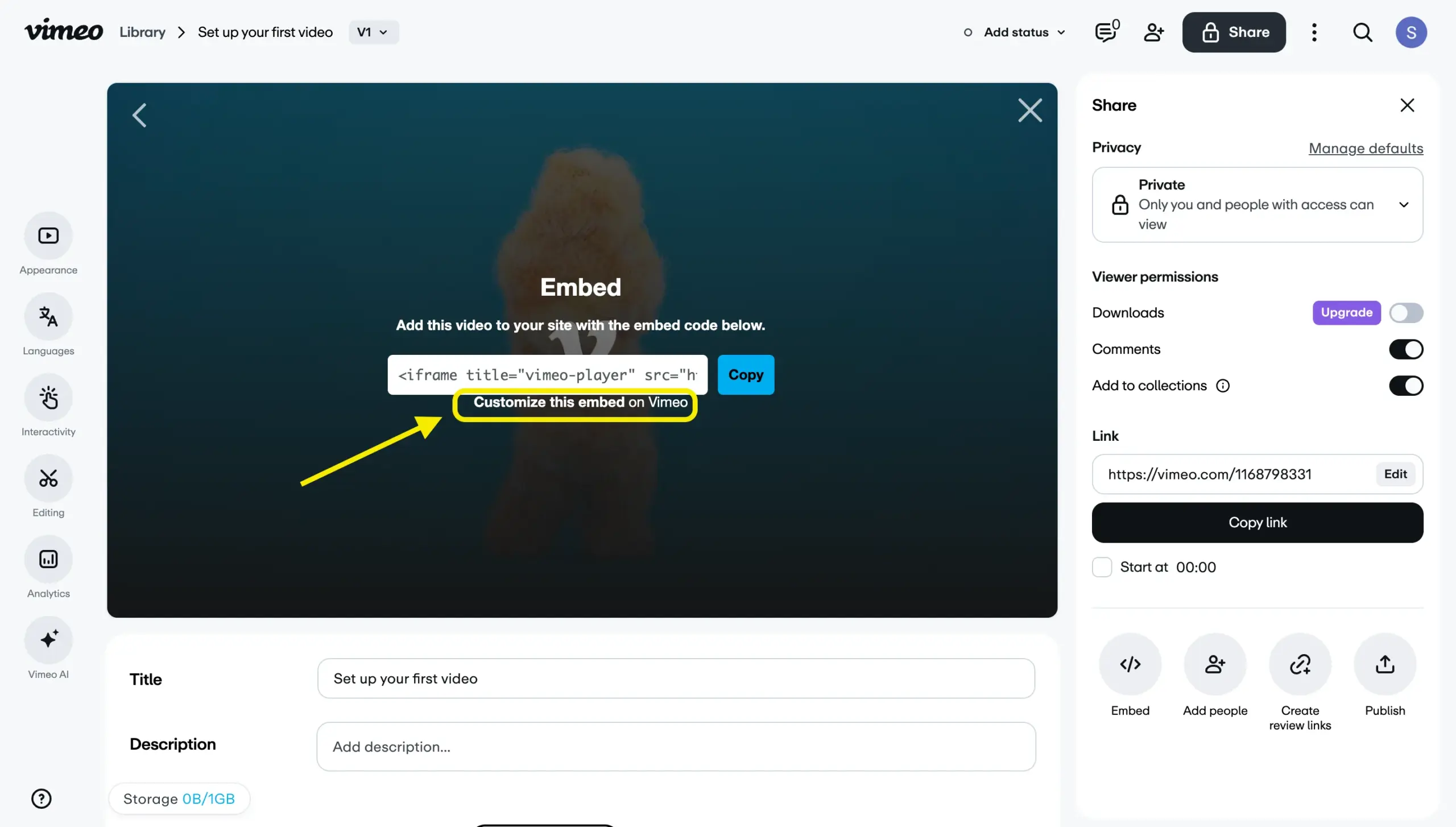
Go to the customization and you’ll see these options: size, autoplay, mute, and loop.
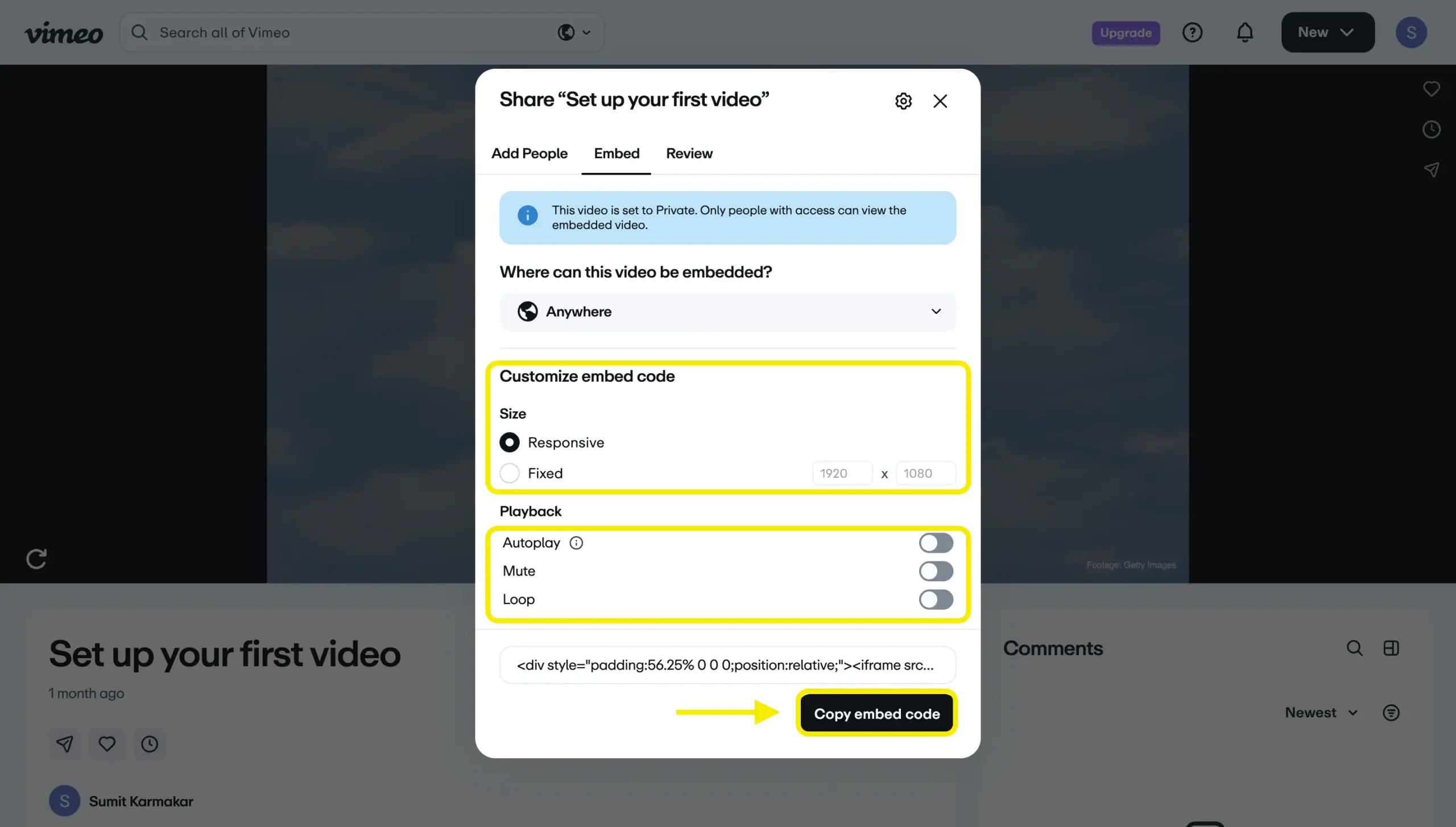
Copy the generated iFrame embed code.
In WordPress, add a Custom HTML block to your page. Paste the embed code into the block.
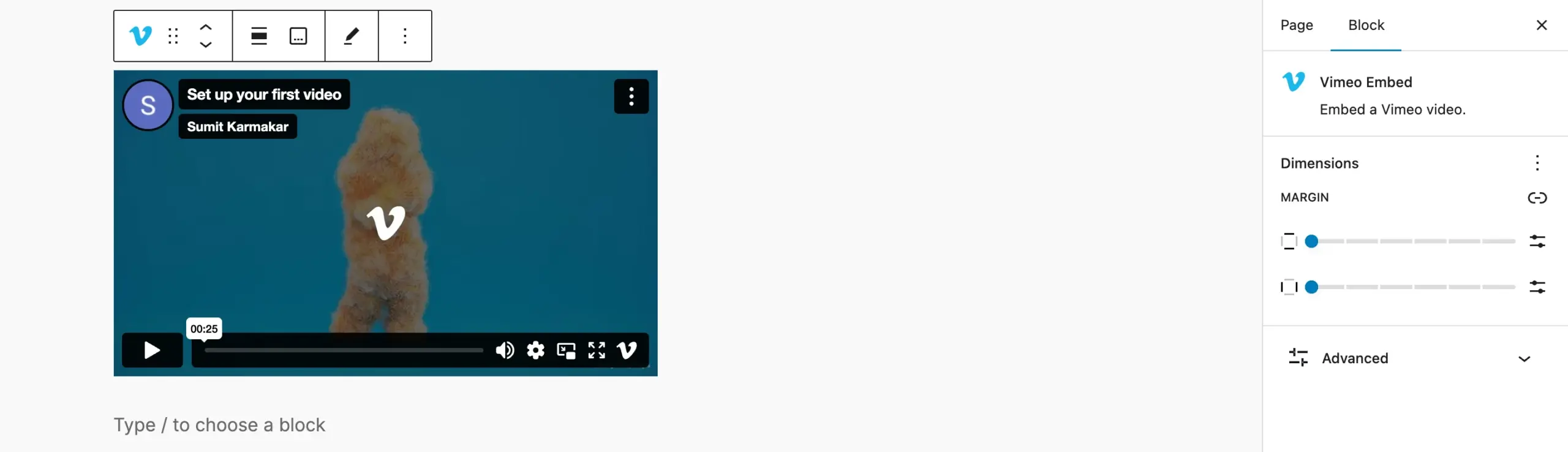
Publish or update the page
The iFrame method gives you the most control over how the player looks and behaves without needing a plugin.
Method 3: Use a video player plugin
If you want more than what the default Vimeo embed provides, a video player plugin is the right move. Branding control, analytics inside WordPress, lead capture, and interactive layers. The plugin replaces the default Vimeo player with one you control.
FluentPlayer supports Vimeo as a video source. You keep your videos on Vimeo and use FluentPlayer as the player layer on your WordPress site.
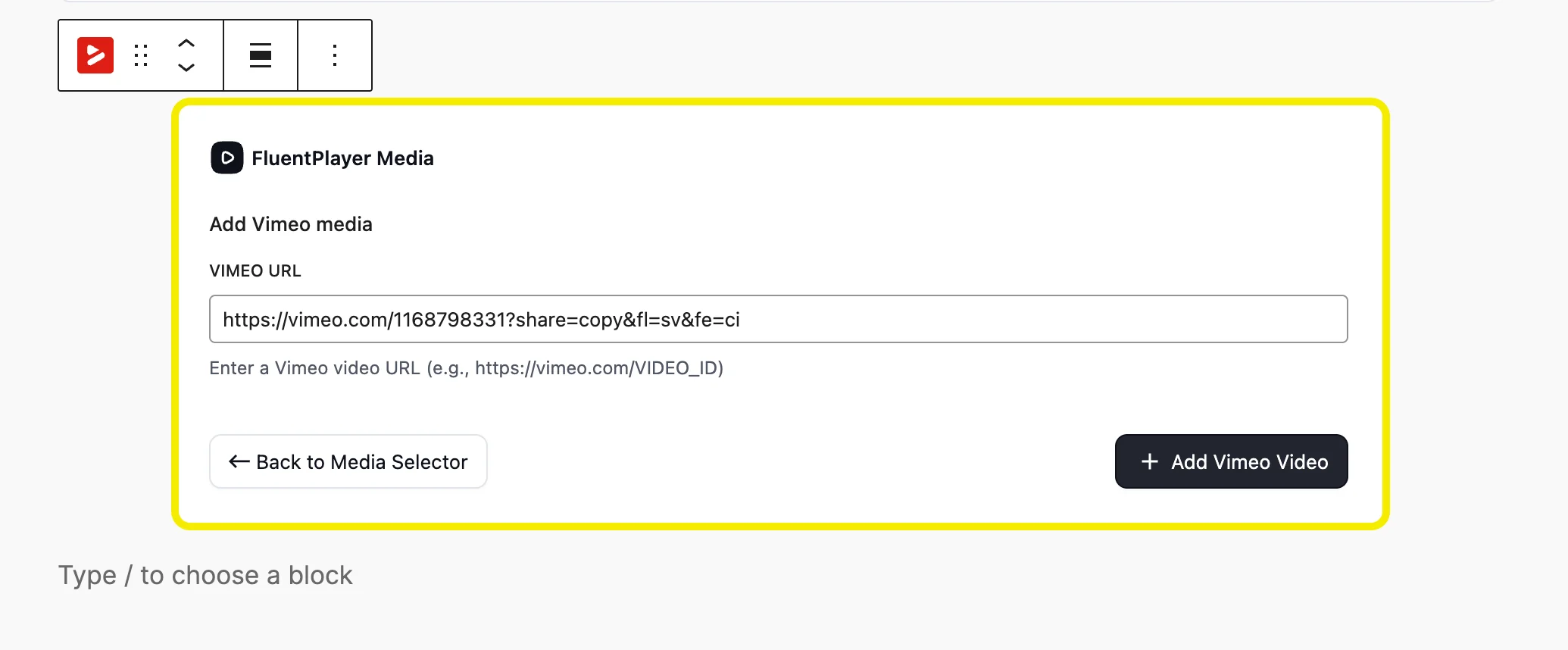
Your Vimeo videos can be given more control and actions within the FluentPlayer.
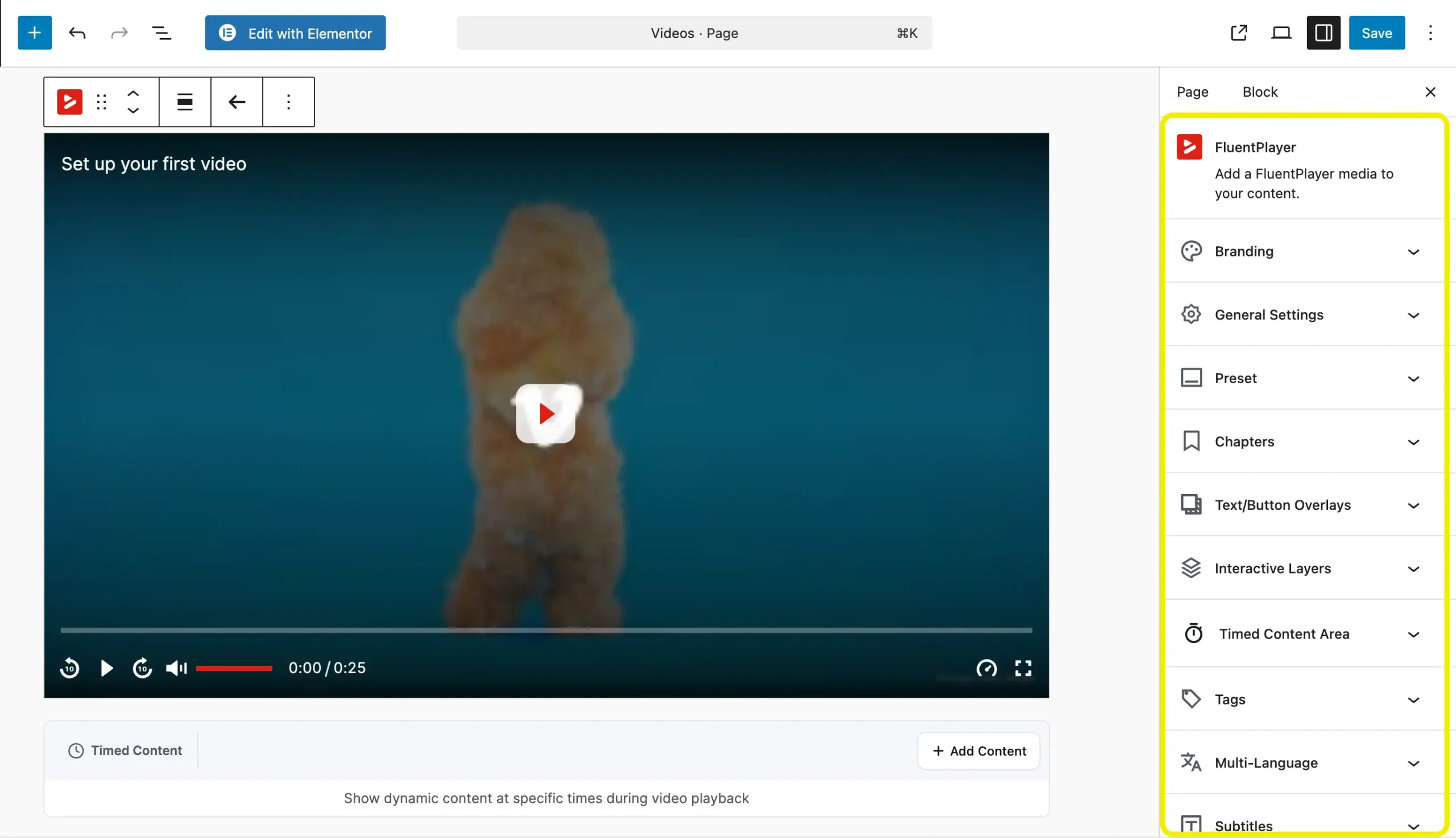
More on what that adds in a moment.
What the Default Vimeo Embed Gives You on a WordPress Page
What works well
The default Vimeo embed is clean. No ads, no algorithm recommending competing content when the video ends. Playback is reliable with adaptive streaming handled automatically.
The player is responsive by default and adjusts to any screen size without extra configuration. For basic video delivery on a WordPress page, it does the job.
What you do not get on a standard plan
This is where most people hit the ceiling without realizing it.
Analytics stay in Vimeo’s dashboard. There is no way to see video performance data inside WordPress alongside the rest of your site metrics. You log into Vimeo separately to check plays, watch time, and engagement.
Branding control is limited. On standard plans, you can adjust the player color but deeper customization, including removing Vimeo’s logo and controlling the player UI, requires a higher-tier plan.
There are no interactive layers. No way to show a lead capture form at a specific timestamp. No CTA that appears mid-video. No control over what the viewer sees when the video ends. The video plays and then it stops. What happens next is up to the viewer.
None of this is a flaw in Vimeo. It is a hosting platform, not a conversion tool. The default embed does exactly what it is designed to do. The question is whether that is enough for what your videos are supposed to accomplish on your site.
What You Can Add With FluentPlayer
FluentPlayer does not compete with Vimeo on hosting. It competes with what happens after the video starts playing.
Keep your Vimeo library exactly where it is. FluentPlayer replaces the player layer on your WordPress site. Your video source stays Vimeo. Your on-site experience becomes yours.
Analytics inside WordPress
With the default embed, your video data lives in Vimeo’s dashboard. Play rate, watch time, drop-off points; all of it sits in a separate platform you log into separately. FluentPlayer brings that data into your WordPress dashboard, so you see video performance alongside everything else you are tracking.
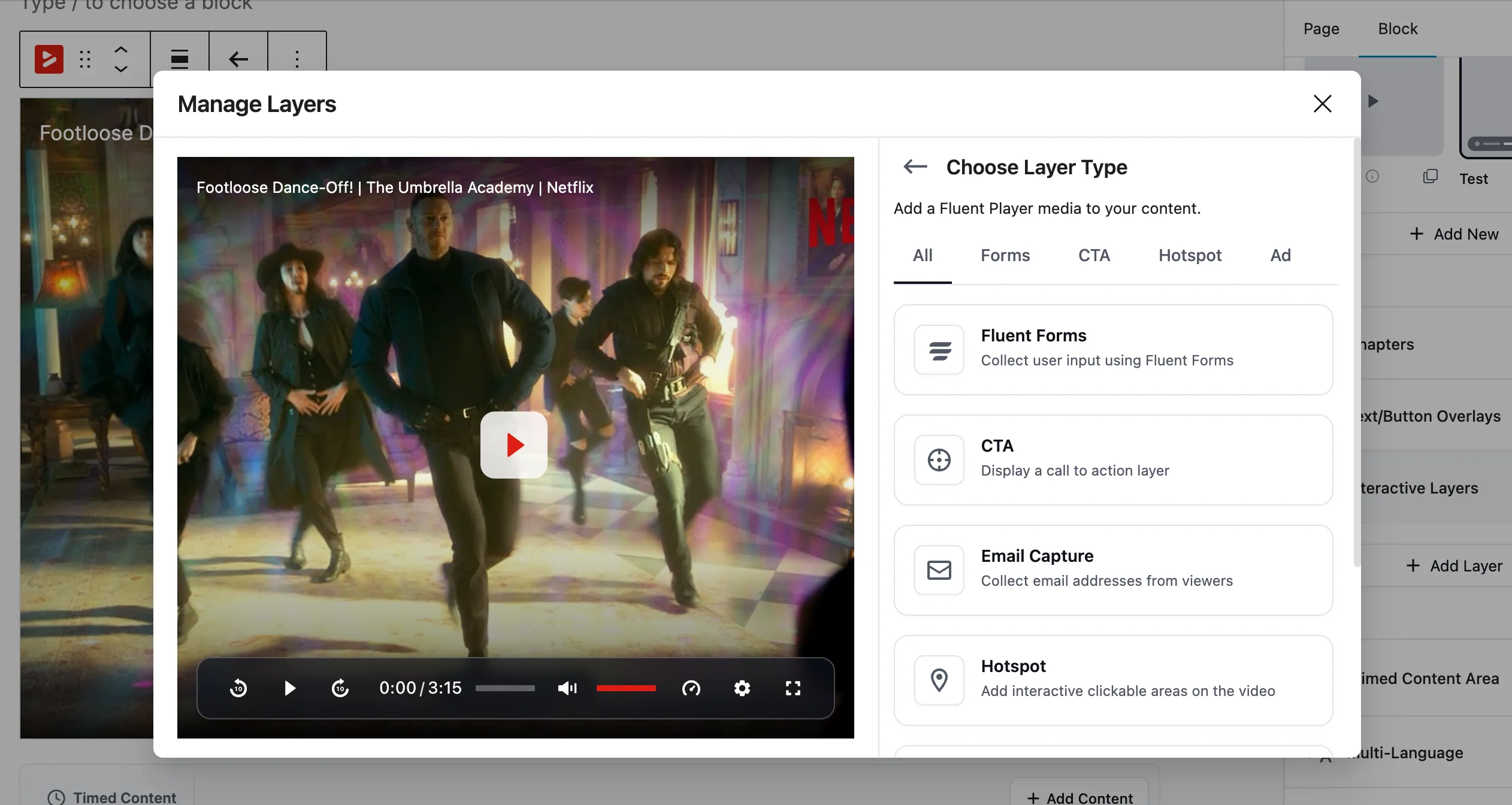
Interactive layers
This is the biggest functional gap between the default Vimeo embed and a proper video player plugin. FluentPlayer lets you place interactive elements inside the video at specific timestamps. A lead capture-form mid-video. A CTA button after a key point lands. A booking calendar before the video ends. None of this requires the viewer to leave the page or the player.
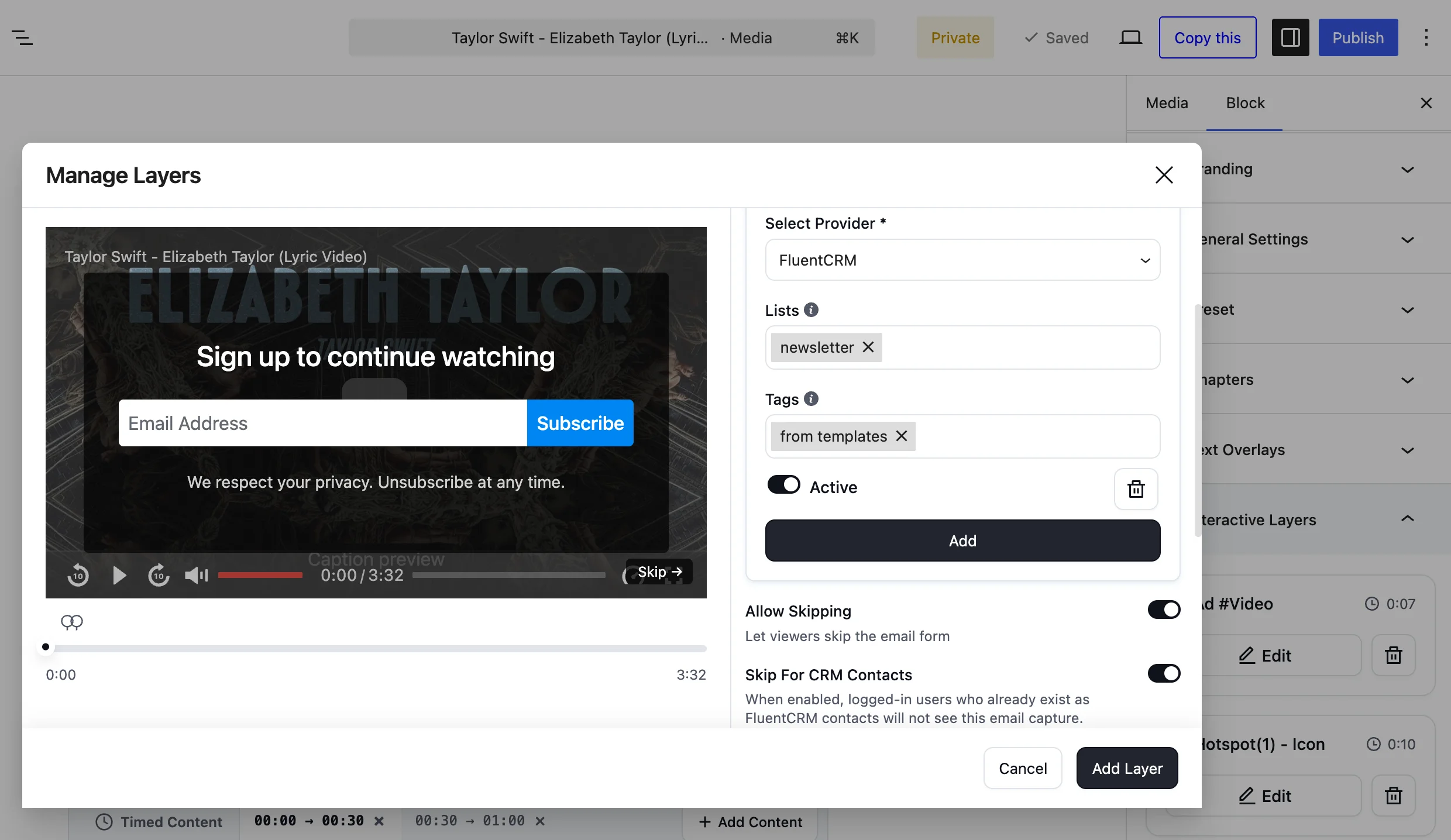
Lead capture connected to your CRM
Emails captured inside the video go directly to FluentCRM. If you use Fluent Forms, you can embed a full form inside the player, including forms with payment fields. The viewer acts from inside the video at the moment they are most engaged.
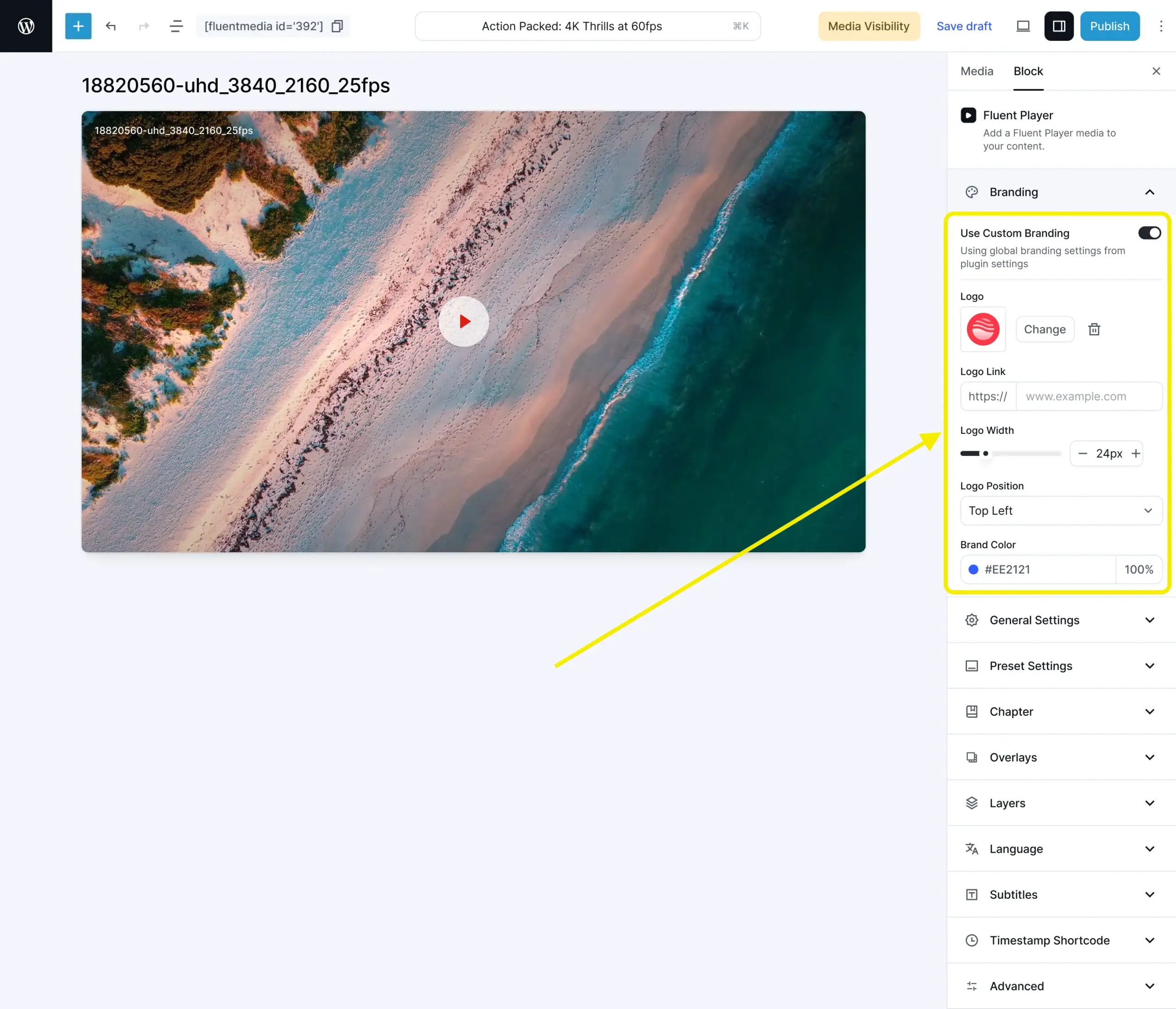
Consistent branding across all your video sources
FluentPlayer gives you full control over the player appearance. Your logo, your colors, your controls. This applies whether the video is hosted on Vimeo, YouTube, Bunny Stream, or your own server. One player, consistent experience across everything.
If you want to see the full side-by-side breakdown of what FluentPlayer adds over the default Vimeo setup, the FluentPlayer vs Vimeo comparison covers it in detail.
Common Vimeo Embed Issues on WordPress and How to Fix Them
Even with a straightforward process, Vimeo embeds occasionally break or behave unexpectedly. Here are the most common issues and what to do about them.
The video shows “Sorry, this content could not be embedded”
This usually means the video is set to private on Vimeo. Only public videos can be embedded on external sites using the standard methods. Go to your Vimeo video settings, check the privacy settings, and set it to public or use domain-level privacy if you are on a plan that supports it.
The embed appears but the video does not play
Check that the URL you pasted is the standard Vimeo video URL from the address bar, for example, vimeo.com/123456789. The player URL format, which starts with player.vimeo.com, can cause display issues when pasted directly into WordPress. Use the standard URL or the embed code from the Share menu instead.
The video does not resize correctly on mobile
This happens most often with the iFrame embed method when no responsive wrapper is applied. In the Custom HTML block, wrap the iFrame in a div with a padding-bottom of 56.25% and set the iFrame to position absolute with 100% width and height. Alternatively, use the native Vimeo block in the WordPress block editor, which handles responsive sizing automatically.
The embed worked and then stopped showing
If you moved the video to a different Vimeo account or changed its privacy settings after embedding, the embed will break. Go back to Vimeo, check that the video is still public and accessible, and re-copy the embed code if needed.
Autoplay is not working
Most browsers block autoplay with sound by default. For autoplay to work reliably, the video must be set to mute on load. In the iFrame embed code, add both autoplay=1 and muted=1 as parameters. Even then, some browsers may still block it depending on user settings.
Try Vimeo Embedding With FluentPlayer
The three methods above get your Vimeo video onto a WordPress page. That part is straightforward.
What FluentPlayer adds is the layer most WordPress sites are missing. Keep your Vimeo library exactly where it is. Install FluentPlayer, connect Vimeo as the source, and your videos immediately gain interactive layers, lead capture, WordPress-native analytics, and a fully branded player.
No migration. No re-uploading. No disruption to your existing Vimeo setup. Install FluentPlayer and connect your existing Vimeo library to test them in action.