
How to Embed Videos in WordPress

Most WordPress site owners embed video the fast way. They paste a URL, it works, they move on. What they do not realise is that “works” and “works for your goals” are two different things.
The default methods hand the viewing experience to the platform. Your visitor watches on YouTube’s terms, not yours.
Let’s find out all the methods of embedding videos into WordPress site, and see which one fits your situation.
TL;DR
- The embed method you choose determines who controls the viewer’s experience after the video plays.
- Paste and iFrame methods are fast but lock you to the platform’s player, ads, and analytics.
- A WordPress video player plugin like FluentPlayer gives you full control over branding, CTAs, and data.
- Video embeds affect page speed and Core Web Vitals. Lazy loading is essential.
- Hosting on a dedicated platform before embedding is a prerequisite, not an afterthought.
Why the Embed Method Matters
YouTube’s default player shows ads before your content plays. It surfaces recommended competitor videos the moment yours ends. It puts a Watch on YouTube button on your page whose only job is to send your visitor somewhere else.
Pages with video hold visitors 88% longer than pages without. That only works for you if the video keeps the viewer on your site. If they click away to YouTube after ten seconds, it works against you.
Before You Embed: Where Should the Video Live?
You have two choices. Upload the video file directly to your WordPress server, or host it on a dedicated platform and embed from there. For almost every use case, host it on a dedicated platform.
When a video lives on your server, every play request hits your hosting bandwidth directly. There is no CDN distributing the load, no adaptive bitrate adjusting quality, no transcoding optimising the file. A single video that gets real traffic can slow your entire site or trigger overage charges.
Dedicated platforms handle all of that automatically. Your WordPress server loads a lightweight embed code. The platform streams from its own infrastructure. Your site stays fast and the viewer gets a smooth experience.
The platform you host on determines your costs, your privacy controls, and what the embed can actually do. If you are still deciding, read the WordPress video hosting comparison before going further.
Method 1: Paste the URL (oEmbed)
You want to add a video to a blog post quickly. Here is the fastest way.
Copy the video URL from YouTube, Vimeo, or any supported platform. Open the post in the WordPress block editor and paste the URL on its own line. WordPress detects it, fetches the embed code, and converts it into a working video player automatically. This technology is called oEmbed.
Steps:
- Copy the video URL from your hosting platform
- Open the post or page in the block editor
- Paste the URL on its own line in the content area
- WordPress converts it into an embed block
- Preview and publish
For YouTube: Copy the URL from the address bar and paste it into the editor. WordPress selects the YouTube block automatically.
For Vimeo: Same process. Paste the Vimeo URL and WordPress converts it into a Vimeo embed block.
Still on the classic editor? Switch to the Text tab and paste the URL on its own line. WordPress detects it and converts on save.
The video is live in under a minute. YouTube’s oEmbed includes the full YouTube player: ads, recommended videos, and the Watch on YouTube button. The viewer experience is entirely determined by YouTube’s product decisions, not yours.
Use this method for blog content where the reader watching and leaving is acceptable. Do not use it on sales pages, course landing pages, or lead capture pages.
Method 2: The iFrame Embed Code
Maybe the paste method gave you something you did not want: related videos at the end, or branding you would rather not have on the page.
The iFrame embed method gives you a little more control, which includes – starting time, show/hide player controls, privacy-enhanced mode.
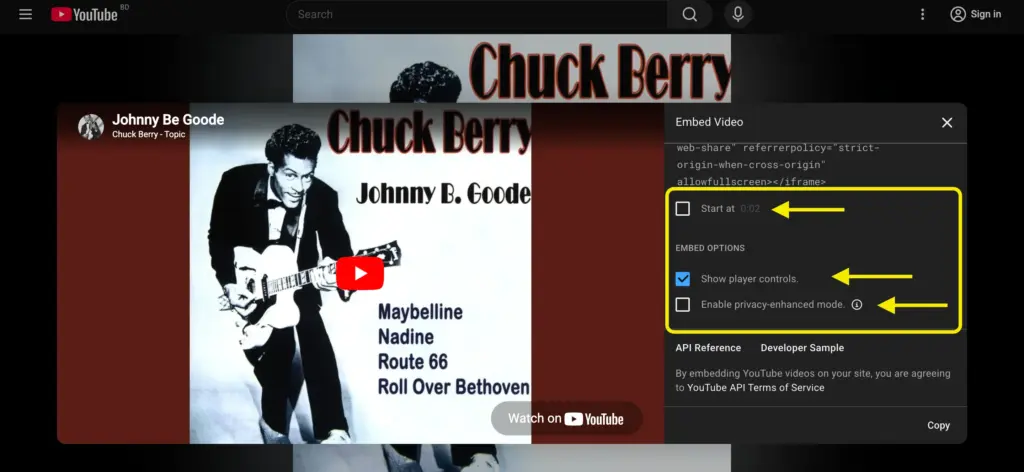
Most hosting platforms have a Share or Embed option alongside the video. Clicking it generates an iFrame tag, a short block of HTML containing the player configuration.
Steps:
Find the Share or Embed option on your hosting platform. Let me show you how it works for YouTube.
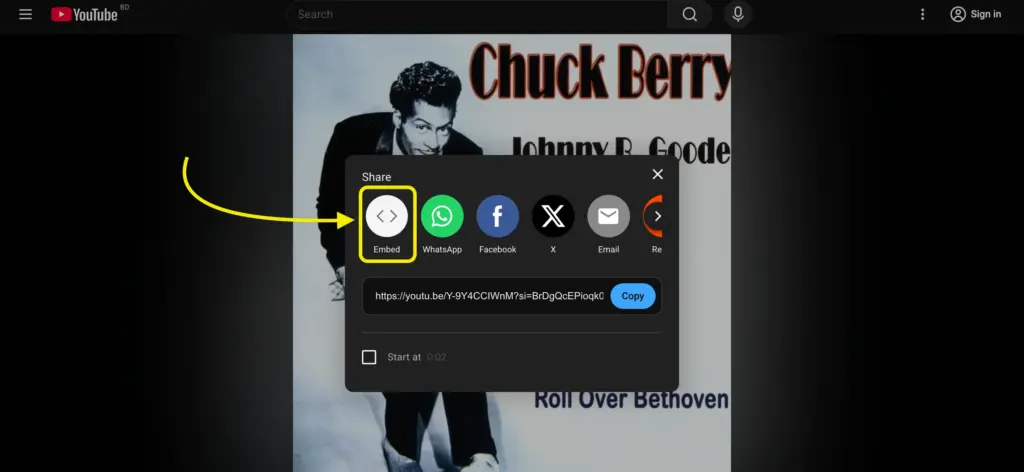
Copy the iFrame code.
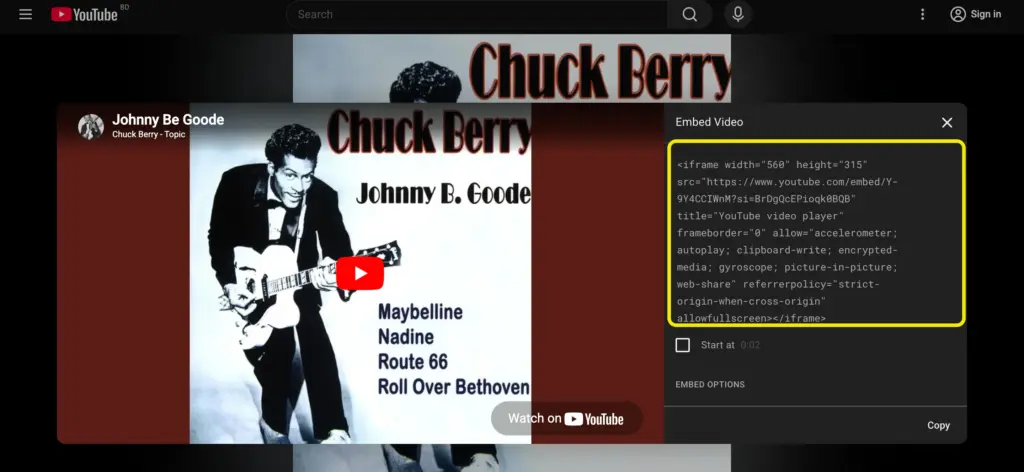
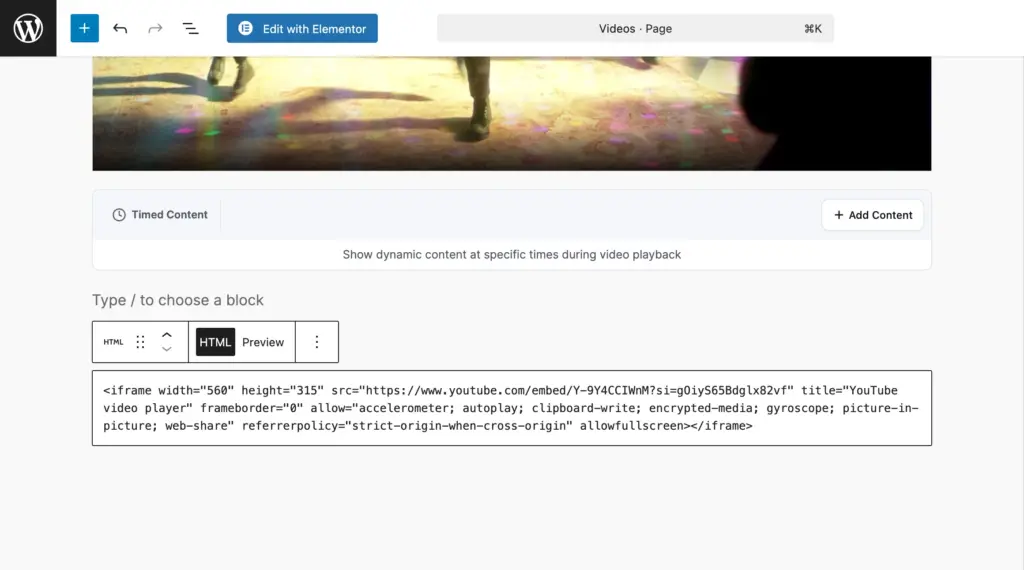
In WordPress, add a Custom HTML block, then paste the iFrame code into the block.
Adjust any available parameters and publish.
For YouTube: In the Share dialog, click Embed. Add ?rel=0 to the video URL inside the iFrame to suppress related videos at the end of playback. You can also set a custom start time here.
For Vimeo: The Embed option gives you colour customisation, autoplay settings, and control over whether the title and byline display.
This method still locks you to the platform’s player. You cannot add your own branding, interactive layers, or lead capture. Analytics live in YouTube Studio or Vimeo, not in WordPress.
If you are embedding video to drive a signup, demonstrate a product, or gate content, this method is not built for that.
Method 3: A WordPress Video Player Plugin
A dedicated WordPress video player plugin sits between your hosting platform and your viewer. The video still lives on YouTube, Vimeo, Bunny Stream, or wherever you have hosted it. It plays through your player, with your branding, your controls, and your data.
FluentPlayer works with YouTube, Vimeo, Bunny Stream, and self-hosted files through one consistent player interface.
Steps:
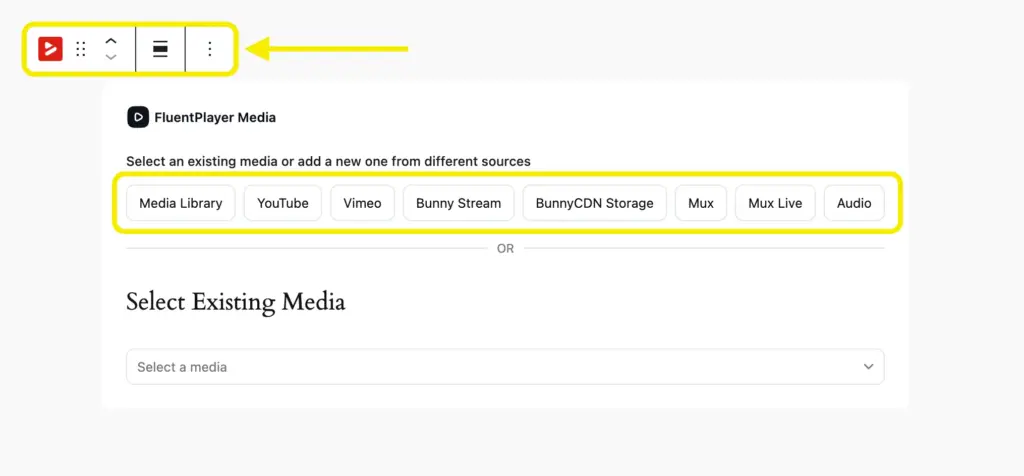
Add a FluentPlayer block to the post or page. Then paste your video URL. Any supported source works.
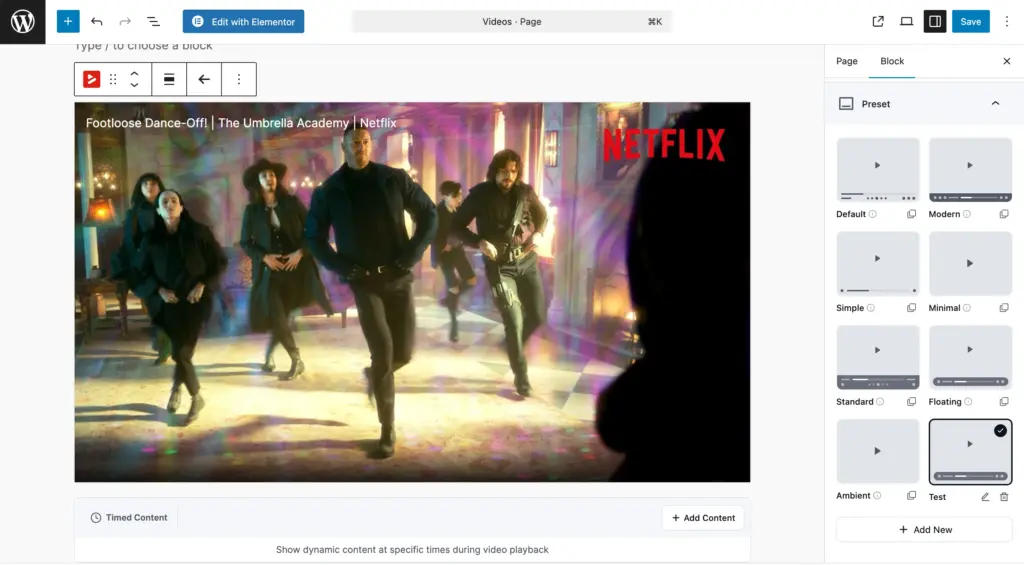
Choose or create a player preset to match your brand.
Add interactive layers if needed – forms, CTAs, or email capture. Add chapters, overlays, and even translations if needed, then publish it.
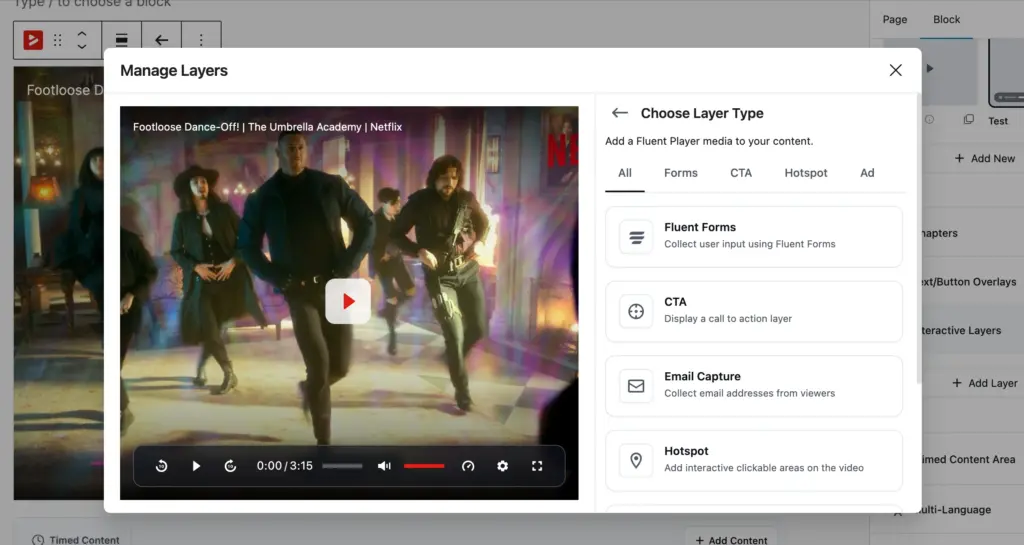
Every time a viewer finishes a YouTube embed on your sales page, YouTube fills the screen with other people’s content. Your conversion moment disappears. FluentPlayer replaces that with whatever comes next: a button, a form, or a prompt, timed to appear when the viewer is most engaged.
With the paste or iFrame method, your view data lives in YouTube Studio or Vimeo’s dashboard. You are logging into a separate platform to understand how your own audience behaved on your own site. FluentPlayer brings play rate, watch time, completion rate, and audience retention directly into WordPress.
Running YouTube for public tutorials and Bunny Stream for gated course content? FluentPlayer handles both through the same player design and analytics layer. You are not managing three embedded styles and three separate dashboards.
Chapters let viewers skip to the section they need. Resume playback means returning visitors pick up where they stopped. Email capture appears inside the video at a moment you choose, not as a popup, but as a layer inside the player itself.
How Embedding Affects Page Speed
A standard YouTube embed adds roughly 500KB of script weight to your page. It loads all of that whether or not the visitor ever presses play.
Page speed is a confirmed Google ranking factor. Video embeds are one of the most common reasons pages fail Core Web Vitals, particularly Largest Contentful Paint. A YouTube player loading in the first viewport will almost always push LCP past the 2.5-second threshold Google considers acceptable.
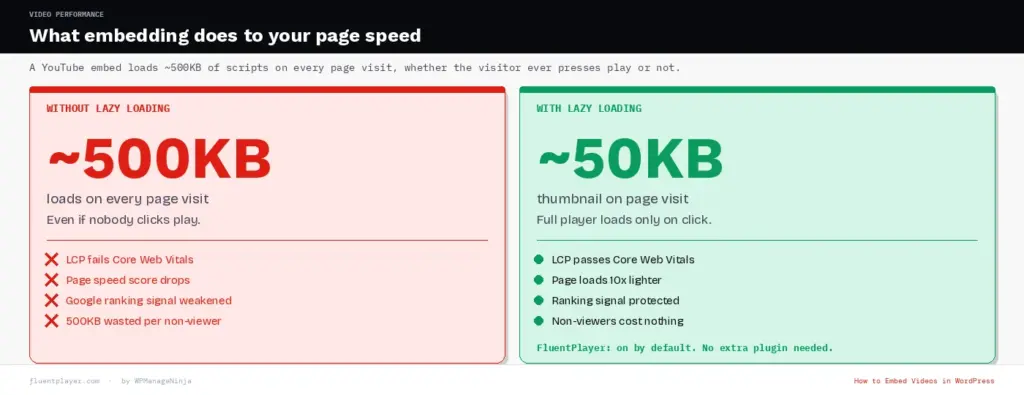
The fix is lazy loading. A lazy-loaded embed displays a lightweight thumbnail instead of the full player. The real player loads only when the visitor clicks play. Pages load faster, Core Web Vitals improve, and visitors who scroll past never pay the loading cost.
FluentPlayer handles lazy loading natively. No separate plugin, no manual configuration. If you are using oEmbed or iFrame, you will need a dedicated lazy loading plugin to get the same benefit.
How Embedding Video Helps Your Ranking
Embedding a video does not automatically boost your rankings. What it does is give Google more engagement signals. A page where visitors watch, stay longer, and do not immediately bounce signals that the content is worth ranking. That is real, but not a guarantee.
The more concrete SEO benefit is video rich results. Pages with valid video schema markup can show up in Google search with a video thumbnail, a visual treatment that increases click-through rate noticeably. Good WordPress video player plugins generate this schema automatically.
One important nuance: if you embed a YouTube video, the rich result is attributed to YouTube’s domain, not yours. Your page gets the engagement signal, but the rich result points to YouTube. Host the video on Bunny Stream, Mux, or a self-hosted source if you want the rich result to appear for your own domain.
A video sitemap helps Google discover and index your video content. Yoast and RankMath can generate one once your videos are properly configured.
Embedding Video in a Sidebar or Widget Area
Video does not have to live only in posts and pages. A brand video, product demo, or customer testimonial can sit in a sidebar and stay visible across multiple pages without being embedded on each one individually.
Go to Appearance, then Widgets, and add a Custom HTML widget to the area you want. Paste your iFrame code into the widget and save. If you are using FluentPlayer, paste the FluentPlayer shortcode instead for the same player controls and analytics.
Self-hosting Video Directly in WordPress
Self-hosting video in the WordPress media library works fine for a 30-second clip on a low-traffic page. It breaks badly at scale.
Every play request routes to your server with no CDN, no adaptive bitrate, and no transcoding. A shared hosting plan caps bandwidth. One video with real traffic can hit that cap in hours and bring your site down or trigger overage charges.
You also get no analytics, no schema output, no interactive layers, and no adaptive quality adjustment. Just a file playing through the WordPress media player.
If you want to own your files while delivering them properly, use Bunny Stream as the hosting layer and FluentPlayer as the player. Your files stay in your Bunny account, Bunny’s CDN handles delivery, and FluentPlayer handles everything the viewer sees.
Troubleshooting: When Your Embed Is Not Working
The video is not showing after you paste the URL. The platform may not be on WordPress’s supported oEmbed list. Also try clearing your site’s object cache. Stale cache can prevent WordPress from fetching fresh oEmbed data.
The iFrame shows a blank space. Check your platform’s embed privacy settings and make sure your domain is whitelisted. For YouTube, confirm the video is set to Public.
The video is not responsive on mobile. Your theme is likely applying fixed-width CSS to iFrame elements. Add max-width: 100%; height: auto; to the video container in your theme’s custom CSS.
The video is slow and failing Core Web Vitals. You need lazy loading. FluentPlayer has it on by default. For oEmbed and iFrame, install a dedicated lazy load plugin.
Related YouTube videos are still showing at the end. The ?rel=0 parameter suppresses videos from other channels, not your own. This has been YouTube’s policy since 2018. A player plugin that replaces the YouTube UI is the only way to remove recommendations entirely.
Deciding Which Method to Use
Most people start with the paste method and that is fine. If you are embedding a video on a blog post and do not mind where the viewer goes after watching, paste the URL and move on.
The point where the method starts to matter is when the video has a job. If you need slightly cleaner output and want to suppress related videos, use the iFrame method with ?rel=0.
If the video is there to sell a course, capture a lead, demonstrate a product, or support a funnel, use FluentPlayer. The paste and iFrame methods are not built for sites that treat video as infrastructure rather than decoration.
Let us know which method works the best for you in the comments below.
Frequently Asked Questions
Does embedding a video slow down my WordPress site?
A standard YouTube embed loads roughly 500KB of scripts on page load, whether or not anyone watches. Lazy loading replaces the player with a thumbnail until someone clicks play, dropping that to around 50KB. FluentPlayer does this by default. On oEmbed and iFrame you will need a separate plugin.
Can I embed video without using YouTube or Vimeo?
Yes. Bunny Stream is built for this: pay-as-you-go, CDN-delivered, no ads, no recommended content, with DRM and token authentication included. Mux is strong for developer-led setups. FluentPlayer supports both, so switching hosting platforms does not mean rebuilding your embeds.
What is the best WordPress video player plugin?
FluentPlayer handles multi-source video from YouTube, Vimeo, Bunny Stream, and Mux through one player, with interactive layers, native WordPress analytics, chapters, resume playback, and schema output. Lighter options exist for basic YouTube embeds with modest customisation.
Does embedding video help with SEO?
It helps indirectly through better engagement signals. The more direct benefit is a video rich result in Google search, a thumbnail next to your result that lifts click-through rate. You need video schema markup to qualify. If your video is on YouTube, the rich result goes to YouTube’s domain, not yours.
Can I use the same video on multiple pages?
Yes. With oEmbed or iFrame, paste the same URL or code wherever needed. With FluentPlayer, build a player preset once and apply it across every instance. Update the preset and every embed on the site updates with it.
Video is playing but there is no sound on mobile.
Mobile browsers block autoplay with sound by default. If autoplay is enabled, the video plays silently. Disable autoplay or set the player to require a tap before playing. This is a browser restriction, not a WordPress issue.

This is Sumit. He’s a physics major who’s trying to understand both the physical as well as the WordPress worlds. Whenever he’s not busy, plays fifa or spends time with his family.
Leave a Reply