

Most advice on Black Friday automations covers the same three flows: abandoned cart, welcome series, and post-purchase. They’re worth having, and none of them reads the signal sitting in your video player. By late November you’ll know who watched your preview to the end and who closed it early.
Picture the morning of November 25. Some customers watched all three products and answered your early-access question. Others closed the player ten seconds in. If your plan is one discount email to the whole list, both groups get the same message, written for neither of them.
A list-wide code also discounts customers who were going to pay full price. The five automations below build on the capture layer from growing your email list with video before Black Friday, so each message goes to the contact whose viewing called for it. Here’s how video-triggered Black Friday automations work.
TL;DR
- Five FluentCRM automations run on FluentPlayer watch and layer events, plus FluentCart orders
- Viewers who reach 75% of your preview get a single-use coupon on Black Friday morning
- Seen, Completed, and Skipped each get their own follow-up
- A buyer tag from the Order Paid trigger stops pending reminders
- Seven settings break these flows without showing an error
How Video-Triggered Black Friday Automations Work
Video-triggered Black Friday automations are FluentCRM workflows started by FluentPlayer events, so a contact who reaches a watch milestone or responds to an in-video form gets a follow-up written for what they did.
Identified viewer watches → FluentPlayer logs the event → FluentCRM trigger fires → tag, coupon, or email → buyer tag ends the reminders
What a Watch Milestone Tells You and What It Doesn’t
A watch milestone tells you how much of one video an identified contact played. When someone reaches 75% of your Black Friday preview, you know they stayed through most of it. You don’t know why they watched, whether the price fits their budget, or whether they plan to buy.
FluentPlayer attaches events only to viewers it recognizes: logged-in users and anyone who has submitted an in-video form or email capture layer. Anonymous visitors produce no events at all. In practice, these automations reach your customers and subscribers, the same group your Black Friday email goes to.
Don’t treat a watch tag as a buyer label. A tag like bf26-watched-preview records what someone watched. Write each follow-up as a response to the viewing. The tag holds no evidence the contact is ready to buy, so the email shouldn’t pitch as if it did.
The Five Automations at a Glance
Every section below uses one example: a three-minute preview of the three products in your Black Friday sale. It has an email capture layer at 0:05 and an early-access form, built in Fluent Forms, at 2:10. Here is the full sequence before any settings:
- A viewer who reaches 75% of the preview gets a single-use coupon on Black Friday morning.
- A viewer who submits the early-access form gets a confirmation and the deal for their product.
- A viewer who saw the form and did nothing gets one reminder two days later.
- A viewer who dismissed the form gets tagged and a different message, or nothing.
- A paid order for a sale product tags the buyer and pulls them out of pending reminders.
The walkthrough below shows the whole build on a WordPress test site, from the first setting to the finished reminder automation.
Turn On Video Tracking Before You Build
Three settings across two plugins decide whether FluentCRM ever hears about a video event, and none of them shows an error when it’s off.
Have these ready first:
- FluentPlayer, FluentCRM, and FluentCart active on one site
- The preview added under FluentPlayer → Media
- A test contact who logs in to your site
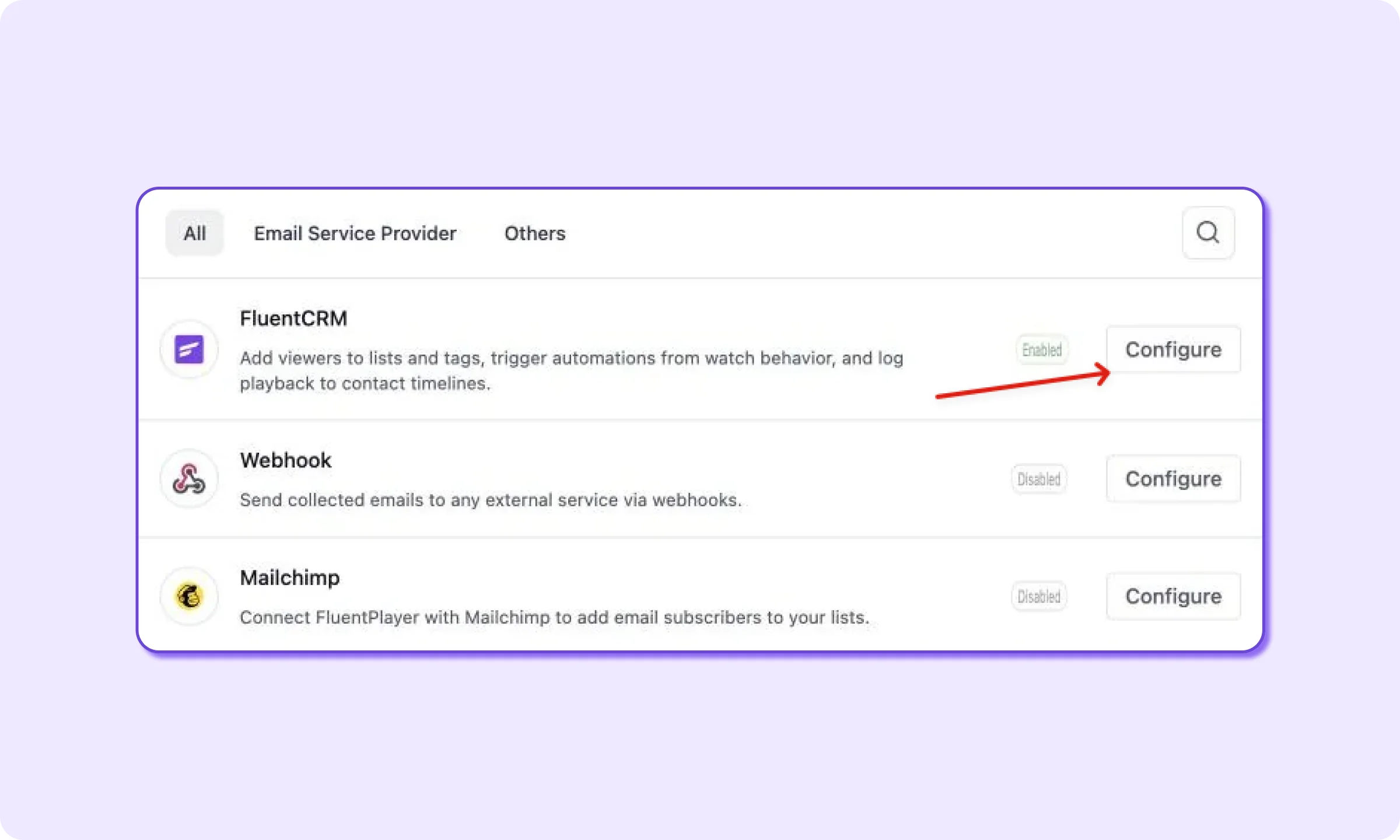
FluentPlayer and FluentCRM connect on their own once both plugins are active, so there’s no API key to paste. Go to FluentPlayer → Settings → Integrations, where FluentCRM shows an Enabled badge, and click Configure to open the tracking settings.
Turn on Log playback to contact timeline. Neither FluentPlayer trigger fires while this toggle is off, even when the automation is published and every setting inside it looks right. Under Which media, pick All media, or choose Selected media and add the preview.
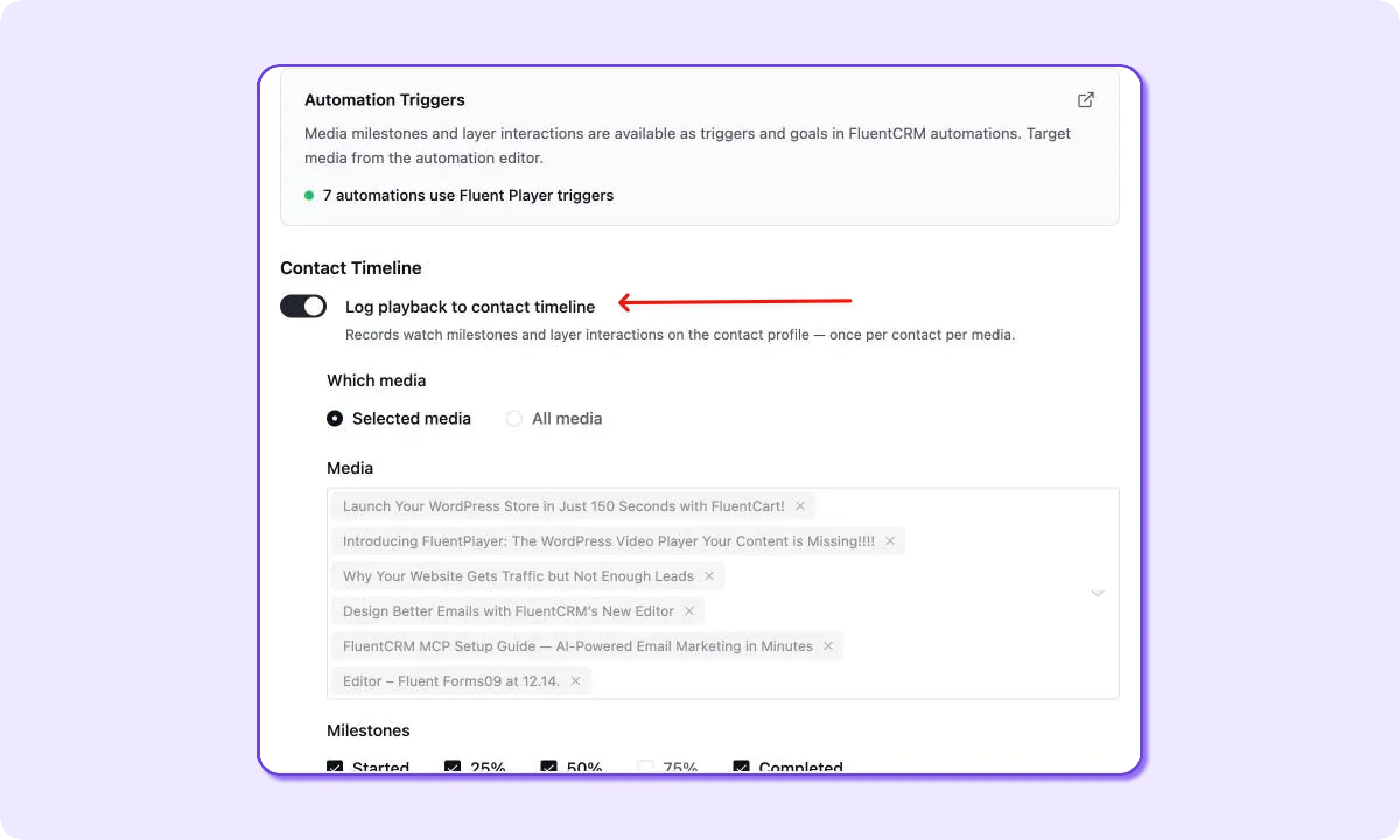
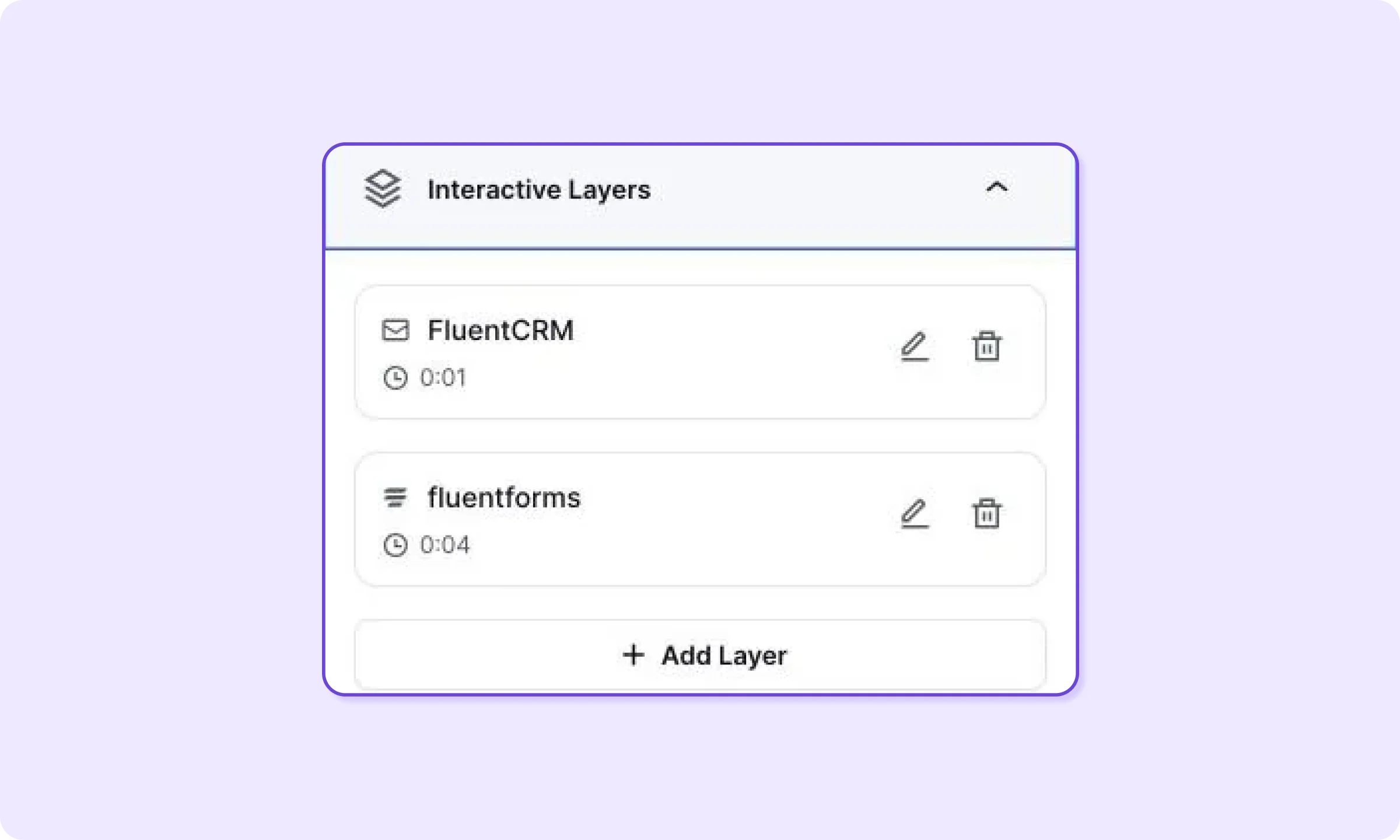
Further down the same screen, tick the events you plan to use: Started and 75% under milestones, plus Seen, Completed, and Skipped under layer events. If Which layers is set to Specific layers, add the preview’s two layers to the list. Then click Save Settings.
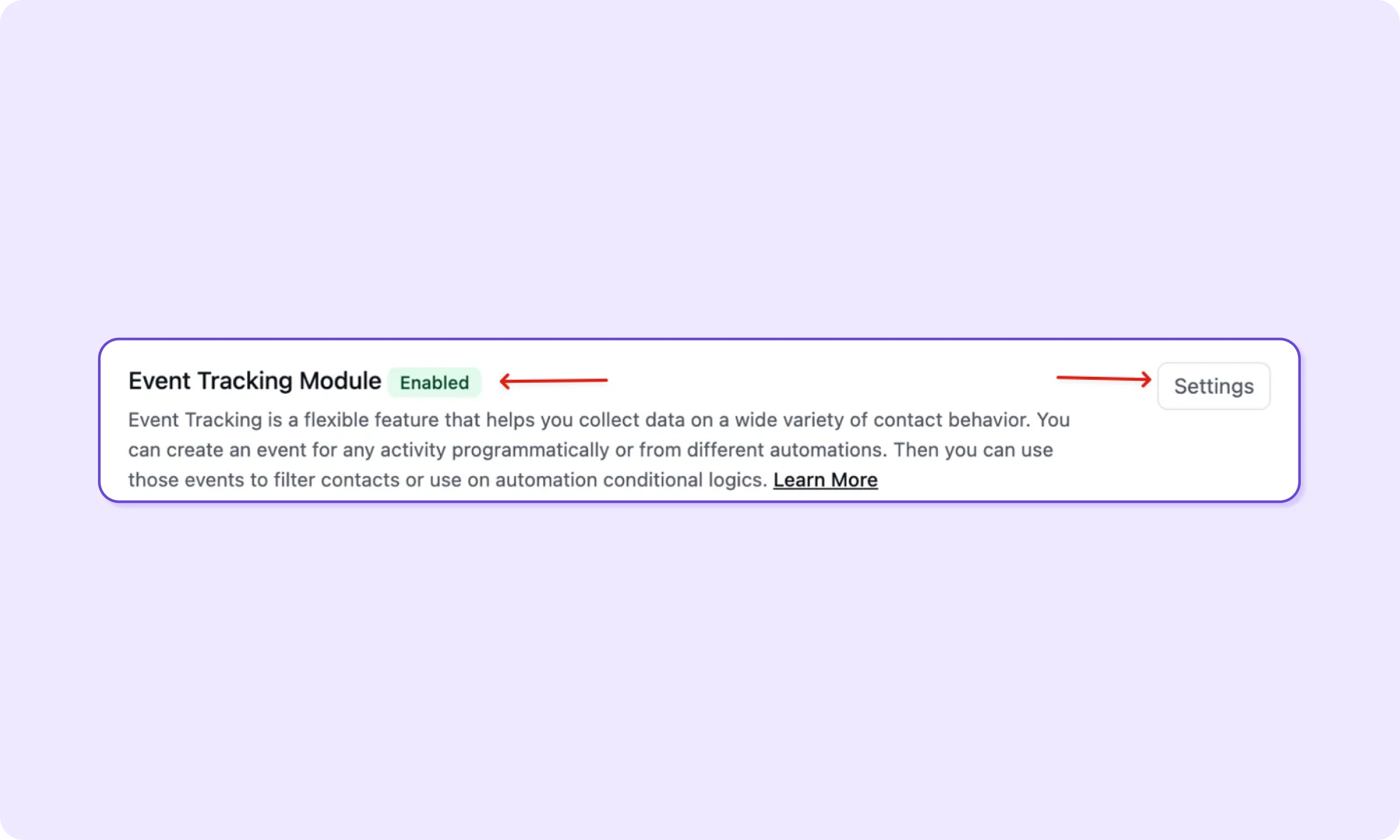
In FluentCRM → Addons, scroll to the Event Tracking Module under Advanced Features, open Settings, tick Enable Event Tracking Module, and save. FluentPlayer’s FluentCRM documentation calls this the step people miss, because contact profiles stay empty without it.
Publish every automation you build below, since a draft looks finished in the list and never runs. If FluentPlayer isn’t on your site yet, install FluentPlayer free from WordPress.org before building the coupon automation.
1. Send a Single-Use Coupon to Viewers Who Reach 75%
The first automation sends a personal FluentCart coupon to every identified contact who reaches 75% of the preview, and it delivers the code on Black Friday morning.
Give the preview an identified audience
Anonymous viewers never trigger anything, so decide where the preview lives before you build. Two placements work:
- Inside a logged-in area, such as the customer account page, a FluentCommunity space, or a course
- On a public page, with an email capture layer in the first few seconds offering the Black Friday code
The capture layer does two jobs. It adds the viewer to FluentCRM, and the submission identifies them, so the 75% milestone later in the same video is attributed to their contact. The guide to building the capture layer covers it step by step.
Pick from the five milestone presets
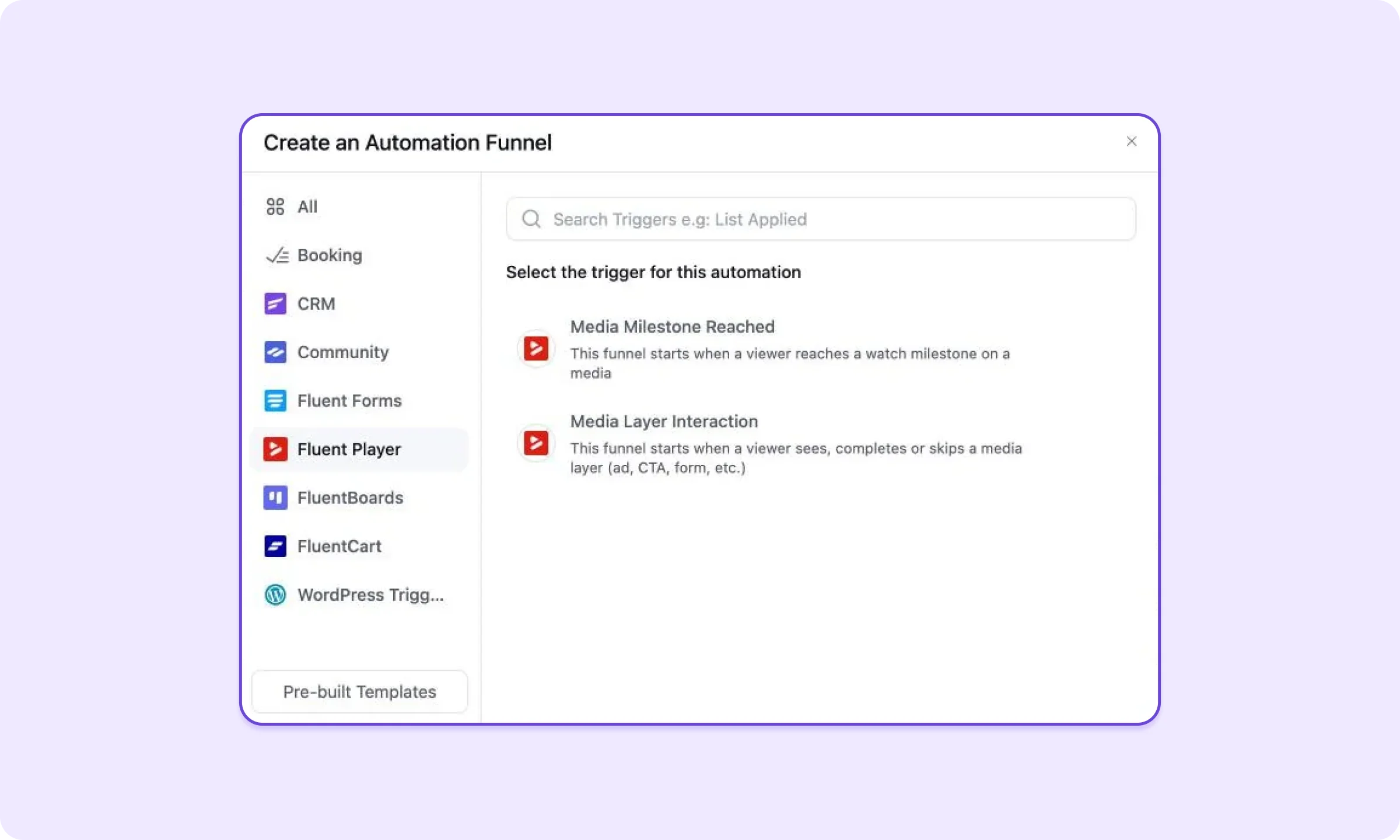
In FluentCRM → Automations, click + New Automation, choose Fluent Player in the list on the left, and select Media Milestone Reached. The second Fluent Player trigger, Media Layer Interaction, powers automations 2 to 4.
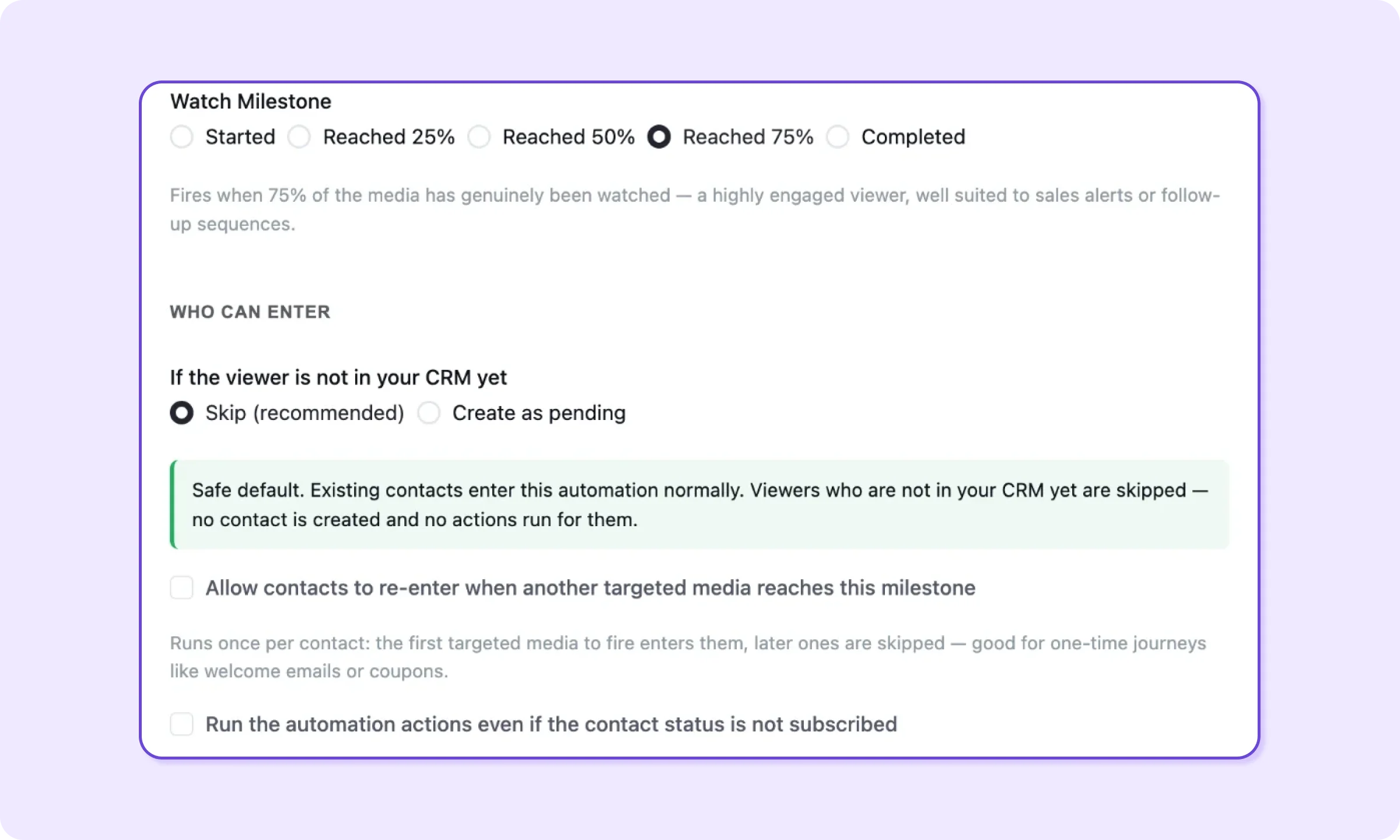
Set Target Media to the preview. Leaving it empty runs the automation for every video on your site, which is the wrong scope for a coupon. Watch Milestone offers five presets: Started, Reached 25%, Reached 50%, Reached 75%, and Completed. There’s no field for a custom percentage.
The trigger counts genuine watching only. Its own help text says skipping ahead does not count, so a viewer who drags the playhead to the end never reaches 75%. Completed adds a Completion Threshold of 70, 80, 90, 95, or 100%, and it defaults to 90%.
Don’t pick Completed at 100% to make the coupon harder to earn. Anyone who closes the player during your final seconds never qualifies, and FluentCRM doesn’t tell you they were left out. The 75% preset asks for most of the preview without depending on the ending.
Keep If the viewer is not in your CRM yet on Skip, and leave Allow contacts to re-enter unticked. The default runs once per contact, which is what a coupon needs, since each viewer should receive one code.
Build the coupon step
Add these steps in order:
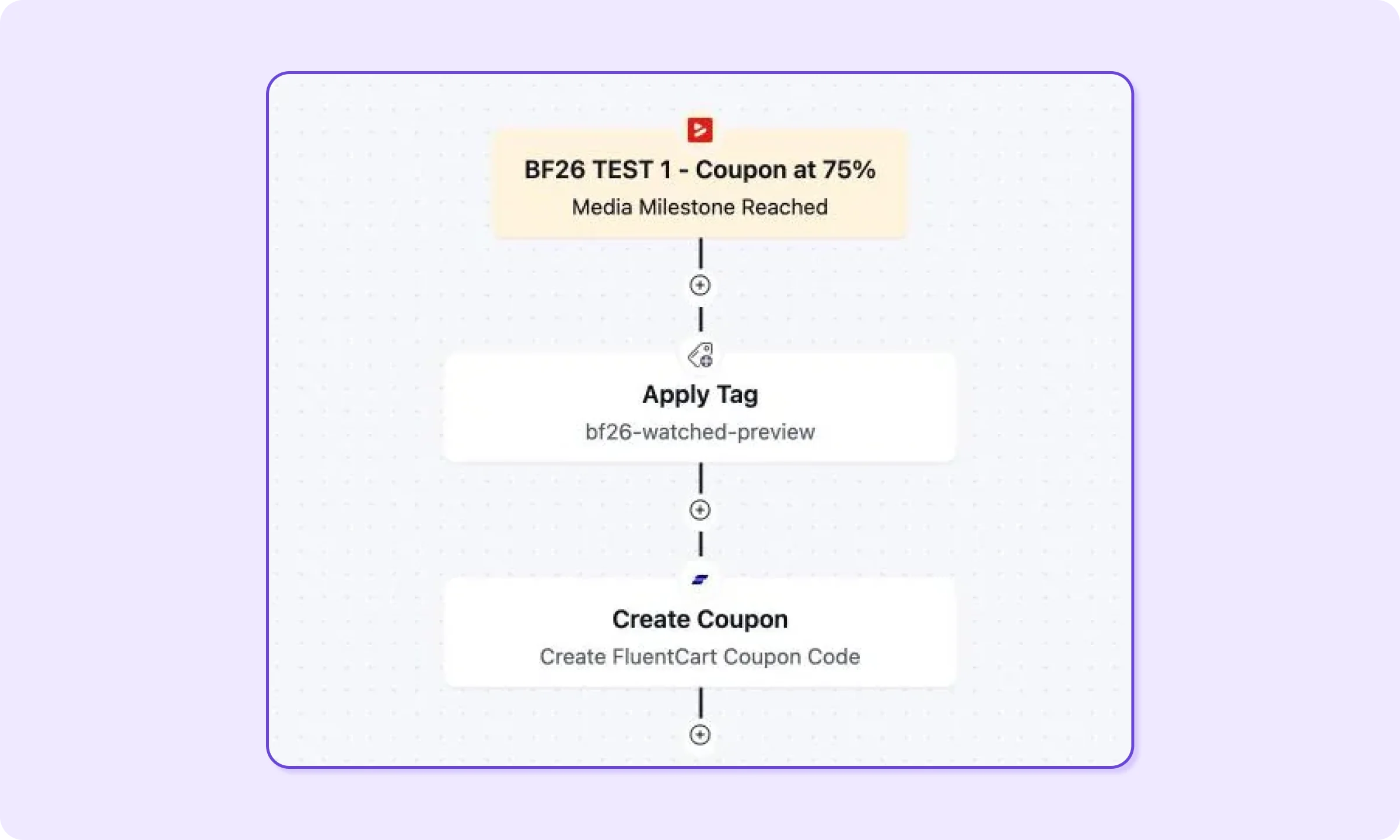
- Apply tag bf26-watched-preview
- Send an optional email saying their personal code arrives Friday morning
- Wait Until Date, November 27 at 08:00
- Create Coupon, configured from scratch
- Send Custom Email containing this step’s coupon smartcode
- Wait Until Date, November 30
- Send Custom Email saying the code expires December 1
- Goal: Tag Applied, bf26-buyer
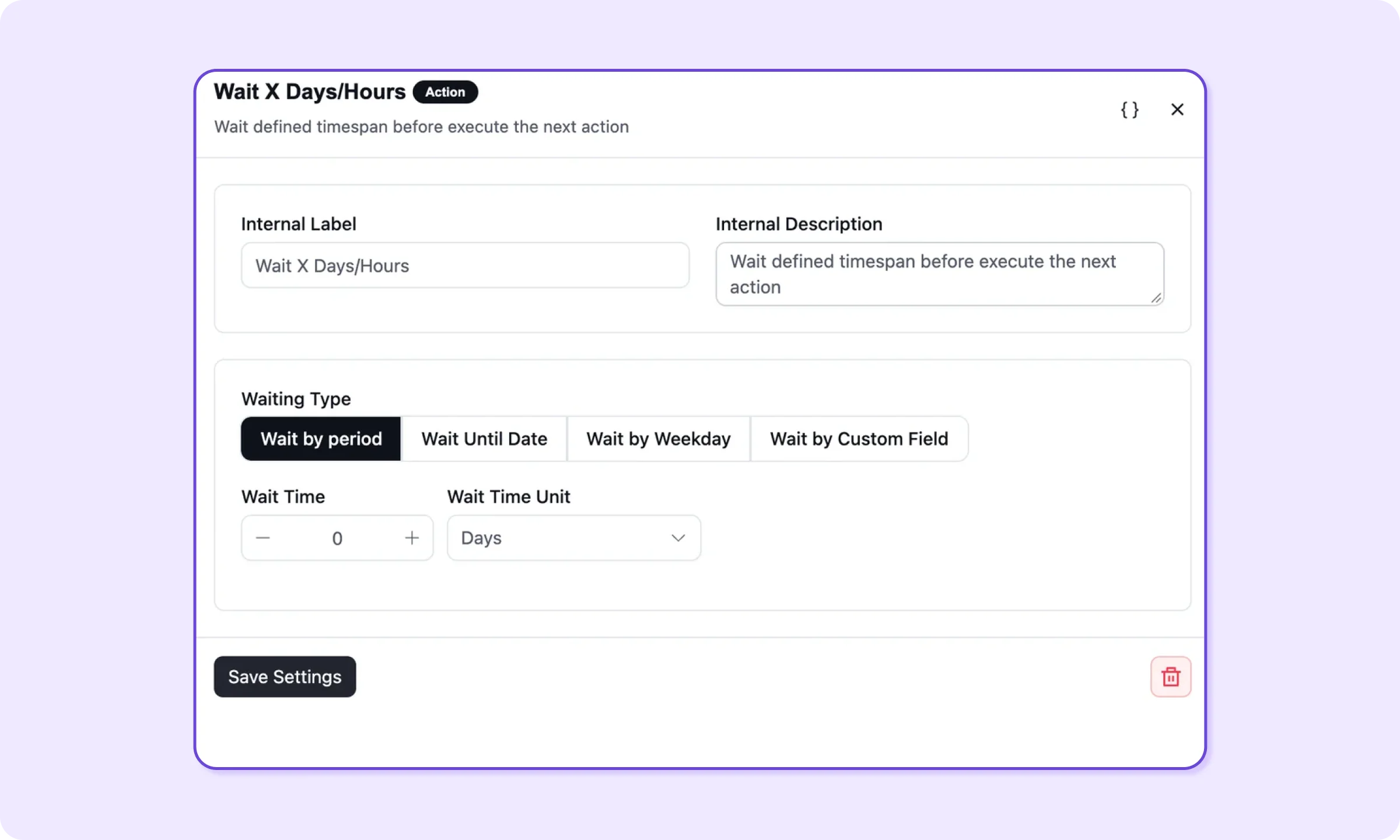
The Wait action has four waiting types. Pick Wait Until Date for steps 3 and 6, so every contact moves on at the same moment no matter when they watched.
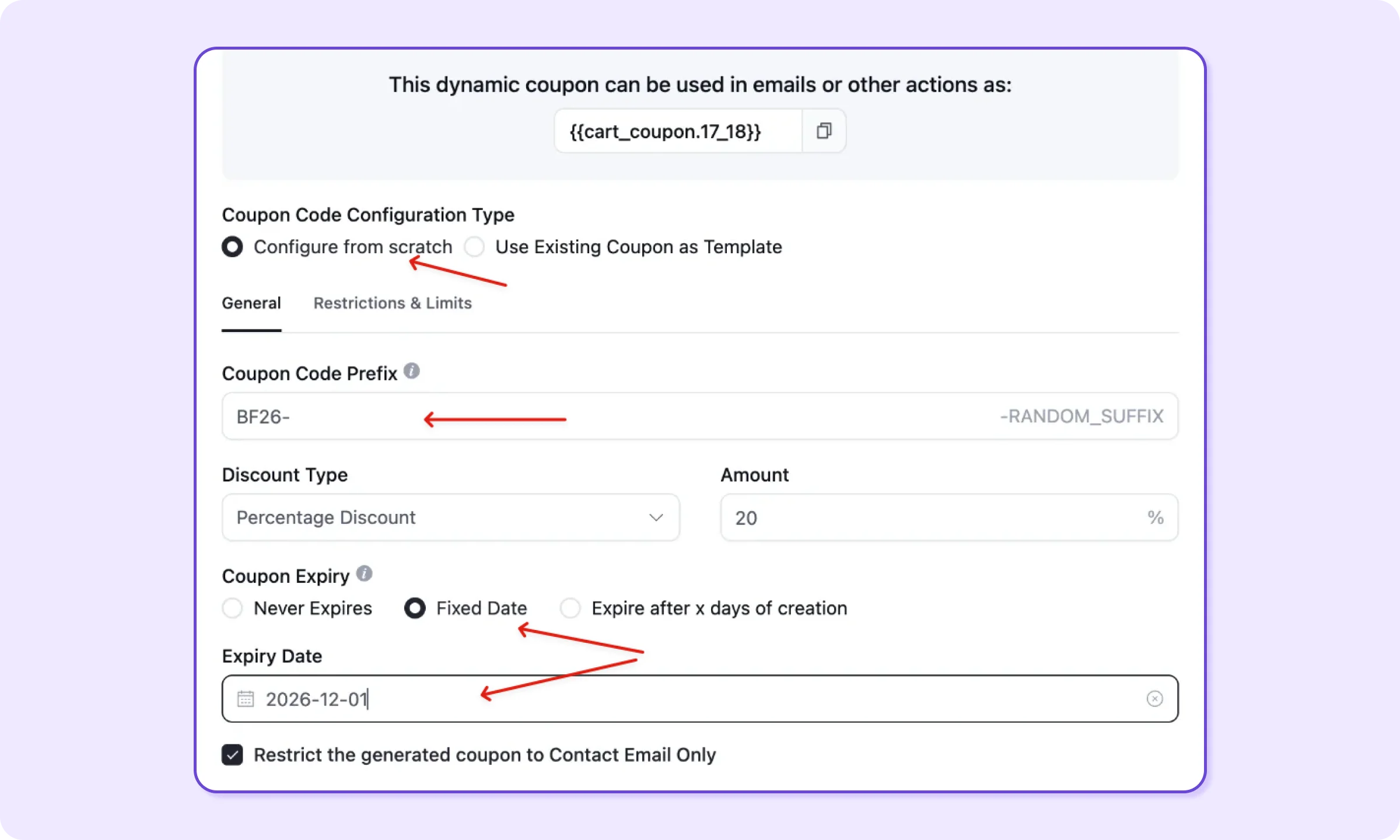
Creating the coupon on November 27, rather than at the milestone, keeps it unusable before Black Friday because it doesn’t exist yet. In the Create Coupon action, choose Configure from scratch and click Continue to reveal the coupon fields. FluentCRM’s guide to automated FluentCart coupons explains each one.
Fill in the General tab first:
- Coupon Code Prefix BF26-, which gets a random suffix for each contact
- Discount Type and Amount for your sale
- Coupon Expiry set to Fixed Date, December 1
- Restrict the generated coupon to Contact Email Only, ticked
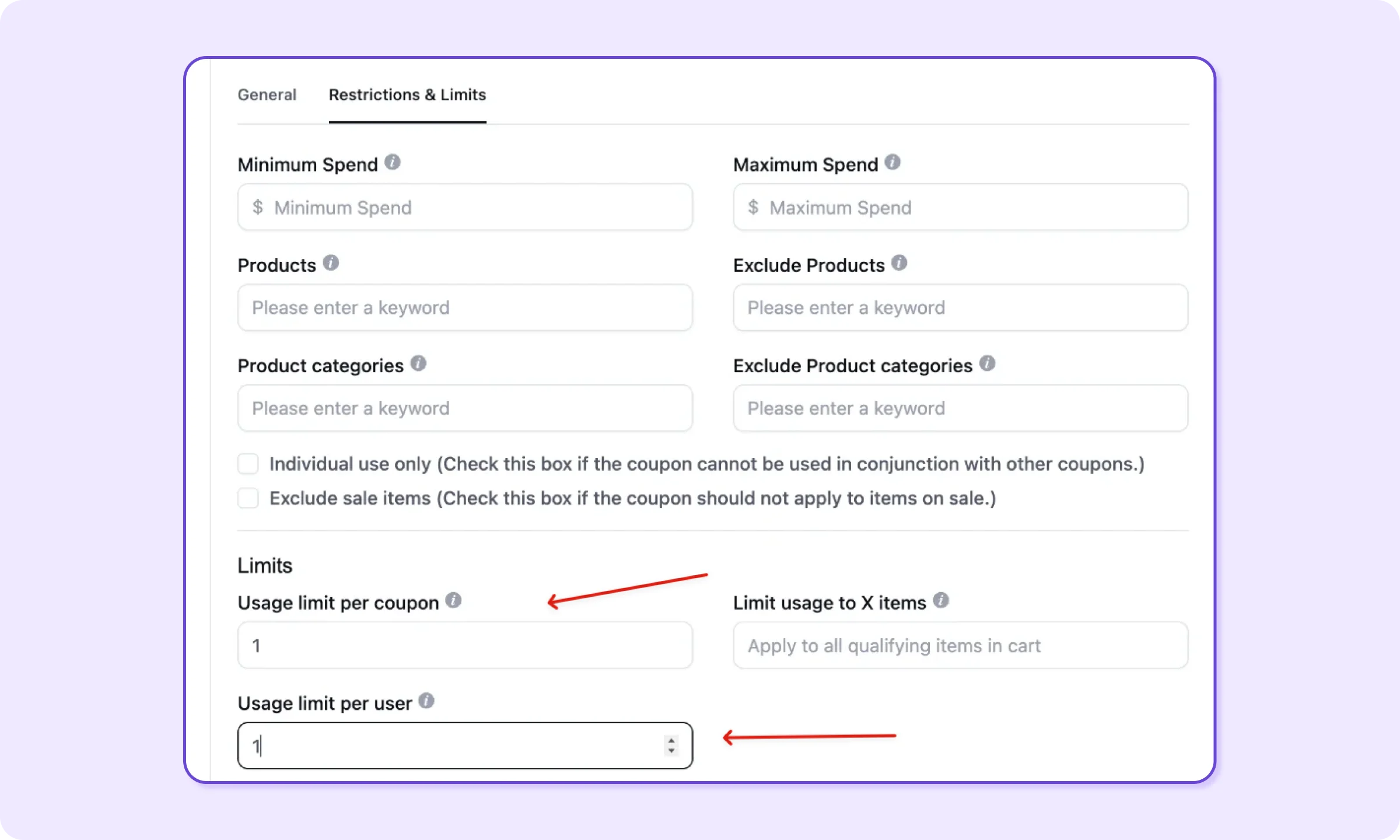
On the Restrictions & Limits tab, set Usage limit per coupon and Usage limit per user to 1, then add the three products from the preview under Products. Together with the email restriction, these settings keep each code private to one contact and one order.
The top of the panel shows the smartcode for this step, shaped like {{cart_coupon.17_18}}. Paste it into the email in step 5. If you already have a Black Friday coupon in FluentCart, choose Use Existing Coupon as Template instead, add a prefix, and its restrictions carry over.
The buyer goal goes last. When a contact reaches a goal early, FluentCRM moves them to it and continues from the next step. A buyer skips the expiry reminder as a result. Untick Contacts can enter directly to this sequence point on the goal, covered in automation 3.
Fails silently if: The viewer wasn’t identified when they reached 75%, Log playback is off, or the automation is still a draft.
2. Follow Up When a Viewer Completes the Early-Access Form
A Completed event on the early-access form means the viewer submitted it, so the follow-up should confirm the request and say when the deal arrives.
Create an automation with the Media Layer Interaction trigger. Target Layers lists each layer with its type and timestamp, so pick the form at 02:10, not the email capture layer at 00:05. Set Layer Event to Completed, which for a form layer means a submission.
Check If the viewer is not in your CRM yet before saving. On our test site, a new Media Layer Interaction automation opened with Create as pending selected, while the milestone trigger opened on Skip. Pick the option matching your consent setup rather than trusting the default.
Then add these actions:
- Apply tags bf26-completed-offer and bf26-exit
- Remove tag bf26-skipped-offer, in case they dismissed the form on an earlier visit
- Send Custom Email confirming the request and the date the early-access link arrives
The form’s FluentCRM feed in Fluent Forms tags each answer, such as the product the viewer picked. On sale day, send each product tag its own email broadcast with the matching link. A submission shows interest in one product, and it stops short of a commitment to buy.
Fails silently if: the trigger targets the email capture layer instead of the form, since both appear in the same list.
3. Remind Viewers Who Saw the Form and Moved On
A Seen event fires when the early-access form appears on a viewer’s screen, which makes it the right trigger for one reminder to people who didn’t act.
Seen confirms the form was shown, not whether the viewer read it. The reminder should restate the offer plainly, once, without treating the viewer as someone who turned it down. Build it in this order:
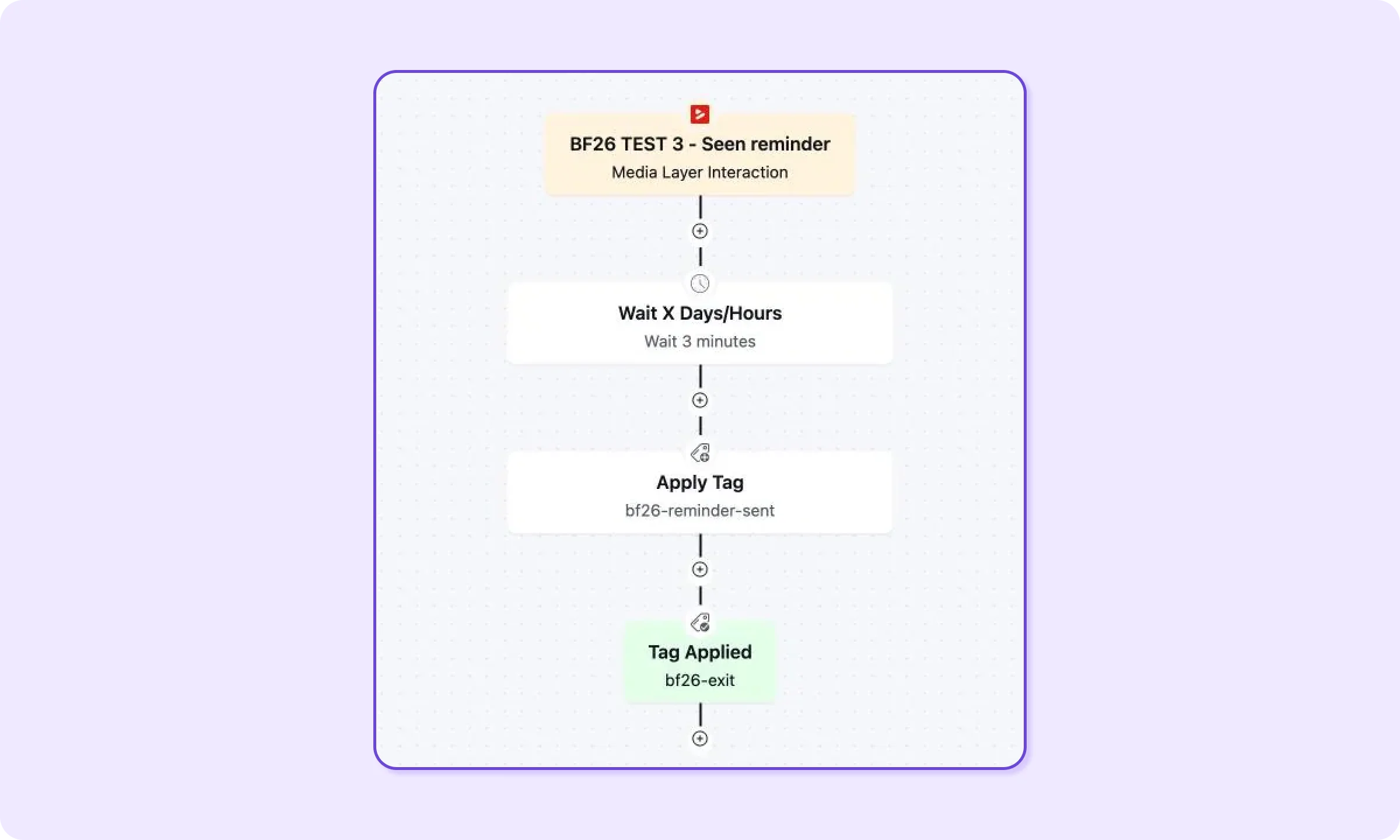
- Trigger: Media Layer Interaction, early-access form, Seen
- Wait 2 days
- Send Custom Email with the reminder
- Goal: Tag Applied, bf26-exit
Skipping the form also fires Seen, so everyone who dismisses it enters this automation too. Automations 2, 4, and 5 all apply bf26-exit. Anyone who submits, skips, or buys during the two-day wait reaches the goal early and never gets the reminder.
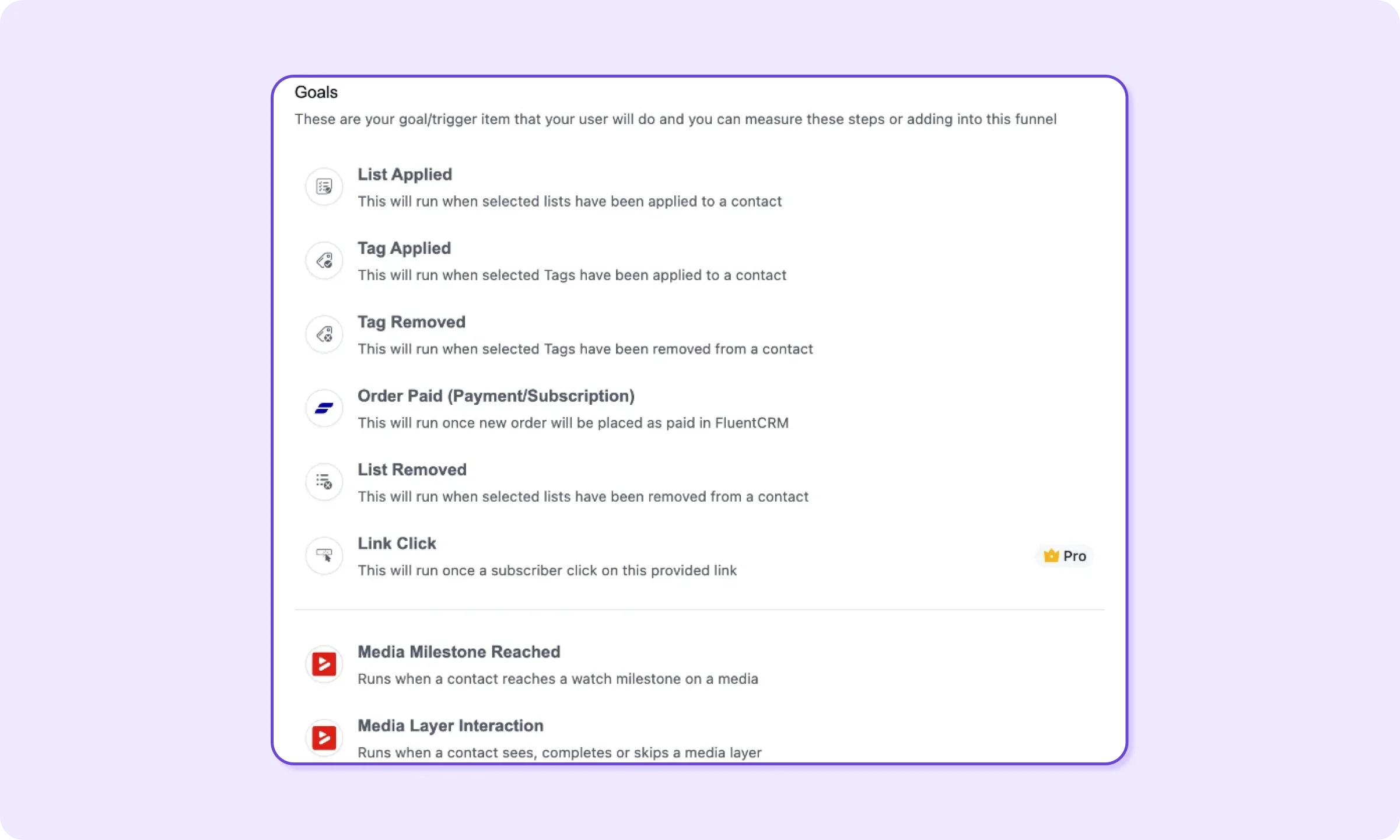
Add the goal from the Goals tab of the step picker. Tag Applied sits there with Order Paid and both Fluent Player events, so a video event or a purchase also works as an exit point.
Untick direct entry on every goal
The goal panel ends with Contacts can enter directly to this sequence point, and it comes ticked. Left on, any contact who gets bf26-exit enters this automation at the goal, even one who never saw the form, and runs whatever steps follow it.
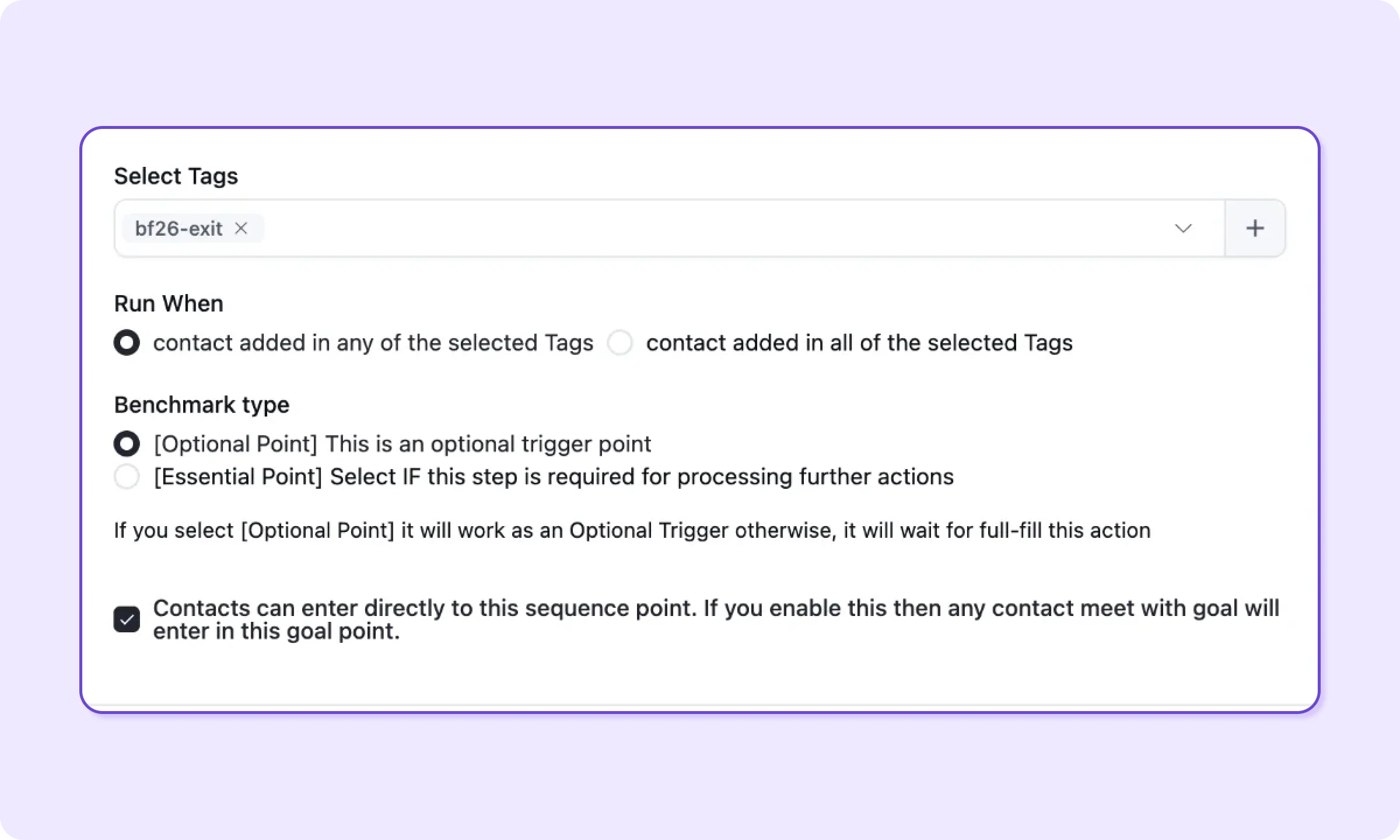
Untick it here and on the buyer goal in automation 1. With the box clear, the goal only moves contacts already inside the automation, and your reports count viewers rather than every buyer in the store.
Turn re-entry on when the form sits on several videos
By default, a contact enters this automation once. Say the form sits on four product videos and you target all four layers. The first video to fire enrolls the contact, and the other three are ignored. Tick Allow contacts to re-enter when another targeted layer fires this event to give each video its own reminder.
Fails silently if: the goal sits above the reminder, which sends the reminder to everyone who already acted.
4. Respect the Skip With a Different Message
A Skipped event means the viewer dismissed the form, and the useful response is to stop repeating the offer to them.
Use the Media Layer Interaction trigger again, target the same form, and set Layer Event to Skipped. Apply tags bf26-skipped-offer and bf26-exit. The second tag is what moves this contact past the reminder in automation 3.
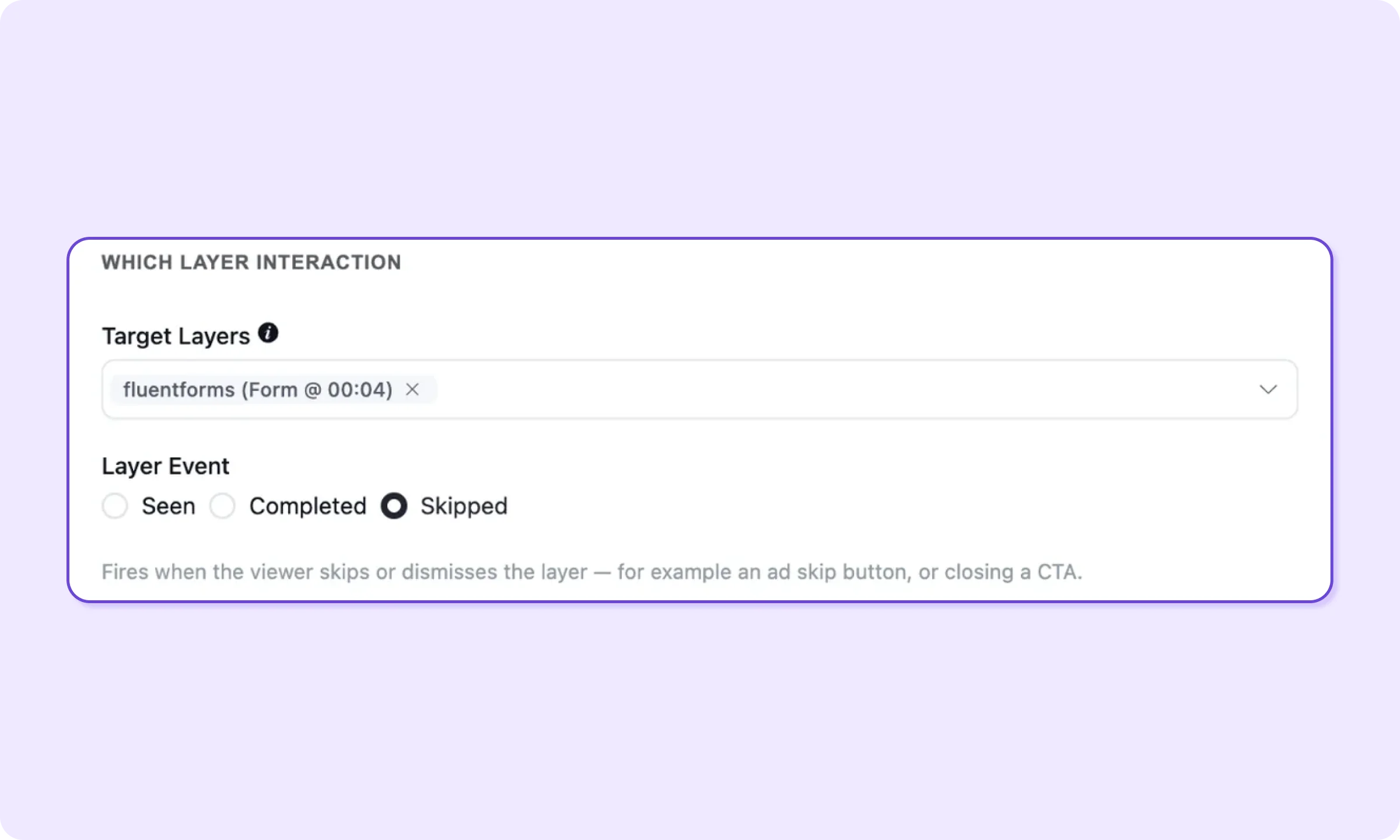
From there, pick one response. Exclude bf26-skipped-offer when you send the early-access broadcast, or send one email with a different angle, such as a cheaper product or a shorter demo. A skip says no to this form at this moment, which is different from saying no to your store.
Don’t merge Seen, Completed, and Skipped into one engaged tag. Each calls for a different message. Once they share a tag, you lose the difference between a viewer who asked for early access and one who closed the form.
5. Tag Buyers With FluentCart’s Order Paid Trigger
The Order Paid trigger tags every Black Friday buyer, and the tag pulls them out of the pending reminders in automations 1 and 3.
Choose Order Paid (Payment/Subscription) from FluentCart’s triggers. Under Conditions, add the three sale products to Target Products, or their category to Target Product Categories. Leaving both blank runs the automation for every purchase in your store.
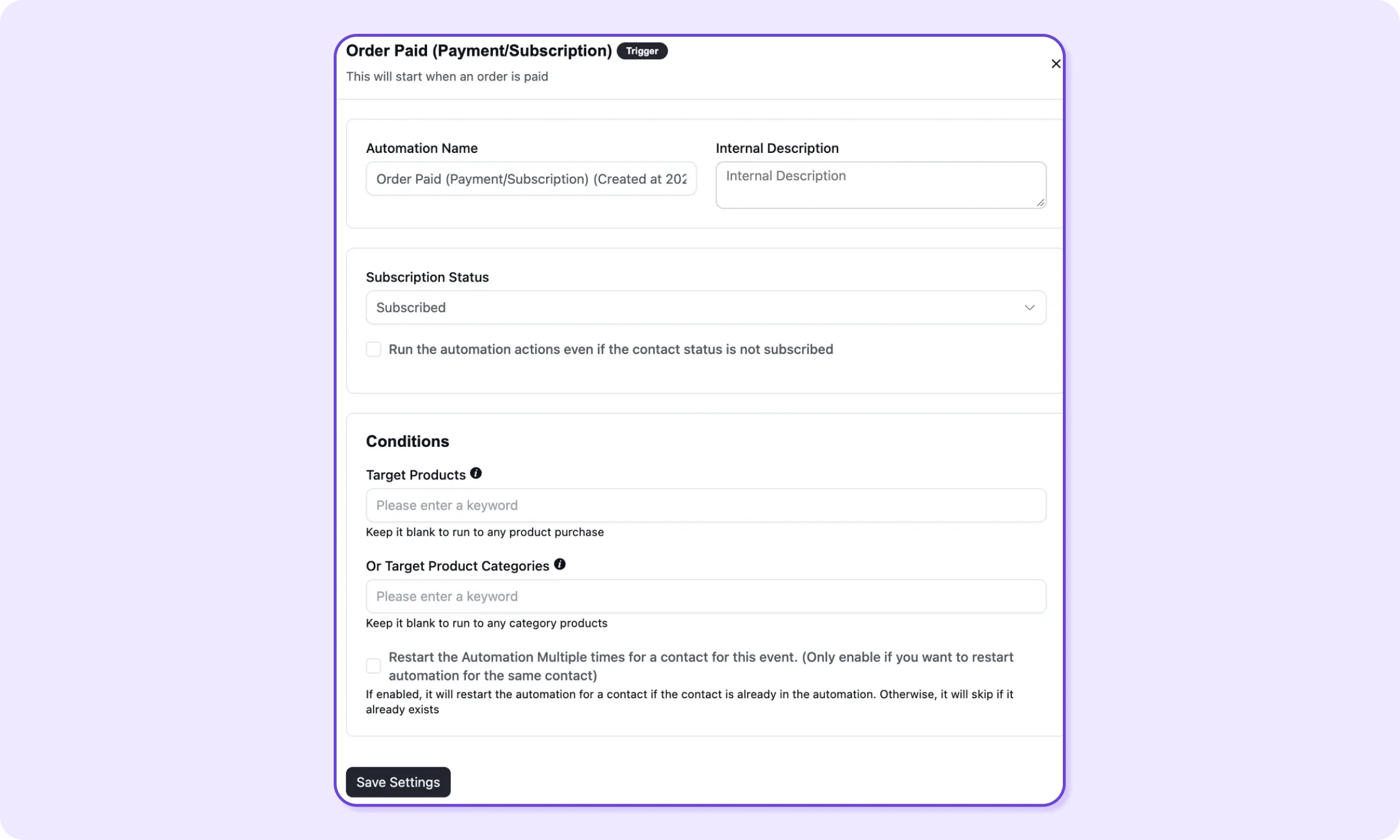
Tick Run the automation actions even if the contact status is not subscribed, because a buyer who never opted in to marketing still needs the buyer tag for their goals to fire. Leave Restart the Automation Multiple times unticked, since a second order doesn’t need a second tag.
Add one action: Apply tags bf26-buyer and bf26-exit. The buyer tag also gives you a ready segment for post-purchase onboarding once the sale ends.
Don’t add an email step to this automation. With the status box ticked, any email in it would reach contacts who never agreed to marketing, so keep it to tags.
How the Five Tags Work Together
Five tags carry the whole setup, and each one records a behavior rather than a judgment about the contact.
| Tag | Applied by | What it records | What happens next |
| bf26-watched-preview | Automation 1 | Reached 75% of the preview | Coupon on November 27 |
| bf26-completed-offer | Automation 2 | Submitted the early-access form | Confirmation, then the product deal |
| bf26-skipped-offer | Automation 4 | Dismissed the early-access form | Excluded or sent a different angle |
| bf26-buyer | Automation 5 | Paid for a sale product | Exits coupon reminders |
| bf26-exit | Automations 2, 4, 5 | Took any decisive action | Exits the Seen reminder |
Two hygiene rules keep the reports readable. A submission removes bf26-skipped-offer, so no contact holds both answers to the same form. Every tag starts with bf26, so next year’s setup uses bf27 and this year’s activity never leaks into the new run.
Seven Silent Failures in Black Friday Automations
Each of these settings fails without an error message, which is why all seven belong on your checklist before November 27.
| Setting | Where it lives | What breaks |
| Viewer identification | Where the video is placed | Anonymous viewers produce no events |
| Tracking switches | FluentPlayer’s FluentCRM settings and FluentCRM → Addons | No trigger fires and contact timelines stay empty |
| Milestone presets | Media Milestone Reached | Only five fixed points exist, and skipping ahead never counts |
| Re-entry and restart | Fluent Player triggers and Order Paid | Each contact enters once by default |
| Goal placement | Inside each automation | A goal skips the steps before it, never after |
| Goal direct entry | Each goal’s settings | Contacts who never triggered the automation enter at the goal |
| Order Paid status checkbox | Order Paid trigger | Unsubscribed buyers never get the buyer tag |
Re-entry is the setting most likely to be right in one automation and wrong in the next:
Right: Re-entry off on the coupon automation, so each contact enters once and receives one code.
Wrong: Re-entry off on a reminder targeting forms on four product videos, so the first video enrolls the contact and the other three send nothing.
Test Every Automation Before November 1
One run through each path, with a separate test contact for each, shows whether the tags, goals, and coupon behave the way this guide describes.
Duplicate automations 1 and 3 and swap their waits for Wait by period in Minutes, so results appear while you watch. Play the preview at normal speed during each test, because the milestone ignores skipping ahead. Then run these three cases:
- Skipper – As test contact A, log in, play past 2:10, and dismiss the form. Expect Seen and Skipped in Event Tracking, tags bf26-skipped-offer and bf26-exit, and no reminder after the wait.
- Submitter – As test contact B, submit the capture layer, submit the form, and watch past 75%. Expect three tags, a confirmation email, and a coupon in FluentCart → Coupons restricted to B’s email.
- Buyer – As test contact C, reach 75%, then place a test-mode order for a sale product. Expect bf26-buyer and bf26-exit, and no expiry reminder from automation 1.
Then check these edge cases:
- An anonymous visitor produces no events at all
- A rewatch logs each event once per contact per video
- A pending contact enters only after confirming double opt-in
- Every automation shows as Published, not Draft
- The coupon email shows a real code, not a blank smartcode
Measure Whether the Automations Worked
Measure each automation as a rate with a named numerator and denominator, because raw counts from a single sale say very little.
| Metric | Numerator | Denominator |
| Milestone rate | Contacts tagged bf26-watched-preview | Identified contacts with a Started event |
| Redemption rate | BF26- coupons used | BF26- coupons generated |
| Form completion rate | Completed events on the form | Seen events on the form |
| Skip rate | Skipped events on the form | Seen events on the form |
| Reminder recovery | Contacts reaching the exit goal after the reminder | Reminders sent |
One Black Friday is one run, and a small list makes every rate swing. Use this first run to find broken steps and rough baselines. Next year, change one variable, such as moving the coupon milestone from 75% to 50%, so the comparison means something.
Where FluentPlayer Pro Fits
Both Fluent Player triggers, the email capture layer, and the Fluent Forms layer used in this guide come with the free FluentPlayer plugin. The FluentCRM integration turns on by itself once both plugins are active, with no add-on to install.
The early-access form keeps the viewer inside the video. If you’d rather send them straight to the deal page from a button on the player, use the CTA Banner layer in FluentPlayer Pro. It fires the same Seen, Completed, and Skipped events, so automations 2 to 4 work with it unchanged.
Build the Coupon Automation First
The cost of a list-wide code shows up in December, when you sort the Black Friday orders and find part of the discount went to customers who buy every month anyway. A code tied to a watch milestone keeps that margin. Turn on the three tracking switches today, build the 75% coupon automation, and run one test contact through it before November 1. The other four can follow next week.
Frequently Asked Questions
Does FluentCRM send an email when someone watches a video?
Yes, when FluentPlayer runs on the same site. FluentCRM’s Media Milestone Reached trigger starts an automation when an identified contact reaches Started, 25%, 50%, 75%, or Completed on a chosen video. An email, tag, or coupon step follows it.
Why isn’t my FluentCRM automation triggering from video views?
Check five things in order. The viewer must be logged in or have submitted an in-video form. Log playback to contact timeline must be on, with the video under Which media. The Event Tracking Module must be enabled, and the automation published. Then check whether re-entry blocked a second run.
Do video-triggered automations work for anonymous visitors?
No. FluentPlayer attaches events only to logged-in users and contacts who have submitted an in-video form or email capture layer. Place the video behind a login, or add an email capture layer early so the viewer is identified before the milestone.
Does FluentCRM create a unique coupon for each contact?
Yes, with the FluentCart Create Coupon action, which needs FluentCart active. The code prefix gets a random suffix per contact, and Restrict the generated coupon to Contact Email Only stops anyone else from redeeming it.
Does skipping ahead in a video count toward a watch milestone?
No. The Media Milestone Reached trigger fires only when the chosen share of the video has been watched, and its settings state skipping ahead does not count. A viewer who drags the playhead to the end never reaches the milestone.